
Корзина
0 товары в корзине
Войти
Расширения AdBlock и Adblock Plus являются самыми популярными инструментами для блокирования рекламы. С выходом Windows 10 версии 1607, компания Microsoft наконец-то добавила поддержку этих расширений для браузера Microsoft Edge и теперь они доступны для всех пользователей Windows 10. Установить расширения AdBlock и Adblock Plus можно прямо из магазина приложений Windows Store.
Далее в статье показано как установить расширения AdBlock и Adblock Plus в браузере Microsoft Edge
Содержание
- Как установить AdBlock и Adblock Plus в Microsoft Edge
- Управление расширениями
- Настройки расширений AdBlock и Adblock Plus
- Блокировка рекламы в процессе веб-серфинга
Как установить AdBlock и Adblock Plus в Microsoft Edge
Для того чтобы установить расширения, откройте главное меню браузера Microsoft Edge и выберите раздел «Расширения».

В разделе «Расширения», нажмите на ссылку «Получить расширения из Магазина».

Далее откроется окно магазина Windows в категории «Расширения для Microsoft Edge».
Также Вы можете установить расширения открыв магазин Windows Store и выбрав в его окне раздел «Приложения», а в нем категорию «Расширения для Microsoft Edge».

Расширения AdBlock и Adblock Plus предлагаются для установки в числе первых. Зайдя на страницу любого из них, нажмите кнопку «Установить» и далее «Запустить».

В окне браузера Microsoft Edge в появившейся боковой панели будет предложено включить расширение или оставить его установленным, но не активным. Нажмите кнопку «Включить».

Управление расширениями
Для того чтобы отобразить значки расширений на панели инструментов, в главном меню браузера нажмите правой кнопкой мыши на значке расширения и в появившемся контекстном меню выберите пункт «Показывать рядом с адресной строкой».

При выборе пункта «Управление» того же контекстного меню, открывается боковая панель управления расширением, в которой Вы можете включить/отключить расширение или полностью его удалить из браузера, а также перейти к настройкам расширения нажав кнопку «Параметры».

Кнопка «Параметры» — это универсальный путь доступа к настройкам всех расширений. Но и AdBlock, и Adblock Plus предусматривают собственные ссылки в раздел их настроек. Эти ссылки — «Параметры» для AdBlock и «Настройки» для Adblock Plus — доступны при обычном нажатии на значок расширения левой кнопкой мыши.

Настройки расширений AdBlock и Adblock Plus
Настройки расширений AdBlock и Adblock Plus позволяют настроить общие параметры, списки фильтров, персональные фильтры.


Блокировка рекламы в процессе веб-серфинга
Некоторые функции AdBlock и Adblock Plus вынесены в боковую панель, которое появляется при нажатии на значок расширения левой кнопкой мыши. Adblock Plus в этой панели предусматривает только отключение расширения для каждого отдельного сайта, открытого в данный момент (спасибо, если отключите расширение на нашем сайте winnote.ru).

В боковой панели AdBlock предусмотренно немного больше функций. Здесь Вы можете приостановить работу расширения, вручную заблокировать рекламу, которая не заблокировалась автоматически, отключить полностью работу расширения на отдельной веб-странице или же на сайте целиком.

Все сайты, для которых в отдельном порядке была отключена работа AdBlock и Adblock Plus, автоматически попадают в их списки разрешенных сайтов. Это очень удобный способ формирования так называемого белого фильтра, в отличие от ручного вписывания доменов в соответствующие формы в настройках расширений.

Adblock Plus – free ad blocker extension for Edge
Recently Microsoft Edge is the most popular browser in the world. Also, Adblock Plus Extension For Microsoft Edge you can help quality browser using. Day by Day, increase user Microsoft Edge. This guide will help you to download Adblock Plus extension 3.16.1 on their website. Anyway, Adblock Plus is developed by eyeo GmbH. First, you must download their Edge browser then this guide will help to install on their browser through the extension.
In the event that you have wanted to download Adblock Plus – free ad blocker extension onto the latest version of Microsoft Edge, there is a simple and straightforward course of action. The following steps will enable you to download and install any extensions that you might want to use.
Table of Contents
Edgeaddons.com is the most popular Microsoft edge browser Adblock Plus – free ad blocker extension free download alternative website. On this website when you can download Extensions no need for any Registration. I think you have a better solution to this website. Adblock Plus is the Productivity category extension in the Microsoft Edge web store.
Anyway, You can understand how to download the free Adblock Plus extension 3.16.1 simply by visiting our website. There are no special technical skills required to save the files on your computer. So what are you waiting for? Go ahead!
Adblock Plus extension Features
Download Adblock Plus for Microsoft Edge from the world’s most popular ad-blocking extension, Adblock Plus. It’s free and open-source. Improve the quality of your online experience and get more control!
– Block annoying ads and pop-ups
– Block intrusive YouTube™ ads
– Improve page loading times
– Fight off harmful “malvertisement”
– Stop tracking and get more privacy
Adblock Plus for Microsoft Edge is the perfect way to experience the internet as it should be, with less interruption and more peace of mind.
Using Adblock Plus is easy: after installing, check the ABP icon to see how many ads you’ve blocked, or change your settings, or report an error.
Adblock Plus utilizes Acceptable Ads (AA) (www.acceptableads.com) by default, in order to support websites that rely on advertising revenue yet take into account the customer experience by creating non-intrusive ads. If you do not wish to see Acceptable Ads, this can be turned off at any time: https://adblockplus.org/acceptable-ads#optout.
How do I install the Adblock Plus extension?
First, open up your browser and click on the three lines at the top left of your screen. Next, select “More tools” then “extensions” then “get extensions” then choose an extension to use. Press “Add.” At this point, wait a few minutes. Finally, the Adblock Plus extension has been installed.
How do I uninstall the Adblock Plus extension?
To uninstall an extension, open up your browser, click on the three lines at the top left of your screen, select “more tools,”
then you can see your install extension. Now select and click uninstall button for your install extension. wait a few times, successfully remove your Adblock Plus extension.
In conclusion, the process for modifying our browser’s behavior to add the word count feature is unbelievably simple. In this regard, an extension not only solves a problem that we have but also adds a greater degree of functionality to the experience of using an Edge browser. If you have any problem with Adblock Plus Add-ons install feel free to comment below next replay to answer this question.
Author Details

Teresa Marks
Blogger
Hello! My name is Teresa Marks. I am an engineer and Blogger. I want to share my experience and important points that are needed when starting any Edge extension information
Technical Information
| Version: | 3.16.1 |
|---|---|
| File size: | 737 |
| Language: | English (United States) |
| Copyright: | eyeo GmbH |
Similar extension

It is not new for people that use Microsoft Edge to get flashes of advertisements. Sometimes these Ads can disturb and be irritating as they can pop up anytime and can also disrupt any operations you are currently carrying out on the system. Sometimes advertisers hide this advert and it may sometimes be difficult to block it but with Microsoft, Edge add-ons can act as an adblocker that can block any hidden ads. In this guide, I will be showing you how to enable Adblocker on Microsoft Edge. You can also know How to disable Ads in Windows 11, and why Samsung Agrees To Stop Ads on Preloaded Apps, you may also want to know how to Fix Google Chrome redirects: How to remove unwanted site redirects or pop-up from Google Chrome on Mac and Windows.
To install and enable the adblocker follow these steps:
1: Open Microsoft Edge and click the three dots at the top right corner and select the extension

2. Click Open Microsoft Edge Add-ons.

3. In the search box search for adblocker and you can select your choice from the list

4. Pick any of the Adblockers and click Get. Then click Add extension

5. Once it’s installed you will see it on the extensions menu.

6. Immediately you will start seeing the Adblocker blocking some unnecessary services and you can switch it OFF and ON.

7. Once you are ready to remove it from the extension click on the three dots and select Remove from Microsoft Edge

Here is a YouTube video of how o enable adblocker on Microsoft Edge.
I hope you found this blog post on Edge Addons: How to enable Adblocker on Microsoft Edge Interesting and helpful. In case you have any questions do not hesitate to ask in the comment section.
Adblock Plus Complete Download and Install Guide
Guide Made by Brittany David
So, What is Adblock Plus?
Adblock Plus is a Ad Blockers App for Windows 11, 10. You can download and install it on your PC and laptop by following the below detailed guide. These instructions are valid for both 64 bit and 32 bit versions.
How to Download Adblock Plus for Windows 11, 10?
- First of all, Click on the green Download button placed in the first part of this page.
- Scroll the opened page down till you find the Download Links box. This box contains all the available official download links for Adblock Plus.
- Now, choose your desired setup installer — online, offline, portable … itc — and click on its link.
- Final Step: the download will either start instantly, or you will be directed to the official publisher download page.
Download AdFender for Windows 11, 10
How to Install Adblock Plus on Windows 11, 10?
- After you have downloaded Adblock Plus setup installer, you can install it through these simple steps:
- Firstly, double right click by your mouse, touchpad or screen on the setup installer to start the installation. The Windows 11, 10 smart screen will appear asking for your confirmation. Click «Yes».
- Secondly, follow the installation instructions provided by the app and agree to its terms and coditions. Remember, most apps enable you to customize the installation, if you do not know what to choose, leave the default options.
- Thirdly and Finally, Wait for the installation to complete, then after you see the successful installation confirmation, Click Finish.
Install AdLock latest version
Install uBlock Origin latest version
How to Uninstall Adblock Plus from Windows 11, 10?
- Open Windows 11, 10 settings.
- Now, navigate to apps section.
- Apps list will appear, search for Adblock Plus.
- Click on it, then click uninstall.
- After that, Confirm
Is Adblock Plus Free?
Adblock Plus is a Freeware software. Downloading Adblock Plus is free from FilesWin.com
Is Adblock Plus Safe?
Yes, Adblock Plus is safe to download and install on Windows 11, 10.
Official Overview
Surf the web without annoying ads with the aid of Adblock Plus, the efficient web ad blocker. Blocks banners, pop-ups, tracking, malware and more. By default, nonintrusive ads aren’t blocked in order to support websites. It is free and open source!
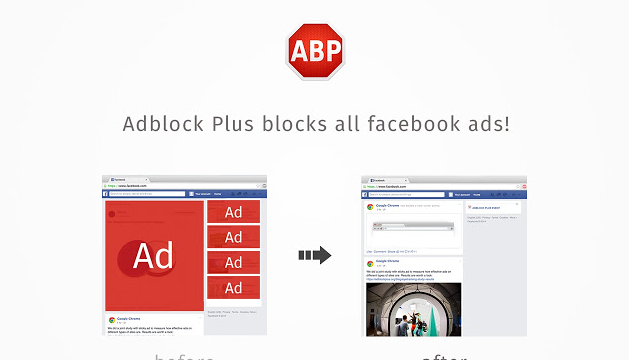
It blocks all annoying ads on the web by default, including video ads on YouTube, Facebook ads, flashy banners, pop-ups, pop-unders and much more. This is possible based on the filter list(s) you’ve selected.
Allow Acceptable Ads with the use of nonintrusive advertising rather than annoying, irrelevant ads.
Disable Tracking
With every browsing session, there are multiple firms tracking your online activity and browsing history. Hundreds of ad agencies are tracking your every move. With Adblock Plus, you can easily disable most tracking and browse the web more anonymously.
Disable Malware Domains
By default, Adblock Plus provides some malware protection, but it can extend this protection by being configured to also block domains known to spread malware. This helps protect your computer against viruses, Trojan horses, worms, adware and spyware.
Adblock Plus for Microsoft Edge
Adblock Plus for Microsoft Edge is still in early development stages and has known issues and limitations. While ads will be blocked of course, it is possible to experience undesired side effects on some websites. Microsoft and Adblock Plus are continuing to make improvements which you’ll see through automatic updates.
Available for
- Google Chrome
- Mozilla FireFox
- Microsoft Edge
Technical Details
- Main Category: Ad Blockers App Version: Latest versionUpdate Time Supported Windows OS: Windows 11, 10App License: FreewareCPU Support: 64 bit and 32 Bit Latest Page Update: 2023-09-27 Publisher: Adblock PlusPublisher Homepage: https://adblockplus.org/
Images & Videos
Disclaimer
FilesWin is a legal software review and download website. We are against piracy and do not provide any serials, keygens, patches or cracks for Adblock Plus or any software listed here.
We are DMCA-compliant and you can request removal of your software from our website through our contact page.