
When you dual-boot Linux with Windows, GRUB is automatically set as the default bootloader. Here’s how you can replace GRUB with Windows Boot Manager.
When you dual-boot a Linux distro alongside Windows, the installer sets up a bootloader, generally GRUB, to ensure there are no conflicts between the two operating systems during the boot-up processes.
While GRUB is a versatile and easy-to-use bootloader, you might want to switch to using the Windows Boot Manager as your default. Let’s learn how you can use Windows Boot Manager instead of GRUB.
An easy way to boot from Windows Boot Manager instead of GRUB is to simply head over to the UEFI settings of your motherboard and switch up the boot priority order.
Generally, during boot, you can press the F12 or Delete key to open up the UEFI control center. There you should find a specific setting where the boot hierarchy is laid out.
You should find GRUB on top, followed by Windows Boot Manager. Simply exchange their positions by dragging or any means necessary (it differs from one motherboard to another).
Once you’re done with switching their positions, simply save the changes and exit out of the UEFI settings panel. You should now be booting from Windows Boot Loader.
2. Add Linux to Windows Boot Manager Using EasyBCD
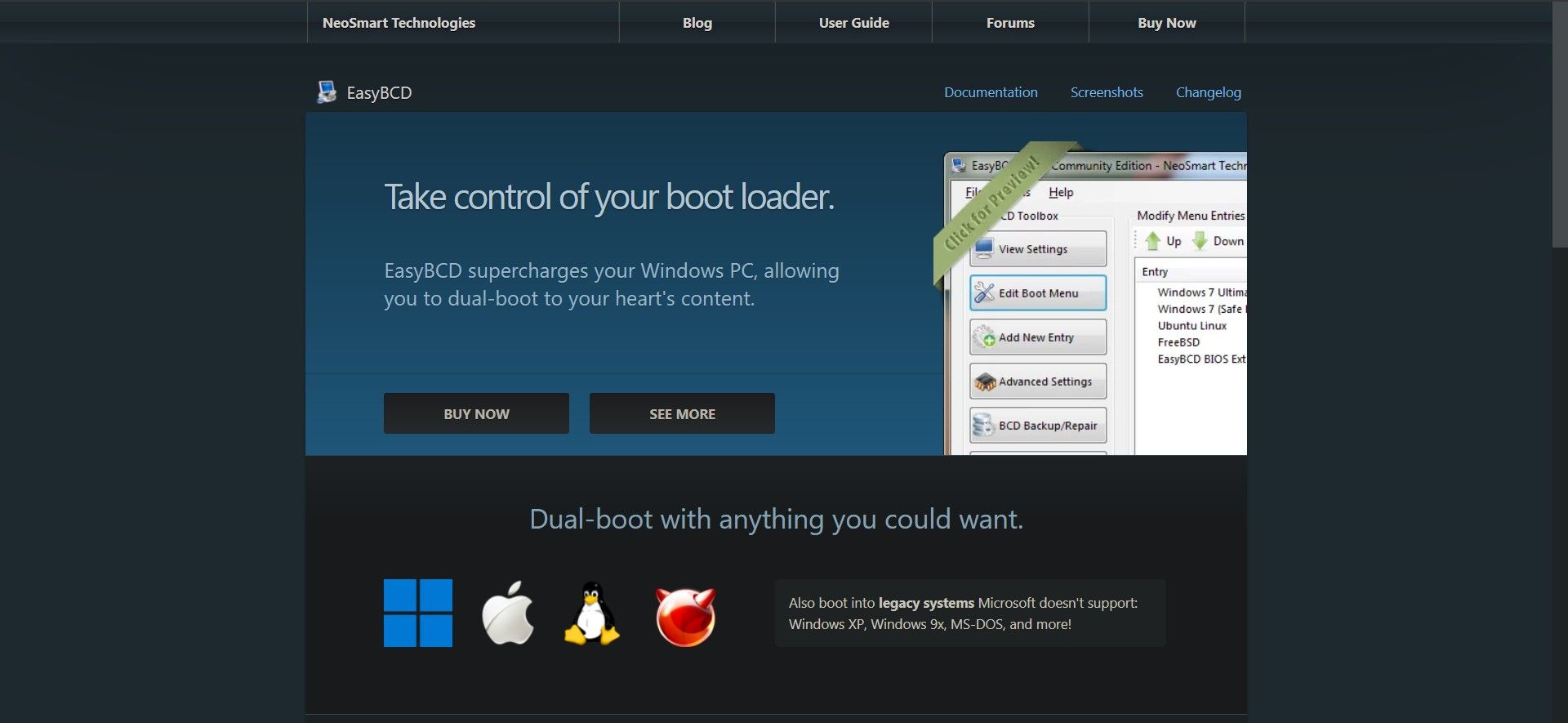
EasyBCD is a free software that helps you take control of your system’s boot process by allowing you to modify bootloader settings. It is a very potent and effective tool, so much so that we recommend using it as a last resort. You can accidentally end up corrupting your system’s boot process if you aren’t familiar with the technical side of things.
Download: EasyBCD (commercial edition available)
Here’s how to replace GRUB with Windows Boot Manager using EasyBCD:
- Fire up the EasyBCD application and click on the Add New Entry option.
- Next, select Linux from under the Operating System tab.
- Select GRUB2 in the Type field and type in the name of your Linux distro.
- Under the Drive tab, select the Linux partition i.e. the drive where your Linux system resides. Proceed with caution because selecting the wrong drive will lead to unsolicited data loss.
- Click on the Add (a plus sign) button to confirm your settings and add your Linux distro to the Windows Boot Manager.
Restart your PC, and you should find your Linux distro added to Windows Boot Manager. Now you should be able to boot into either of your installed OSes from there.
Now You Can Boot From Windows Boot Manager Instead of GRUB
Following the aforementioned steps should help you set up your dual-boot system to boot from Windows Boot Manager instead of the GRUB bootloader. While dual-booting has its advantages, it does bear some risks that can affect performance in the long run.
Довольно странно читать, как на вопрос про «ставить Линукс» отвечают примерно «а нафига тебе, ставь через виртуалку».
1. Линукс стоит на основном рабочем лаптопе уже 4 года. В заводскую Винду перезагружаюсь в среднем раз в месяц, чтоб открыть какой-нибудь cad-овский файл. Дистрибутив — Arch, обновляет пакеты постоянно, работает как хорошие часики. Иногда подключаю док-станцию и второй монитор. Нет, не ломался ни разу, драйверы в ручную не ковырял.
2. Не пользуюсь Грабом давно, просто потому что смысла нет. Записываю загрузчик или напрямую через efibootmgr, или же создаю отдельный загрузчик через bootctl (systemd-boot) и записываю там элементы загрузки. Основное отличие — меню выбора никогда не всплывает (все доступные ОС не высвечиваются), загружается всегда запись №1 из UEFI, очередность можно менять там же. Выбрать одноразово можно при загрузке через специальное меню UEFI, которая всплыват по нажатию одной из F кнопок (зависит от производителья МП) примерно в том же промежутке загрузки, когда еще можно открыть основное меню UEFI/BIOS.

Running Windows 10 and Linux on the same computer is easier than ever. Here’s how to do it.
A computer that boots both Windows 10 and Linux can easily be the best of both worlds. Having easy access to either of the operating systems lets you enjoy the benefits of both. You can hone your Linux skills and enjoy the free software only available for Linux platforms. Or, you can switch back to Windows 10 to use apps like Photoshop, AutoCAD or Microsoft Office. The beauty of dual booting is that it lets each operating system take full advantage of the hardware resources of your computer. While virtual machines and the Windows Subsystem for Linux can give you a taste of the Linux experience, dual booting lets you tap its full potential.
The good news is that Windows 10 and Linux live in harmony better than ever these days. Dual booting Windows 10 and Linux used to be a precarious process that could wreck your Windows installation, your Linux installation or both. While the process isn’t quite a smooth as dual booting macOS and Windows with Boot Camp, it comes close. In this article, we’ll show you how to safely install Windows 10 and Linux on the same hard drive. It doesn’t matter if you’re starting with Linux or starting with Windows—dual booting is easy to set up either way.
Dual Boot Linux with Windows 10 – Linux Installed First
Let’s start with the (slightly) harder way first; you already have a copy Linux installed and you want to install Windows on a partition. The first step is to create the partition where Windows 10 will be installed. We have covered how to create partitions in Linux, so, start by reviewing our article on how to do that.
Once you have your partition set up, you will need to purchase Windows 10, download the ISO file then create a bootable copy. Creating a bootable copy of Windows 10 on Linux can be done using the free Unetbootin (USB thumb drive) or Brasero software if you are installing from a DVD.
Create Bootable Windows 10 Install Media Using Unetbootin
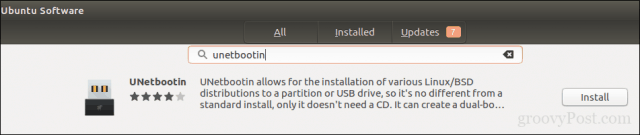
Unetbootin can be downloaded from the Software Center in Ubuntu. Once you have it up and running, launch it. Make sure you are using a thumb drive with at least 8 GBs of free space.
Select the Disk Image radio box, click the browse button (represented by an ellipsis …), browse to the ISO file then click Open. Chose the medium from the Type list box—in this case, your USB drive. Click on the drive list box then select your USB thumb drive.
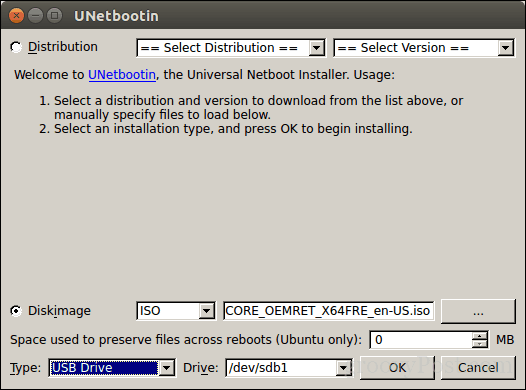
Note: If you are not offered the option to select your thumb drive, you need to format it using the FAT32 file system. Open the file manager, right-click the thumb drive then click Format.
Click OK, then wait while the bootable copy is created.
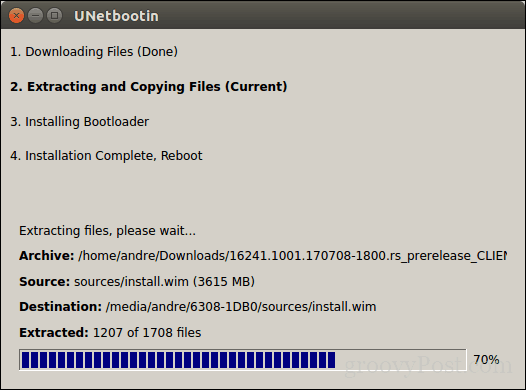
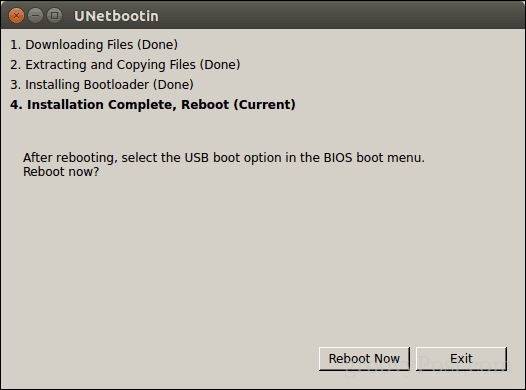
When complete, click Exit.
Create Bootable Windows 10 Install Media Using Brasero
If you already made a bootable USB with Unetbootin, you can skip this part. If you are still using an old school system with a DVD drive, you can use the Brasero DVD Burning software, which you can download from the Software Center also. Please keep in mind, Windows 10 ISO files are getting larger beyond the standard 4.7 GB DVDs. So, in some cases, it’s best you use 8.5 GB dual-layer DVDs if supported by your drive. If you can’t, then it’s best you use a USB thumb drive.
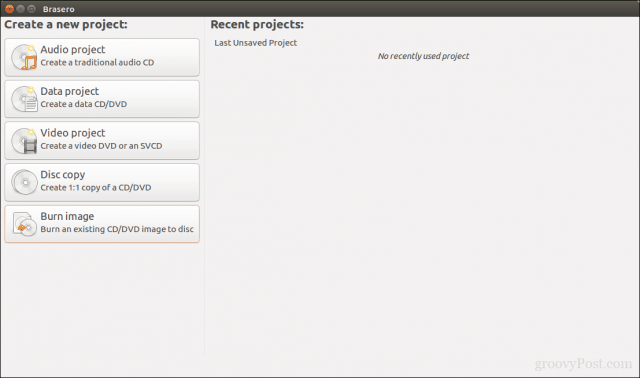
In Brasero, click Burn Image.
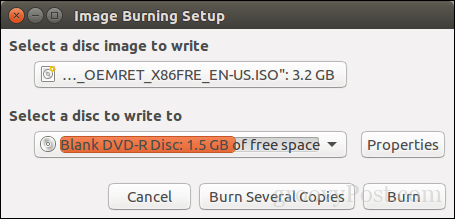
Select your disc image, make sure a blank DVD disc is inserted then click Burn.
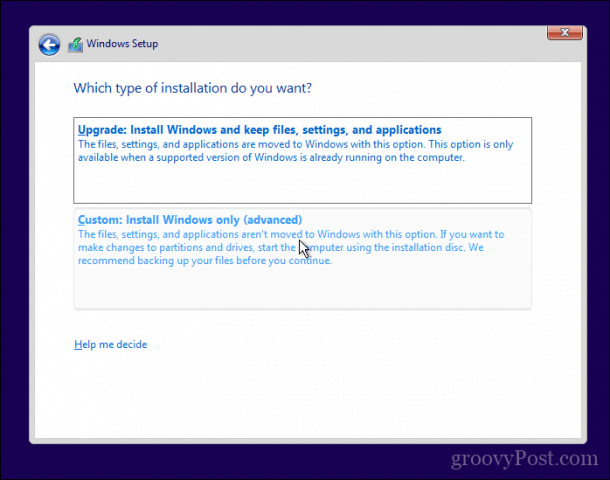
After preparing your install media, insert it or connect it. Reboot your computer, then configure your BIOS to boot from the drive. Windows 10 will boot into setup as it normally does. After you arrive at the setup screen, click Custom: Install Windows only (advanced).
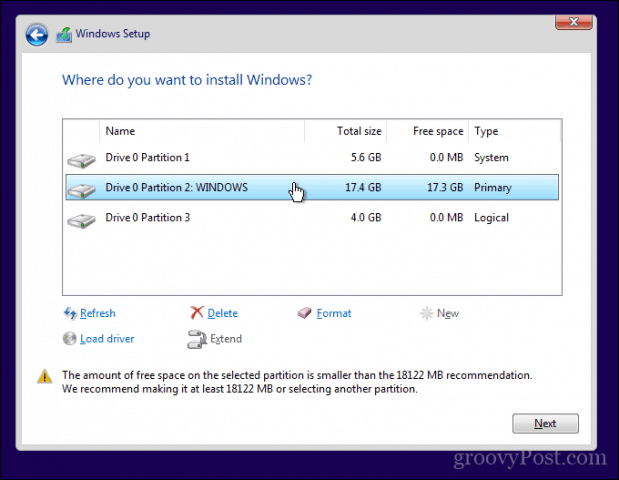
Make sure you select the right partition; don’t wipe out your Linux installation. Click Next then wait while Windows 10 Setup copies files to the drive. Your computer will be rebooted several times.
When setup is complete, follow the instructions to complete the out of box experience.
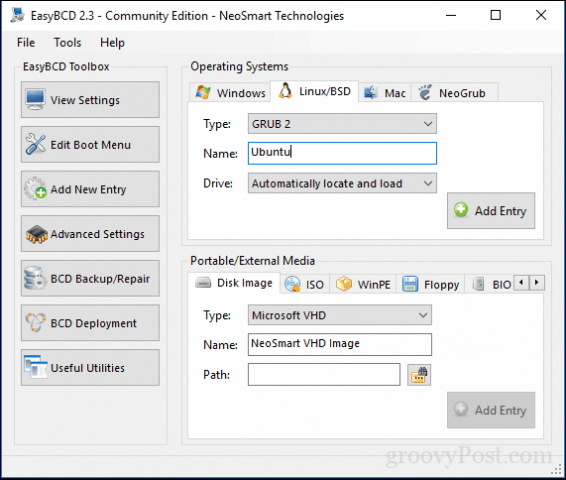
After that’s complete, you might notice the obvious—there is no way to boot into Linux anymore. Here is how you fix that. Download a free utility called EasyBCD from Neosmart Technologies. Proceed to install EasyBCD then launch it. Select the Linux/BSD tab. Click in the type list box, select Ubuntu; enter the name of the Linux distribution, choose automatically locate and load then click Add Entry. Reboot your computer.
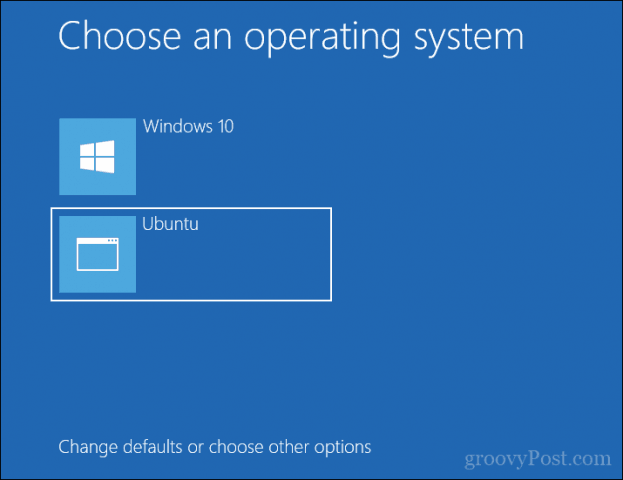
You will now see a boot entry for Linux on the Windows graphical boot manager.
Dual Boot Linux with Windows 10 – Windows Installed First
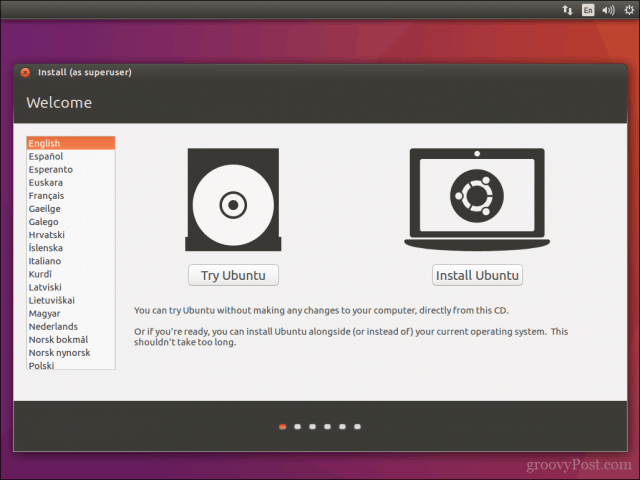
For many users, Windows 10 installed first will be the likely configuration. In fact, this is the ideal way to dual boot Windows and Linux. Again, I will be using the Ubuntu Linux distribution. You can download the Ubuntu Linux ISO image from Canonical’s web page then create a bootable copy using Unetbootin for Windows or burn to a blank DVD using disc image in Windows 10.
After creating your install media, configure your BIOS to boot from it. Ubuntu’s installation wizard intelligently detects existing Windows installations. It will ask you if you would like to install Ubuntu alongside Windows.
At the Ubuntu install screen, click Install Ubuntu.
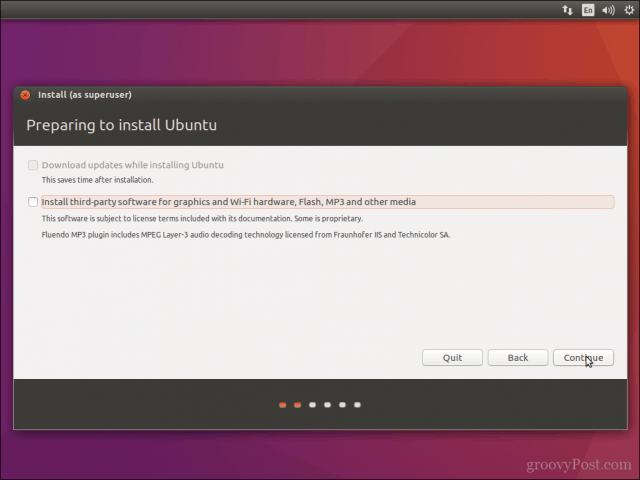
Choose whether you want to download and install updates and third-party drivers and codecs then click Continue.
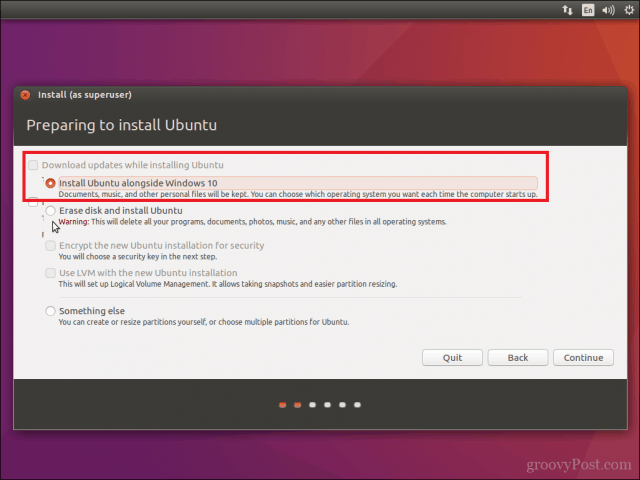
Select the option Install Ubuntu alongside Windows 10 then click Continue.
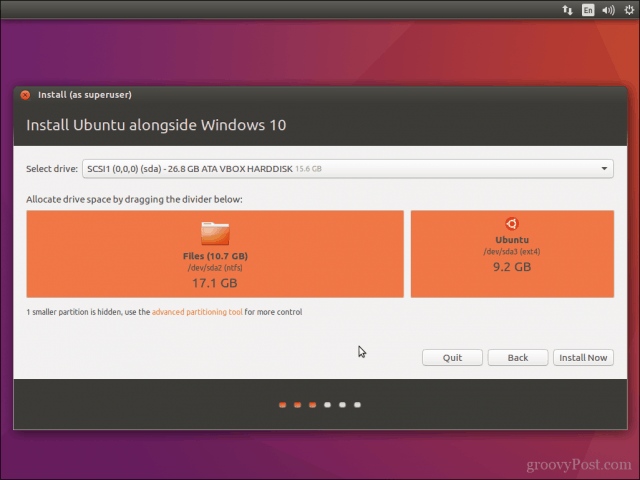
Ubuntu’s installer will set a default allocation of space for the installation. If you have enough space, you can resize the partition by placing your mouse between the divider then drag it left or right to make adjustments. Once you are satisfied with the allocated amount for your Ubuntu installation, click Install Now.
Click Continue to confirm changes.
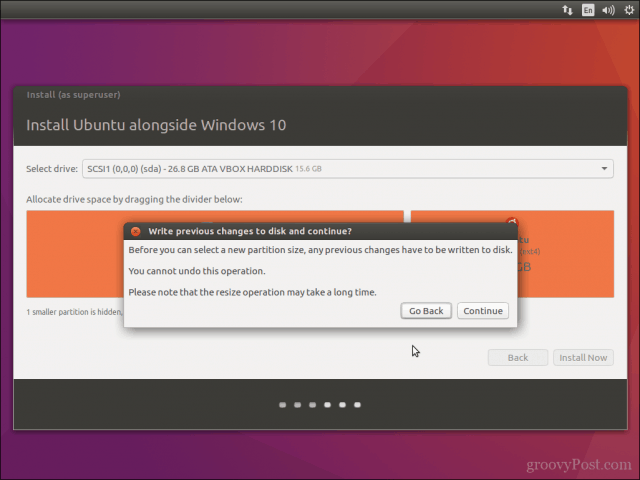
Click Continue again.
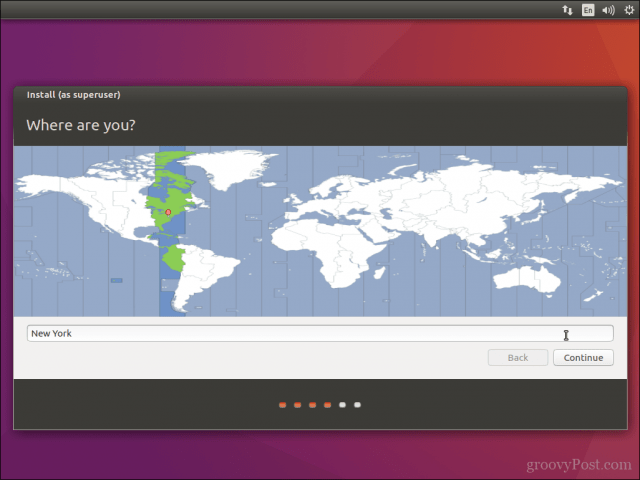
Enter your time zone then click Continue.
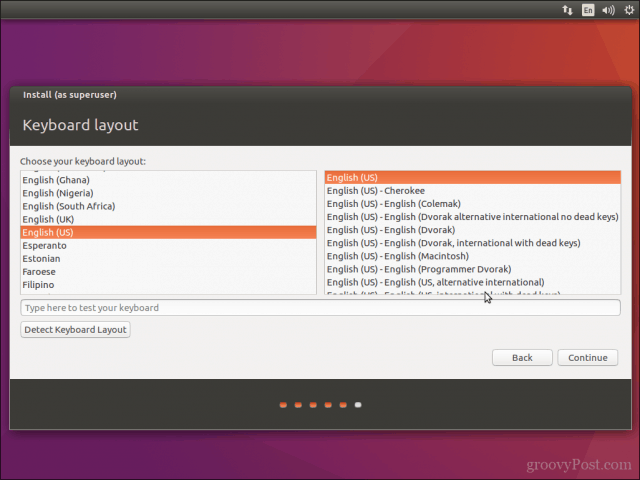
Select your keyboard layout, click Continue.
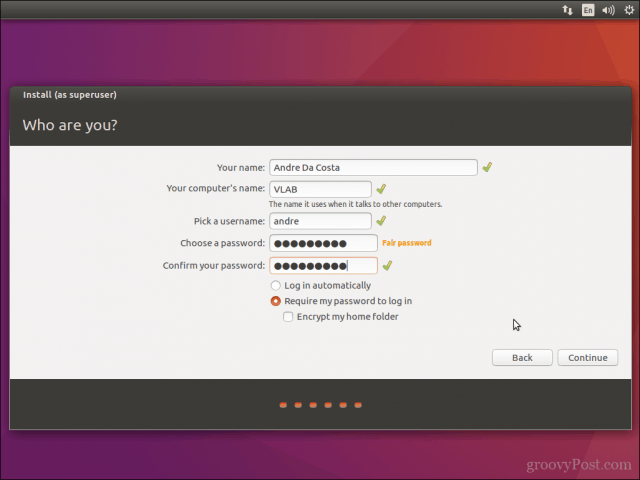
Create your user account by providing your full name, computer name, login name, and password. Choose whether you want to log in automatically or be prompted for a password. You can also encrypt your home folder for extra security. Click Continue.
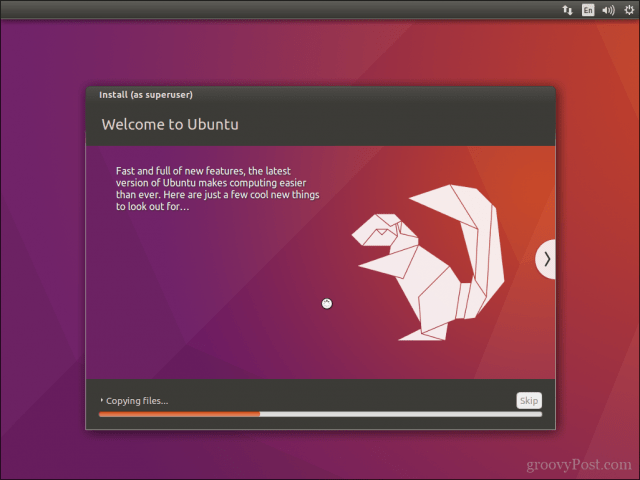
Wait while Ubuntu copies files.
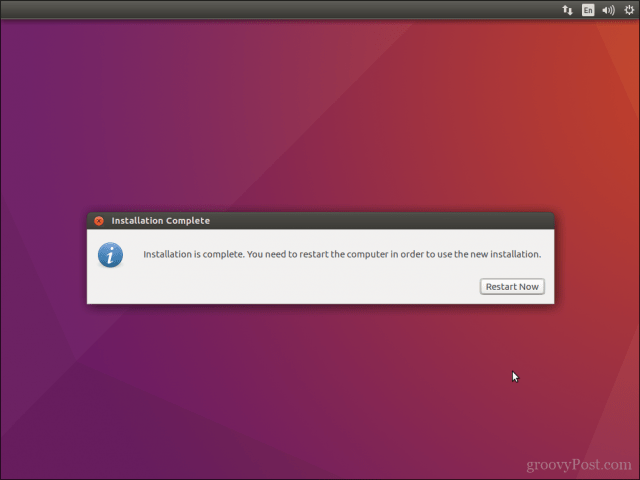
When complete, click Restart Now.
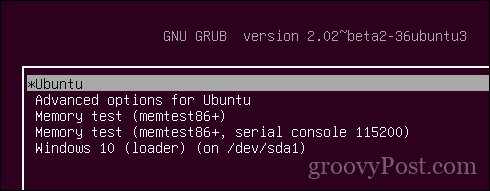
Ubuntu will add a boot entry for Windows 10 to the GRUB boot manager, which you can select using the up or down arrow then hitting Enter.
That’s it, Windows 10 and Ubuntu is now set up on your computer.
Let us know what you think. If you have done this before, share some of your tips with us. By the way, what’s your favorite distro?

When the Linux distribution is installed on the computer along with the Windows, the Grub bootloader is set as the default for booting the operating system on the computer. It allows you to select the operating system which you want to boot on the computer in the first 30 seconds else it will boot the default set operating system.
To add Linux to the bootloader of Windows, we can follow two approaches discussed in this blog.
- Using the EasyBCD
- Changing the Boot Priority Order in UEFI Menu
Let’s get into the first method.
Method 1: How to Add Linux to Windows 10 Bootloader Using EasyBCD?
EasyBCD is the software that can be installed on Windows 7, Windows 8, Windows 10, and Windows 11 to manage the computer’s bootloader. The EasyBCD comes in two different variants:
- Non-Commercial: limited features, and can be downloaded on the computer without paying a single penny.
- Commercial: Advanced features and charges us $ 39 (at the time of writing this blog).
You can easily download the version of the EasyBCD according to your convenience from the link mentioned. After downloading the “exe” file of the EasyBCD, you can run it to install the EasyBCD.
When EasyBCD is installed, launch the application. You will see the screen:
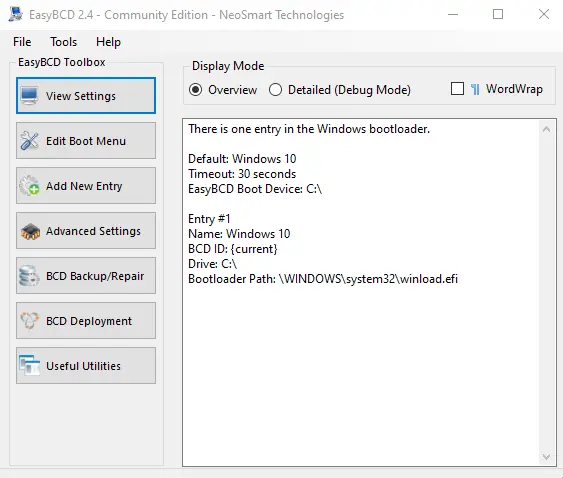
Now, to add Linux to Windows 10 Bootloader, you have to click the “Add New Entry” in the EasyBCD options:
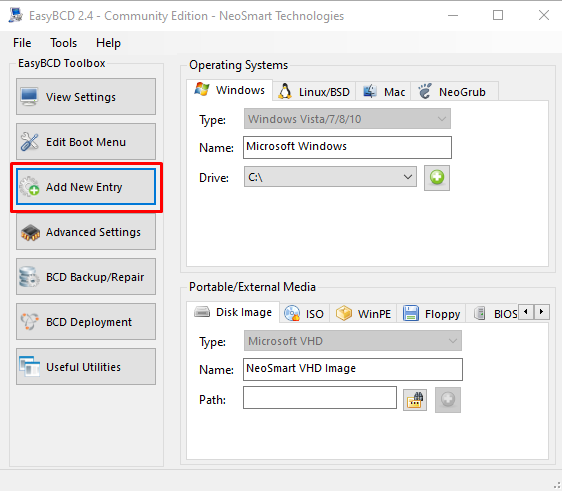
Under the “Operating System”, choose “Linux/BSD” and fill in all the details below. Then, in the “Portable/External Media”, choose the location where the Linux Distribution has been downloaded. And close the EasyBCD to save the settings and then restart the machine; the following interface will be displayed on the screen:
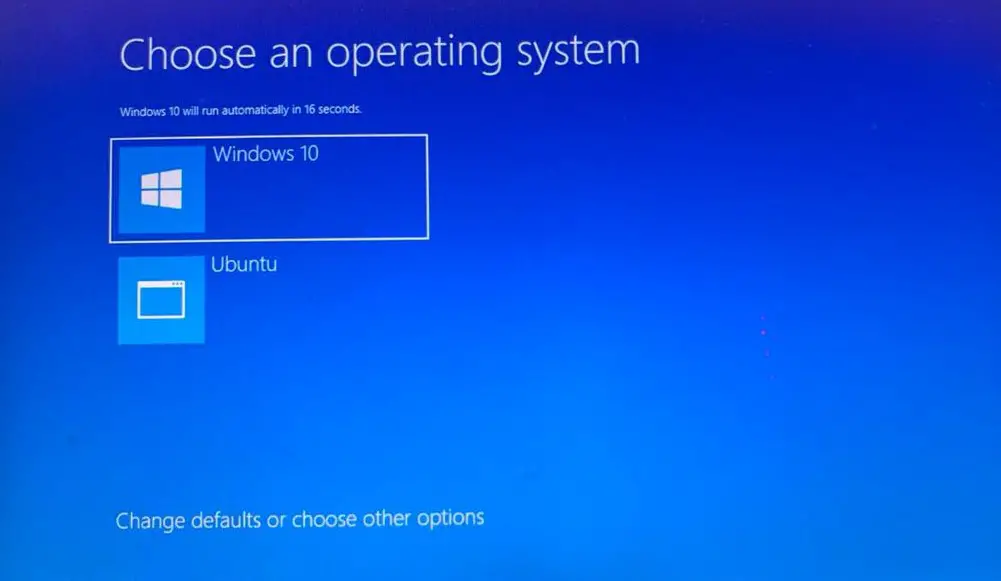
Note: These options will be available on the “Commercial” version of the EasyBCD.
How to Change the Boot Priority Order in UEFI Menu?
Another option to add Linux to Windows 10 bootloader is changing the priority order in the UEFI menu. Open the UEFI menu after restarting the computer and pressing the F2 key from the keyboard. The common keys to open the UEFI menu in different manufactured laptops are Esc, Delete, F1, F2, F10, F11, or F12. The following interface will appear on the screen:
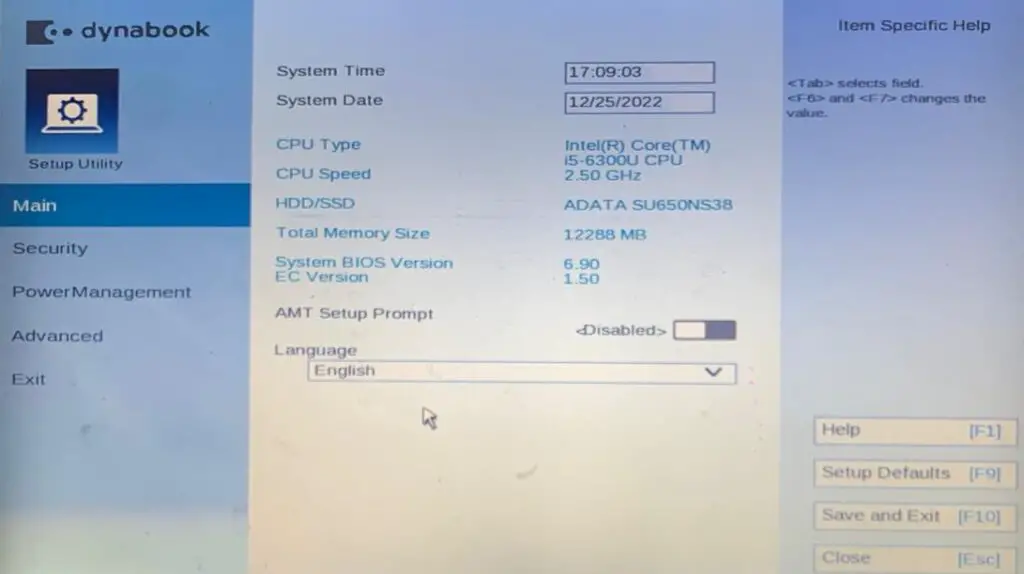
Click on the “Advanced” option from the left menu of the screen and then click on the “Change Boot Order”:
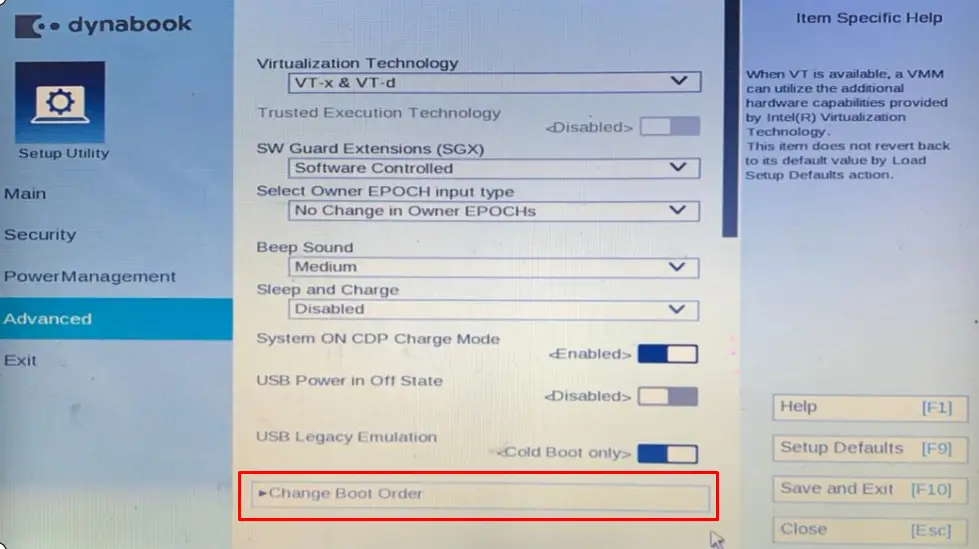
Then, set the boot priority order using the “Move Up” and “Move Down” options:
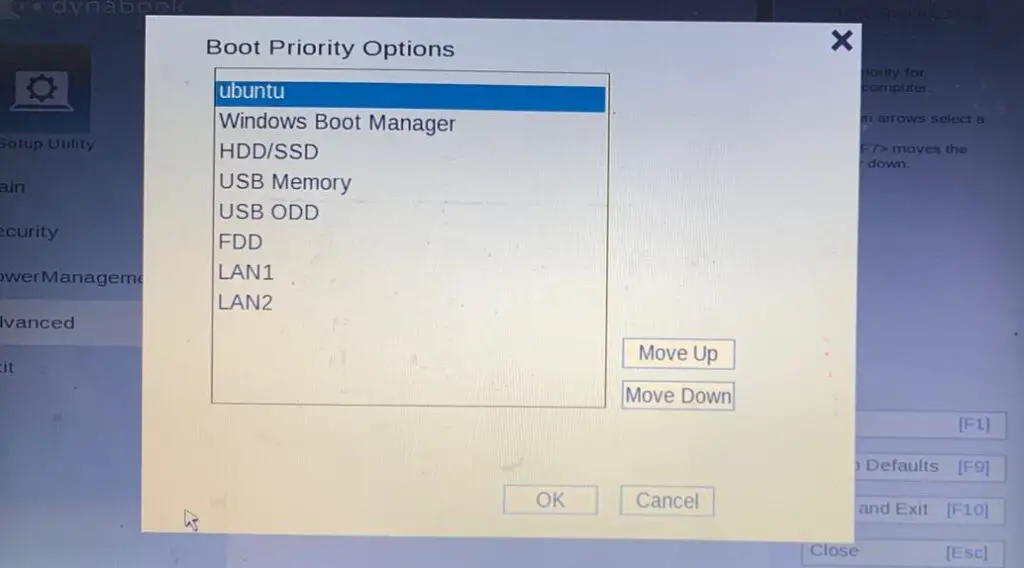
And then, click on the “OK” button to save the priority order and close the UEFI menu by saving the changes with the F10 key. Restart the computer, and Ubuntu will be booted by default.
That’s how Linux has been added to the Windows 10 bootloader.
Conclusion
To add Linux to Windows 10 Bootloader, install the “Commercial” version of the EasyBCD or change the boot priority order of the UEFI menu. In this blog, both the mentioned methods have been explained in detail. You should use the Grub bootloader on the dual boot as it is easy and reliable. Else you can also use the methods explained in this blog.
Can you Add Linux to Windows Boot Manager?
Select the Linux/ BSD tab. Click in the type list box, select Ubuntu; enter the name of the Linux distribution, choose automatically locate and load then click Add Entry. Reboot your computer. You will now see a boot entry for Linux on the Windows graphical boot manager .
How do I Add Boot Manager to Windows 10 BIOS?
Power up the system, Press F2 while booting to enter the BIOS Setup mode.
Under Settings General, Select the Boot Sequence.
Select Add Boot option .
Provide a name for the Boot option.
Can Windows Bootloader Boot Linux?
As noted by many people, Windows 8’s UEFI requirements might will won’t get in the way of installing Linux (or whatever), as the replacement bootloader will also need to be signed somehow.
How do I Add Entries to Windows Boot Manager?
Adding a new boot entry
In Windows, you use BCDEdit to modify your boot options . To add a new boot entry, open a Command Prompt window with elevated privileges select and hold or rightclick Command Prompt and select Run as administrator from the shortcut menu.
How to Dual Boot Windows 10 and Linux Starting with …
Select the Linux/BSD tab. Click in the type list box, select Ubuntu; enter the name of the Linux distribution, choose automatically locate and load then click Add Entry. Reboot your computer. You will now see a boot entry for Linux on the Windows graphical boot manager.
How do I Use Windows Boot Manager Instead of Grub?
Select troubleshoot.
Select advanced options.
Select open cmd .
Type.
All you need to do is hold down the Shift key on your keyboard and restart the PC. Open up the Start menu and click on “Power” button to open power options. Now press and hold the Shift key and click on “Restart”. Windows will automatically start in advanced boot options after a short delay.