
Auto Dark Mode 10.4.1 Maintenance Release
This update hotfixes theme switching still being active when automatic mode is disabled, and also includes a lot of new translations.
There aren’t any new features and is merely a maintenance release.
Known limitations
Auto Dark Mode comes with a few limitations, either due to Windows or because of technical reasons.
You can find the full list here: List of known limitations
Changelog (10.4.1.1)
- Fixed an issue where automatic theme switching remained active after it has been turned off.
- Fix version string in installer to match build number.
Translations
- Chinese translation updated (@45EMC521)
- Dutch translation updated (Vaxro Uwliya)
- Koren translation updated (@VenusGirl)
- Hungarian translation updated (Káldi Richárd, @LostViking09)
- Russian translation updated (кубик круглый)
- Chinese (Traditional) translation updated (@jrthsr700tmax)
- Greek translation updated (@MariosMpalas)
- Ukrainian translation updated (@Kefir2105)
- Polish translation updated (Kacper Karpiński)
- Indonesian translation updated (@ianz56)
- French translation updated (@LightD31)
- Czech translation updated (@drcryo)
Full Changelog: 10.4.0.35…10.4.1.1
Auto Dark Mode 10.4.0
This update introduces a full UI refresh that closes the gap between ADM and Windows 11.
You can also use Auto Dark Mode to set your system accent colors and mouse cursor!
In addition, we now fully support Windows spotlight wallpapers on Windows 11 22621.1105 and newer.
There are also many QoL improvements and of course, bug fixes!
Important Updater Notice
With 10.4, we’ve improved the update system and made it more future proof. Because this introduced incompatibilities with the old system, you can’t use the automatic updater if you are on version 10.3. In this case, just download the installer below and re-install Auto Dark Mode.
Click here to directly download the new Auto Dark Mode version.
Known limitations
Auto Dark Mode comes with a few limitations, either due to Windows or because of technical reasons.
You can find the full list here: List of known limitations
Changelog (10.4.0.35)
New Features
- Executables are now signed with a Code Signing Certificate.
- Full spotlight wallpaper support in Windows builds
>=22621.1105for classic and theme mode! - Support for setting system accent colors!
- Support for setting mouse cursors!
- Rudimentary UI for turning scripts on and off, as well as opening the configuration file.
- On Windows 11 22H2 and up, ADM can adapt the touch keyboard to light/dark theme by enabling the toggle on the Apps page.
- ADM can now postpone automatic theme switches while a specific process is running (by @pohuing #733 #734).
- You can now choose between Fill, Fit and Stretch in multi monitor wallpaper picker.
- The wallpaper monitor selector will now show which displays are currently not connected.
- The ADM tray will now show access keys when opened (by @Susko3 #664).
Improvements
- The UI now follows the Win11 design language more closely. To establish this, all pages have been updated.
- UI elements will scale out properly when maximizing the window.
- The wallpaper page will now preselect the light/dark combobox based on the currently active theme.
- ADM will attempt to auto-repair invalid/corrupt windows theme files.
- Auto skip postpone entries are no longer created on a theme switch toggle if a user delay is present.
- Increased the robust-ness of theme file parsing and added auto-repair mechanisms!
- Postpones will be preserved after closing Auto Dark Mode.
- Auto Dark Mode is now able to react to timezone changes while it is running.
- The update process has been streamlined.
- Display detection has been improved to reduce occurrences when to many monitors were detected during a switch.
Fixes
- An issue was fixed that caused the theme file apply mitigation patch to increase values to a point where users would notice.
- Fixed an issue where wallpapers in theme files weren’t parsed correctly under certain circumstances.
- Downgrading from the beta branch will now correctly show a notification even when silent updates are enabled.
- The shell will no longer crash when resizing the window when the new Windows terminal app is used.
- Timestamps will now use the correct UI culture.
- An issue was fixed that caused metadata in unmanaged themes to be set incorrectly.
- DWM will now refresh when the «Accent color for titlebars and window colors» setting is modified in the UI.
- Pressing the copy version information will now attempt to retry accessing the clipboard if it is unavailable.
- The shell timeout parameter will now be correctly retrieved when there are multiple arguments
- System resume events will no longer trigger an automatic theme switch when automation is disabled.
- A critical issue was fixed that caused offsets to be applied to custom times.
- An issue was fixed that caused the named pipe server to not execute commands if the client didn’t wait for the response pipe.
- Management Event Watchers are now disposed of correctly in the UI.
- Fixed an issue where themes would not refresh during dark mode if auto switch has been paused.
- Fixed an issue that caused internal config updates to still perform a save operation.
- Fixed an issue that caused native titlebars to shine through when accent color for titlebars and window borders was enabled.
- Fixed an issue that caused the GPU Monitoring module to activate at the wrong times when night light is selected.
- Fixed an issue where the timepicker was disabled after re-enabling automatic theme switch.
- Fixed an issue that caused ADM to remain open when an exit instruction was sent via shell before all internal components were fully initialized.
Changes
- The battery detection mechanism has once again been changed, it will now use the power supply status as its source.
- The wording for the UI setting related to «Accent color for title bars and window borders» was changed.
- Debug logs will be automatically enabled when the beta branch is selected.
- The internal component structure was revamped, all theme switch arguments are now consolidated in a single EventArg class.
- The BaseComponent class has been extended and now includes a callback method.
- The App will now force the same locale as the service on every startup. This should prevent desynchronizations
- Language for the App now only changes when the restart button is pressed for consistency with the service behavior.
- GPU monitoring postpones can now be cleared from the ADM app if desired.
- The color filter activation setting has been moved to the Apps page.
Full Changelog: 10.3.0.90…10.4.0.35
Translation Updates
Translations and translation changelogs have been moved to weblate, thanks again to all of our translator volunteers!
https://hosted.weblate.org/projects/auto-dark-mode/app/
Translation history
Disclaimer: May not be complete as weblate does not allow for automatic changelog generation in a readable privacy-protected format.
-
Turkish
- Oğuz Ersen (1)
- cumhur (68)
-
Portuguese (Brazil)
- brunocardosoeng91 (7)
- Mayara da Silva Oliveira (25)
-
German
- Felix Koch (1)
- Sebastian Espei (14)
- Sam (724)
-
Greek
- Λευτέρης Τ. (2)
- Thunderstrike116 (59)
-
English
- Sam (52)
-
Russian
- Alloyd (4)
- Алексей Рыбников (4)
- lenemter (31)
-
Romanian
- Emanuel (5)
-
Ukrainian
- Dan (65)
-
Japanese
- maboroshin (104)
-
Vietnamese
- tictactoe (1)
- ngocanhtve (1)
- Khoi Le (6)
-
Hungarian
- Botond Csatári-Szűcs (183)
-
Hebrew
- moshe naamad (220)
-
Polish
- Tomasz Małota (1)
- Eryk Michalak (7)
-
Italian
- Giacomo Farini (1)
- J. Lavoie (9)
-
Indonesian
- Reza Almanda (2)
- pc-v2 (102)
-
Dutch
- DDG (10)
- jerone (33)
- QkeleQ10 (73)
-
Spanish
- Daniel (3)
- gallegonovato (52)
-
French
- Fyihang (1)
- CedriCDAR77 (2)
- J. Lavoie (5)
- Damien Trouillet (12)
- Maxence C. (13)
- Pipixel_06 (56)
-
Serbian
- bzzrak (42)
- Dragan (398)
-
Korean
- Min Ki Jung (Ganke) (59)
-
Portuguese (Portugal)
- Duarte Flores (2)
- tluciomiranda (49)
-
Chinese (Traditional)
- Kane (1)
- stone wow (2)
- Fyihang (3)
- jrthsr700tmax (4)
- hugoalh (178)
-
Chinese (Simplified)
- 星河 (1)
- Jus Orange (OrangeJus) (4)
- anye1998 (6)
- JY3 (8)
- Eric (21)
- ThrRip (34)
Auto Dark Mode X 10.3.0
This release brings many more theme switching fixes for Windows 11 22H2 and adds many new QoL features. It also brings back the known and tested switching engine for versions older than Windows 10 21H2, as they had trouble functioning correctly with the change needed for Windows 11.
In addition, there are countless under the hood fixes that should increase the theme switching reliability compared to 10.2.
We’ve also reduced the number of occasions where UI elements don’t update properly. However, some remain because theme switching in 22H2 is quite buggy by itself.
All in all, this is the biggest update since the 10.0 release, we hope you like it!
Known limitations
Auto Dark Mode comes with a few limitations, either due to Windows or because of technical reasons.
You can find the full list here: List of known limitations
Changelog (10.3.0.90)
New Features
- Use Windows Night Light as source for your light and dark switch times. You can of course still configure an offset in ADM (#489, @thebigsmileXD)!
- Pause automatic theme switching once (postpones until next sunrise / sunset time dynamically) (#439).
- Pause automatic theme switching for a short amount of time (#204, #439).
- Managed theme switch postponing via the UI on the time page:
- Pause and resume theme switching via the UI on the Time page.
- See which modules are holding up a theme switch and for how long (if they have an expiry time).
- Show a notification and delay or postpone this action interactively: (#439, #204, #441).
- Before an automatic theme switch is applied and the theme needs to be updated.
- When auto dark mode is started.
- New hotkeys:
- Turn on/off automatic theme switching.
- Pause theme switching until next sunrise/sunset.
- Toggle themes between light and dark using a single hotkey. If you switch to a theme that doesn’t match the time, we will auto-pause theme switching and notify you.
- New context menu options in the notification area / tray that provide the same functionality as the hotkeys.
- Toggle colorization for title bars and window borders for Windows 10 (does work on Windows 11 for some windows, but not all).
- Ignore certain options like background, cursors and sounds when using the Windows theme mode (#103, #492, @namazso).
Improvements
- Uses an additional, more modern theme switching method that supports more options and makes ADM more reliable (Huge thanks to @namazso for the awesome contribution)!
- Proper support for in-lockscreen theme switching. Windows 11 will switch as soon as you unlock your PC, Windows 10 will switch themes during the lockscreen.
- Clicking on the tray icon when the app is minimized will now instantly bring it to the front.
- Many stability improvements for theme state synchronization that include but aren’t limited to:
- More reliable wallpaper retrieval from an existing custom theme (for support with third party wallpaper tools),
- Better detection when an unsaved Windows theme is used.
- Improve potential wallpaper flickering by reducing the number of required synchronization calls.
- More robust detection of the currently active windows theme.
- Single monitor and multi monitor wallpapers as well as solid color are now being retrieved when the wallpaper picker is enabled and when Auto Dark Mode starts for a smoother wallpaper switching experience with our own picker.
- The context menu in the tray now supports dark mode.
- The wallpaper page now requests a theme refresh when the setting is toggled on, which results in a slightly better user experience.
- We redesigned the personalization page to look a bit more modern.
- Added information text when pressing the copy button on the about page.
- Notification area icon and hover text shows if auto theme switching is paused or disabled (#560)
Fixes
- Fixed an issue where ADM stopped working with builds older than 19044 (#508).
- Fixed an issue on Windows 10 that caused multi users to experience missed theme switches on a user account when they were currently logged into another. You can toggle support for this on or off in the settings menu (#544).
- Fixed an issue where the Windows default themes were not correctly synchronized.
- Fixed an issue where custom theme synchronization was dependent on the system language and would only work correctly in English.
- Fixed an issue where activated slideshows in the source theme would cause the wallpaper picker to fail setting wallpapers.
- Fixed an issue where solid color backgrounds failed to synchronize (#547).
- Fixed multiple issues where incorrect theme paths were being retrieved, causing either too much or too little theme synchronizations and applications.
- Fixed an issue on Windows 10 where the «Restore themes when changed externally» setting would cause excessive theme updates by rate limiting the updates.
- Fixed an issue where the updater would parse whitelisted files with case-sensitivity.
- Fixed an issue where the theme picker page was always forcing a theme refresh when it loads, even when the setting is disabled.
Changes
- ADM now makes an unmanaged copy of every theme when windows theme mode is enabled. This improves theme switching reliability on Windows 11 22H2 and should not affect the experience for users of other versions.
- Moved Help button to the bottom navbar entries (#557, #549, thanks @PtrStruct).
- Allow modules to run before or after theme synchronization.
- New SwitchEvent: Api. It is meant for calls that shouldn’t invoke user notifications. The event is currently used when themes are set via the shell.
- The update button can now be pressed multiple times.
- System resume events can no longer be turned off. They are mandatory for ensuring that theme switching is working at all times.
- Use legacy theme switching for builds older Win10 21H1.
- UI uses Mica for 22H2 and newer.
Translation Updates
- NEW: Greek translation (@MariosMpalas).
- Update Japanese translation (@maboroshin).
- Update Turkish translation (@cmhrky).
- Update Spanish translation (@DanielSevillano)
- Update Bahasa Indonesia translation (@pc-v2)
- Update Vietnamese translation (@KhoiCanDev)
- Update Spanish translation (@DanielSevillano, @alealclag).
- Update Italian translation (@albertopasqualetto).
- Update Ukrainian translation (@MykhaiIo).
- Update Czech translation (@drcryo)
- Wording & typo fixes (@tooomm)
Auto Dark Mode X 10.2.0
Important
We’re currently preparing to release 10.3 as it addresses tons of issues still left over with 22H2. The 10.2 release was meant to bring quick relief for users that had a completely broken theme switch, but does not include the massive update that is currently in the works.
If you want to try out the next version already, switch to the beta branch via the settings menu and click on «Check for updates». A toast notification will appear that updates you to the latest beta version.
Release notes
This release mostly targets issues arising with Windows 11 22H2. We tried our best to get it to work, and in most of our testing cases, it is fine to fine-ish.
We’ve let this run in beta for quite a while and it seems to have improved the swiching experience. We will continue to monitor any upcoming changes and attempt to mitigate as best as possible.
Getting this to work required significant changes in the switching process and using an API we don’t really have control over, as such there might still be some lingering issues that still need to be sorted out.
Changelog (10.2.0.18)
New Features
- Postpone theme switch when your computer is in use! (#405)
Improvements
- Windows 11 22H2 compatibility by rewriting the entire theme logic
- Ability to set custom script timeout on a per-script basis. This is a potential breaking change and requires reconfiguration of scripts (#452)
- Hotkeys now support using the Windows key (#418)
- Unwanted theme changes are now tracked via WMI instead of a timer that only checks every few minutes
Fixes
- Fix issue where the communication backend would spam the log with messages if it couldn’t be initiated properly
Translation Updates
- Continous translation improvements by our awesome voluntary translators, thanks ❤️
- @pc-v2,
- @cmhrky,
- @DanielSevillano,
- @janek49,
- @maboroshin,
- @x-Ai,
- @NathanBnm,
- @ThrRip,
- @VenusGirl,
- @uniss2209,
- @QkeleQ10,
- @Arihant25,
- @adrianschubek,
- @jrthsr700tmax,
- @5idereal
Auto Dark Mode X 10.1.0
With this release, we’re adding a couple of new features, some of them have been eagerly awaited for a long time!
Now, they’re finally here, along with a few more smaller fixes and improvements.
Changelog (10.1.0.10)
New Features
- You can now invoke custom scripts whenever the theme changes. For more info, check the wiki! (#186)
- Auto Dark Mode now supports forcing certain themes using hotkeys! Want to quickly switch to dark theme for a bit? Easy! (#5)
- You can now configure the taskbar accent color to switch between light and dark mode. Also works when using the Windows .theme file mode! This gives you an option that is exclusive to Auto Dark Mode! (#206)
Improvements
- Add copy button to UI version info. (thanks @joukevandermaas)
- Add info text about next sun times update to the location data section.
- The switching logic for the «dark theme on battery» option has been improved and now works correctly if theme switching based on sunrise/sunset is disabled.
- Better license info in updater. Also include license file with every ADM copy.
- The tray icon options are now translatable. (#287)
Fixes
- Fix crash when leaving «NumberBoxGPUThreshold» or «NumberBoxColorDelay» control empty. (thanks @janek49)
- Fix Lat/Lon Boxes removing commas when they shouldn’t.
- The service no longer closes during idle/sleep when using Logon Task Mode. (#357)
- Wrong wallpaper shown when single monitor mode is active. (thanks @janek49)
Translation Updates
- NEW: Add Vietnamese translations. (thanks @KhoiCanDev)
- Updated Polish translations. (thanks @janek49)
- Updated Japanese translations. (thanks @maboroshin)
- Updated Bahasa Indonesia translations. (thanks @pc-v2)
- Updated Russian translations. (thanks @QuestYouCraft)
- Updated Simplified Chinese translations. (thanks @ThrRip, @shenzhiming88)
Auto Dark Mode X 10.0.1
Since releasing our first Auto Dark Mode X build, we have taken care of many issues and also added some quality of life improvements.
We are not quite ready yet to publish details on the translation platform, but we’re getting there!
For those who have made the effort and already contributed by modifying the resource files, thank you!
Changelog (10.0.1.76)
Improvements
- You can now enable/disable checking for updates when Auto Dark Mode starts.
- Greatly improve the resiliency and reliability of the autostart mechanism. Auto Dark Mode will take care of your autostart entries! (#293, #259).
- You can now enable/disable autostart via the settings menu.
- Add warning message when adding Auto Dark Mode to autostart fails.
- Auto Dark Mode now starts a lot faster and is more responsive thanks to a new messaging system!
- Added a toggle to disable automatic theme verification in theme mode (#171).
- Added Windows default themes and custom themes installed via the Windows theme website (#175).
- Improve the reliability of the update notification.
- The update patcher has been rewritten in rust, and is now super tiny. This shrinks Auto Dark Mode by up to 35%!
- The update mechanism will now attempt to reconnect if it fails at boot.
- Add english terms in the language selection.
- The installer no longer shows command line windows when uninstalling.
Fixes
- Auto Dark Mode will no longer crash when used with VPNs that terminate TCP sockets (#302).
- Fix Acrylic Blur on Windows 10 (#139).
- Mitigate laggy window dragging when using Windows 11 by disabling transpraency effects for now.
- Fixed a potential crash originating in the components infrastructure.
- Fixed an issue where Auto Dark Mode could not properly detect the active Windows theme and attempted to switch too often (#317).
- Fixed an issue with Win10 LTSC where the taskbar accent color would switch by mistake.
- Fix delayed startup when the updater can’t reach the version servers.
- Fix issue where clicking the tray icon no longer opens the app.
- Allow smaller window sizes such that the App window is visible on larger scaling settings (#270).
- Fix issue in App that causes the location settings menu to open when using a default location (thanks @XRicko).
- Fix some UI elements not changing color in the App in Dark Mode (#285).
- Removed accent color highlighting so the menu navigation items are easier to read (#274).
- Fix scrolling when using touch screens (#309).
- The installer now correctly removes autostart entries during uninstall.
- Auto Dark Mode now shuts down nice and clean when you power down your system.
- Auto Dark Mode now properly responds to exit instructions from Windows.
Translations
- Update Bahasa Indonesia translation (thanks @pc-v2).
- Update Japanese translations (thanks @maboroshin).
- Update Turkish translations (thanks @cmhrky).
- Update Korean translations (thanks @VenusGirl).
- Update Simplified Chinese translations (thanks @ThrRip, @shenzhiming88).
Auto Dark Mode X
After one year of work and rigorous testing, we now present the all new Auto Dark Mode X. It’s now a future proof application that is made to be robust, while still carrying its light-weight and resource friendly characteristics.
First I would like to thank our new team member @Spiritreader. He has done an amazing job with the backend of Auto Dark Mode X and he invested many hours of valuable time in this project. He will continue to work actively on Auto Dark Mode.
Another good news: Auto Dark Mode is now also available on the Windows 11 Store as unpackaged installer.
Changelog (10.0.0.26)
- Rewritten Auto Dark Mode from scratch to introduce new background service for more reliable theme switching and extensibility.
- A modern and pleasing way to configure Auto Dark Mode to your liking.
- Don’t switch themes while playing video games to avoid stuttering.
- Set wallpapers for each monitor.
- If you like your nights really dark, set a solid background color for your desktop.
- If you are on a laptop, you can let Auto Dark Mode switch your theme when disconnecting from wall power.
- All new update system so you will never have to read changelogs on github again.
- Install updates silently in the background, so you won’t even be bothered by notifications.
- We now have update channels, so you can get that exciting new beta build.
- Don’t like giving your personal location to Microsoft? You can now set your location based on geographic coordinates.
- Windows Default Location is now recognized and used for sun time calculation (thanks @XRicko #191)
- Improved theme switching for Windows theme files, now updates everything reliably. Includes support for patched UX themes!
- You can now install Auto Dark Mode for all users, but it’s not recommended (no automatic updates).
- Set an offset without limits.
- Tray Icon.
- We now have a YAML based configuration file that is easy to view and edit.
- Fix Auto Dark Mode sometimes having trouble in life. If something was not working right in Version 3.0.1, it should now work in Version X.
- If you really like terminals, Auto Dark Mode now has a shell you can use to switch themes and more!
- Theme switching is now more stealth when you are resuming your computer from sleep. We use a system resume trigger to switch themes as you log in.
Known Issues
- Localizations are not 100% complete.
- Localization strings aren’t translatable (you need to wait for the next release).
- Copy and pasting latitude and longitude into number boxes does not work if your country uses commas as decimal separators.
- Clearing text and number boxes is not recommended at the moment.
- VMware: transparency effects are not displayed correctly (the whole window is so messed up, you have to put it on a dark background).
- Windows 11: Switching wallpapers on different virtual desktops does not work yet.
- If you want to install Auto Dark Mode for all users, you will have to open a command line and type the following:
AutoDarkModeX_10.0.0.26.exe /ALLUSERS
Auto Dark Mode Version 3.0.1
Changelog (3.0.1):
- Fixed a bug where the jump list didn’t adapt to the selected language. (#138)
- Updated translations for Chinese and Polish.
Changelog (3.0):
- Wallpaper slideshow? Per monitor wallpaper? Accent Color? Mouse Cursor? I’ve heard you want to switch all these things with Auto Dark Mode. This update is my response to all your requests: Windows Theme Switching! Auto Dark Mode can now apply .theme-files you created in the Windows Settings. This gives you endless possibilities! (#35, #51, #53, #57 & #63)
- Sunset comes too early? This update adds the ability to apply a time offset if you are using location based times. (#67)
- Bonus: suntimes are now refreshing every second day instead once a week, so we can catch better up with the sun.
- Theme Switch now supports Microsoft Office 2016, 2019 and 365. (#24)
- Automatic grayscale color filter activation for dark mode, just like in Google Digital Wellbeing.
- Support for multiple users on one computer.
- Replaced autostart entry with a logon task trigger to reduce the switch delay after startup. You can switch to the old autostart entry at any time in the settings. (#96)
- Added the ability to set a custom delay time for accent color for taskbar to avoid black text on a black taskbar.
- Redesigned user interface with navigation bar.
- App-Icon refresh!
- New languages: Czech, Indonesian, Spanish and Dutch.
- Countless other improvements
Auto Dark Mode Version 2.3.1
- Setup now offers a easy uninstall of an old installed version. This is recommended for EVERY new update.
- New translations for Japanese and Portuguese.
- New (default) option: You can disable old UWP Edge theme switch completely.
- App-Icon now kinda has a higher resolution.
- Added donation reminder that popups randomly at app UI startup.
- Applied fixes for acrylic window above 1903 (#28).
- Fixed crash at startup on some machines with region set to US (#49).
- Fixed crash while applying theme on LTSB and LTSC machines, because MS Edge isn’t installed (#44).
- Shortened task scheduler task names to avoid crashes.
- App doesn’t restart anymore if the user didn’t switched the language (#52).
- Correct version number in installer.
Auto Dark Mode Version 2.3
Some users run into issues while applying their settings. Please consider to first uninstall the old version of Auto Dark Mode, before installing this new one.
- Support for 12 hour clock #32.
- Optional instant theme switch for devices with connected standby.
- Added translation for the following languages: Chinese, French, Italian, Russian and Ukrainian.
- Auto Dark Mode can now search for new updates in the background.
- New startup argument /swap to swap the current theme.
- Improved dark theme.
- Improved keyboard navigation.
- Improved user interface.
- Message to inform users about theme switch issues with activated energy saver #30.
- Fixed window lag while dragging around #28.
- Fixed an issue where a new window opens without content #33.
 Программа Auto Dark Mode X позволяет автоматически переключать между светлым и темным режимами в зависимости от ваших предпочтений. Позволяет установить расписание, когда каждый из них должен включиться.
Большинство приложений и операционных систем теперь полностью поддерживают темный режим. Хотя каждый может выбрать тот или иной режим, исходя из своих предпочтений, важно отметить, что у обоих режимов есть свои варианты использования. Темный режим может выглядеть не к месту днем, как и светлый ночью.
Переключение между двумя режимами не самое сложное занятие, но со временем постоянное переключение становится неудобным. Auto Dark Mode призван автоматизировать этот процесс, благодаря способности превращать светлый режим в темный — и наоборот — в соответствии с вашими предпочтениями.
Через приложение вы можете установить время, когда режимы будут чередоваться. Есть возможность соотнести один из них с закатом или восходом солнца — здесь вы можете либо установить время, либо указать геокоординаты, чтобы приложение сделало это за вас.
Пользователям еще доступен специальный режим для видеоигр. Переключение можно отключить во время игровых сессий, а также отложить, установив определенный минимальный порог использования GPU.
У вас также есть возможность выбрать светлый или темный режим для приложений.
В итоге, Auto Dark Mode X — это удобное приложение для тех случаев, когда необходимо планировать чередование светлого и темного режимов в Windows.
Скачать бесплатно:
autodarkmodex
| Информация | |
|---|---|
| Язык: | Multi + Rus |
| Версия: | 10.2.0.18 |
| Размер: | 53.5 Mb |
| Лечение: | Не требуется |
| Лицензия: | Freeware |
| Платформа: | Windows 10, 11 (x64 / x32) |
В Windows 10 и Windows 11 можно переключать светлый и темный режимы. Но чтобы это сделать средствами операционной системы, потребуется покопаться в настройках. О том, как включить темную тему в Windows 10 мы писали ранее. Автоматическое переключение со светлой на ночную тему и обратно недоступно. Однако есть приложение, которое решает эту проблему. С его помощью можно автоматически менять режим и при этом задать свои условия, при которых светлый режим будет меняться на темный, а темный на светлый. Речь пойдет о приложении «Auto Dark Mode». Скачать его можно будет по сслыке в конце статьи.
В меню приложения (левой части) отображается несколько разделов: «Время», «Смена режимов», «Приложения», «Персонализация», «Настройки», «Пожертвовать» и «О программе».
Раздел «Время»
В этом разделе можно задать алгоритм работы приложения. Доступно несколько вариантов: «Отключено», «Установить пользовательские часы», «От рассвета до заката», «От рассвета до заката (географические координаты)».
Выбрав «Отключено», вы не задействуете автоматическую смену светлого и темного режима. Переключать режимы потребуется вручную, но при запущенном приложении можно будет пользоваться горячими клавишами, о которых мы расскажем чуть ниже.
Можно установить пользовательские часы. Например, светлый режим операционной системы должен включаться автоматически в 07:00, а темный режим в 20:00. При этом разработчики никак не ограничивают своих пользователей, позволяя выбрать желаемое время с точностью до минуты.
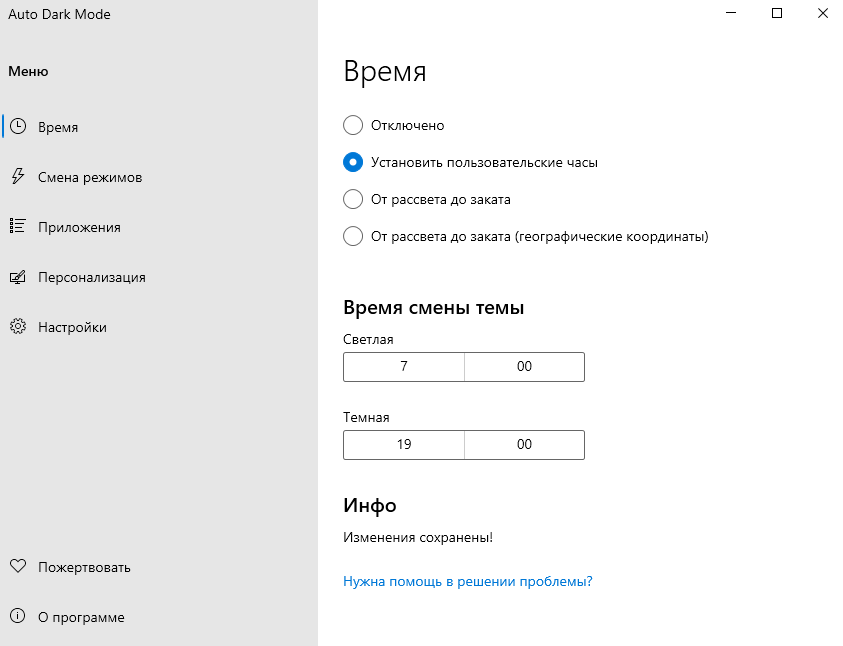
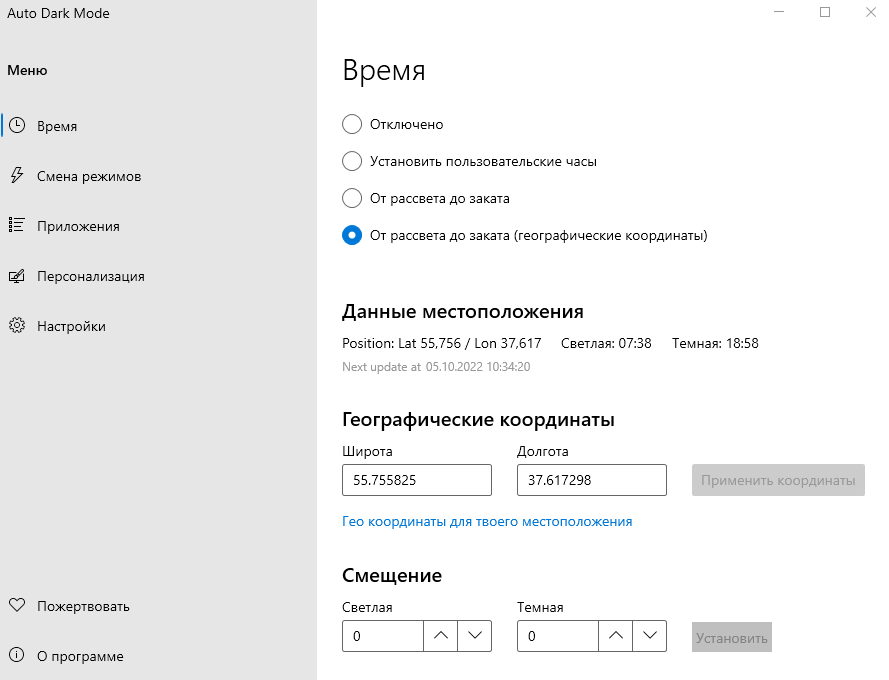
Можно выбрать время автоматической смены режима «От рассвета до заката». В этом случае, при предоставлении разрешения на определение местоположения, приложение само будет определять время активации светлой и темной темы. При этом данные о рассвете и закате в конкретном населенном пункте будут обновляться ежедневно автоматически. Также выбрав этот вариант активации, вы сможете задать собственные настройки по смещению времени рассвета и заката на 999 секунд, как в большую, так и в меньшую сторону.
Если вы не хотите предоставлять приложению «Auto Dark Mode» разрешение на определение местоположения, или в вашем устройстве отсутствует модуль GPS, то вы можете выбрать вариант «От рассвета до заката (географические координаты)». В этом случае вам потребуется задать координаты широты и долготы вашего населенного пункта. Если таких данных у вас нет, нажмите на ссылку «Гео координаты для твоего местоположения». На открывшемся сайте вам потребуется только указать название вашего города и нажать кнопку «Find». Скопируйте значение «Latitude» с сайта и вставьте в поле «Широта» в приложении. Проделайте ту же операцию для значения «Longitude», только вставьте его в поле «Долгота». Нажмите «Применить координаты», чтобы приложение запомнило ваше местоположение и определило время восхода и заката солнца. Функция смещения времени при активации этого способа работы приложения также доступна.
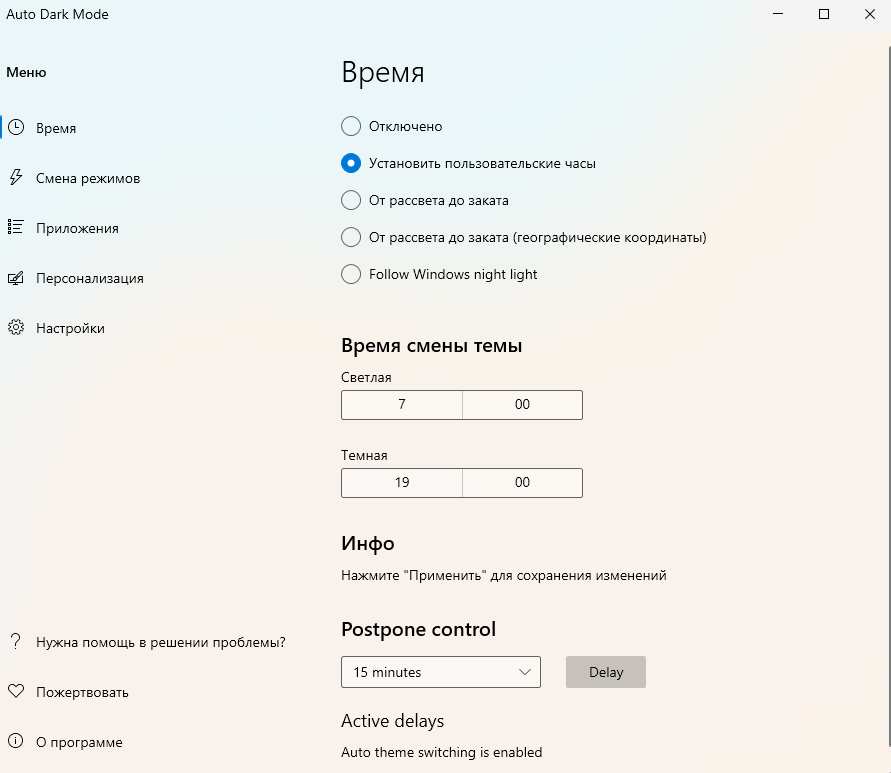
Новая функция «Follow Windows night light» ( или в переводе «Следовать за Ночным светом Windows») позволяет адаптироваться ко включению ночного света в Windows. Если ранее вы настроили планирование ночного света, то при активации ночного света программа «Auto Dark Mode» переключит светлую тему на темную, а при отключении ночного света темная тема сменится на светлую. Очень удобно.
Также с приходом обновления 10.3.0.90 появилась возможность отложить запуск смены темы. «Postpone control» (Отложить управление). Можно отложить смену темы на 15, 30 минут, 1, 2, 3, 6, 12 часов или один раз пропустить смену темы.
Раздел «Смена режимов»
Этот раздел приложения «Auto Dark Mode» поделен на несколько подразделов: «Условия», «Устройство с питанием от батареи» и «Hotkeys».
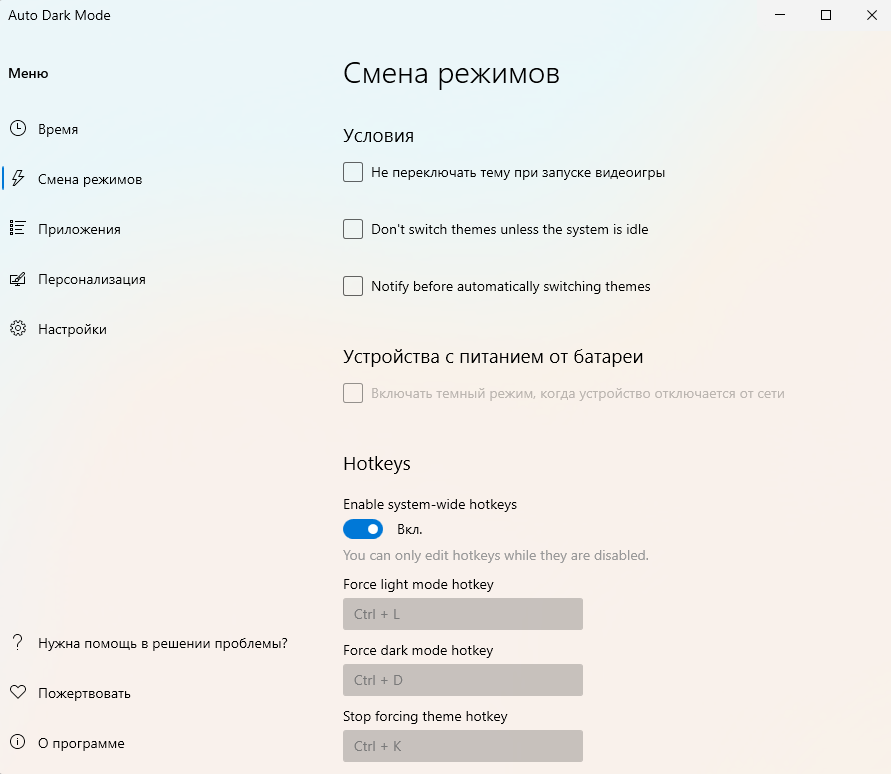
В подразделе «Условия» можно активировать следующие настройки: «Не переключать тему при запуске видеоигры», «Don’t swith themes unless the system is idle» (переводится как «Не переключать тему, если система не простаивает»), Notify before automatically switching themes (Уведомить до автоматической смены темы). Активация первой настройки будет актуальна, если используется устройство ресурсы которого ограничены и смена режима может повлечь за собой падание производительности во время игры. Активация второй настройки поможет сохранить производительность во время работы за компьютером. Смена режима произойдет в ваше отсутствие, во время простоя операционной системы. Активация третьей настройки позволит быть в курсе предстоящей смены темной или светлой темы.
В подразделе «Устройства с питанием от батареи» можно активировать включение темного режима, когда устройство отключается от сети. Активация этой настройки будет наиболее актуальна для пользователей ноутбуков с OLED матрицами, так как в темном режиме OLED матрица будет потреблять меньше энергии, а значит работа ноутбука от одного заряда батареи будет более длительной.
В подразделе «Hotkeys» или в переводе «Горячие клавиши» можно задать свою комбинацию клавиш, при нажатии которых будет сразу же применена светлая или темная тема.
В поле «Force Light Mode Hotkey» (Горячие клавиши для принудительного светлого режима) задайте свою комбинацию клавиш. Например, мы используем комбинацию Ctrl + L для ручной активации светлой темы.
В поле «Force Dark Mode Hotkey» (Горячие клавиши для принудительного темного режима) задайте свою комбинацию клавиш. Например, для активации темной темы нам необходимо нажать только Ctrl + D.
В поле «Stop Forcing Theme Hotkey» (переводится как «Горячие клавиши для остановки принудительной темы»). Если ранее горячими клавишами вы вручную активировали темную или светлую тему, вы можете активировать автоматическую смену режима нажав на свою комбинацию клавиш. Мы отключаем ручной светлый и темный режим нажатием клавиш Ctrl +K.
Раздел «Приложения»
В этом разделе можно задать смену темы для приложений, системы и устаревших версий Microsoft Office.
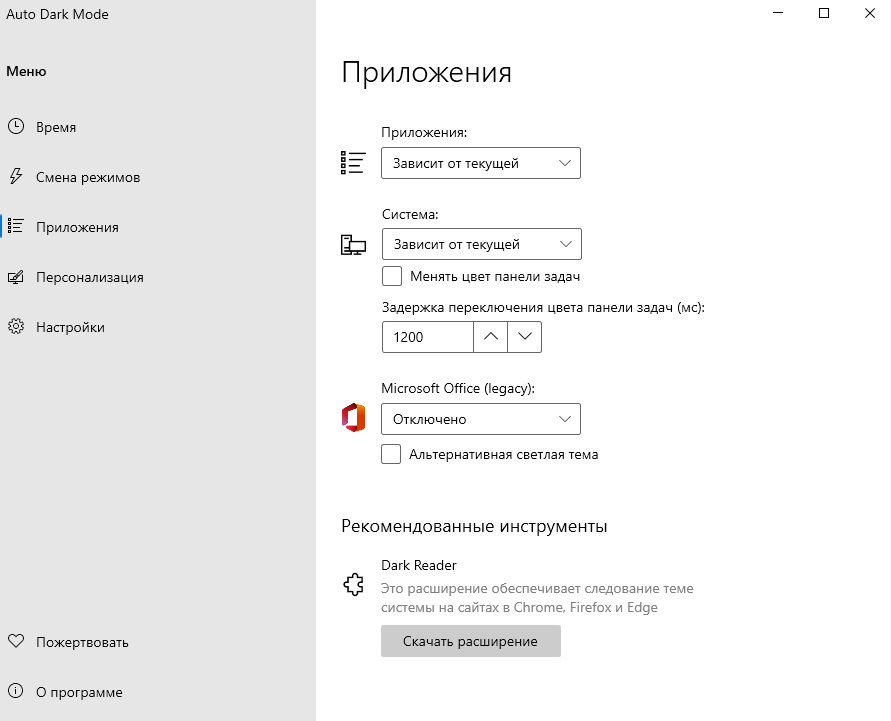
Для приложений (Проводника и других программ, поддерживающих светлую и темную тему) можно выбрать один из вариантов:
- «Зависит от текущей» — в этом случае, если выбран светлый режим, приложения будут отображаться в белых тонах, если активирован темный режим — то в темных.
- «Всегда белая» — в этом случае, смена режима (автоматически или вручную) не повлияет на изменение цветовой схемы приложений. Они всегда будут отображаться в светлых оттенках.
- «Всегда темная» — при выборе этого варианта, независимо от автоматической или ручной смены режима, приложения всегда будут отображаться в темных тонах.
- «Отключено» — автоматическая смена цвета приложений будет отключена. Приложения будут отображаться в том цветовом режиме, что был установлен ранее в самом приложении.
Для системы (панели задач и меню Пуск) можно выбрать один из вариантов:
- «Зависит от текущей» — в этом случае, если выбран светлый режим, система будут отображаться в белых тонах, если активирован темный режим — то в темных.
- «Всегда белая» — в этом случае, смена режима (автоматически или вручную) не повлияет на изменение цветовой схемы системы. Она всегда будет отображаться в светлом режиме.
- «Всегда темная» — при выборе этого варианта, независимо от автоматической или ручной смены режима, система всегда будет отображаться в темных тонах.
- «Accent only» (Только акцентный цвет) — панель задач и меню Пуск окрасятся в акцентный цвет, установленный в Параметрах персонализации. При этом можно выбрать при активации темной или светлой темы будет применен акцентный цвет.
- «Отключено» — автоматическая смена цвета операционной системы будет отключена. Пуск и панель задач будет отображаться в том цветовом режиме, что был установлен ранее в самом приложении.
Для устаревших приложений Microsoft Office доступны описанные выше варианты. Дополнительно есть пункт «Let the app decide» (Разрешить приложению решать самостоятельно). Если вы используете последние версии Microsoft Office потребность в активации этой настройки в приложении «Auto Dark Mode» отпадает.
Раздел «Настройки»
В этом разделе можно активировать 12-часовое время, скрыть иконку в трее, использовать цветовой фильтр в серых оттенках, включить режим энергосбережения при смене тем).
Также можно сменить язык и выбрать русский язык по умолчанию.
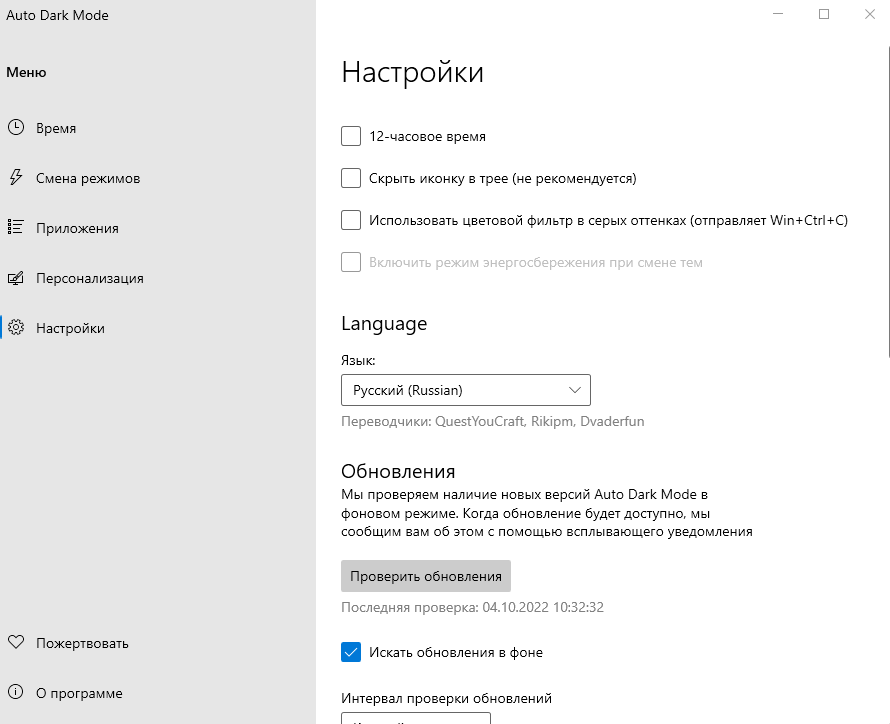
В подразделе «Обновления» можно вручную проверить обновления, нажав соответствующую кнопку, а можно настроить фоновую проверку обновлений, как на скриншоте ниже. Доступны следующие настройки: «Искать обновления в фоне», «Интервал проверки обновлений» (каждый день, 3 дня, 7 дней, 14 дней), «Проверять обновления при запуске Auto Dark Mode», «автоматически загружать и устанавливать новые версии», «Не показывать уведомления».
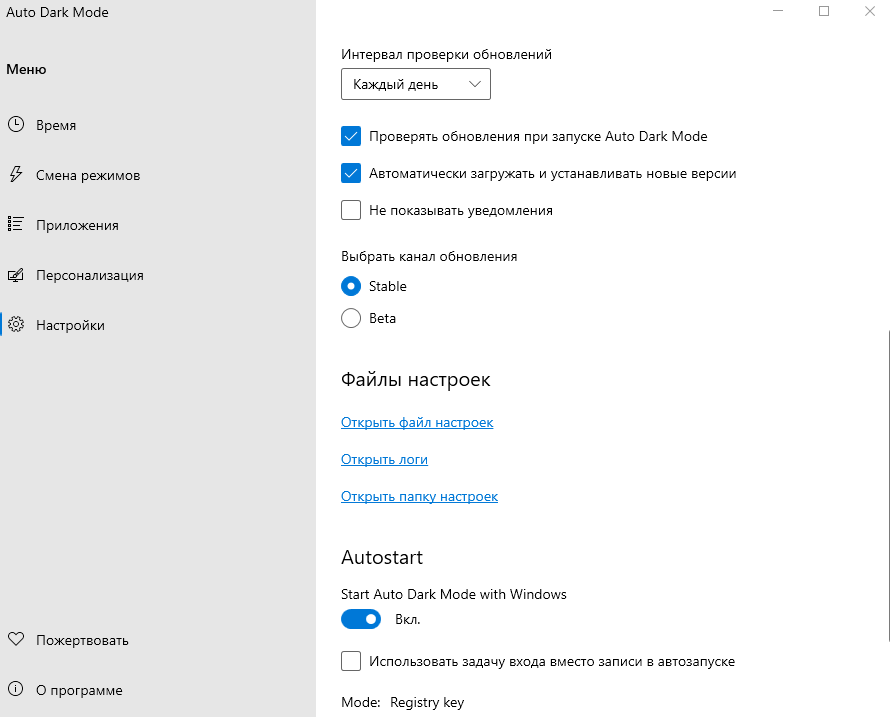
Также можно выбрать канал обновления. Выберите «Stable» для получения стабильных и проверенных версий программы. Выберите «Beta» для получения пробных версий программы.
В подразделе «Autostart» можно активировать автоматический запуск программы при загрузке Windows. Просто активируйте настройку «Start Auto Dark Mode with Windows».
Раздел «Пожертвовать»
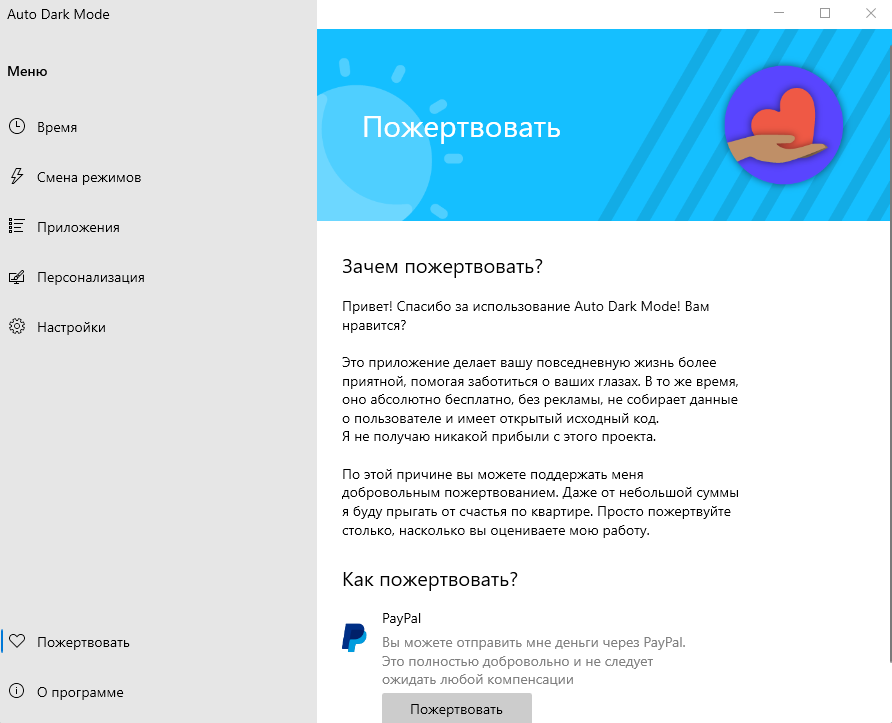
Поскольку приложение распространяется в Microsoft Store совершенно бесплатно, многие захотят поблагодарить разработчика за это несомненное приложение. Сделать это можно с помощью PayPal. В России этот способ может не работать по понятным причинам.
Раздел «О программе»
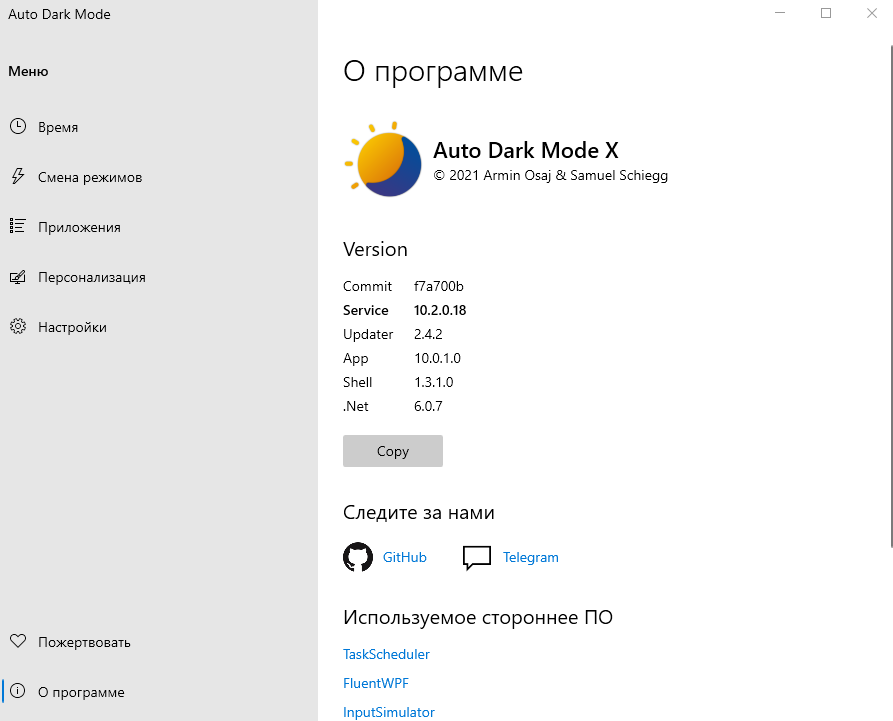
В этом разделе содержится информация о версии программного обеспечения, указаны ссылки на каналы разработчика в GitHub и Telegram. При возникновении проблем с приложением можно будет оперативно связаться с разработчиком и получить обратную связь.
Итоги
Приложение устраняет основную проблему с переключением режимов и делает это превосходно. Можно один раз настроить «Auto Dark Mode», запомнить горячие клавиши, настроить автоматическое обновление и больше не потребуется открывать это приложение. Программа периодически получает обновления, что говорит нам о том, что разработчик не прекращает работать над улучшением приложения. Да, кое-где некоторые настройки и функции не переведены на русский язык, но в этом нет ничего страшного. Резюмируя всё вышесказанное, приложению мы присваиваем оценку 5 из 5.
Приложение «Auto Dark Mode» можно скачать из магазина Microsoft Store по ссылке ниже.

Как вам приложение «Auto Dark Mode»? Используете другие программы для смены светлой и темной темы?
Расскажите в комментариях 😉
Let’s see how to automate dark mode in Windows 11 using workarounds and some other tools.
Schedule Windows 11 Dark Mode with Task Scheduler
While Microsoft has forgotten to implement a dark mode schedule, power users will realize there’s a nifty tool called Task Scheduler on Windows. Task scheduler allows you to schedule certain tasks on your computer so that they run automatically. We can use the Task scheduler to schedule Windows 11 dark mode.
And that’s all you have to do to schedule Windows 11 dark mode. Once you set the same, your Windows PC will start to switch to dark mode automatically every day at the time you scheduled.
Schedule Windows 11 Light Mode
While you have created a schedule for Windows 11 auto dark mode, you probably still want it to switch to light mode as well at a certain time. Otherwise, you would have to manually turn it on every morning. To schedule a light mode, you simply have to repeat the steps above with minor but important changes.
Now you’ve scheduled the light mode to turn on automatically as well. At your scheduled times, Windows 11 dark mode will be turned on, as well as off. You can focus on other things now.
Get Auto Dark Mode for Windows 11 with Third-Party Apps
All these workarounds need time to set them up. If you do not want to struggle to try to set up dark mode automation in Windows using Task Scheduler, you will love this third-party app called Auto Dark Mode.
The Auto Dark Mode is a free app that is also available on the Microsoft Store.
Instead of simply switching between the default light and dark themes, the app also lets you switch between any two themes of your choice as well. You can also set hotkeys to force switch anytime you want.
Since we’re mainly focusing on having a macOS like automatic dark mode in Windows 11, we’ll try to skip all the extra stuff.
That’s all you have to do. However, you might want to take a look at some of the additional features which can be very convenient. Auto Dark Mode for Windows 11 offers quite a lot of extra functionality. You can pick your favorite wallpapers for light and dark modes. Nobody really wants to be stuck with dark wallpaper on a light theme, or a light wallpaper on a dark theme.
Another example would be Switch Modes. Switching to dark mode while you’re playing a resource-intensive game is perhaps not a good idea. Using the Task scheduling method above, you can’t really avoid that. With this app, it’s just a simple click.
The whole push for dark mode was because the bright white themes were too taxing on the eyes of users in the darkness of the night. It makes sense to turn it on in the night, but keep it off in the day, since the light theme offers more contrast. The above workarounds can help you schedule and automate switching between the dark and light modes.
Δ

Windows 11 allows you to use both light and dark modes to improve overall screen experience and reduce eye strain. Though enabling dark mode in Windows 11 is an easy task, it will be applied throughout the day which does not make any sense. It will be annoying to look at the dark black screen during bright afternoon time. Unfortunately, you need to manually toggle light and dark modes whenever needed as there are no options for automatic scheduling. In this article, we will explain alternate options available for automatically scheduling dark and light modes in Windows 11.
If you are aware of macOS, it offers an “Auto” appearance option. This helps to automatically change the mode in Mac based on the sunrise and set times. You can either use a third-party app to do the similar stuff in Windows or manually schedule a task with Task Scheduler.
1. Install Auto Dark Mode X
Auto Dark Mode X is a free application available on GitHub which automatically switches between dark and light modes in Windows 11. This app configures modes based on your geographical coordinates. Go to the official GitHub website and download the executable file of Auto Dark Mode X.

- Open the downloaded file and then select “Install for me only (recommended)” button. Follow the instructions and install Auto Dark Mode X app like any other app in your system.
The app has different sections as you can see in the sidebar. Let’s go through each section to show how you can customize.
Customizing the Mode Timing
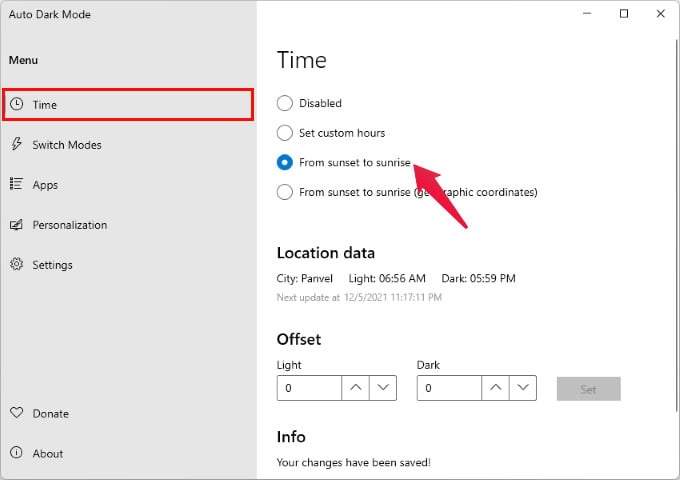
Go to “Time” tab where you can set the timer for switching light and dark modes.
- Disabled – disable the mode switching.
- Set custom hours – select this option to set custom start timing to automatically start light or dark mode.

- From sunset to sunrise – as mentioned this is an ideal option to switch the modes based on the sunset/sunrise times for your location. The app will automatically get the location data from your system and use it here. If required, you can also set offset timing in minutes here.

- From sunset to sunrise (geographic coordinates) – this is a same option as above with a difference that you need to manually provide the longitude and the latitude of your location. If you do not know the coordinates, click “Find geo coordinates for your location” link to open a website where you can type the city and find the details. You need to enter the found coordinates and then click “Apply Coordinates” button.

- Follow Windows night light – this the last option which will follow the system’s night light mode timing. Click “Open night light settings” button to open Windows Settings and turn on “Schedule night light” option. You can either choose sunset to sunrise time or setup custom hours.
Setting Switching Conditions
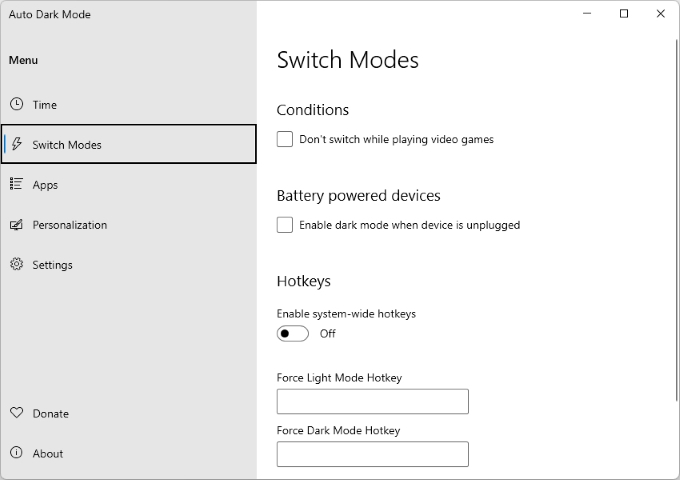
As mentioned, sometimes it will be annoying to use light or dark mode as per the schedule. Go to “Switch Modes” section where you get different options including Conditions, Battery power devices, and Hotkeys.
- Conditions – enable these options to stop switching modes while playing games or when the system is busy. You can also get a notification before the theme switch.
- Battery powered devices – choose whether you want to only enable dark mode when the device is not plugged in.
- Hotkeys – enable this option and setup hotkeys for forcing light or dark mode. Using the set shortcut keys, you can overrule the default setting and change the mode when you need.

Other App Settings
Under the “Apps” section, you can set the option for using dark and light mode for the apps. Finally, under “Personalization” section you can setup a wallpaper or custom theme.
The easy way to use the app is to enable sunset to sunrise time and use hotkeys to force toggle the modes when you need.
2. Use Task Scheduler
Using the Task Scheduler is another option to schedule dark and light mode in Windows 11. This is a built-in Windows app for automating tasks on a fixed schedule. This is a lengthy process and you need to create two tasks one for light and another for dark mode.
Schedule Task for Dark Mode
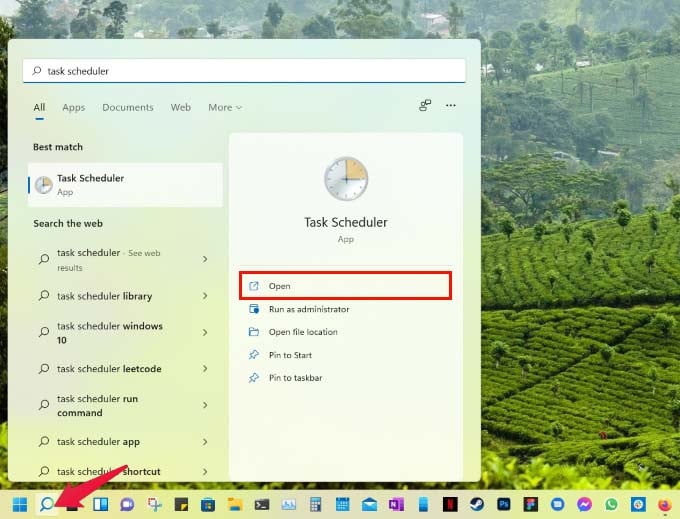
- First, open the Task Scheduler app using Windows Search from Taskbar.

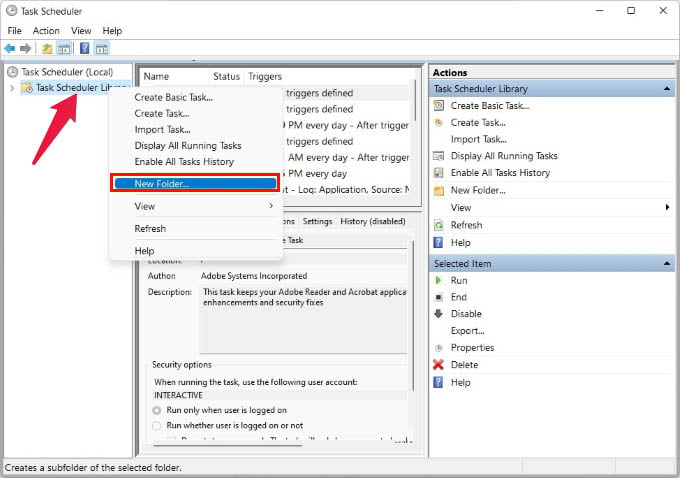
- Go to “Action” menu and select “Create Task…” option.

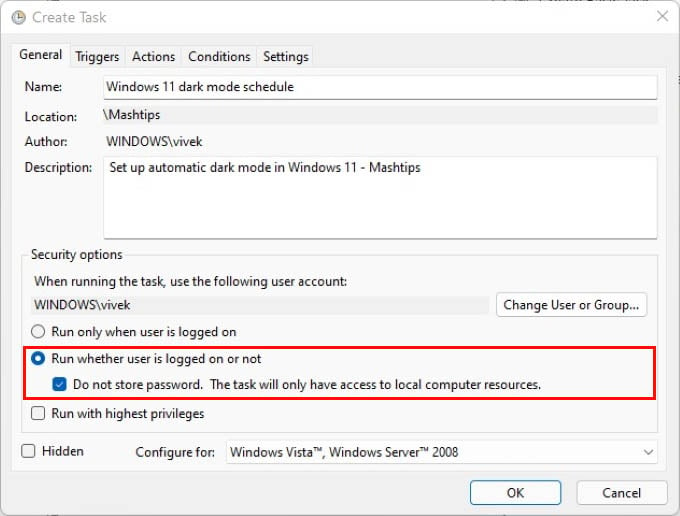
- Under “General” section, give a name for your task something like “switch_dark_theme”. Select “Run only when the user is logged in or not” and tick the “Do not store password” option.

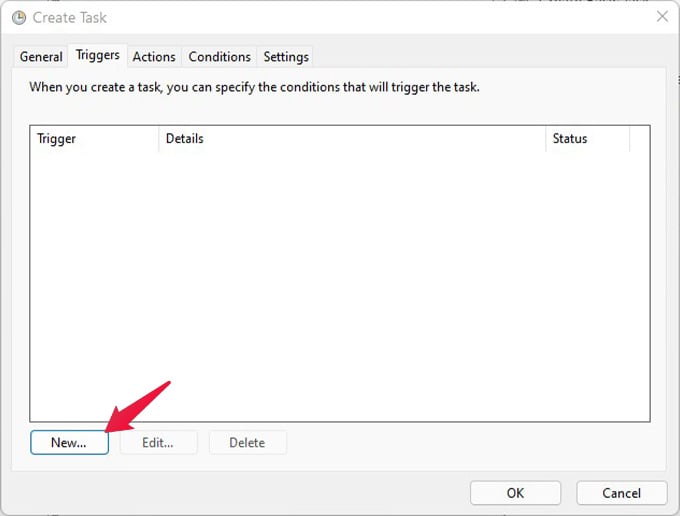
- Go to the “Triggers” tab and click the “New” button.

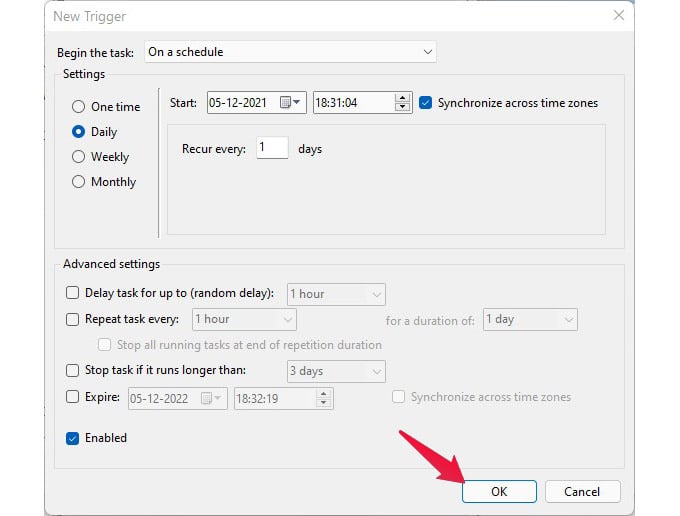
- Select “On a schedule” for beginning the task and select “Daily” option. Set the time from when you want to start the dark mode and click “OK”. Also, make the “Recur every” option as 1 day so that the task will repeat every day.

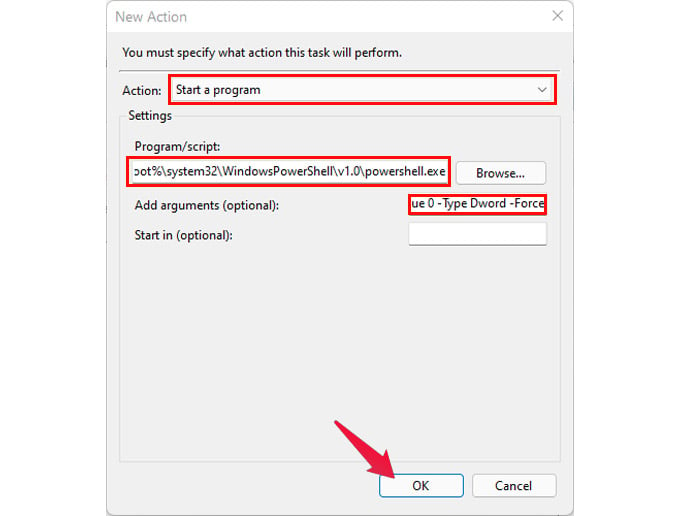
- Next, select the “Actions” tab and then click on the “New” option. Type “reg” in the “Program/script” option and then type the following in “Add arguments” option and press OK.
add HKCU\SOFTWARE\Microsoft\Windows\CurrentVersion\Themes\Personalize /v AppsUseLightTheme /t REG_DWORD /d 0 /f- Repeat the step and but this time add the following command:
add HKCU\SOFTWARE\Microsoft\Windows\CurrentVersion\Themes\Personalize /v SystemUsesLightTheme /t REG_DWORD /d 1 /f- It should look like below in the app.

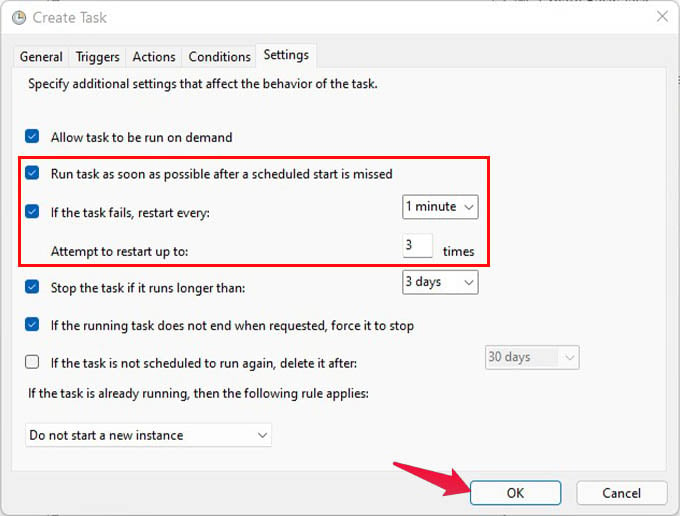
- Go to “Settings” tab and tick the items as shown in the below picture:

- Go to “Conditions” tab and uncheck the “Start the task only if the computer is on AC power” and then click OK.

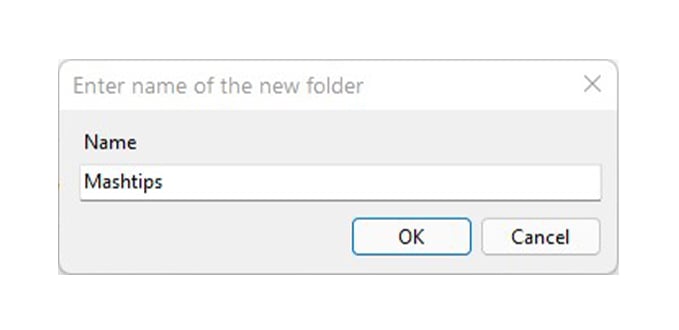
- You will find the newly created task name is listed under “Task Scheduler library” and right-click on it, then select “Run” to start the task.

Schedule Task for Light Mode
For scheduling a light mode task, you need to repeat the same above steps with little bit of changes.
- Go to “Actions > Create task” and name it “switch_light_mode”. Select the same settings as before for this task also.

- Now go to the “Triggers” tab, click on “New” and set a different time schedule. Make sure this is not overlapping with dark mode task.
- Now open the “Actions” tab and click on the “New” button. This time you need to add different Arguments than before but for the same Program/Script “Reg”. The first one is:
add HKCU\SOFTWARE\Microsoft\Windows\CurrentVersion\Themes\Personalize /v AppsUseLightTheme /t REG_DWORD /d 1 /f and then click on OK.And the second one is:
add HKCU\SOFTWARE\Microsoft\Windows\CurrentVersion\Themes\Personalize /v SystemUsesLightTheme /t REG_DWORD /d 1 /f and click on OK.
- Repeat the same steps for the “Settings” and “Conditions” tabs. Then find the newly created task and click on “Run”.

Final Words
These are the two popular and easy methods that you can use to schedule dark and light mode in Windows 11. As you can see, Auto Dark Mode X is a more user-friendly and easy method to schedule and switch the modes. However, if you do not want to install a third-party app, then you can follow the above instructions to setup tasks using Task Scheduler app.