
If you trying to set up Java in your system or it’s already installed but you are getting a “Java command not found” error. It may be due to either it’s not installed properly or the path variable is not set up correctly for your operating system. In this tutorial, I will let you know the possible cause of this Java error and how to fix it easily.
Below mentioned are the common Java-related error you may encounter –
- java command not found ubuntu
- java command not found windows 10
- -bash: java: command not found mac
- Java is not recognized as an internal or external command?
- java command not found Red Hat
- java environment not found
Why am I getting a Java command not found error?
Generally, you get a java command not found error due to the following reasons –
- Java is not installed in your system
- Java installation is not complete due to errors during installation
- Environment variable or Path is not setup correctly for Java
- Java conflict due to more than one java installation in your system
These are the quick checks before starting troubleshooting to fix the java command not found error –
- Check whether java is installed or not?
- If java is installed, look for the java version
- Validate environment variable or path is set up correctly for your operating system
- Make sure you are using the right version in case of more than one Java version installed
Let’s deep dive and see step-by-step solutions –
Solution-1 – Install the Java correctly in Windows to get rid of the Java command not found error
Mostly, you don’t have java installed and installing java is the first step to fix java related issues. Follow these steps based on your operating system to install java correctly.
Step1 – Check whether Java is installed in your system
- In Windows, Open the command prompt and run
java --version
- In the case of Linux, run
sudo java -version

output -
bash: java: command not found
In case you get “Java command not found” or Java is not recognized as an internal or external command then keep following this tutorial to install java in your system.

- To check default versions installed in Linux, run
sudo update-alternatives --config javaHow to install Java in Windows 10
I would recommend you to download the latest java and install it in your system.
Step2 Download Java
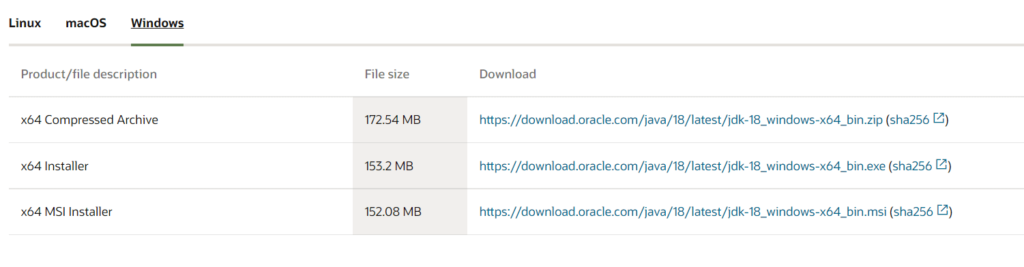
Visit oracle.com and download JDK 18 (JAVA SE Development Kit) or the latest available for your system. I am downloading it for Windows 10 (64-bit). Soon Java 19 will supersede JDK 18.
Step3 Install the latest Java 18 on Windows 10/11
Once you have downloaded the “jdk-18_windows-x64_bin.exe” for your Windows system. Double click and run the installer and follow the steps
- I recommend keeping “C:\Program files\java\jdk-18.0.1.1 (64-bit)” as the default installation folder. Select Next.
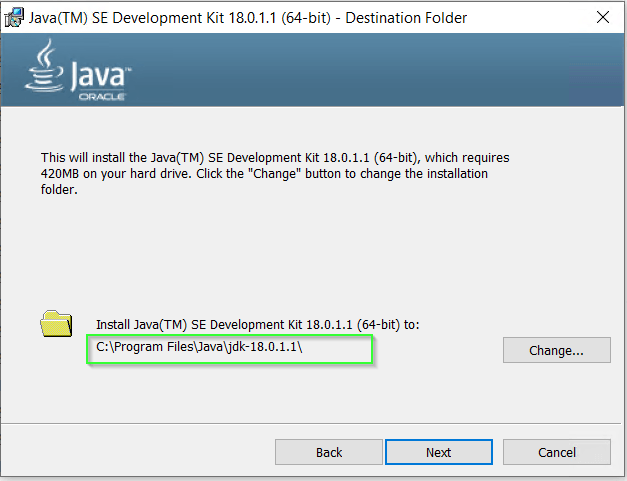
You may select different installation folders also. For example, if you are installing a second instance of java software. Click on change and browse for the target folder.
Solution2 – How to set an environment variable for java in Windows 10, if you have Java already installed
If you have Java already installed and then all the environment variables are set up automatically as shown in the image.
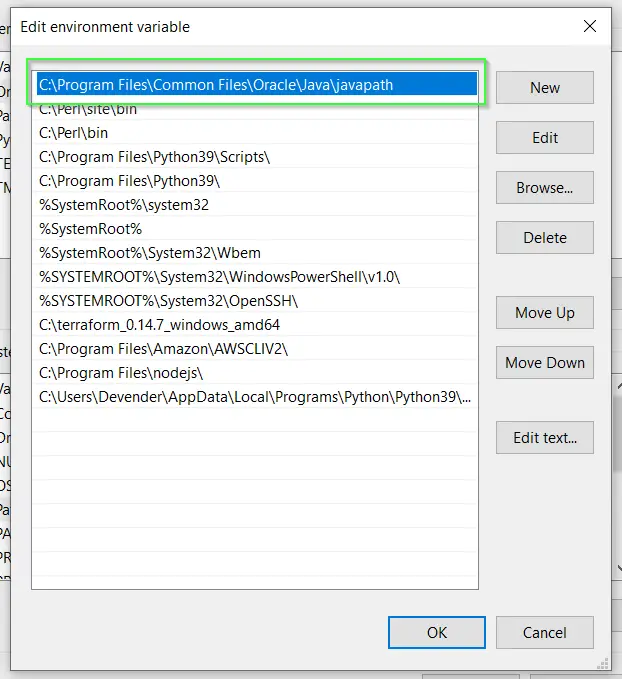
But in case you are still getting “Java is not recognised as an internal or external command” error then set up the environment variable for your Java.
- Type “environment” in the search window. Click “open” on “Edit the system environment variables”

- Click on Environment variables.

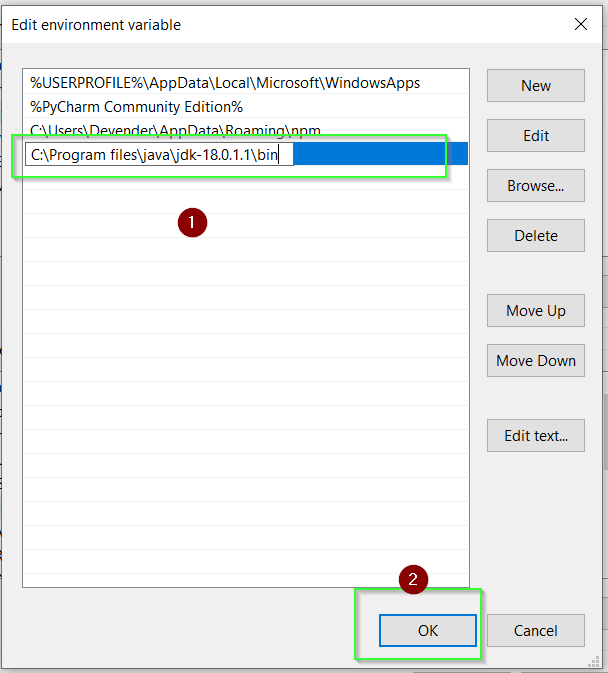
- Select “Path” > Then click Edit.

- Select New > Give path of java installation directory > For example, “C:\Program files\java\jdk-18.0.1.1\bin” in my case. If you have selected the custom folder to install Java. You can enter your path to the bin folder. It will set up only the java variable for that specific user.
Click OK.
- Set “classpath” for java. Click “New” in the environment variable window. It allows to set up the new environment variables.

In “Variable name”, enter “classpath“. Also in “variable value” provide path to your java installation till “lib” folder. In my case it is “C:\program files\java\jdk-18.0.1.1\lib > Select OK
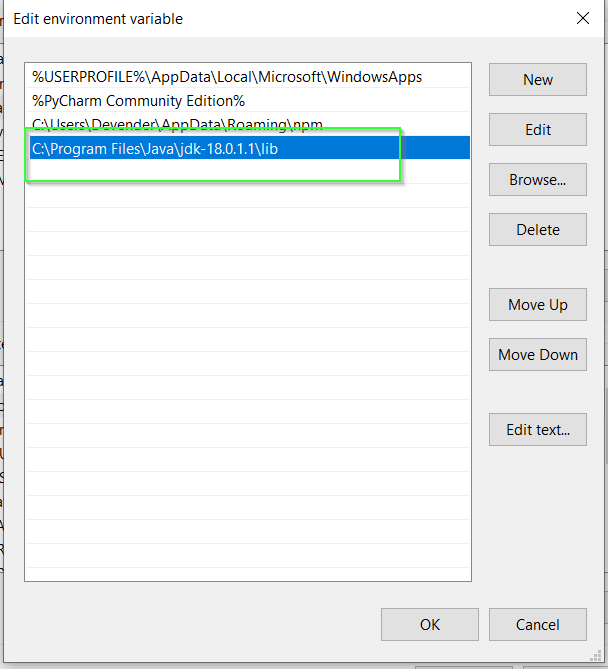
- Close all open environment variables windows by selecting OK.
Solution3- How to install Java in Ubuntu 21.04 correctly
To install Java in Linux –
- Visit oracle.com and download JDK 18 or the latest available .deb and transfer it to your system. I am downloading Debian package jdk-18_linux-x64_bin.deb for Ubuntu 21.04. The same can be used for any Debian-based OS like Linux Mint, Kubuntu, Lubuntu etc.
- Download RPM package for CentOS, AlmaLinux, Red Hat or Rocky Linux operating system.
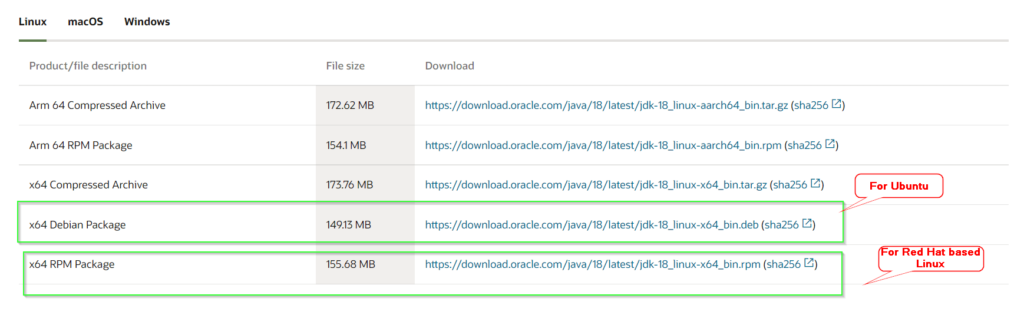
- Rename the .deb file using the mv command, if required. Then install the Debian package using the dpkg command.
Learn more ways to install the .deb package.
$ sudo dpkg -i ".deb-file-path"

For example
$ sudo dpkg -i ./jdk-18_linux-x64_bin.deb
In case you get any error related to the libc6-x32 dependency package, then
dpkg: dependency problems prevent configuration of jdk-18:
jdk-18 depends on libc6-i386; however:
Package libc6-i386 is not installed.
jdk-18 depends on libc6-x32; however:
Package libc6-x32 is not installed.
Either install the dependency package or run the following command to fix the broken.
$ sudo apt --fix-broken install
Once all the dependent packages are installed, try installing java 18 again on Ubuntu 21.
$ sudo dpkg -i ./jdk-18_linux-x64_bin.deb
- You can use the rpm command to install java in RPM-based operating systems
$ sudo rpm -ivh "path to rpm"
For example
$ sudo rpm -ivh jdk-18_linux-x64_bin.rpm
Solution4 – How to set the “JAVA_HOME” variable in Ubuntu 21.04
Set the JAVA_HOME variable for all users in Ubuntu by editing the environment file.
- Edit /system/environment file using vi or nano editor.
$ sudo vi /etc/environment
- Add path “/usr/lib/jvm/jdk-18/bin” to the last of the environment file as shown in the image. Then, save and exit
The output of the Environment file after adding the Java path

- Run source command to execute changes made in the environment file.
$ sudo source /etc/environment
- Check your java version
$ sudo java -version

Solution5- How to install Java in macOS to fix the java command not found error
To install the JDK on macOS:
- Download the JDK
.dmgfile for macOS,jdk-18_macos-x64_bin.dmgfrom the Java SE Downloads page. - Then Click Accept License Agreement.
- Double-click the
.dmgfile to start it - A Finder window appears that contains an icon of an open box and the name of the
.pkgfile - Double-click the
JDK 18.pkgicon to start the installation application - The installation application displays the Introduction window
- Click Continue. The Installation Type window appears.
- Click Install. A window appears that displays the message: Installer is trying to install new software. Enter your password to allow this.
- Enter the Administrator user name and password and click Install Software. The software is installed and a confirmation window is displayed.
You can delete the .dmg file if you want to save disk space after installation.
Solution6 – How to set Java_Home environment variable in macOS
- If you use the bash shell, run
echo export "JAVA_HOME=\$(/usr/libexec/java_home)" >> ~/.bash_profile- In the case of zsh shell, run
echo export "JAVA_HOME=\$(/usr/libexec/java_home)" >> ~/.zshrc- Restart your shell once in both cases
Solution-7 Uninstall and reinstall Java, if nothing works
If you are getting java command not found error even after setting up java home variable. It means there is something wrong with the installation. In that case, my recommendation will be to uninstall all existing versions of java and reinstall it.
Check out my other post, If you don’t know how to uninstall java from Windows or Linux. There are individual sections provided for the uninstallation of Java.
Summary
I am sure, you will be able to fix your java command not found error by following this tutorial step by step and carefully.
Let me know, in case you still face any issues. I will try to help you out to the best of my knowledge. You can check out these Oracle tutorials to learn java after installation by following this post step by step.
So I had to re-install my system.
I installed Cygwin in C:\cygwin\bin
And I used the batch file that worked on my previous installation:
«start_cygwin.bat»
@echo off
C:
chdir C:\cygwin\bin
bash -c "cd /cygdrive/e/apache-solr-3.5.0/example/;java -Dsolr.solr.home="./example-DIH/solr/" -jar start.jar"
But after running this command:
bash -c "cd /cygdrive/e/apache-solr-3.5.0/example/;java -Dsolr.solr.home="./example-DIH/solr/" -jar start.jar"
I get the error:
bash: java: command not found
I thought it had something to do with java, but I installed the java jdk 6.27 (which worked fine before) and when I type «java» in my command prompt I see a list of possible java commands.
asked Oct 14, 2012 at 19:45

0
Its not able to locate your java.exe file.
To resolve the issue, you have two options:
-
Add Java installed folder in your PATH
-
Use full path of
java.exein the above command i.e. in place ofjava, use/home/../jdk.../bin/java.
One of the tow options, should help resolving your issue.
answered Oct 14, 2012 at 19:47

Yogendra SinghYogendra Singh
34k6 gold badges64 silver badges73 bronze badges
2
If it doesn’t work using the path to java/bin then you can try to
— create symbolic link: ln -s /cygdrive/c/Program\ Files/Java/jre1.8.0_102/bin/java.exe /usr/bin/java
— create an alias: alias java="/cygdrive/c/Program\ Files/Java/jre1.8.0_102/bin/java.exe"
— add the java path to the paths: export JAVA_HOME="/cygdrive/c/Program\ Files/Java/jre1.8.0_102" export PATH="$PATH:$JAVA_HOME/bin"
answered Aug 26, 2016 at 12:25

- October 17, 2022
- PHP
- What Is The Solution Of Java Error: Command Not Found?
- Javac command not found in Git Bash
- java command is not found from this Python process. Please ensure Java
- Why does CMD not recognize the javadoc command?
What Is The Solution Of Java Error: Command Not Found?
Now, in order to make sure that Windows is able to find Java compiler and
interpreter, open Command Prompt (cmd) and do the following-. …
C:\Users\username>java -version
java version "1.6.0_27"
Java(TM) 2 Runtime Environment, Standard Edition (build 1.6.0_27-b07)
Java HotSpot(TM) Client VM (build 1.6.0_27-b13, mixed mode, sharing)


C:\Users\username>javac -version
javac 1.6.0_27


C:\Users\username>cd c:\introcs\hello
C:\introcs\hello\>


C:\introcs\hello\>javac HelloWorld.java
C:\introcs\hello\>


C:\introcs\hello\>java HelloWorld
Hello, World


c:\>set path
Path=C:\Program Files (x86)\Windows Resource Kits\Tools\;
C:\WINDOWS\system32;C:\WINDOWS;C:\WINDOWS\System32\Wbem;
C:\WINDOWS\System32\WindowsPowerShell\v1.0\;
C:\Program Files (x86)\Quarantine\;
C:\Program Files\Perforce;
C:\Program Files\Microsoft Network Monitor 3\;
c:\Program Files\Java\jdk1.7.0_17\bin
Javac command not found in Git Bash
Try physically adding that path to the system environment variables from the
control panel. Search for ‘system environment variables’ —> go into
Environment …
copy > ~/.bashrc


export PATH=$PATH:"/c/Program Files/Java/jdk1.8.0_45/bin/"
java command is not found from this Python process. Please ensure Java
is installed and PATH is set for java
Under the System Variables click Path and then press the Edit instead of
New.Then in the next screen (Edit environment variable for the Path variable)
click New and add the address, e.g. C:\Program Files …
df = wrapper.read_pdf(r'C:\End_to_End\1902\PN\Scenario1_AllCorrectMin\EPR.pdf')


FileNotFoundError                         Traceback (most recent call last)
~\AppData\Local\Continuum\anaconda3\lib\site-packages\tabula\wrapper.py in read_pdf(input_path, output_format, encoding, java_options, pandas_options, multiple_tables, **kwargs)
    107     try:
--> 108         output = subprocess.check_output(args)
    109

~\AppData\Local\Continuum\anaconda3\lib\subprocess.py in check_output(timeout, *popenargs, **kwargs)
    335     return run(*popenargs, stdout=PIPE, timeout=timeout, check=True,
--> 336                **kwargs).stdout
    337

~\AppData\Local\Continuum\anaconda3\lib\subprocess.py in run(input, timeout, check, *popenargs, **kwargs)
    402
--> 403     with Popen(*popenargs, **kwargs) as process:
    404         try:

~\AppData\Local\Continuum\anaconda3\lib\subprocess.py in __init__(self, args, bufsize, executable, stdin, stdout, stderr, preexec_fn, close_fds, shell, cwd, env, universal_newlines, startupinfo, creationflags, restore_signals, start_new_session, pass_fds, encoding, errors)
    708                                 errread, errwrite,
--> 709                                 restore_signals, start_new_session)
    710         except:

~\AppData\Local\Continuum\anaconda3\lib\subprocess.py in _execute_child(self, args, executable, preexec_fn, close_fds, pass_fds, cwd, env, startupinfo, creationflags, shell, p2cread, p2cwrite, c2pread, c2pwrite, errread, errwrite, unused_restore_signals, unused_start_new_session)
    996                                          os.fspath(cwd) if cwd is not None else None,
--> 997                                          startupinfo)
    998             finally:

FileNotFoundError: [WinError 2] The system cannot find the file specified

During handling of the above exception, another exception occurred:

JavaNotFoundError                         Traceback (most recent call last)
<ipython-input-3-010e34a004ec> in <module>()
----> 1 df = wrapper.read_pdf(r'C:\End_to_End\1902\PN\Scenario1_AllCorrectMin\EPR.pdf')

~\AppData\Local\Continuum\anaconda3\lib\site-packages\tabula\wrapper.py in read_pdf(input_path, output_format, encoding, java_options, pandas_options, multiple_tables, **kwargs)
    109
    110     except FileNotFoundError as e:
--> 111         raise JavaNotFoundError(JAVA_NOT_FOUND_ERROR)
    112
    113     except subprocess.CalledProcessError as e:

JavaNotFoundError: `java` command is not found from this Python process. Please ensure Java is installed and PATH is set for `java`


java --version
Why does CMD not recognize the javadoc command?
The usual approach for Java development is to set a JAVA_HOME environment
variable, and use that to update the PATH (for one thing, it makes it much
easier to support …
set path = "full_path_to_java_sdk_bin_folder"


set "JAVA_HOME=<full_path_to_jdk>"
set "PATH=%JAVA_HOME%\bin;%PATH%"I’m trying to run a series of programs in Cygwin.
My current dilemma is running a java file. My input and the error is below.
Gaius@Ellislab2015 ~/muTect-1.1.4-bin
$ java -jar muTect-1.1.4.jar
-bash: java: command not found
How can I fix this?

DavidPostill♦
154k77 gold badges354 silver badges395 bronze badges
asked May 22, 2015 at 22:24

-bash: java: command not found
You need to add Java to your bash PATH variable.
This is normally done by editing the appropriate lines in ~/.bash_profile.
# User dependent .bash_profile file

...

# Set PATH so it includes user's private bin if it exists
# if [ -d "${HOME}/bin" ] ; then
#   PATH="${HOME}/bin:${PATH}"
# fi
Further reading
- How can I set my Cygwin PATH to find javac?
- 64 Bit Java Path in Cygwin

answered May 22, 2015 at 22:56
DavidPostill♦DavidPostill
154k77 gold badges354 silver badges395 bronze badges
I added the following to my file in home/.bash_profile (~/.bash_profile), as suggested by DavidPostill, and after looking at documents he referenced:
Before:
# Set PATH so it includes user's private bin if it exists
# if [ -d "${HOME}/bin" ] ; then
#   PATH="${HOME}/bin:${PATH}"
# fi
After:
# Set PATH so it includes user's private bin if it exists
# if [ -d "${HOME}/bin" ] ; then
# PATH=/cygdrive/c/Program\ Files\ (x86)/Java/jre1.8.0_45/bin/:${PATH}
# fi
answered May 26, 2015 at 18:51
You must log in to answer this question.
Not the answer you’re looking for? Browse other questions tagged
.
Not the answer you’re looking for? Browse other questions tagged
.
Я использую Windows и Git Bash. Всякий раз, когда я javac команду javac в Git Bash, она возвращается: sh.exe":javac: command not found.
Затем я должен напечатать export PATH=$PATH:"/c/Program Files/Java/jdk1.8.0_45/bin/" Команда javac затем работает в следующей строке после ввода команды экспорта PATH.
Мой вопрос: как мне заставить Git Bash запомнить эту команду экспорта, поэтому мне не нужно вводить ее каждый раз?
Решение
Попробуйте физически добавить этот путь к переменным системной среды с панели управления.
Найдите «переменные системной среды» → перейдите в переменные среды → найдите [Путь] из системных переменных → Нажмите, чтобы выделить [Путь] и нажмите «Изменить».
В зависимости от вашего компьютера вы можете увидеть список добавленных путей или длинную строку путей, разделенных полуколониями. Скопируйте и вставьте свое местоположение в java bin.
Ваш ответ
Введите минимум 50 символов