
What’s that? You don’t like the way Windows 10 looks and acts? We can’t imagine why—the operating system goes through extensive testing and is widely regarded as the most stable and enjoyable platform on the market.
Okay, we’re joking. If you want to change the way Windows looks and acts, keep reading. These are some of the best tools to customize Windows 10.
1. Customizer God
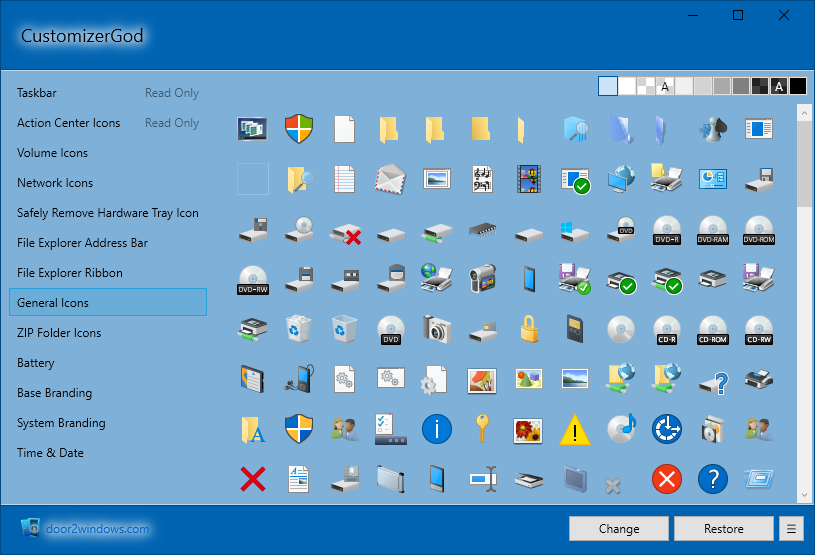
Customizer God—which is compatible with Windows 7, 8, and 10—should be your go-to tool for changing anything about the way the icons in Windows 10 look.
There are new icons for the Start menu, the taskbar, your drives, the battery, the login screen, the time and date, and a whole lot more.
The app is also easy to use. You don’t need any specialized knowledge, just install it on your system and start tweaking it.
Download: Customizer God (Free)
2. TweakNow PowerPack
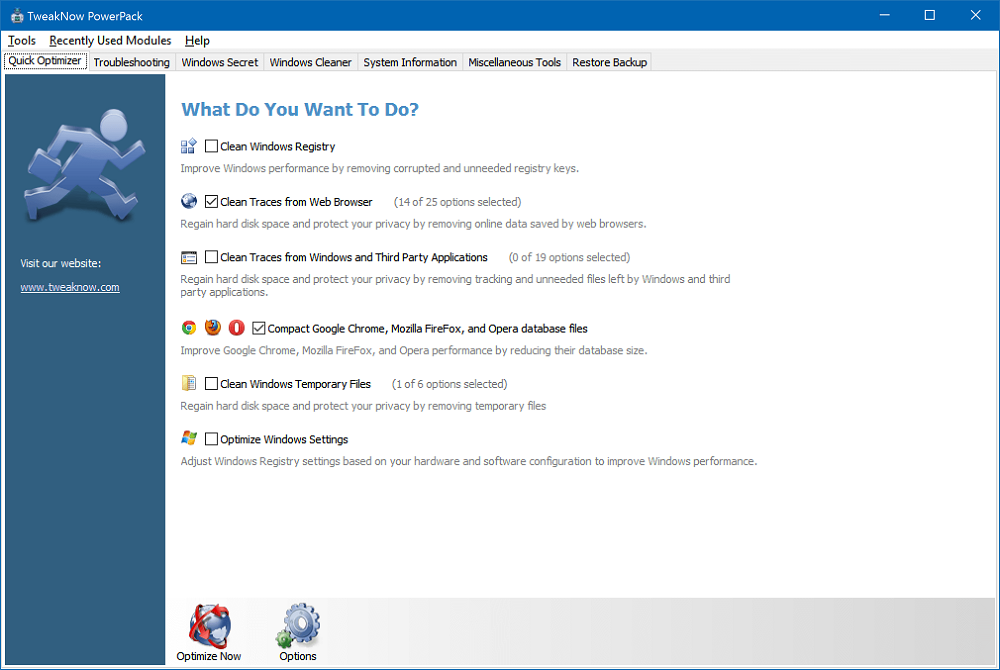
TweakNow PowerPack is more geared towards customizing the way Windows 10 behaves rather than the way it looks.
For example, you can set up an automatic shutdown which will turn off your computer at a specific time, optimize your system’s RAM usage, and create a special shortcut for CPU-intensive apps that can automatically assign the highest CPU priority level and free up sufficient RAM.
And then there’s The Virtual Desktop module helps you set up four custom-designed desktop configurations that you can match with your mood and your work requirements.
There’s also a menu with more than 100 hidden Windows settings, a registry cleaner (which you should use with caution), and a revamped start-up manager.
Download: TweakNow PowerPack (Free)
3. Winaero Tweaker
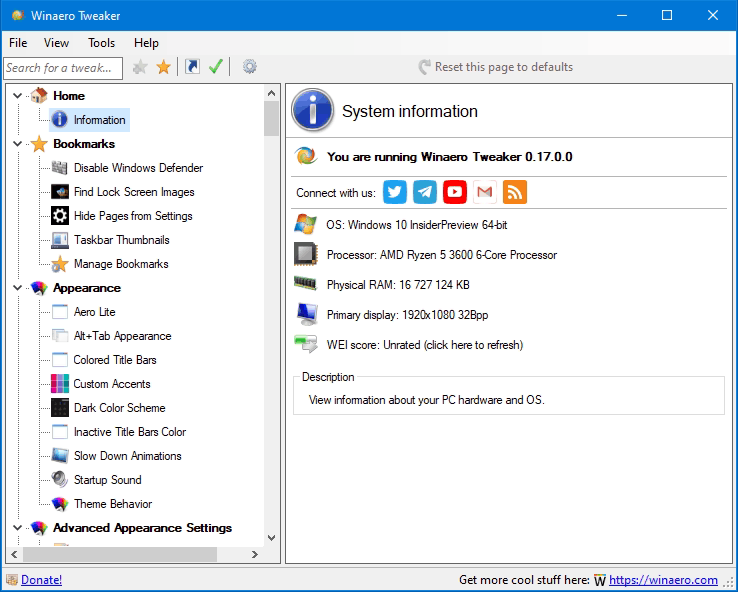
Winaero Tweaker is a Windows 10 tweak tool. It has rolled together several of the old standalone Winaero customization apps into a single interface.
The software boasts an enormous number of features that are way too numerous to list in this article. Here’s a small sample to give you an idea of what is possible:
- Automatically prevent «— Shortcut» from being added to the end of new shortcuts.
- Add eight custom colors to the Settings > Personalization > Color menu.
- Change the size of the scroll bars.
- Disable the Pin to Start context menu command (how many times have you accidentally clicked on it while emptying your Recycle Bin?).
- Add file encryption to the context menu.
- Edit the size of window borders, title bars, and menus.
In addition to Windows 10, the app is also compatible with Windows 7 and Windows 8. The app is still under active development, with a new release rolling out every three or four months.
Download: Winaero Tweaker (Free)
4. Ultimate Windows Tweaker
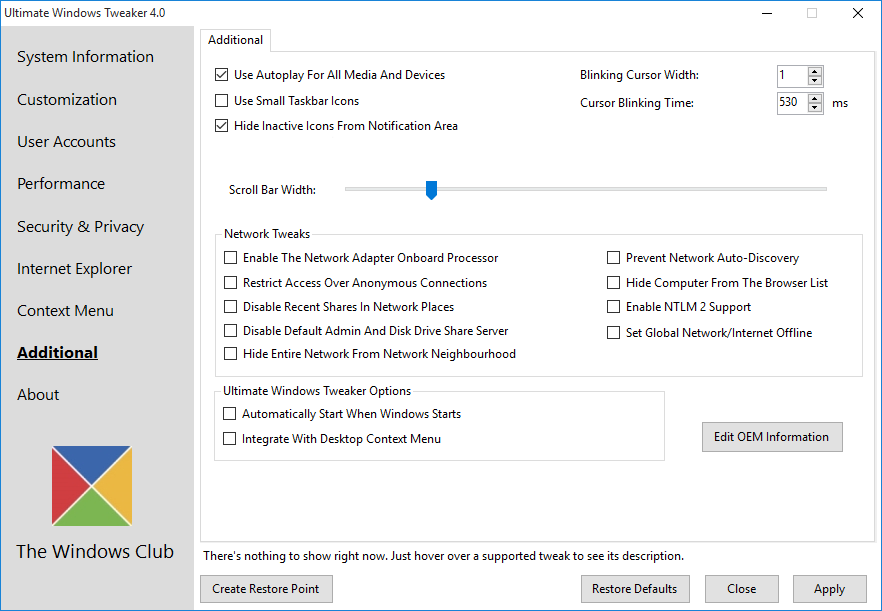
Ultimate Windows Tweaker is a lightweight (495KB) and portable Windows app that you can use to customize Windows 10 (as well as Windows 7 and 8).
Indeed, it is one of the best Windows 10 customization tools you’ll find; it offers more than 200 Windows tweaks for you to play with. You will find privacy tweaks, security tweaks, performance tweaks, context menu tweaks, search tweaks, and a whole lot more.
In addition to all the above, Ultimate Windows Tweaker also doubles as a Windows 10 taskbar customization software. For example, it lets you change the Battery, Date and Time, Volume layouts, and show or hide Frequent folders and Recent files.
Download: Ultimate Windows Tweaker (Free)
5. Taskbar Tweaker
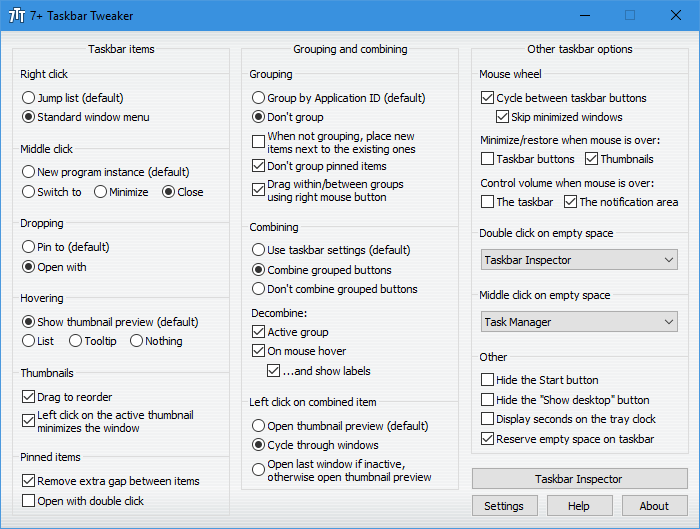
Although Ultimate Windows Tweaker lets you make some changes to the taskbar, check out Taskbar Tweaker if you want a more holistic level of control. It is the best Windows 10 taskbar customization app.
The app has a small amount of cross-over with the native Windows 10 taskbar configuration tools, but the majority of what it offers cannot be achieved by fiddling with the registry or using Windows’ own settings.
Some of the taskbar customizations offered by Taskbar Tweaker include:
- Hide the Start button.
- Group/don’t group pinned items.
- Enable/disable drag to reorder.
- Remove gaps between icons.
- Hide the Show Desktop button.
- Allow the mouse wheel to cycle between taskbar buttons.
Download: Taskbar Tweaker (Free)
6. Folder Marker
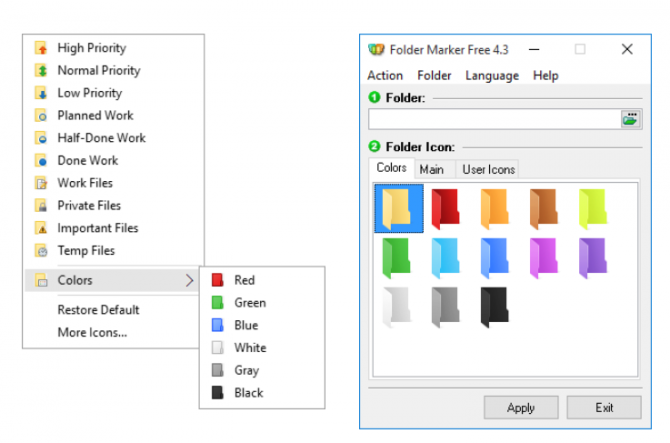
Folder Marker is as much about productivity as it is about customization. Quite simply, it lets you color-code folders with a single click of the mouse.
But the options don’t stop there—you can also set folders as High-Priority, Low-Priority, Completed, Important, and Private. If you’re working on large projects with lots of shared files and folders, it’s a great way to stay on top of your tasks.
The app can also work with several folders at once and can be set up with more sub-categories for an extra level of control.
The paid version adds features such as applying selected icons to all subfolders and adding custom icons.
Download: Folder Marker (Free, premium version available)
7. Rainmeter
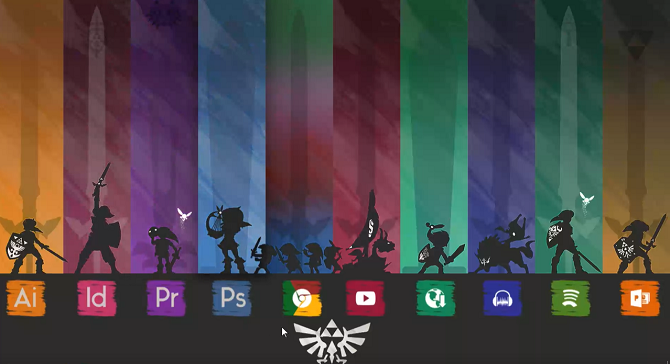
Be warned: Rainmeter is something of a rabbit hole. Once you get the hang of the app and learn how to tailor it for your needs, it’s hard to stop fiddling and create your own unique Windows 10 mods. Nonetheless, if you’re looking for a way to customize the Windows 10 desktop, there is no better tool.
Rainmeter works on the concept of «skins,» but that’s a bit of a misleading term. In practice, a skin can be as simple as a calendar widget or as complicated as an entirely new desktop showing everything from network usage to the latest news.
There are some default Rainmeter skins that beginner users can run. You need to learn how to create your own custom skins with this ultimate Windows 10 tweaker for the best experience.
Download: Rainmeter (Free)
8. UltraUXThemePatcher
You may have read our articles about the best light themes for Windows 10 and the best dark themes for Windows 10.
Some designs are seriously funky—but they require some external add-ons to work. Windows doesn’t play nicely with third-party themes that haven’t come directly from the Microsoft Store.
UltraUXThemePatcher is the most common tool you’ll need when using third-party themes. Given the nature of the app, it will modify your system files. Make sure you make a full backup of your important data and that you create a system restore point before you go any further.
Download: UltraUXThemePatcher (Free)
9. TaskbarToDock
Windows 10 has a simple taskbar. It’s clean and helps you get the job done quickly. However, it’s nothing like the taskbar of Mac.
Thanks to the developers of the TaskbarToDock, you now don’t have to drop hefty dollars just to try out the infamous Dock from Mac. Instead, all you’ve to do is download and run the tool, and it will do the rest for you.
To download TaskbarToDock, head to Microsoft Store and grab the official app. When the download is complete, you can launch the tool, which will automatically transform the taskbar for you; it will also arrange the toolbar icons in the middle and set the taskbar according to your Windows size.
Interestingly, when you change the taskbar’s theme, the new taskbar will also change its color to match it. To do that, head to Appearance section of your TaskbarToDock settings and set the Theme as Big Sur.
Download: TaskbarToDock (Free, premium version available)
Customizing Windows 10 Requires Patience
Customizing Windows 10 is an exercise in patience. If you like things that «just work,» using third-party customization tools might not be for you. When Windows updates itself or when the third-party developer changes their own software, you might find your system breaks or the customizations you’ve spent months working on mysteriously disappear.
Nonetheless, if you want to make Windows 10 feel more personal, all eight of the tools we have covered will put you on the right track.
Windows 10 и 11 предлагают множество возможностей для настройки и кастомизации операционной системы. В этой статье мы рассмотрим некоторые из лучших программ, твикеров, утилит и патчей, которые помогут вам сделать систему еще более удобной и персонализированной. Однако, стоит помнить, что внесение изменений в системные файлы и реестр может повлиять на стабильность работы вашей системы. Поэтому рекомендуется быть осторожным при использовании этих инструментов и создавать полный бэкап системы перед внесением изменений.
PowerToys: Утилита для улучшения работы с системой
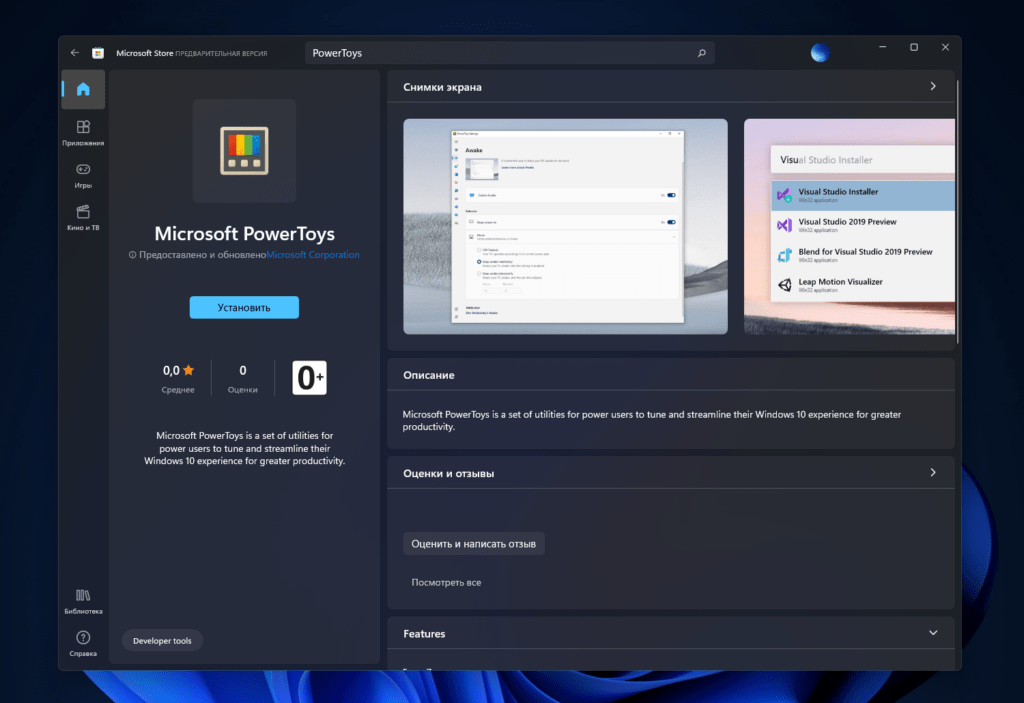
PowerToys — это набор утилит от Microsoft, который поможет вам улучшить работу с Windows 10 и 11. Этот бесплатный софт предлагает различные функции и инструменты для настройки операционной системы. Вот некоторые из интересных фич, предлагаемых PowerToys:
Always on Top
Функция Always on Top позволяет закрепить активное окно поверх других окон с помощью сочетания клавиш. Это очень удобно, например, при работе с калькулятором или другими приложениями, которые вы хотите всегда держать на виду.
Цветоподборщик
Цветоподборщик — это аналог пипетки, который работает по всей системе. Он позволяет выбирать цвета с любого места экрана и использовать их в других приложениях или документах.
FancyZones
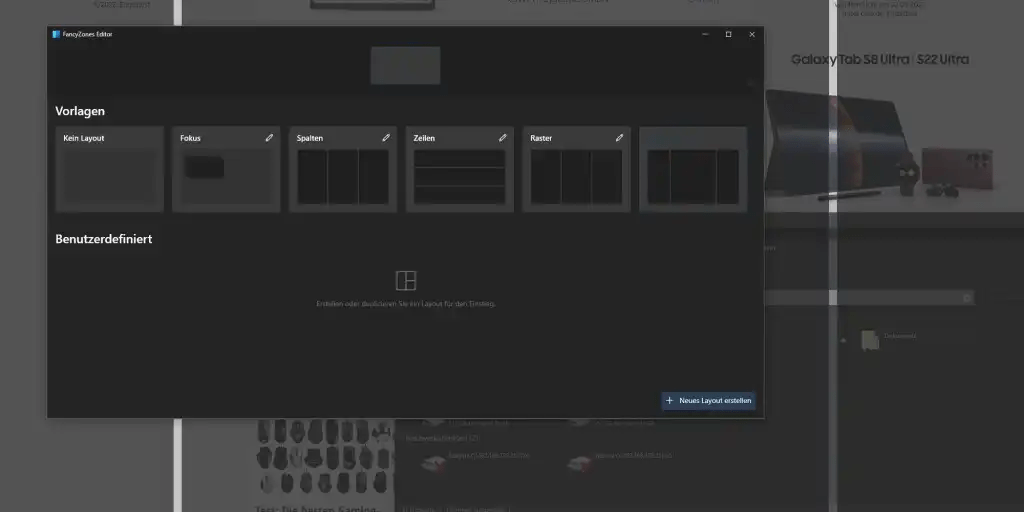
FancyZones — это продвинутая программа распределения окон, которая позволяет создавать шаблоны отображения окон приложений на экране. С помощью FancyZones вы можете организовать свои приложения в определенных зонах на рабочем столе для более удобной работы с ними.
Диспетчер клавиатуры и PowerRename
PowerToys также включает Диспетчер клавиатуры, который позволяет быстро создавать шорткаты и переназначать клавиши для выполнения различных действий. PowerRename — это инструмент для быстрого переименовывания большого количества файлов по заданному шаблону.
PowerToys постоянно обновляются и добавляются новые функции, поэтому рекомендуется следить за обновлениями и скачивать последнюю версию с официального сайта Microsoft.
WinAero Tweaker: Продвинутый твикер для Windows
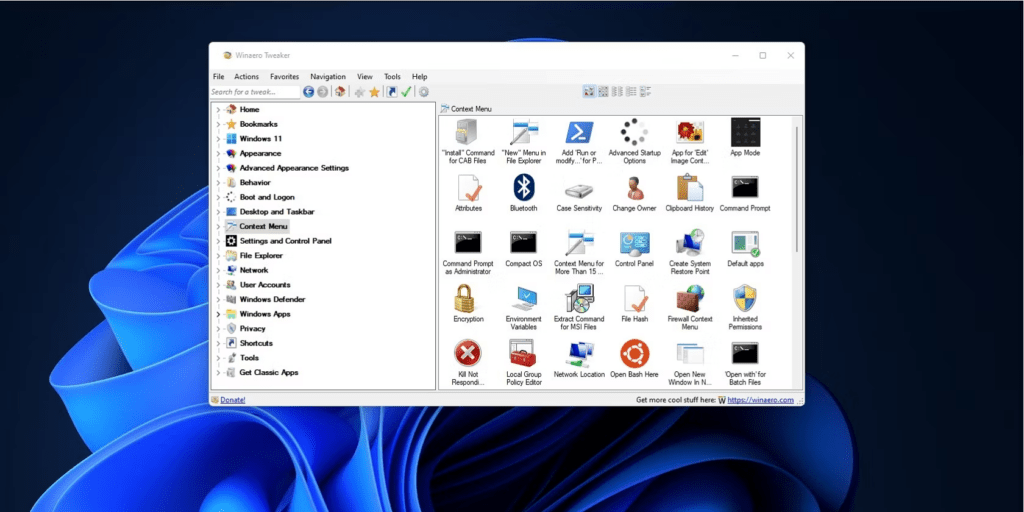
WinAero Tweaker — это мощный бесплатный твикер для Windows, который позволяет менять практически любые настройки в системе. С помощью этой утилиты вы можете активировать скрытые возможности, урезать ненужную функциональность и настроить различные аспекты операционной системы. Однако, важно помнить, что некоторые изменения, внесенные с помощью WinAero Tweaker, могут повлиять на стабильность работы системы.
Несколько примеров возможностей, предлагаемых WinAero Tweaker:
- Включение темы Aero Lite
- Изменение типа и размера шрифтов в системных меню
- Отключение рекламы и автообновления драйверов
- Изменение внешнего вида проводника и контекстных меню
- Восстановление классических утилит из Windows 7
- Отключение Защитника Windows и других системных компонентов
WinAero Tweaker предоставляет множество настроек и опций, поэтому рекомендуется внимательно изучить описание каждой функции перед ее включением или отключением. Утилита доступна для бесплатного скачивания на официальном сайте разработчика.
Внимание
ExplorerPatcher: Кастомизация внешнего вида проводника
Если вы хотите серьезно изменить внешний вид проводника, меню «Пуск» и панели задач, то утилита ExplorerPatcher может быть полезной. Она позволяет вам кастомизировать различные аспекты интерфейса Windows и настроить его под свои предпочтения. Однако, стоит отметить, что эта программа изменяет системные файлы и может вызвать сбои в работе системы, особенно после обновлений от Microsoft. Тем не менее, авторы утилиты активно поддерживают ее и регулярно выпускают обновления.
ExplorerPatcher работает как на Windows 10, так и на Windows 11. Некоторые функции могут быть недоступны на Windows 10, но вы все равно сможете настроить некоторые важные аспекты внешнего вида операционной системы. Утилиту можно бесплатно скачать с ресурса GitHub.
Autoruns: Управление запуском программ
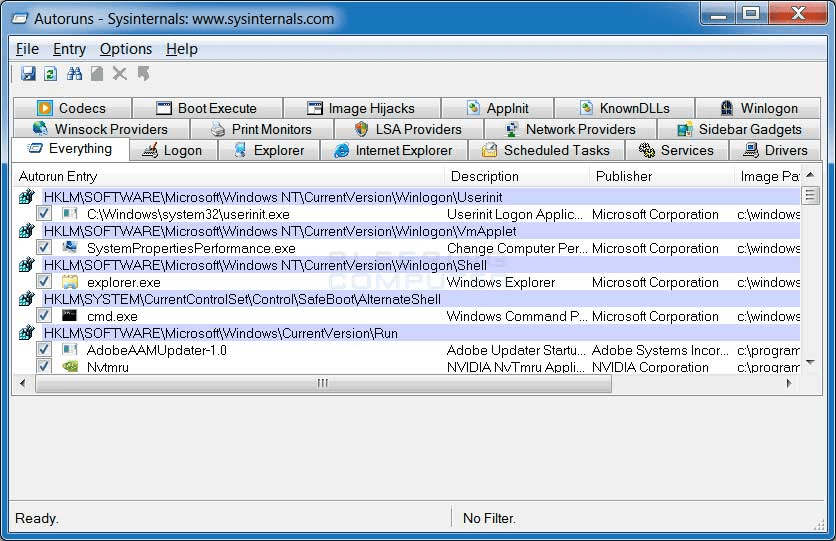
Autoruns — это утилита, разработанная Microsoft, которая позволяет управлять процессами, запускающимися вместе с Windows. Встроенные утилиты Windows часто упрощены для обычного пользователя, и Autoruns помогает увидеть все процессы, которые автоматически запускаются при загрузке системы. С ее помощью вы можете легко отключить ненужные программы, которые замедляют запуск компьютера. Однако, следует быть осторожным при отключении процессов, так как некоторые из них являются важными для нормальной работы системы.
Авторы утилиты регулярно обновляют ее, чтобы добавить новые функции и исправить обнаруженные проблемы. Autoruns можно бесплатно скачать с официального сайта Microsoft.
RegScanner: Удобный поиск по реестру
Редактор реестра в Windows предназначен для работы с системными параметрами, но его поиск не всегда удобен. RegScanner — это бесплатная утилита от NirSoft, которая значительно улучшает процесс поиска по реестру. Она позволяет выполнять более точные и быстрые поисковые запросы, что делает работу с реестром более эффективной.
Если вы часто работаете с реестром и нуждаетесь в быстром и удобном поиске, RegScanner будет незаменимым инструментом для вас. Утилита разработана компанией NirSoft и доступна для бесплатного скачивания на их официальном сайте.
Win 10 Tweaker: Мощный инструмент для оптимизации Windows
Официальный сайт: https://win10tweaker.ru/
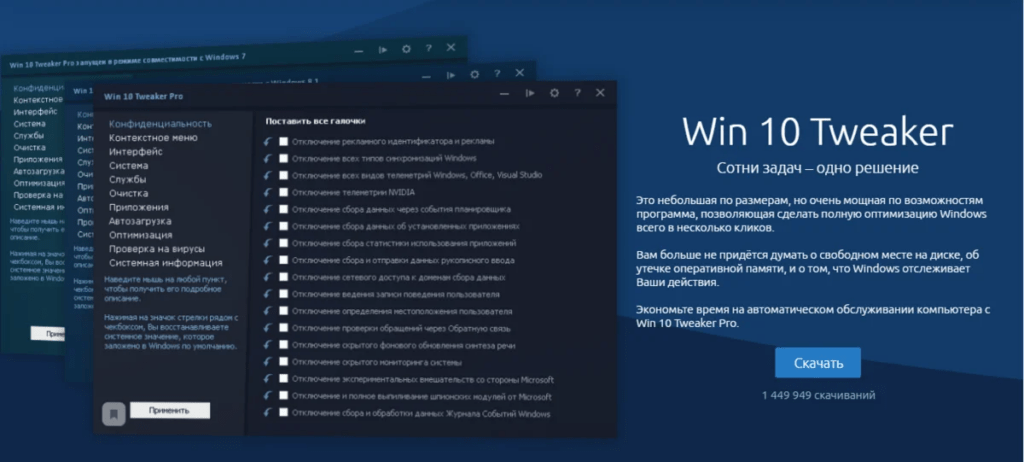
Win 10 Tweaker представляет собой удивительный набор функций, позволяющих вам настроить и оптимизировать вашу операционную систему Windows 10. Этот инструмент обеспечивает широкий спектр возможностей для улучшения производительности, повышения конфиденциальности и настройки интерфейса под ваши предпочтения. Давайте подробнее рассмотрим основные категории и функции, доступные в Win 10 Tweaker.
Видео по настройке от Remontka Pro
Конфиденциальность
Первая категория Win 10 Tweaker предназначена для удаления сборщиков и обработчиков информации о вашей активности. Путем применения твиков из этой категории вы сможете улучшить производительность вашего компьютера, освободив планировщик задач от ненужных служб. Кроме того, вы сможете полностью избавиться от встроенных шпионских модулей, которые поставляются с Windows.
Контекстное меню
С помощью категории «Контекстное меню» вы сможете настроить список пунктов, которые отображаются при щелчке правой кнопкой мыши. Win 10 Tweaker предоставляет возможность удалить ненужные элементы, которые Microsoft навязывает пользователям, и добавить полезные опции, упрощающие работу с вашим компьютером. Теперь вы сможете избавиться от ненужных программ, таких как Paint 3D и Windows Media Player, и добавить свои собственные настраиваемые команды.
Интерфейс: Настройка внешнего вида
Категория «Интерфейс» позволит вам внести изменения во внешний вид и поведение операционной системы. С помощью Win 10 Tweaker вы сможете удалить стрелки ярлыков, улучшить прозрачность панели задач и изменить внешний вид скролл-бара. Все необходимые настройки Проводника будут собраны в одном месте, что позволит вам экономить время и быстро настраивать Windows по своему вкусу.
Система: Оптимизируйте работу ОС
Win 10 Tweaker предлагает уникальные возможности для оптимизации вашей операционной системы. Вы сможете отключить Защитник, SmartScreen и UAC, убрать назойливые предупреждения Windows и даже запретить автоматическое выполнение программ с флеш-накопителей, чтобы предотвратить вторжение вирусов на ваш компьютер. Даже если у вас установлена Windows 10 Home, вы сможете использовать функции Групповой политики с помощью Win 10 Tweaker.
Службы: Управляйте службами операционной системы
Категория «Службы» содержит только те службы, которые безопасно можно отключить. Win 10 Tweaker предлагает уникальный конфигуратор, который позволит вам настроить службы в соответствии с вашими потребностями и характером использования компьютера. Если у вас есть Pro-версия операционной системы, вы сможете воспользоваться интеллектуальным режимом, который позволит провести глубокий анализ и отключить дополнительные компоненты. Для получения более подробной информации об этой мощной категории рекомендуется просмотреть поясняющее видео.
Очистка: Удаление ненужных файлов и кэша
Win 10 Tweaker предлагает уникальную функцию очистки, которая базируется на знаниях, накопленных за более чем 15 лет изучения операционной системы Windows, начиная с Windows XP. При первом запуске Win 10 Tweaker для полной очистки вы можете быть удивлены огромным количеством удаленных системных файлов. Версия 18.0 Win 10 Tweaker включает нейросетевое сканирование мусора — первый пример искусственного интеллекта в истории очистки Windows.
В итоге, Win 10 Tweaker представляет собой мощный инструмент, который поможет вам максимально оптимизировать вашу операционную систему Windows 10. Независимо от того, нужно вам повысить производительность, обеспечить конфиденциальность или настроить интерфейс, Win 10 Tweaker предлагает широкий спектр функций и настроек, чтобы удовлетворить ваши потребности. Откройте для себя все возможности этого удивительного инструмента и настройте вашу операционную систему по своему вкусу!
It’s no doubt that Windows is right now the most used desktop operating system. Windows provides users with far more features than every other desktop operating system. Although Windows is never known for its customizations, you can use a few software to customize Windows the way you want.
If you are amongst those who spend most of their time in front of a computer screen, this article might help you. This article will share some of the best software to help you customize the operating system the way you want.
Also Read: How to Change the Default New Folder Name in Windows 10 PC
It’s worth noting that most of the article’s software is compatible with Windows 10. However, some of them work on older Windows versions like Windows 7, Windows XP, etc. So, let’s check out the best powerful tools to customize Windows 10.
1. WinAero Tweaker
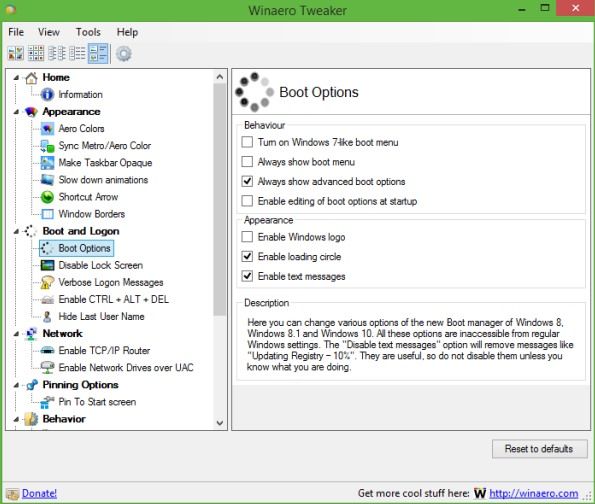
This is one of the best tools to customize the Windows 10 user experience, and also, this is a freeware tool that works perfectly with Windows 10. Winaero Tweaker is a portable application and does not require to be installed. This is a universal tweaker software that supports Windows 7, Windows 8, Windows 8.1, and Windows 10. You will find lots of options and tweaks that keep on varying according to the Windows versions you are running on.
2. 7+ Taskbar Tweaker
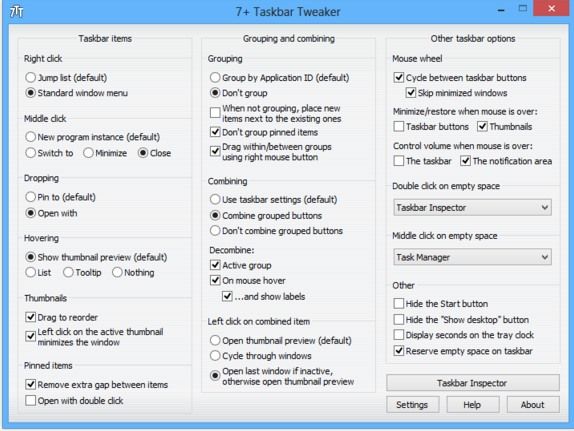
This is also the best tool to customize your taskbar according to your wish. 7+ Taskbar Tweaker allows you to configure various aspects of the Windows taskbar. Most of the configuration options it provides can’t be tweaked using the taskbar properties or the registry. The Tweaker is designed for Windows 7, Windows 8, Windows 8.1, and Windows 10.
3. Ultimate Windows Tweaker 4
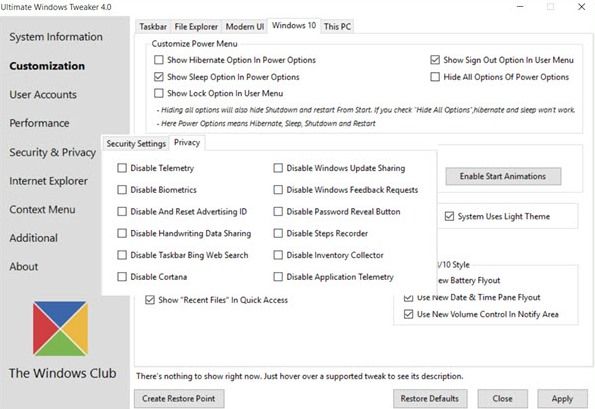
This tool is better than all others and works the same as its name indicates that it’s the ultimate tool that allows users to make lots of Windows 10 according to wish. While you may be able to access all these via the Windows 10 Settings app, the Registry Editor, or the Group Policy Editor, Ultimate Windows Tweaker makes things easier for you by offering all useful tweaks from its single UI.
4. Launchy
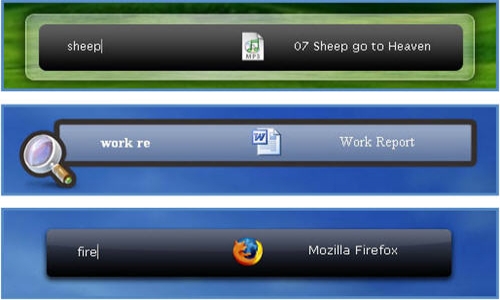
Launchy is a free cross-platform utility designed to help you forget about your start menu, the icons on your desktop, and even your file manager. Launchy indexes the programs in your start menu and can launch your documents, project files, folders, and bookmarks with just a few keystrokes. Pressing ALT + SPACE will immediately trigger launchy, where you can type the name of any program or folder.
5. Okozo Desktop
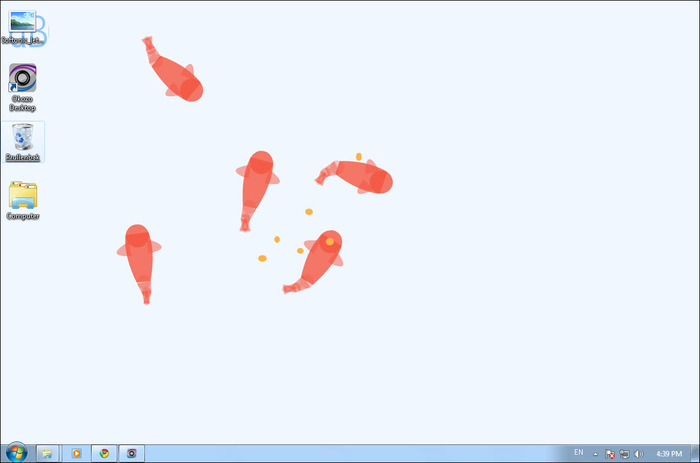
Okozo is a website that lets you download a bunch of live wallpapers. The wallpapers are beautiful and can help you customize your Windows. You can download live wallpapers that show time or play music or do various other tasks. You can download its client for Windows and get newly added wallpapers from its software.
6. Rainmeter
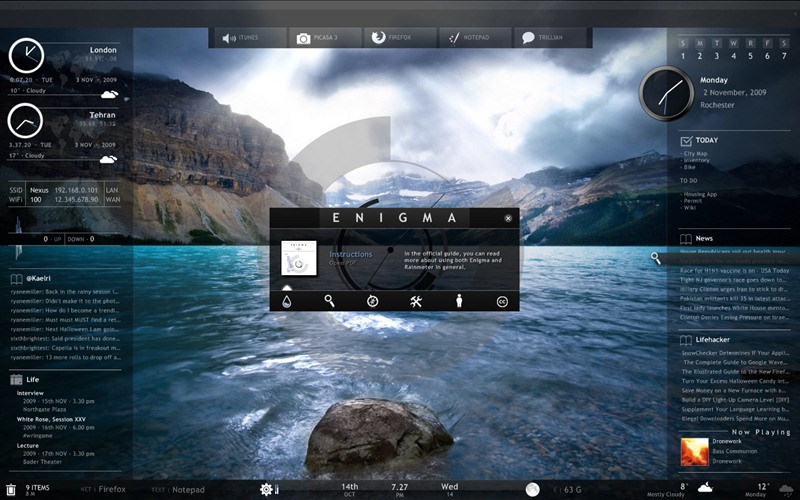
Rainmeter displays customizable skins, like memory and battery power, RSS feeds, and weather forecasts, right on your desktop. Many skins are even functional: they can record your notes and to-do lists, launch your favorite applications, and control your media player – all in a clean, unobtrusive interface that you can rearrange and customize to your liking. Rainmeter is at once an application and a toolkit. Your imagination and creativity only limit you.
7. MyFolders
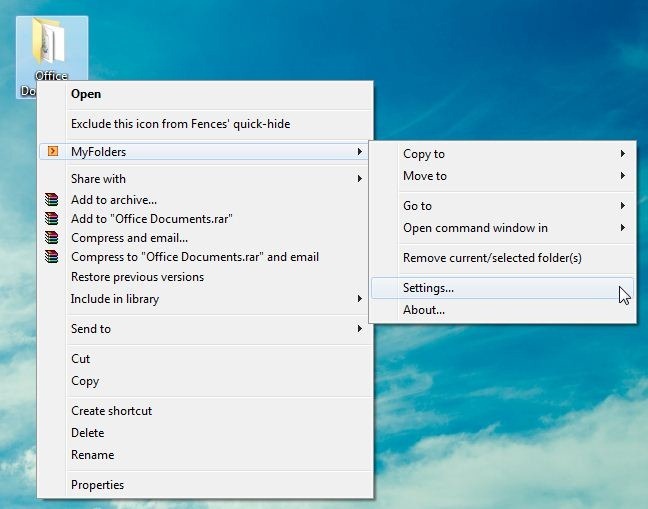
The folders Windows Explorer Shell Extension saves your time by placing any folder at your fingertips. Copy/Move files or Open any folder with just a few clicks! You can get a MyFolders option listed on a right-click menu with several convenient utilities to access folders. You will get options like the Copy to, Move to, Go to, Open command window.
8. Fences
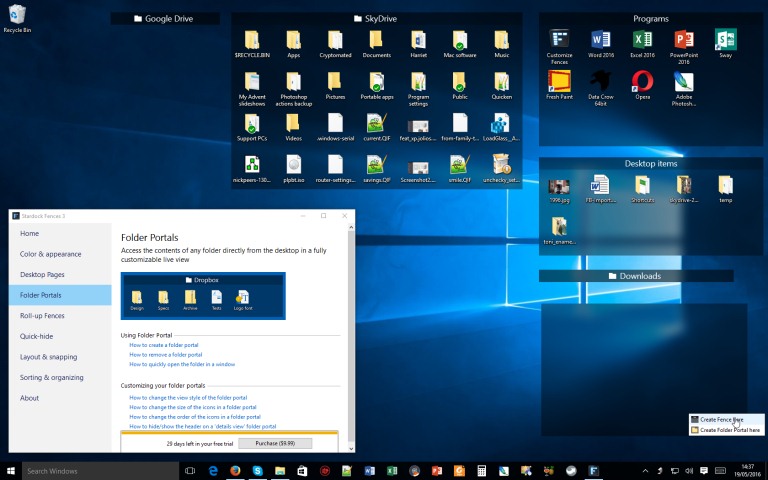
Fences are very similar to the Android group feature. As we know, Android does provide a feature to group the apps and folders on the home screen for easy access. Fences act the same; it helps you create groups of apps and folders on your computer. You can even customize your created groups on your desktop with different icons. This app is great for those who have lots of software installed on their computers.
9. Aero Glass
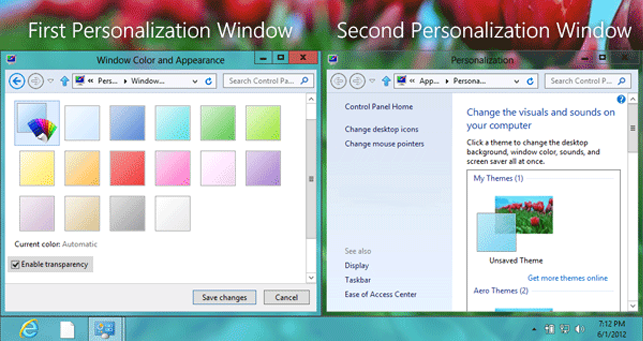
If you want to enjoy the Aero Glass transparency feature available on Windows 7, 8, and 8.1, you will love this tool. Aero glass transparency feature is missing in Windows 10. So, this tool will help you bring back the Aero glass to the window border with blur effects.
10. Login Screen Background Changer
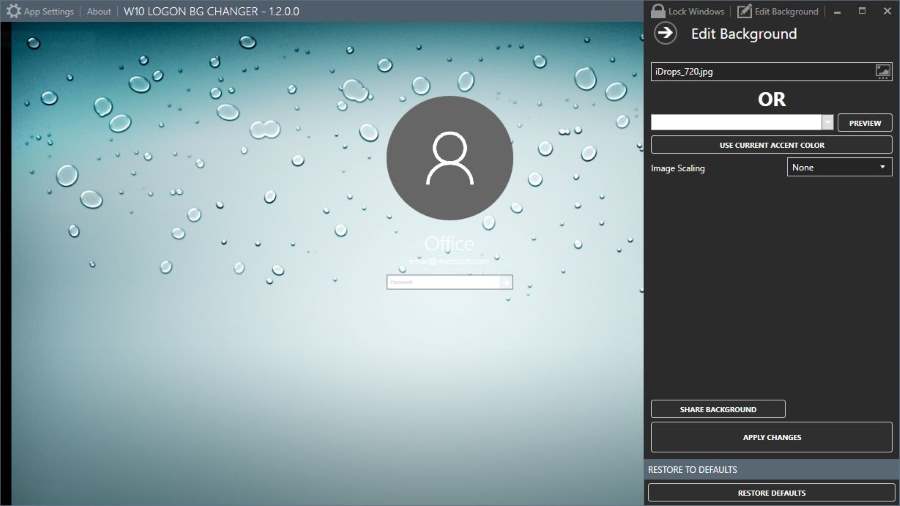
Well, if you don’t like the default desktop wallpaper as a login screen background, then you will love this tool. This tool lets you set a custom image of your own as a login screen background. This tool is free of cost and will help you replace the default login screen background image with a solid color.
11. CustomizerGod
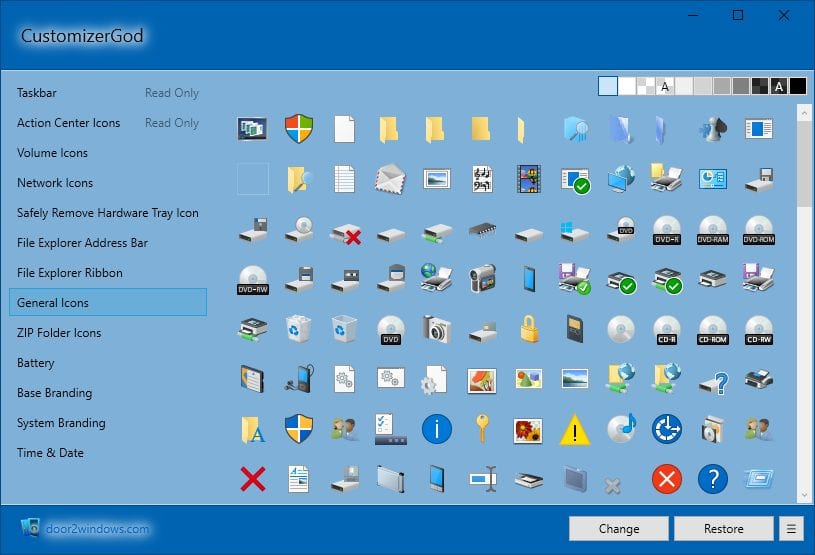
This is an awesome tool that lets you customize your Windows 10 desktop. You can customize almost everything using this mini too. You can make your start button look different. You can use this tool for editing any image resources.
12. TileCreator
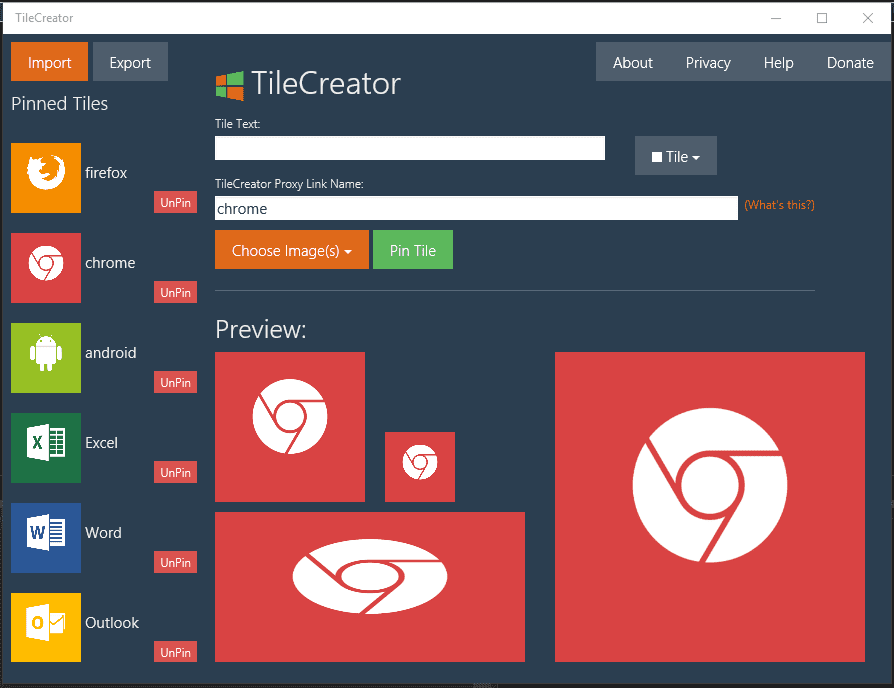
This is an awesome tool that you can download from the Microsoft store. This tool will be beneficial if you want to change the tiles’ visual appearance on the Start Menu. This tool will let you customize the text, background color, and image of any app’s tile.
13. Folder Marker
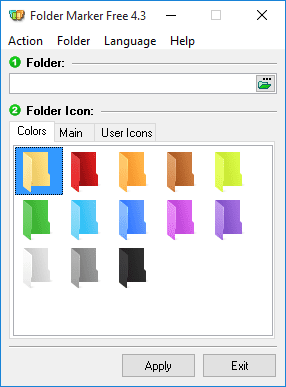
This tool lets you add colors to your windows folder. Users need to install the tool and then right-click on any folder to make their icons look beautiful. This tool can assign icons to a folder from file formats ICO, ICL, EXE, DLL, CPL, or BMP.
14. Rocket Dock
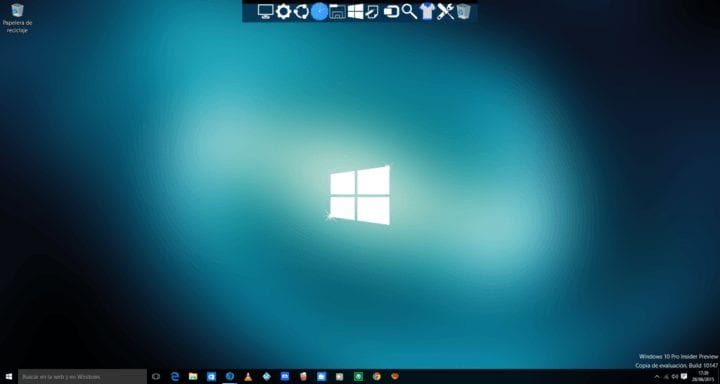
This is actually a launcher. This tool lets you pin shortcuts anywhere on the desktop. You can add shortcuts for apps, programs, and even folders in a small-sized dock using the Rocket dock tool.
15. Start10
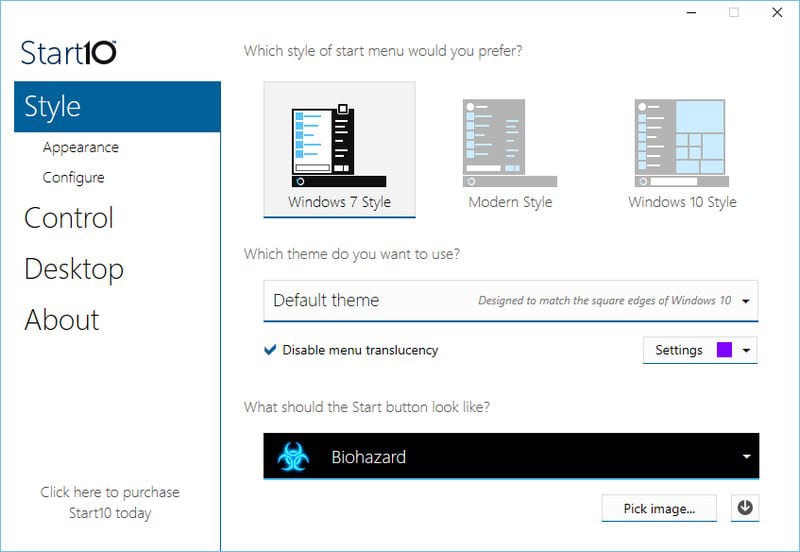
If you want to customize your Windows 10 start menu, Start10 will be a perfect choice. This tool changes the look of your default Start menu and lets you choose your background and color and use different start menu themes.
16. TweakNow PowerPack
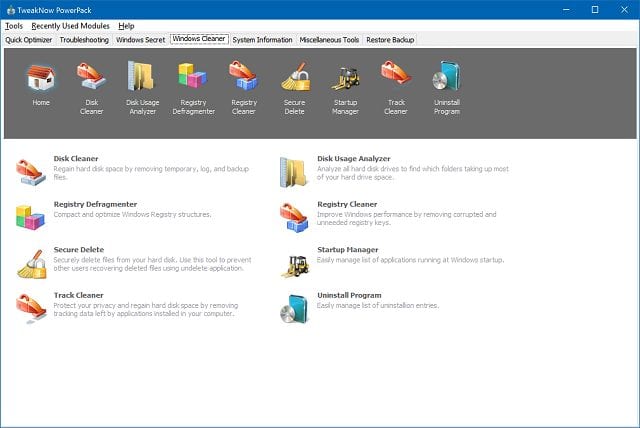
Well, TweakNow Powerpack is something different from all others listed above; this mini tool is designed to help you alter the way your system works rather than the way it looks. The tool actually lets the user fine-tune every detail of Windows 10. With this app’s help, you can change the graphics feature of your Windows 10 computer.
17. WindowBlinds
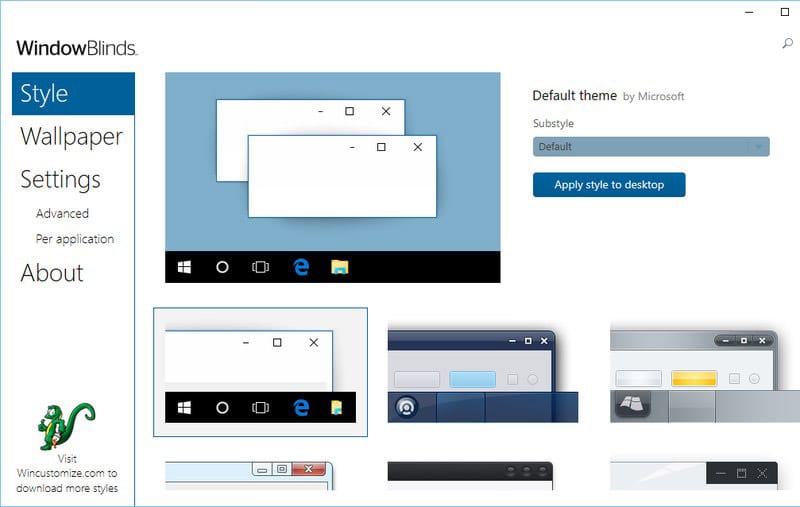
Well, WindowBlinds comes from the creators of Start10. This mini tool allows you to set custom skins for the Windows 10 operating system. The tool actually allows you to set custom skins for Windows 10 computers, and guess what? These skins are so amazing that they can completely change the look of your Windows, buttons, applications, fonts, icons, and more.
18. NTLite
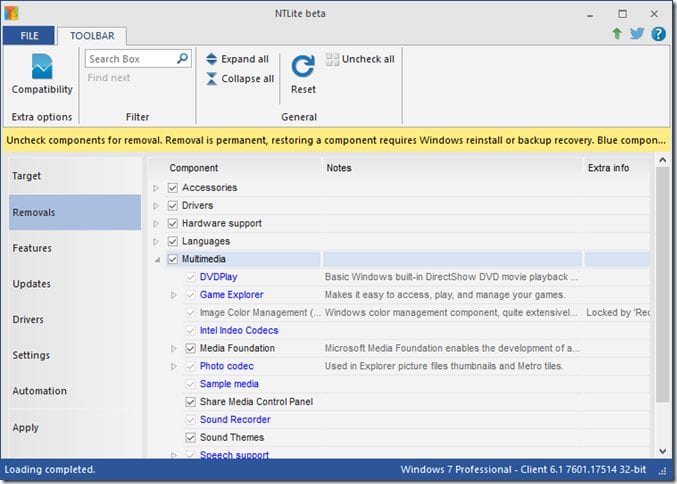
NTLite is one of the best and interesting Windows tools that you can use to customize and tweak the Windows 10 installation. It’s worth noting that the app doesn’t help you customize Windows 10 directly, but it helps users tweak the installation file of Windows 20. With NTLite, you can create unattended Windows 10 ISO and integrate drivers.
19. Windows 10 Color Control
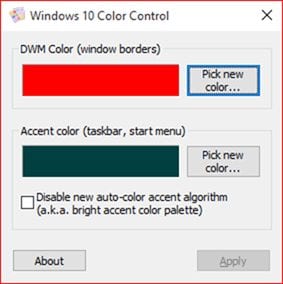
Windows 10 Color Control is another best Windows tool that allows users to set different colors for the taskbar and window borders. Normally, on Windows 10, you can’t set a different color for the taskbar. However, the Windows 10 Color control brings colors to your taskbar. So, it’s another best powerful tool that you can use to customize your Windows 10.
20. Classic Shell
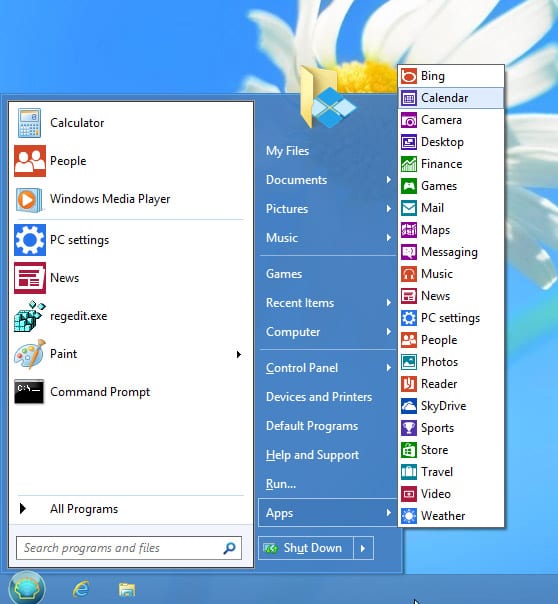
Well, it’s no doubt that the classic Windows 7’s Start Menu looks amazing. However, if you have recently installed Windows 10 and now missing the classic Windows 7’s Start Menu, Classic Shell could be the best option. The app allows users to customize the Windows 10 start menu in every possible way. Actually, Classic Shell brings plenty of settings to tweak and customize Windows 10.
21. Dynamic Theme
Dynamic Theme is basically a wallpaper and lock screen changer software available for the Windows operating system. The best thing about Dynamic Theme is that it brings high-quality wallpapers from Bing or Windows Spotlight Pictures. What’s more interesting is that it changes the wallpaper automatically every day. So, Dynamic Theme is another best Windows 10 customization tool that you can use right now.
22. HackBGRT

If you have been using the Windows operating system for a while, you might know that the operating system allows users to change the wallpaper, lock screen background, etc. However, there’s no option to change the UEFI boot logo. So, HackBGRT is a free utility that’s designed to change Windows 10 UEFI boot logo.
23. Windows OEM Info Editor
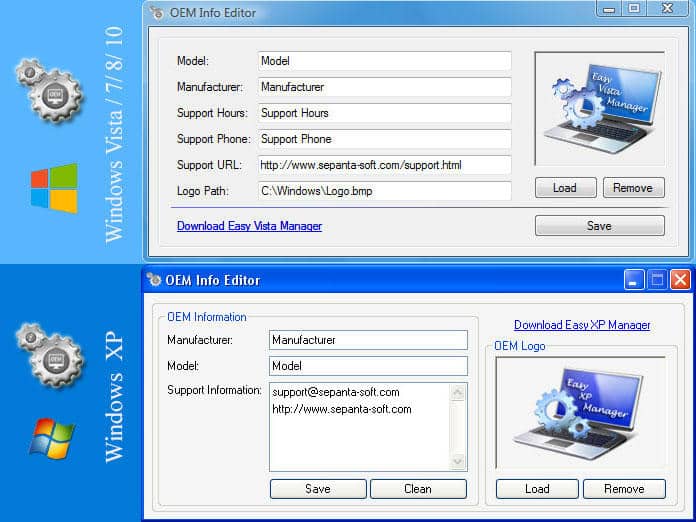
Well, Windows OEM Info Editor is not exactly a Windows 10 customization tool, but it can pretty much change everything about your system. For example, Windows OEM Info Editor can change the model name, contact information, Windows version. Apart from that, you can also change the Windows 10 OEM logo and model name.
24. WindowBlinds
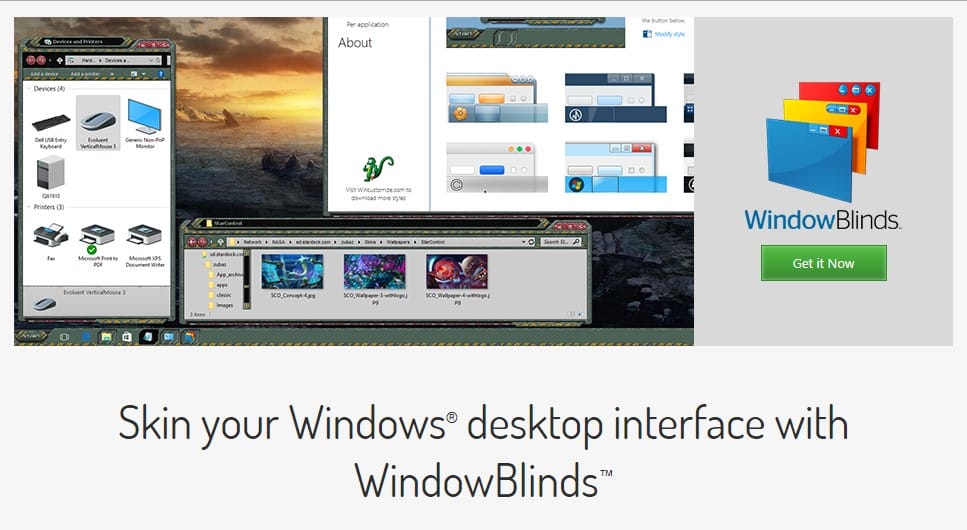
WindowBlinds is one of the best and popular software used to skin the Windows desktop interface. With WindowBlinds, you can easily apply custom skins to your desktop. Not only that, but users can also add backgrounds. The windows customization software offers lots of design options and skin fonts to choose from.
25. Deskscapes
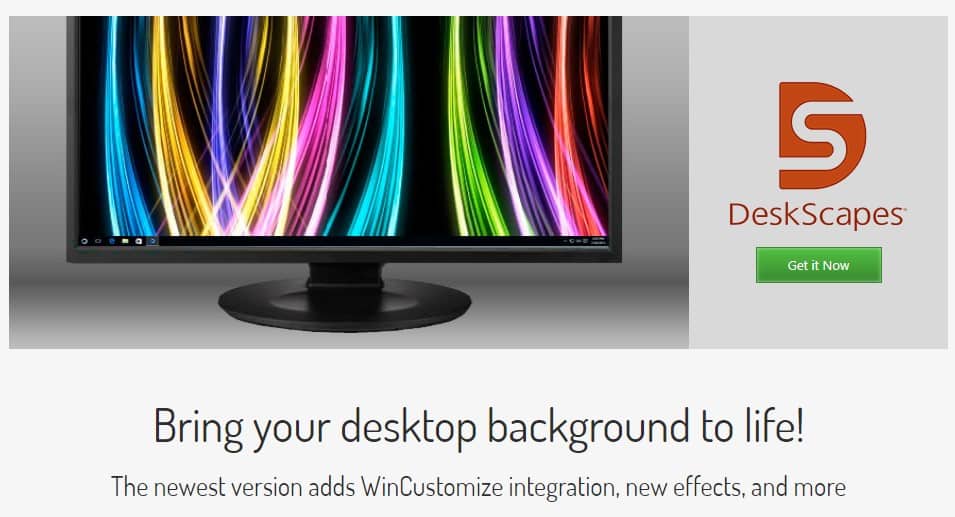
If you are searching for a Windows 10 tool to animate and customize the background, you need to give Deskscapes a try. It’s basically software that can animate and customize your Windows desktop background. Deskscapes uses a massive integrated library of images and video files to customize your desktop background. So, Deskscapes is another best Windows 10 tools for customization.
So above are the best tools to Customize Windows 10. With these tools, you can easily customize Windows 10 and have a better graphical user interface. I hope you like these tools; keep on sharing with others too.
Blog Summary: Windows 11/10 is an excellent Operating System that offers several features to enhance your productivity. However, you may want to customize its user interface by changing its colors, fonts, icons, animation, sound & other elements. In this blog post, we will show you the 10 best tools to transform the look and feel of your desktop, Start menu, Taskbar, and more. Based on our testing and review, we recommend Winaero Tweaker as the most versatile tool to personalize your PC that suits your specific needs and preferences.
1. Winaero Tweaker
Probably the best Windows 10 UI customization tool, Winaero is capable of changing many default settings to personalize your own way. Plus, it gets updated with new features each time. From registry tweaks to some of the Windows’s hidden settings, everything is nearly possible with this custom desktop software.

Best of Winaero Tweaker Windows 10 Tweaking Tool:
- Lots of Windows 10 customization options include stopping Windows from restarting after updates, color title bar, change icon style, configure update settings, etc.
- Each of the options has detailed features explained so you can check out negatives & positives accordingly.
Get Winaero Tweaker here!
2. CustomizerGod
Call it one of the best Windows 10 customization software as CustomizerGod will let you tweak anything on your Windows as you like. It lets you change icons the easy way possible but wait, there’s more to it. You can also tweak toolbars and taskbars according to your taste with this best PC customization app.
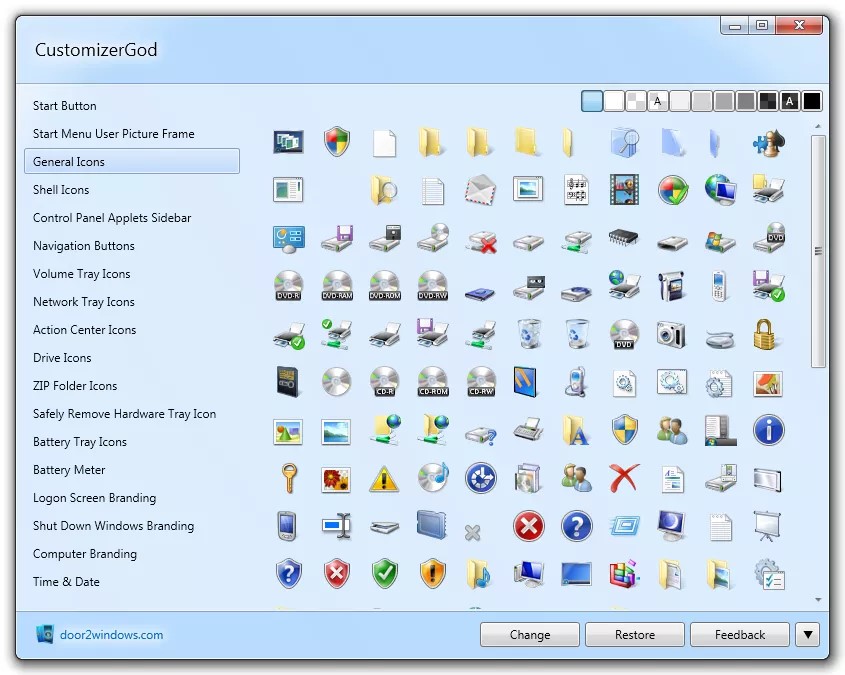
Best of CustomizerGod Windows 10 Tweaking Tool:
- Claimed as one of the safest and easiest tools in the industry to customize desktop of Windows 10.
- It can restore and retake backups, customize third party files, and can even change the Start button.
Get CustomizerGod here!
3. 7+ Taskbar Tweaker
Configure various characteristics of your choice using Taskbar Tweaker which revolves majorly around the taskbar. Interestingly, this desktop customization app is very descriptive for new users who can learn what needs to be done right from the interface only. With this Windows 10 customization software, you can easily make the taskbar overall very interactive.
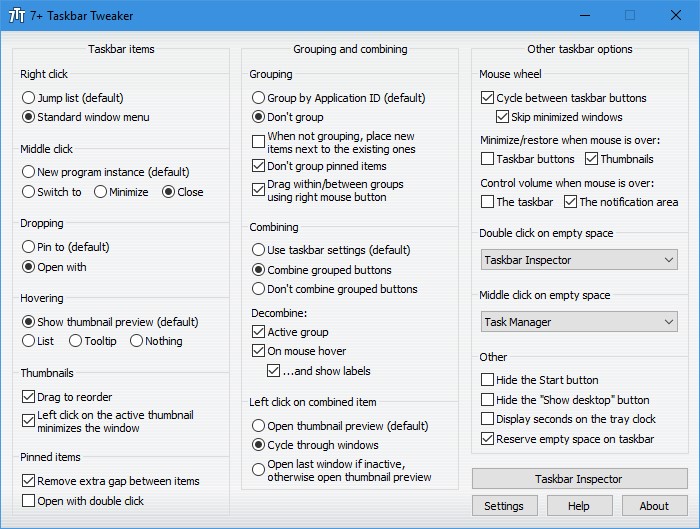
Best of 7+ Taskbar Tweaker Windows 10 Tweaking Tool:
- Add more functions by simply clicking twice on the empty taskbar.
- Configure the taskbar settings including group management of items, action of mouse buttons, etc.
Get 7+ Taskbar Tweaker here!
4. NTLite
While you search for the best Windows 10 UI customization tools, NTLite has got you covered indirectly. How? This custom desktop software lets you personalize Windows during installation by creating an unattended installation of Windows, adding new drivers, integrating Service Packs, etc.
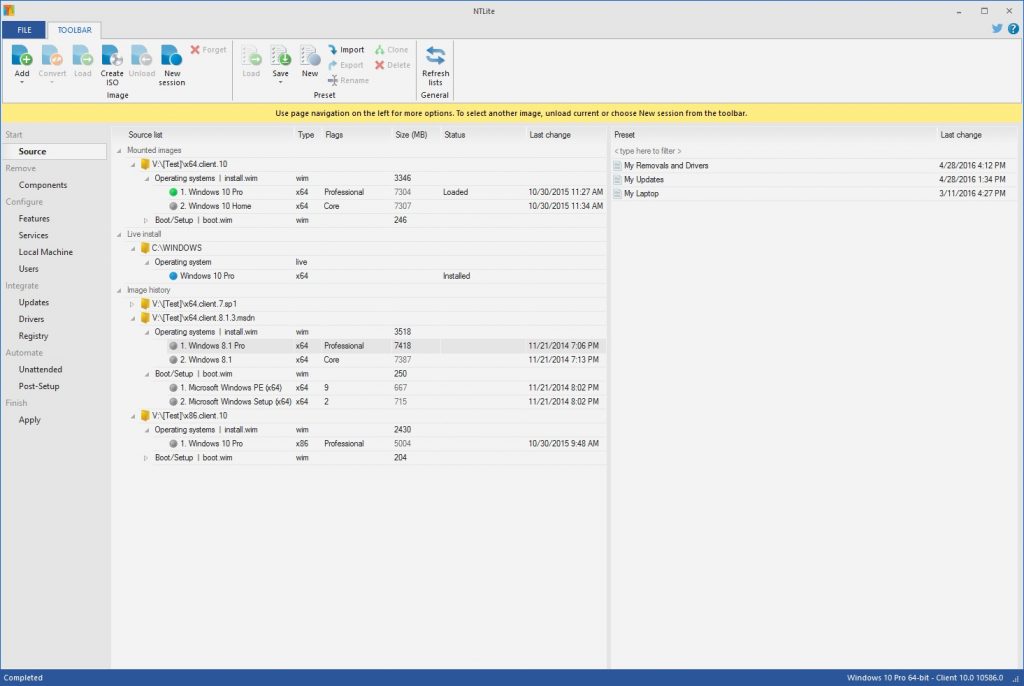
Best of NTLite Windows 10 Tweaking Tool:
- You can integrate various new themes, wallpapers, screensaver in Windows 10 ISO or DVD with NTLite.
- Live Edit mode, updating downloads, language integration, registry editing, etc. are quite possible.
Get NTLite here!
5. Rainmeter
There is no better tool to customize desktop of Windows 10 other than Rainmeter considering the availability of numerous ‘Skins’. These skins vary from simple to complex features like desktop gadgets, customization tools, layouts, basic settings, and much more than ever thought of.

Best of Rainmeter Windows 10 Tweaking Tool:
- It claims using a very little part of your hardware even after a plethora of in-built tools. Hence, this could be called the best Windows 10 UI customization tool that also works very fast.
- Provides you additional information about battery power, online data system, etc.
Get Rainmeter here!
6. Ultimate Windows Tweaker
Just like its name, this Windows 10 tweak tool is a platform that serves options like customizing desktop of Windows 10, keeps security in line, adds functions and shortcuts and much more. Its interface is self-explanatory, so users do not need a separate manual for its running and can easily enjoy personalization
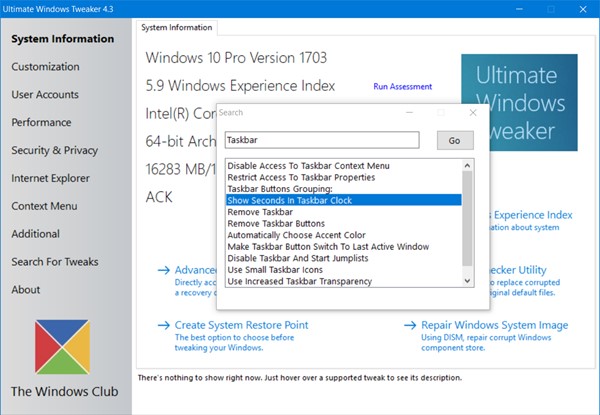
Best of Ultimate Windows Tweaker Windows 10 Tweaking Tool:
- Its best tweaking tools include hibernation in the power menu, windows animation controller, removing or adding changes in the taskbar, etc.
- More than 200 tweaks yet simple and minimalistic interface is another thumbs up.
Get Ultimate Windows Tweaker here!
7. Start10
Why go anywhere else when one Windows customization software can take care of all your needs related to the Start menu? Yes, Start10 is able to customize your Start menu by changing the look like adding a customized photo, colors, icons, and more.

Best of Start10 Windows 10 Tweaking Tool:
- Take control of the Start menu all by yourself and even decide the items to be shown, their sizes, and location.
Get Start10 here!
8. TweakNow Power Pack
After a trial period, this Windows customization software asks you to pay mere dollars which are totally worth it. Apart from customizing Windows, a user has access to clean the disk space, indulge in taking care of privacy, remove registry, optimize RAM, etc.
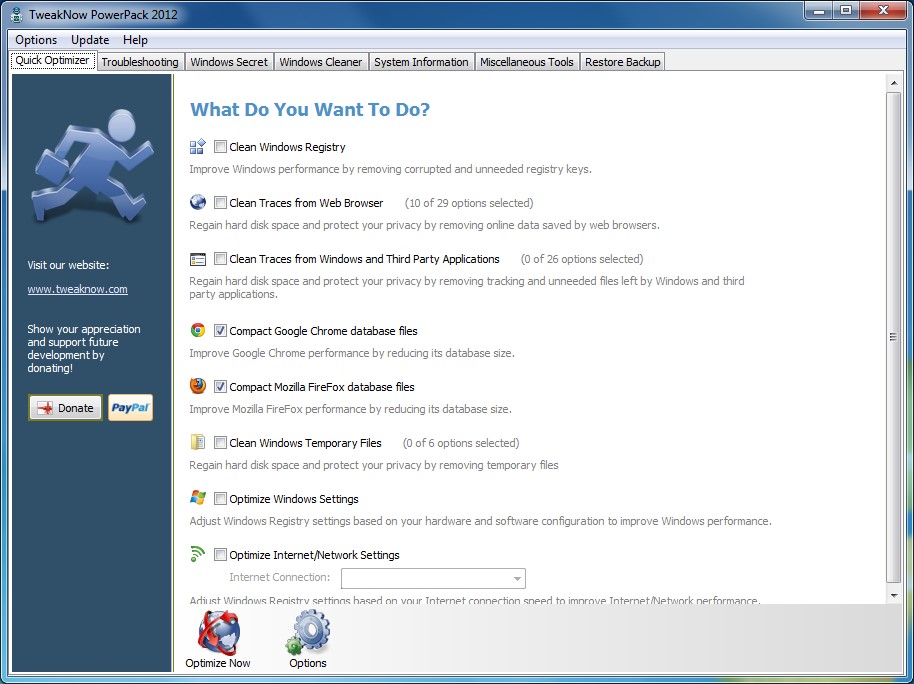
Best of TweakNow PowerPack Windows 10 Tweaking Tool:
- In-built Suite offers a broad picture of your computer’s hardware like motherboard, processor, video card, memory, etc.
- Additional 100 hidden Windows settings to surprise your customization.
Download TweakNow Power Pack here!
9. Folder Maker
Folder Maker is one of the free to use desktop customization apps. It helps you in making changes to the folders’ appearance on your desktop. One of the best Windows 10 UI Customization tools for a beautiful experience when working on a PC. It also comes in a premium version with added features like custom icons and automated application of icons to all subfolders.
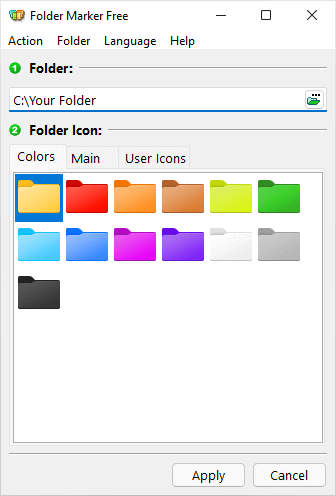
Best of Folder Maker :
- It works with multiple file formats for the convenience of the users. For eg. ICO, ICL, EXE, DLL, CPL or BMP.
- Easy to use where you can color code multiple folders to make it easy to identify on the desktop.
Download Folder Maker here!
10. WindowBlinds
Well, with WindowBlinds, you can be sure of getting certain custom skins for your PC which makes it one of the best Windows 11 customization apps. With these skins, you can change the overall appearance of Windows, buttons, font, apps, and many other aspects. Some of these skins are free to use whereas some may ask for additional payment.

Best of WindowBlinds Windows 10 Tweaking Tool:
- Choose your own skin buttons, titles, background textures, and buttons.
Download WindowBlinds here!
Wrapping Up
Now, who would not love customizing their desktop with any of the above 10 Windows 10 customization software where they can manage every nook and corner, be it the start button, taskbar, or frames. Yes, everything is possible, all you have to do is choose the right software according to what you want to do with your PC and your work is done! Customize desktop for Windows 10 freely now!
Over time the performance of your computer system can degrade and requires few tweaks and adjustments for smooth running. A regular touch-up of your computer is what you need. Stay tuned to learn about the best powerful tools to customize your Windows 10.
But adding a personal touch to your Windows 10 PC can be highly difficult, you might need to make regular visits to the control and settings panel of your device to boost the overall health and working of your PC.
Windows is by far the most used operating system in the world but fails to meet the varied customization needs of its users. Thankfully, the technology market is filled with an ocean of best Windows 10 customization software.
If you are a user who spends hours in front of the computer screen and is wondering what is the best desktop customization software, then you are at the correct place.
In this article, we will discuss various tools to customize the desktop of Windows 10. Let’s have a look at them one by one.
What Are the Best Tools to Tweak & Customize Windows 10 Devices?
Shortlist the best customization tool for your Windows computer from the list below!
1. 7+ Taskbar Tweaker
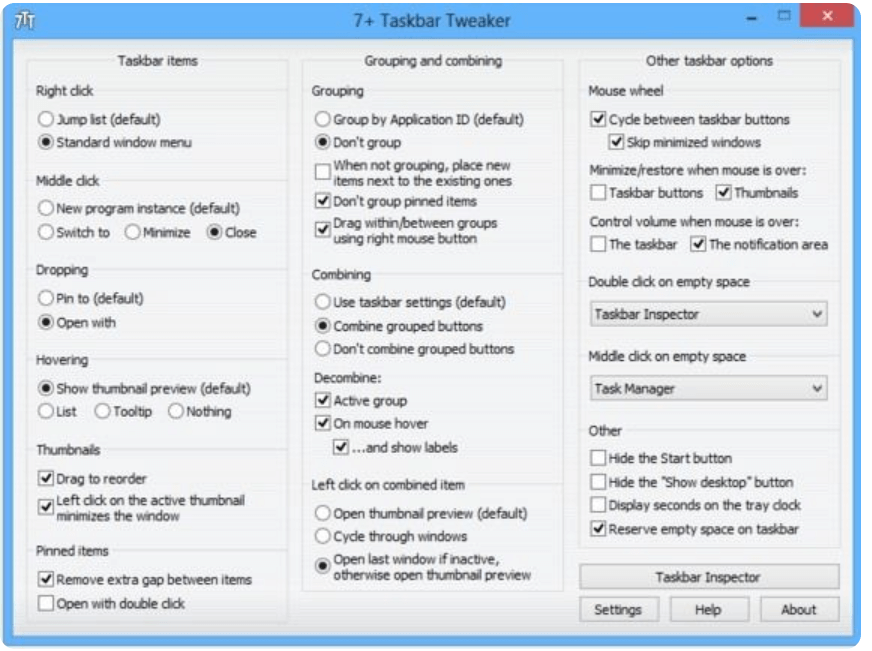
7+ Taskbar Tweaker is one of the best Windows 10 UI customization tools for fairly good reasons. It comes loaded with several customization options with which you can easily alter and set different settings and aspects of your Windows Taskbar.
The tool is fully compatible with various Windows versions including 7/8/8.1 and 10 and has close to 30 different settings to tweak the default setting of your device taskbar.
Read More: Best Program Launcher For Windows 10
The best part of this Windows 10 taskbar customization software is its highly elaborate and descriptive interface. Its taskbar is categorized into simple actions including the action of mouse buttons, group management, and much more. Enjoy effortlessly and interactive tweaking with this amazing tool.
Key Features of 7+ Taskbar Tweaker
- The software lets you change various things on your computer display including taskbar options
- Using the software you can even change the role of right and middle-click
- It has a very simple yet descriptive interface which will not take much time to adapt
- The software is lightweight and doesn’t use much of your computer resources
2. My Folders
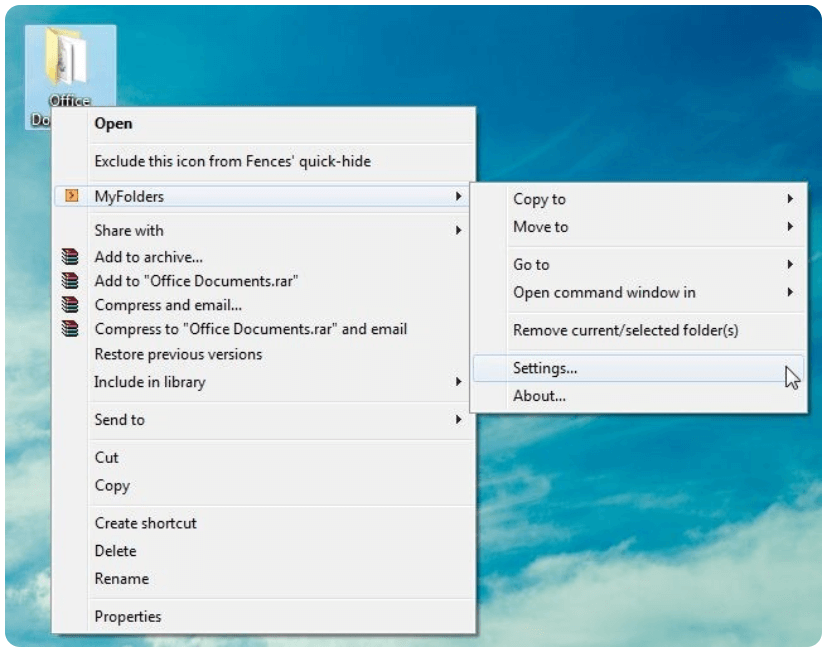
This lightweight and handy tool is our next pick for the list of Windows 10 tweaking tools. The tool is powered with a class-apart working methodology and adds a context menu entry to your device. Easily access various folders and manage their location using the context menu.
Once you have added the folders to the menu, right-click on the blank space on your desktop and hover your mouse on the MyFolders option. Next from the displayed list choose the Go-To option to access and open the folders that you have added.
A simple right-click will help you add/remove and access multiple folders. Enjoy easy access and management of multiple folders with MyFolders, the best Windows 10 tweak tools.
Key Features of My Folders
- This is free to use software that keeps on getting regular updates
- The software makes your work easy but adding an option on your right-click menu
- You can easily add a folder which you use mostly for copying or moving files
- Setting up this software is also very easy
3. Winaero Tweaker
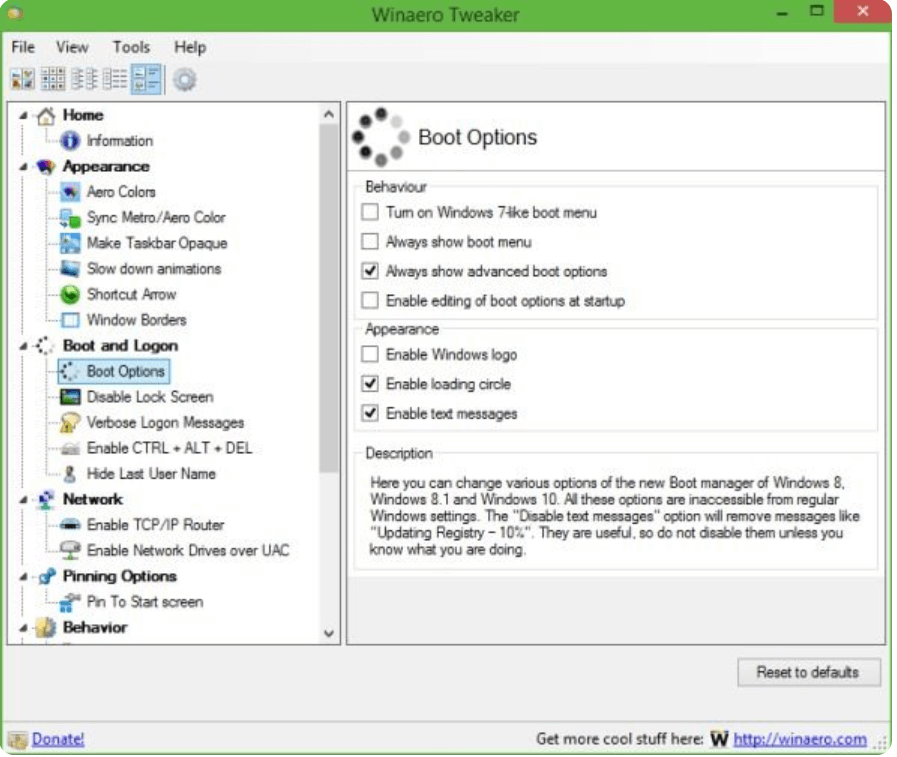
If you are searching for a handy yet efficient Windows customization software, then Winaero can be a good pick. The tool comes with a simple and clean interface focused on fixing the nuisances in your Windows 10 device. You can use it to alter and tweak registry settings, hidden settings, and much more.
It is powered with a massive list of customization options that can help you change icon style, prevent your device from restarting after the update, configure update settings, change and disable the lock screen, color title bar, view the last login time, and much more.
For a better user experience, each customization option comes with a detailed description.
Key Features of Winaero Tweaker
- The interface of the software feels like a Device Manager window which is easy yet simple
- You can easily fix the irritating new updated option with this software
- It can be used for altering the registry and hidden settings
- You can even change icon style, default settings, change the color of the title bar, and other things that can be adjusted
4. CustomizerGod
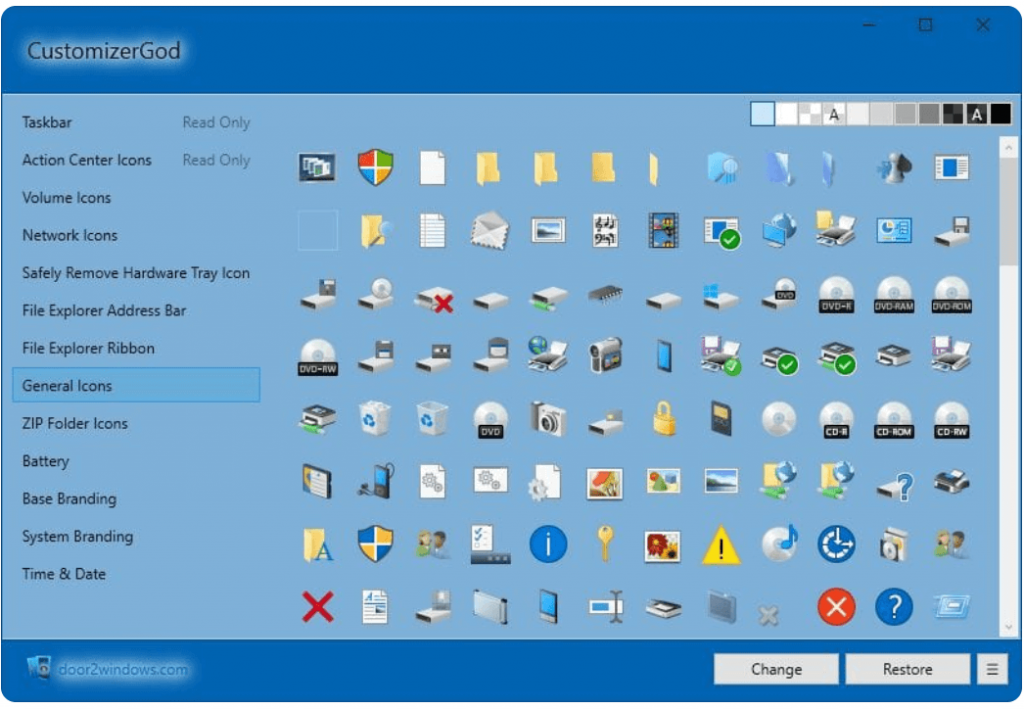
If your search for the best Windows 10 customization tool in 2021 is still going on then try CustomizerGod. Use this incredible application to tweak the toolbars and taskbars of your device as per your taste and requirements. In addition to this, it also allows you to change the icons.
It comes with easy-to-use functionalities and is known for its effortless working style. Choose this Windows 10 tweaking tool to customize third-party files, retake and restore system backups and much more.
Key Features of CustomizerGod
- The software has a great Windows 7-like interface which includes icons more
- You can change single as well as multiple resources at once using CustomizerGod
- If you by mistake choose the wrong option then you can simply restore it
- The software offers you features that you can use to add shortcuts
5. Ultimate Windows Tweaker
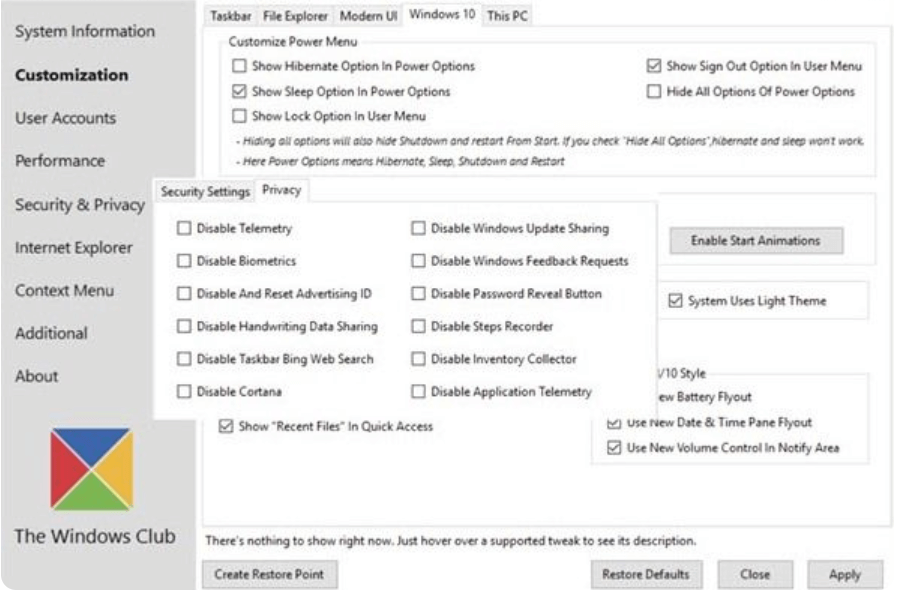
Next on our list of best Windows 10, UI customization tools is Ultimate Windows Tweaker. Just as its name it is an ultimate tool that users can use to make changes in their Windows device.
Its clean and convenient UI helps you effortlessly tweak Windows 10 settings and comes with around 200 tweaks that you can try. Privacy tweaks, context menu tweaks, security tweaks, and performance tweaks are a few of its highlight offerings.
Key Features of Ultimate Windows Tweaker
- The software gets regular updates to avoid bugs and error
- The software doesn’t even take MB space as it needs 680 KB
- It has more than 150 tweaks and settings to help you customize your PC according to the needs
- The recent update for the Microsoft Edge tab for the browser section
6. NTLite
Read More: Best Disk Space Analyzer Software for Windows
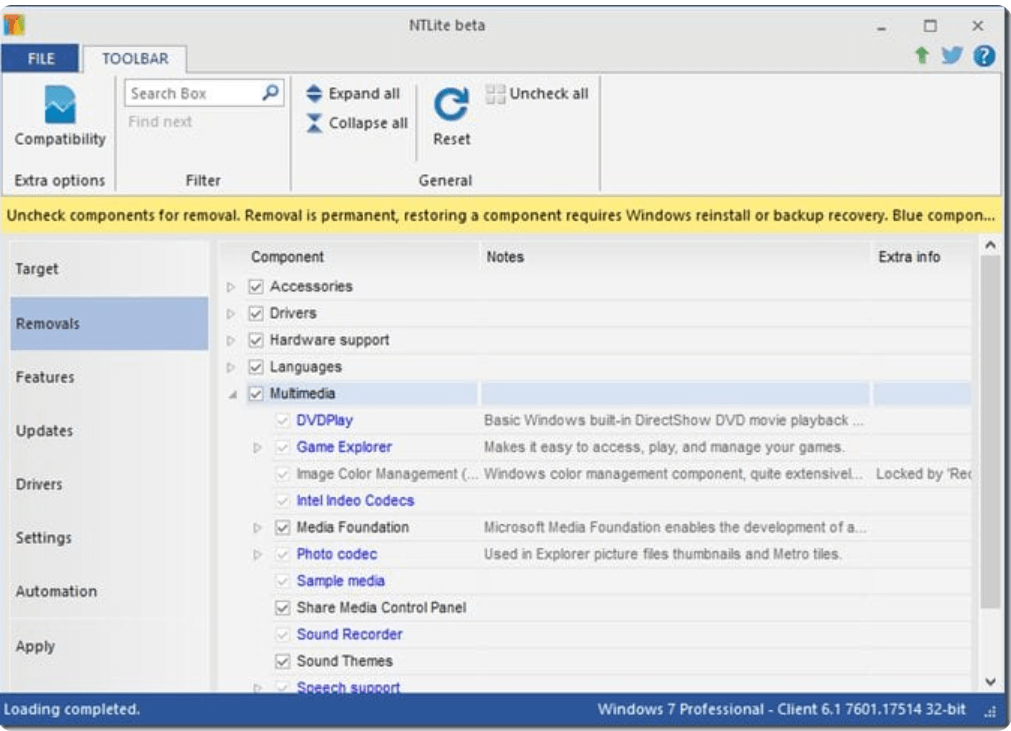
NTLite is an indirect tool that can assist you in customizing your Windows 10 installation. Add a personalized touch to your installation setting by creating a custom integrated driver, adding new device drivers, themes, DVDs, wallpapers, etc.
With this incredible Windows 10 UI customization tool, you can also update downloads, edit registry settings, use live edit mode, and set language integration.
Key Features of NTLite
- It has a separate image management section where you get an image list, presets, and many other details to help you be more productive
- You can check Windows updates along with languages integration
- You get options for app integration and unattended setup to manage your downloaded apps
- It does not require a great PC to run it, you can have it on 32 and 64-bit OS.
7. Start 10
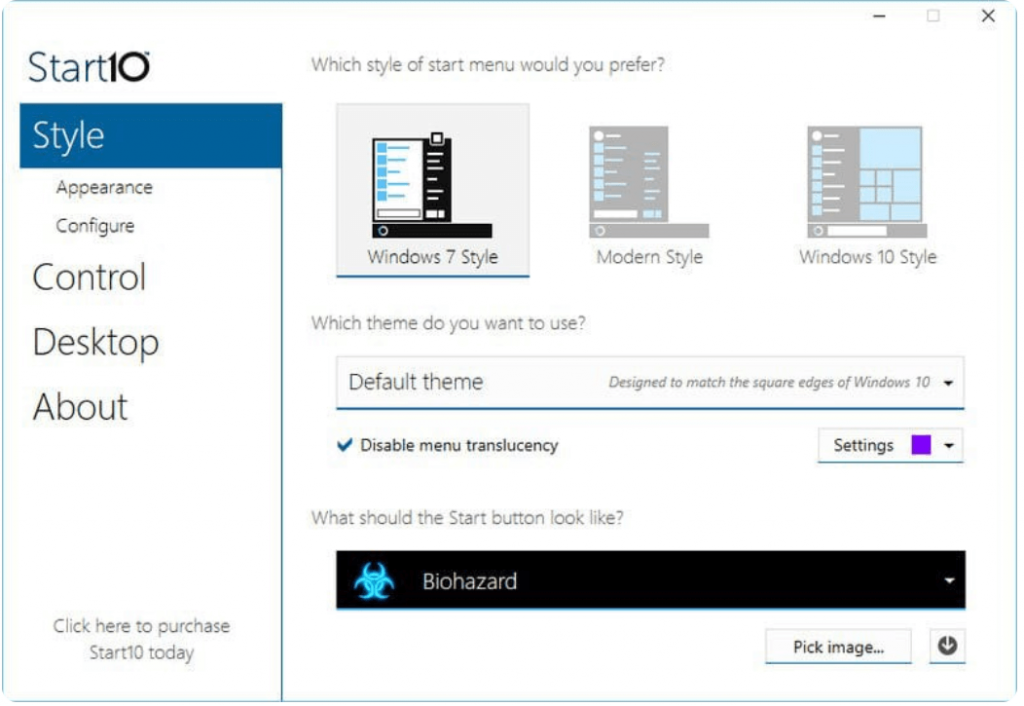
Start 10 is an all-in-one and best Windows 10 customization tool. With this powerful tool, you can tweak your start menu by adding images, icons, and colors of your own choice in a hassle-free way.
Using it is quick and easy and it comes with an intuitive interface. Take the control of the Start menu in your hand and change the location, size, and items to be displayed on your desktop. Use it to tweak the overall appearance and configuration of your Stadt menu with Start 10.
Key Features of Start 10
- The software supports multiple languages other than English
- You can add a quick access menu on your start menu to be more effective
- It lets the user customize according to the needs
- You can even replace the start menu with the classic version
8. Folder Maker
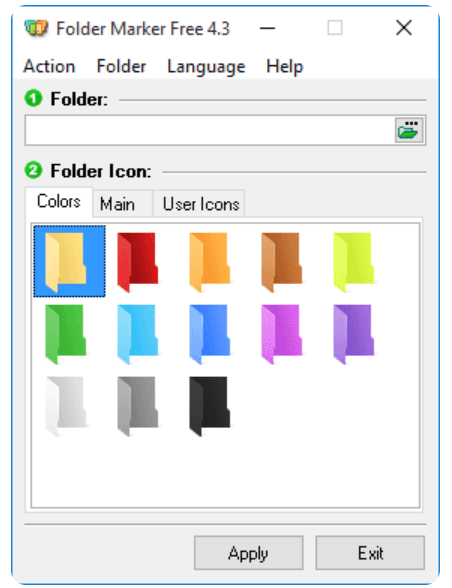
Customize the default of your folders with Folder Maker. It is a freeware application and can be used to set different icons for various folders. Apart from this, you can also use it to change the color of your folders and interchange the defined icons.
Personalize your workspace and get it organized in a hassle-free way with Folder Maker. You can also add labels to your folders based on their status, importance, and priority.
Key Features of Folder Maker
- This program lets you organize all you task and program process easily and on the basis of importance
- You can easily identify the folder which are important and whose deadline is near
- It offers many options to change the icons of the folder along with color options
- It takes seconds to adjust the folders and their icons
9. Classic Shell
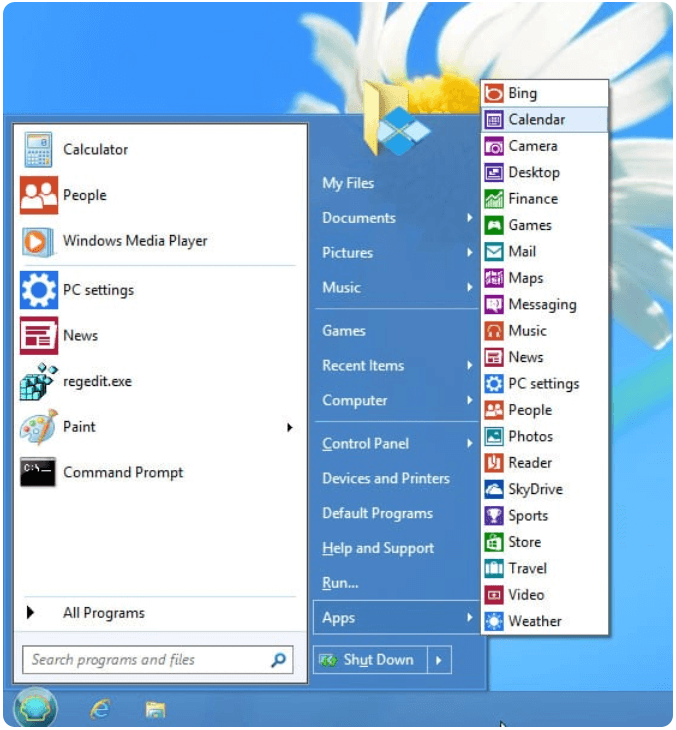
The Start menu in Windows is by far one of the most perfect menus, but still has a lot of scopes. It is a powerful and easy-to-use tool which can help you tweak the Start menu of your Windows device.
For instance, if you have recently upgraded your Windows 7 system to Windows 10, then use Classic Shell to customize the start menu of your recently updated device. It is loaded with plenty of settings and customization options. You can also use it to make your taskbar transparent.
Key Features of Classic Shell
- This is customizable software with a variety of skins and styles to offer
- Add programs to the list so that you never miss them
- Adjust the caption and status bar for Internet Explorer
- Change the start button in Windows 7 and newer versions
10. Tile Creator
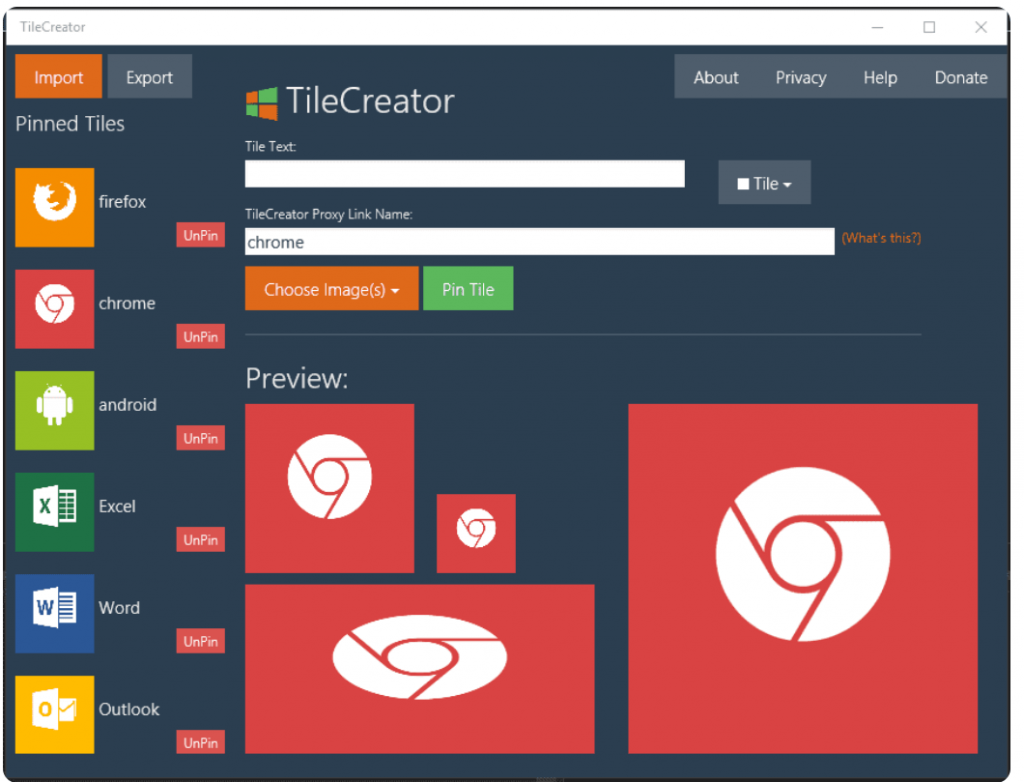
With the advanced Windows 10 device, you can easily add your favorite links, app, and programs to your start menu. But if you wish to customize it to a different level by adding a new tile to it, you will need a dedicated Windows customization software for it.
Read More: Best Free Spyware Removal Tools For Windows PC
Tile Creator is one such software that can help you create and add a new tile to your start menu. Doing this will support quick access to various files, and help you alter the tile background color and include custom icons.
The only downside of this incredible tool is that it only works on Windows 10.
Key Features of Tile Creator
- This software makes your start menu similar to Windows 8 menu
- You can add programs, links, and favorites for easy access
- It is very simple to use this tool and add a new tile to your menu
11. TweakNow Power Pack
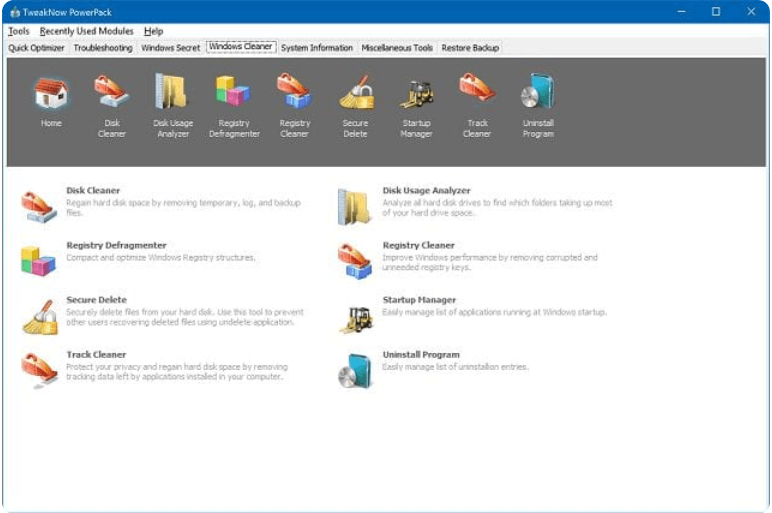
Tune up the various aspects of your windows device with this best Windows 10 customization app. In addition to the basic tweaking features, it also allows you to recover disk space, remove registry entries, and optimize memory space.
You can also use it to check the overall health of your hardware devices and enjoy a massive array of exclusive Windows settings. Enjoy easy and seamless system tweaking with our Windows 10 UI customization tool.
Key Features of TweakNow Power Pack
- It offers great customization options to the user
- You can organize your folder and files by removing unnecessary folders
- It also shows the overall health of your device components
12. WindowBlinds
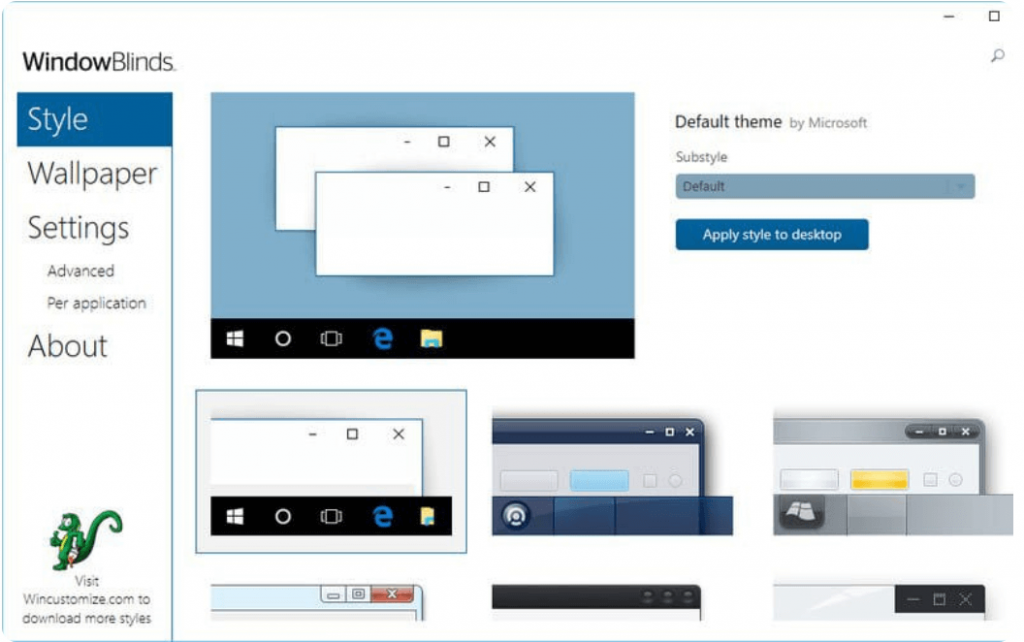
Want to give a new look to your Windows PC? Use the custom skins of WindowsBlinks to wrap your device in a new look. Change the way your system looks by altering the appearance of various buttons, apps, and fonts. With WindowBlinds, you get access to various custom skins, background textures, titles, and buttons.
Adjust the transparency level of your taskbar, start menu, and apply colors and background to your skins with this best Windows 10 taskbar customization app.
While most of the skin options are free you might need to pay for using some high-end features.
Key Features of WindowBlinds
- It offers high-end features that can be used to modify each and every default settings
- You can change fonts, apps, and buttons to a new design
- You can even adjust the transparency level of your taskbar
- You get most of the skins for free
13. Aero Glass
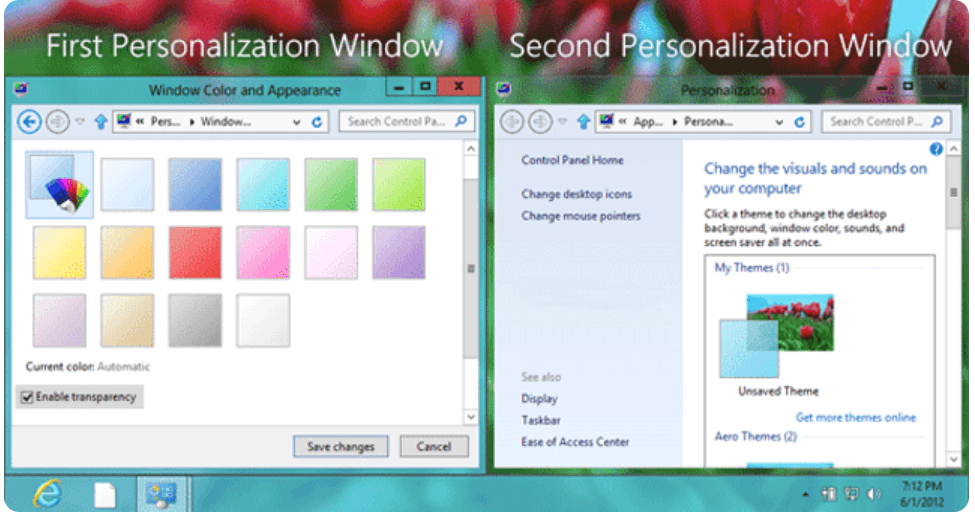
Are you still struggling to find the best Windows 10 customization software for yourself, the Aero Glass is a worthy option. Add a modern touch to your windows device and enjoy a shiny glass effect.
With this feature-rich tweaking tool, you can add a shadow or glow to your screen and blur the background icons and content. Apart from this, you can also change the transparency level of your control panel with Aero Glass.
Use this lightweight tool to experiment with the appearance of your Windows frame.
Key Features of Aero Glass
- You can apply a glass look to the borders of your screen using Aero Glass
- You can add glow, shadow, and many other skins on the border to make it look aesthetic
- It uses very less resources on your PC
- You can even adjust the transparency levels
14. Windows OEM Info Editor
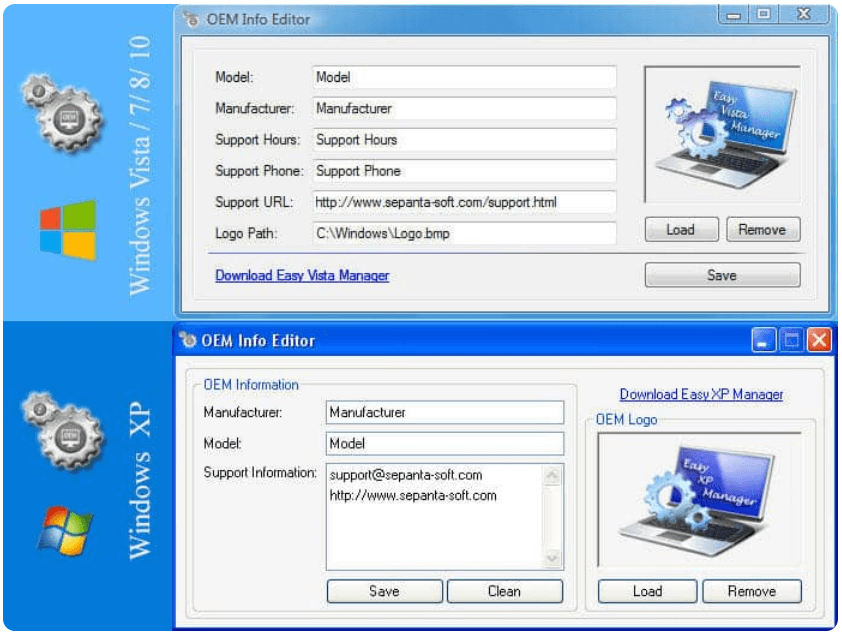
Alter and change the OEM information displayed in the system properties window with Windows OEM Info Editor. With it, you can change the model name, OEM logo, and contact information in a hassle-free manner.
The tool is fully compatible with Windows 10.
Key Features of Windows OEM Info Editor
- This is free-to-use software that can be used to customize default credentials
- This is a portable tool that requires no installation
- You can easily change the names and save them permanently
- The interface feels like a default Windows application
15. RocketDock
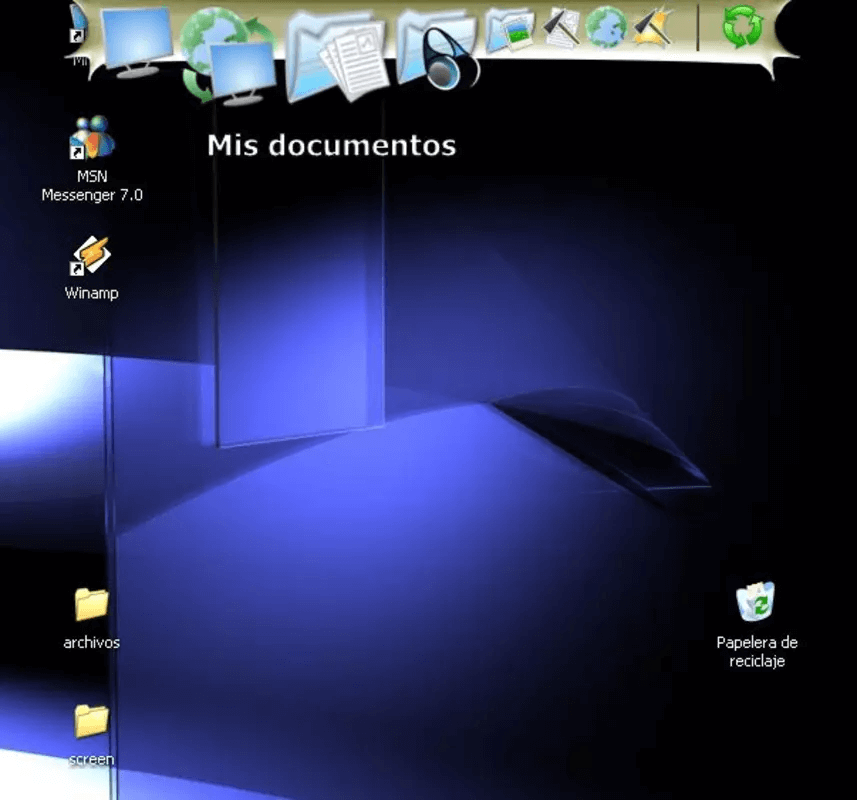
Having docking software makes life easier for any user as it helps you to switch between applications from anywhere. But finding the right docking software which gives freedom of customization is rare.
RocketDock is by far the best docking software that offers you to customize your dock according to your choice. It also offers great customization themes and options to choose from. You can adjust and place the dock where you want. The software also offers third-party addons, which can make customization easy.
Key Features of Rocket Dock
- It offers a uniques display of all the programs at the top menu
- You can add your icon to the taskbar located on the top screen and as you move the cursor every icon moves and expands
- The software offers multiple customizable themes for a better look
- You can also add third-party software to the list
16. Rainmeter
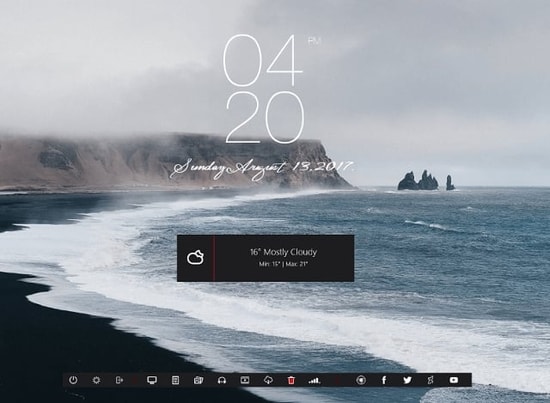
Rainmeter is one of the best Windows 10 customization software as it offers the best skins with customization options. Apart from offering skins for desktops, the software offers skin for every window whether you want to change the hardware usage meter or audio visualizer you can easily do that. The best part about this software is that it is free and requires no license to use. It offers all the features that you would need to make your computer according to your requirements.
Key Features of Rainmeter
- The software doesn’t use many resources on your PC but runs very swiftly
- It offers various tools to customize the skin and to use your preferred language
- The community makes it easy for you to connect with other users and get help from them
- You get to choose from thousands of options under the discover tab
17. Login Screen Background Changer
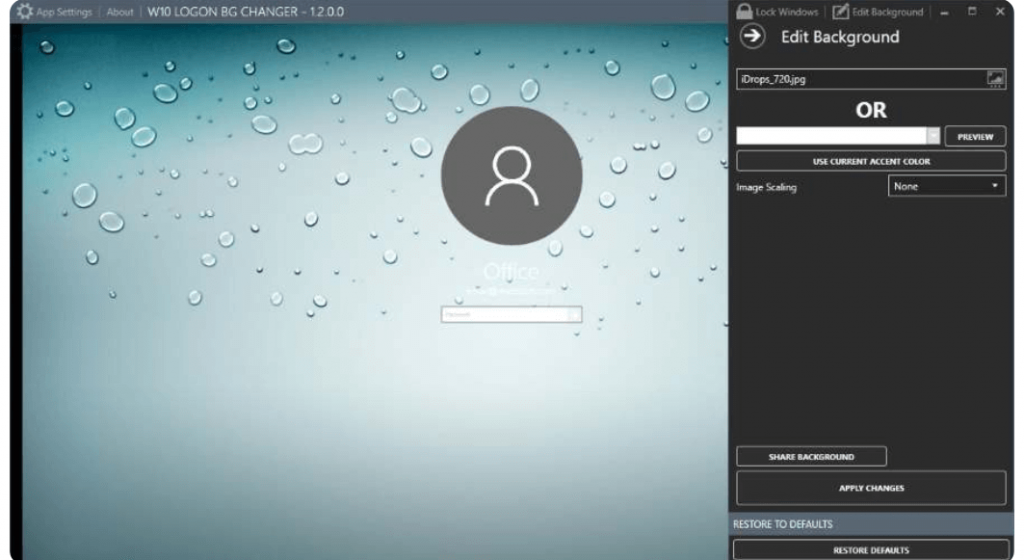
Last but not the least, our last pick for the best Windows 10 customization tools is Login Screen Background Changer. This power-packed tool can help you give a personalized look to your Windows screen. It allows you to change its background and even add a custom image to it.
It is a free tool that can help you tweak your screen with solid colors and background options.
Key Features of Login Screen Background Changer
- This is an easy-to-use software that can be used by novice as well as professional users
- You can change the background of your lock screen according to your needs
- You can even add custom images to the background with your favorite options
18. UltraUXThemePatcher
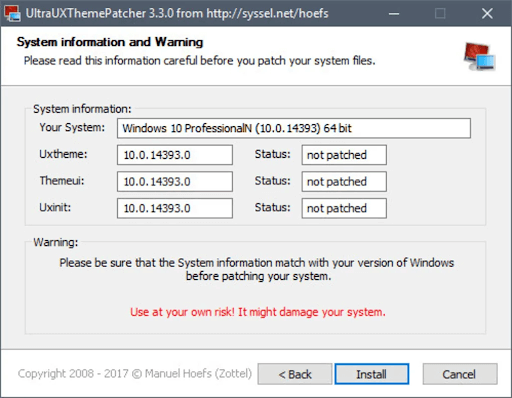
Last but not least, our last pick for the best Windows 10 customization tools is UltraUXThemePatcher. This is a great tool that provides a plethora of options for you to customize your Windows 10 interface and its attributes. The tool is free to use for all. Additionally, UltraUXThemePatcher is one of the lightest tools ever created.
With the help of this free alternative, you can easily tweak your Windows as per your requirements.
Key Features of UltraUXThemePatcher
- The tool has a straightforward interface that’s easy to use for all.
- Users from any geographic can use the tool.
- You can use the extra add-ons and enjoy even more customization options.
Wrapping Up
So, this brings us to the end of our list of best Windows 10 customization software. We hope that the tools mentioned above will help you customize and tweak every corner of your device.
Pick the right tool for yourself and add a personalized look to your Windows device in no time.