
 В статье ниже рассматриваются следующие вопросы, касающиеся Bonjour: что это такое и что делает, можно ли удалить эту программу, как скачать и установить Bonjour (если потребовалось, что может внезапно случиться после её удаления).
О том, что за программа Bonjour в Windows, обнаруживаемая в «Программы и компоненты» Windows, а также в виде Bonjour Service (или «Служба Bonjour») в службах или как mDNSResponder.exe в процессах, то и дело спрашивают пользователи, причем большинство из них отчетливо помнят, что ничего подобного не устанавливали.
Помнится, и я, впервые столкнувшись с наличием Bonjour у себя на компьютере не мог взять в толк, откуда оно взялось и что это такое, ведь всегда очень внимателен к тому, что устанавливаю (и к тому, что пытаются установить мне в нагрузку).
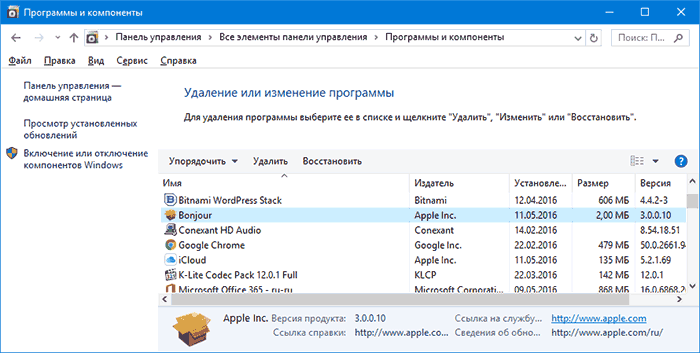
Прежде всего, причин переживать нет: программа Bonjour — это не вирус или что-то подобное, а, как подсказывает нам Википедия (и так оно есть на самом деле), программный модуль для автоматического обнаружения сервисов и служб (а точнее — устройств и компьютеров в локальной сети), используемый в последних версиях операционной системы Apple OS X, реализация сетевого протокола Zeroconf. Но здесь остается вопрос о том, что эта программа делает в Windows и откуда она там взялась.
Для чего нужна программа Bonjour в Windows и откуда она берется
ПО Apple Bonjour, и соответствующие службы как правило попадают на компьютер при установке следующих продуктов:
- Apple iTunes для Windows
- Apple iCloud для Windows
То есть, если вы установили на компьютер что-то из перечисленного, в Windows автоматически появится и рассматриваемая программа.
При этом, если я не ошибаюсь, когда-то эта программа распространялась и с другими продуктами от Apple (кажется, впервые я с нею столкнулся несколько лет назад, после установки Quick Time, но сейчас Bonjour в комплекте не устанавливается, также эта программа была в комплекте браузера Safari для Windows, ныне не поддерживаемого).
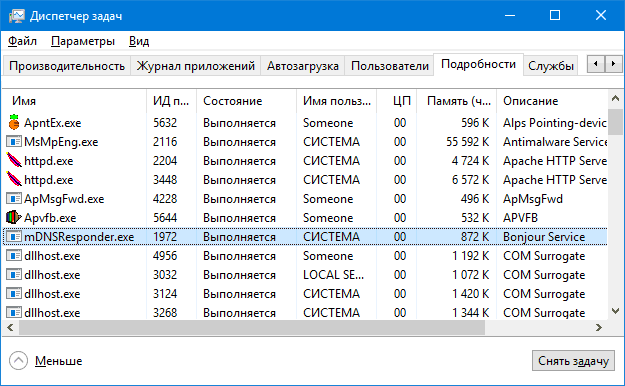
Для чего нужна программа Apple Bonjour и что она делает:
- iTunes использует Bonjour для нахождения общей музыки (Home Sharing), устройств AirPort и работы с Apple TV.
- Дополнительные применения, указанные в справке Apple (которая по данной теме давно не обновлялась — https://support.apple.com/ru-ru/HT2250) включают в себя: обнаружение сетевых принтеров с поддержкой оповещений Bonjour, а также обнаружение веб-интерфейсов сетевых устройств с поддержкой Bonjour (в виде плагина для IE и как функция в Safari).
- Плюс к этому использовалось в Adobe Creative Suite 3 для обнаружения «служб управления сетевыми активами». Не знаю, используется ли текущих версиях Adobe СС и что такое «Службы управления сетевыми активами» в данном контексте, предполагаю, что имеются в виду либо сетевые хранилища, либо Adobe Version Cue.
Попробую пояснить всё то, что описано во втором пункте (не ручаюсь за точность). Насколько я смог понять, Bonjour, используя мультиплатформенный сетевой протокол Zeroconf (mDNS) вместо NetBIOS, обнаруживает сетевые устройства локальной сети с поддержкой этого протокола.
Это, в свою очередь, позволяет проще обращаться к ним, а при использовании плагина в браузере — быстрее заходить в настройки маршрутизаторов, принтеров и других устройств с веб-интерфейсом. Как именно это реализовано — не видел (из той информации, что нашел, все устройства и компьютеры Zeroconf доступны по адресу сетевое_имя.local вместо IP-адреса, а в плагинах, вероятно, как-то автоматизирован поиск и выбор этих устройств).
Можно ли удалить Bonjour и как это сделать
Да, вы можете удалить Bonjour с компьютера. Будет ли при этом все работать как раньше? Если вы не пользуетесь функциями, указанными выше (общий доступ к музыке по сети, Apple TV), то будет. Возможные проблемы — оповещения iTunes, что ему не хватает Bonjour, но обычно при этом все обычно используемые пользователями функции продолжают работать, т.е. скопировать музыку, сделать резервную копию вашего устройства Apple вы сможете.
Один спорный вопрос — будет ли работать синхронизация iPhone и iPad с iTunes по Wi-Fi. Тут я проверить, к сожалению, не могу, а найденная информация разнится: часть сведений говорит о том, что для этого Bonjour не обязателен, часть — о том, что если возникли проблемы с синхронизацией iTunes по Wi-Fi, то в первую очередь следует установить Bonjour. Второй вариант кажется более вероятным.
Теперь о том, как удалить программу Bonjour — так же, как и любую другую программу Windows:
- Зайдите в Панель управления — Программы и компоненты.
- Выберите Bonjour и нажмите «Удалить».
Здесь следует учитывать одну деталь: если Apple Software Update обновит iTunes или iCloud на вашем компьютере, то во время обновления у вас снова установится Bonjour.
Примечание: может быть так, что программа Bonjour на компьютере установлена, устройств iPhone, iPad или iPod у вас никогда не было, а программами Apple у себя на компьютере вы не пользуетесь. В этом случае можно предположить, что данное ПО попало к вам случайно (например, установил друг ребенка или подобная ситуация) и, если оно не требуется, просто удалите все программы Apple в «Программы и компоненты».
Как скачать и установить Bonjour
В ситуациях, когда вы удалили программу Bonjour, а после этого оказалось, что этот компонент необходим для тех функций, которыми вы пользовались в iTunes, на Apple TV или для печати на принтерах, подключенных к Airport, вы можете использовать один из следующих вариантов для повторной установки Bonjour:
- Удалить iTunes (iCloud) и снова установить, скачав с официального сайта https://support.apple.com/ru-ru/HT201352. Также можно просто установить iCloud, если у вас установлен iTunes и наоборот (т.е. если установлена лишь одна из этих программ).
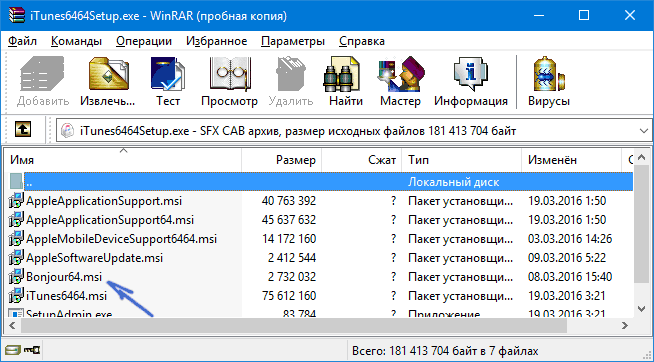
- Можно скачать установщик iTunes или iCloud с официального сайта Apple, после чего распаковать этот установщик, например, с помощью WinRAR (кликнуть по установщику правой кнопкой мыши — «Открыть в WinRAR». Внутри архива вы найдете файл Bonjour.msi или Bonjourmsi — это и есть отдельный установщик Bonjour, который можно использовать для установки.

На этом задачу по объяснению, что представляет собой программа Bonjour на компьютере с Windows считаю выполненной. Но, если вдруг возникнут вопросы — спрашивайте, постараюсь ответить.

Apple devices work well and connect readily with other Apple devices. But they have a hard time communicating with devices running other operating systems like Windows and Linux.
If you have both Apple and Windows devices, you might want to share files between them over a local network. And this is what Apple’s Bonjour service makes happen under the hood.
In this guide, I will take you through what Bonjour is and how you can get it running on your Windows 10 computer.
Bonjour is Apple’s implementation of zero-configuration networking (zeroconf). It allows devices running both Windows and Apple operating systems (like macOS and iOS) to connect and share resources without any configuration settings.
With Bonjour, you can locate other devices such as scanners and printers on a local network and connect with them. You can also share files irrespective of the operating system you are using, whether it’s Windows, macOS, or Linux.
How Bonjour Works on a Computer
Bonjour is not a regular software product. Unlike other software and apps, you don’t get to use Bonjour directly.
Instead, Bonjour runs in the background and connects devices together by using a «link addressing scheme», which automatically assigns IP addresses to devices on a local network.
Examples of apps that use Bonjour include iTunes, Skype, iChat, and iPhoto.
How to Get Bonjour Up and Running on Windows 10
Unlike Apple devices which work hand in hand with Bonjour, you might have to manually install Bonjour on your Windows 10 computer.
Bonjour is not available to be downloaded as a standalone app, so you’ll need to download an app that uses it.
It used to come attached with Mac apps such as iTunes and the Safari browser in a zip folder, but these days, the iTunes app may download it for you over a WiFi network.
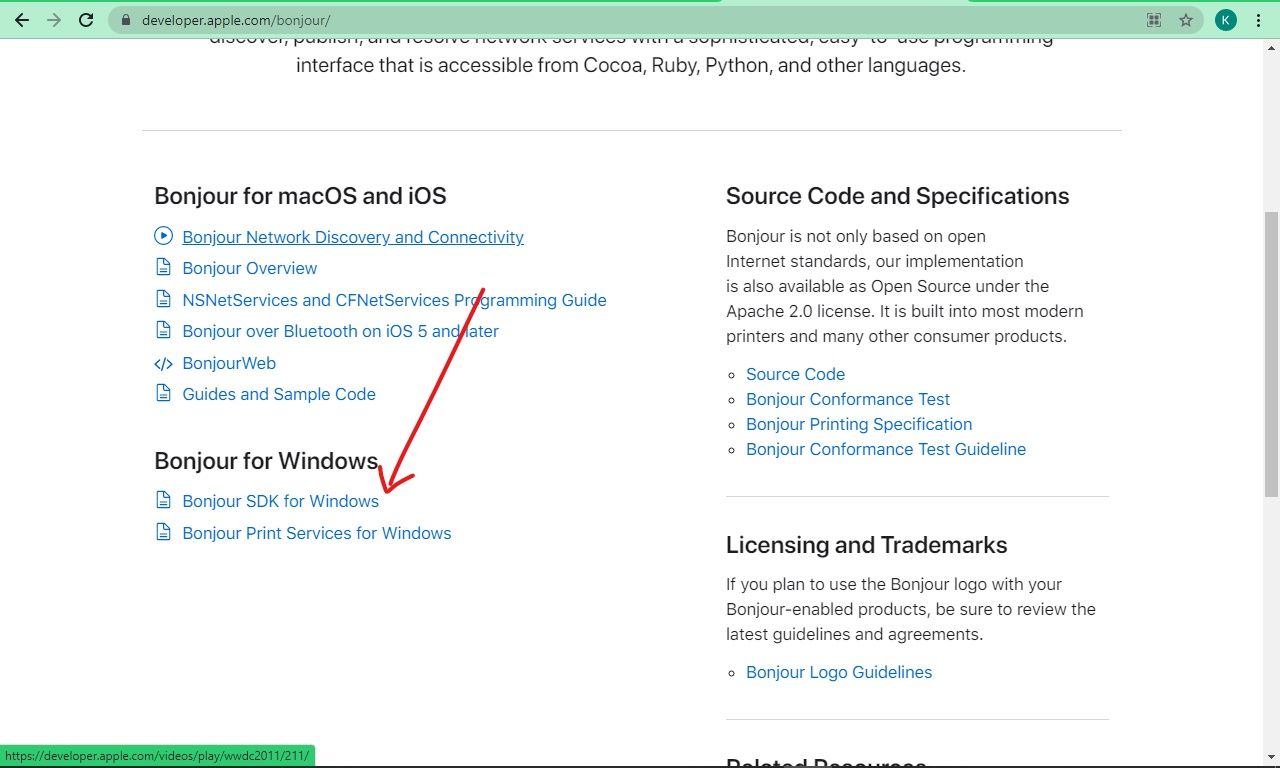
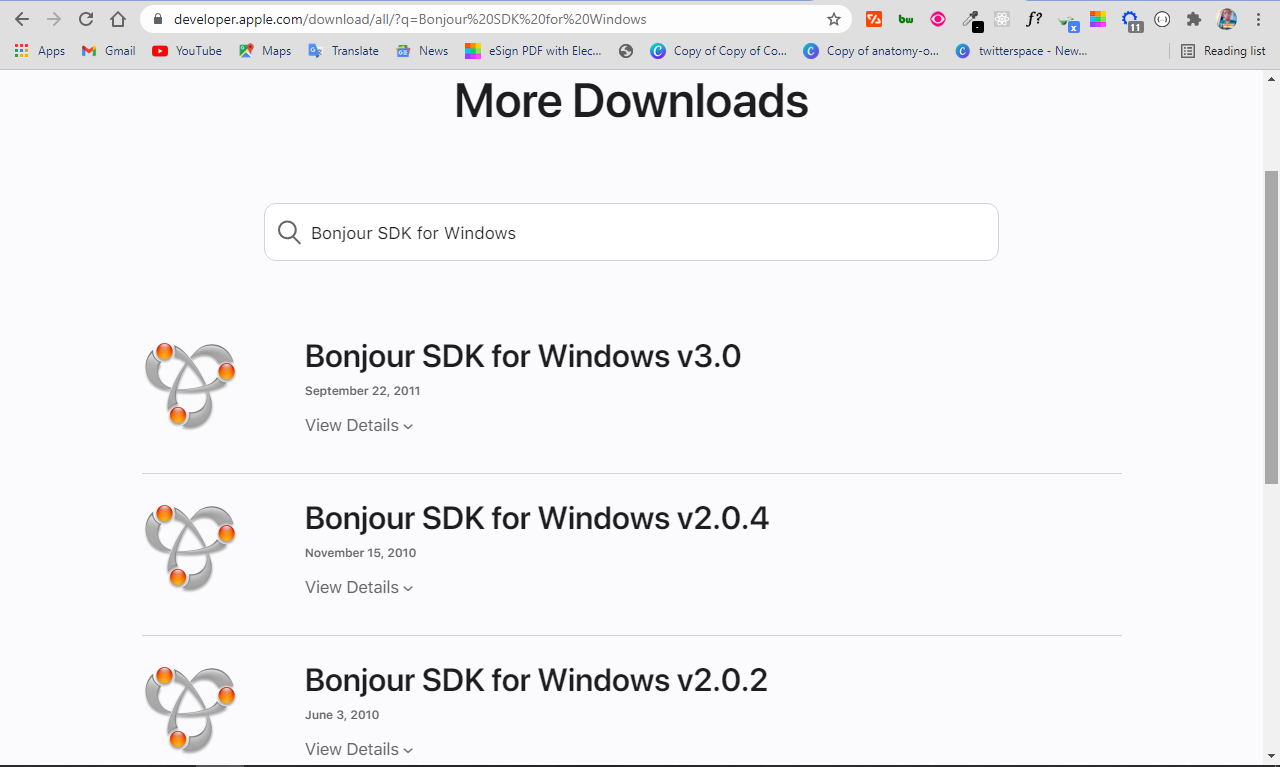
However, you can install Bonjour for your Windows 10 computer by downloading the Bonjour SDK (Software Development Kit) from the Apple Developer Website.
Make sure you select Bonjour SDK for Windows as shown below:
Once you do that, you will have to sign in with your Apple ID. If you don’t have one, you can create it.
When you sign in successfully, you will be presented with different versions of Bonjour SDK. Download the one you want and install it by opening up the installer and following the prompts.
When the Bonjour SDK gets installed, the Bonjour program gets installed with it as well.
Do you need Bonjour on your Windows 10 computer?
If you use an app that depends on Bonjour to run on a Windows computer, you definitely need Bonjour for the app to function effectively.
In addition, if you use devices that cut across multiple operating systems such as macOS, Windows, and Linux, you might need to connect them together to share resources such as files and devices – and you’ll need Bonjour for that to happen. This will also give you the advantage of zero-configuration.
Lastly, if you don’t use an Apple device like a Mac but you have friends who do, you should consider getting Bonjour installed on your device, so you can share files and other resources with them.
How to Stop or Uninstall Bonjour on Windows 10
If you stop using an app that depends on Bonjour to work, or you want to say goodbye for any other reason, you might want to stop Bonjour. You can do this from the Task Manager.
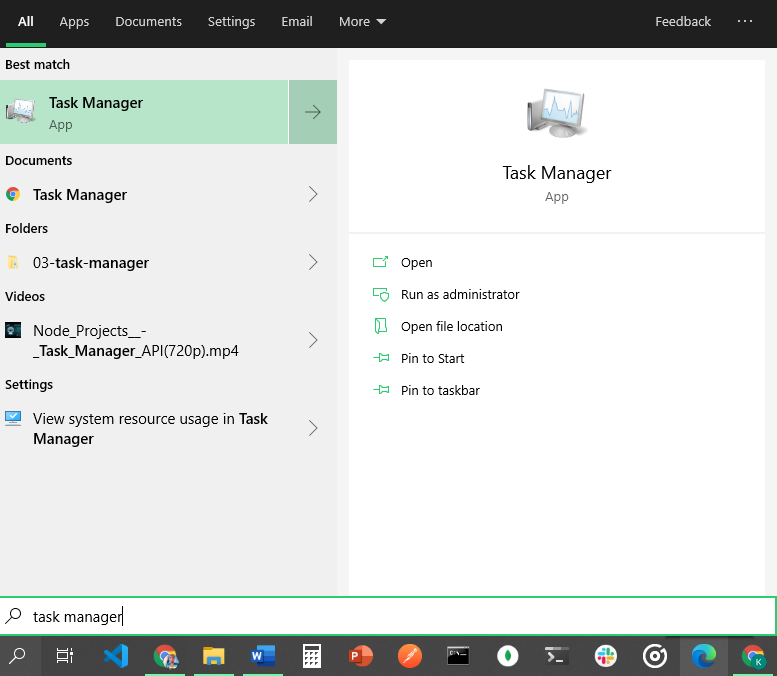
Step 1: Click on Start, or press the WIN (Windows) key on your keyboard.
Step 2: Search for «task manager» and hit ENTER.
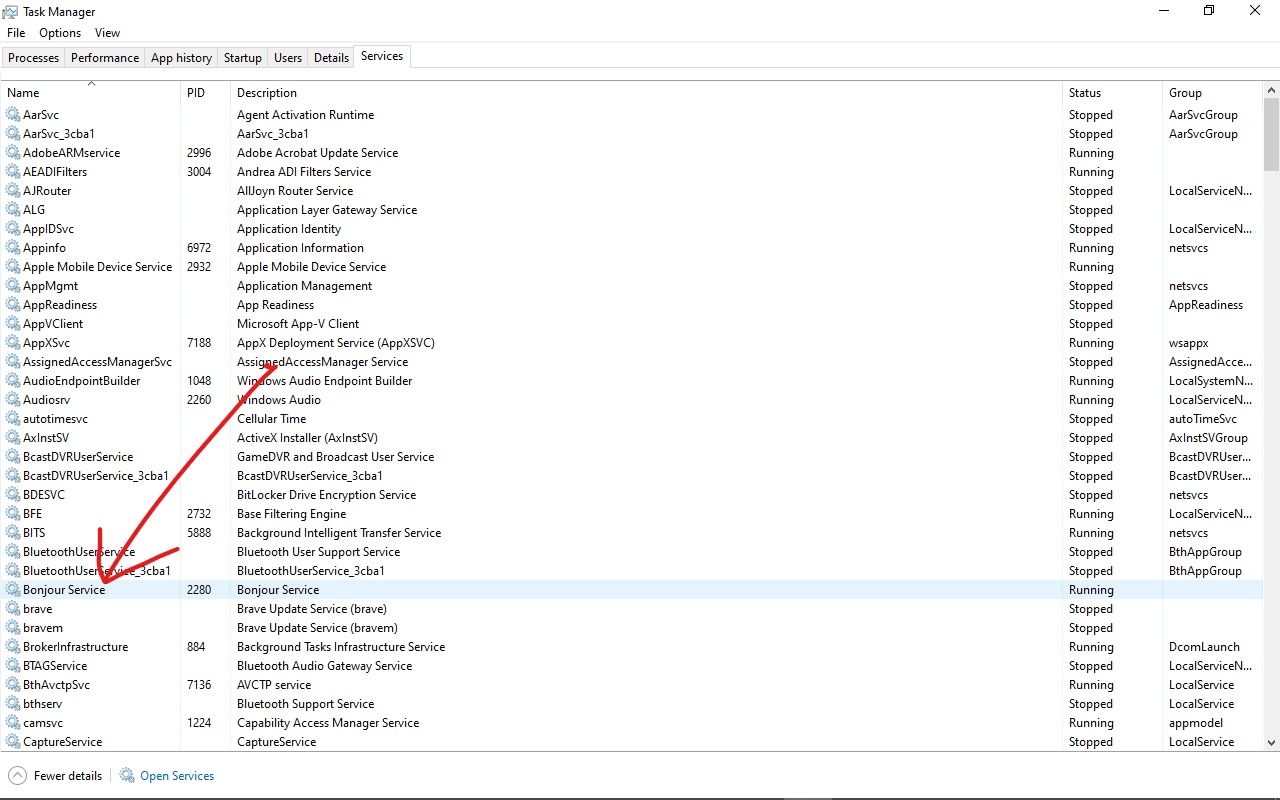
Step 3: Click on the Services tab. Here you will see Bonjour Service, which is sometimes available as "mDNSResponder.exe".
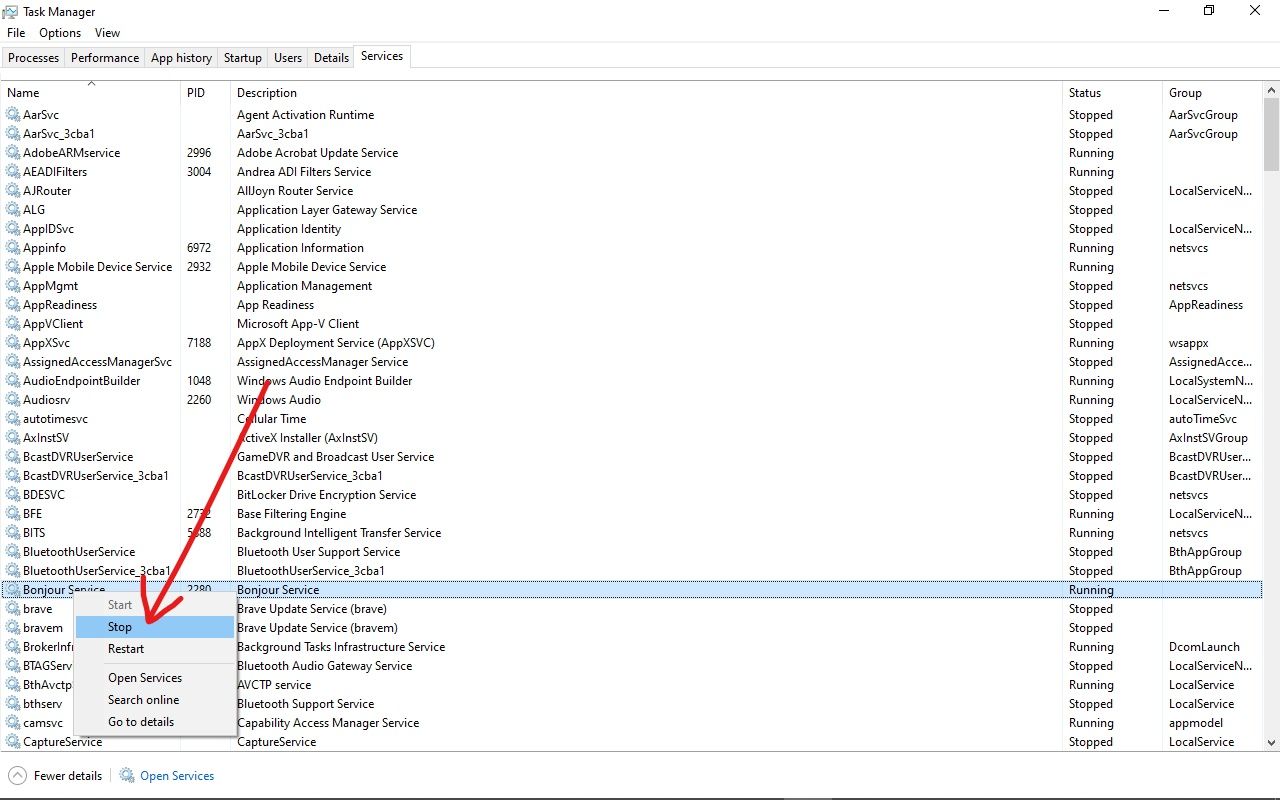
Step 4: Right-click on it and select “Stop”.
To uninstall Bonjour, you can do it in the Settings app.
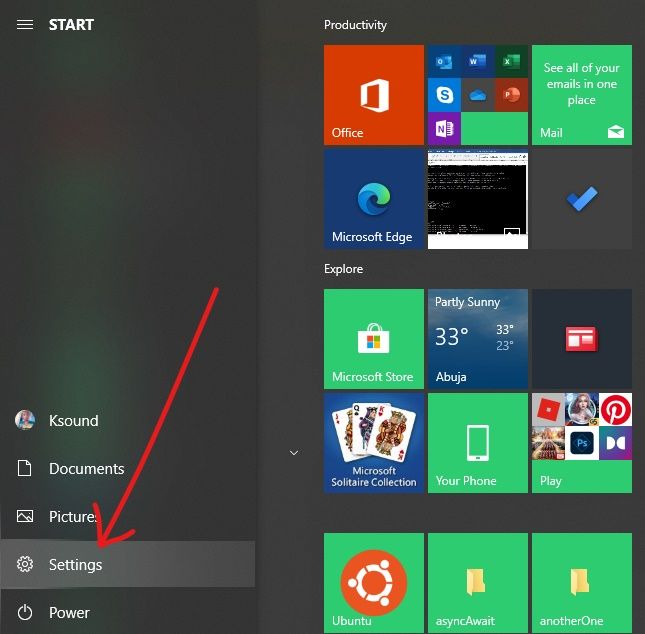
Step 1: Click on Start, or press the WIN (Windows) key on your keyboard, and Select Settings to open the Settings app.
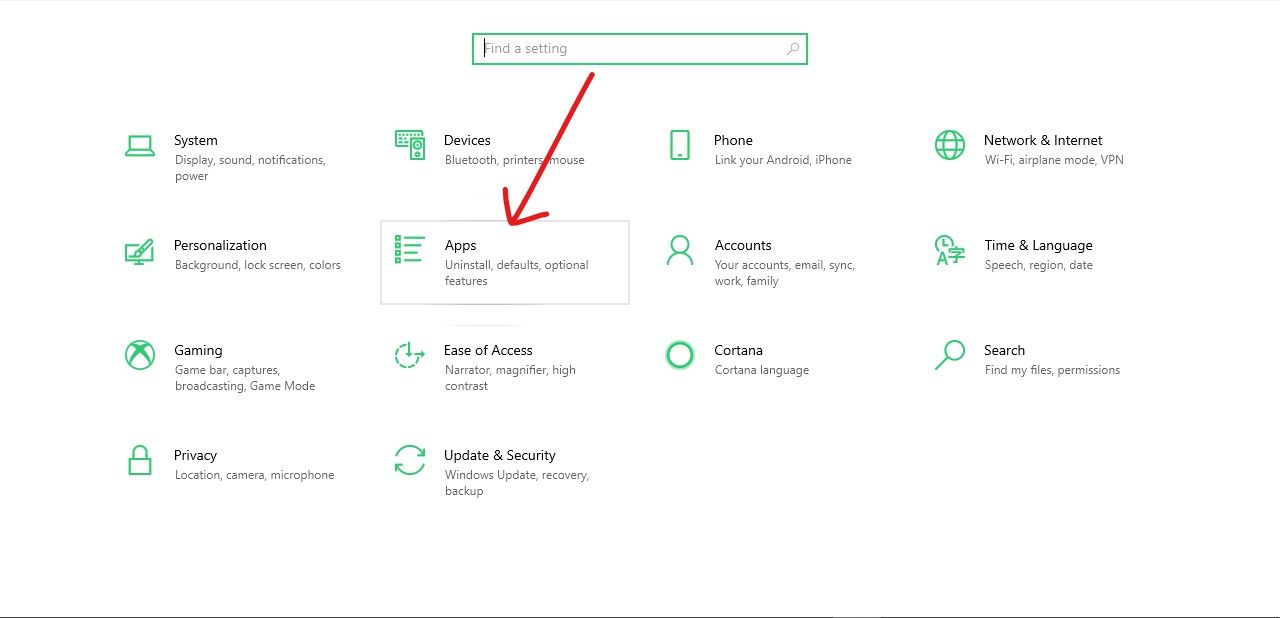
Step 2: Select Apps.
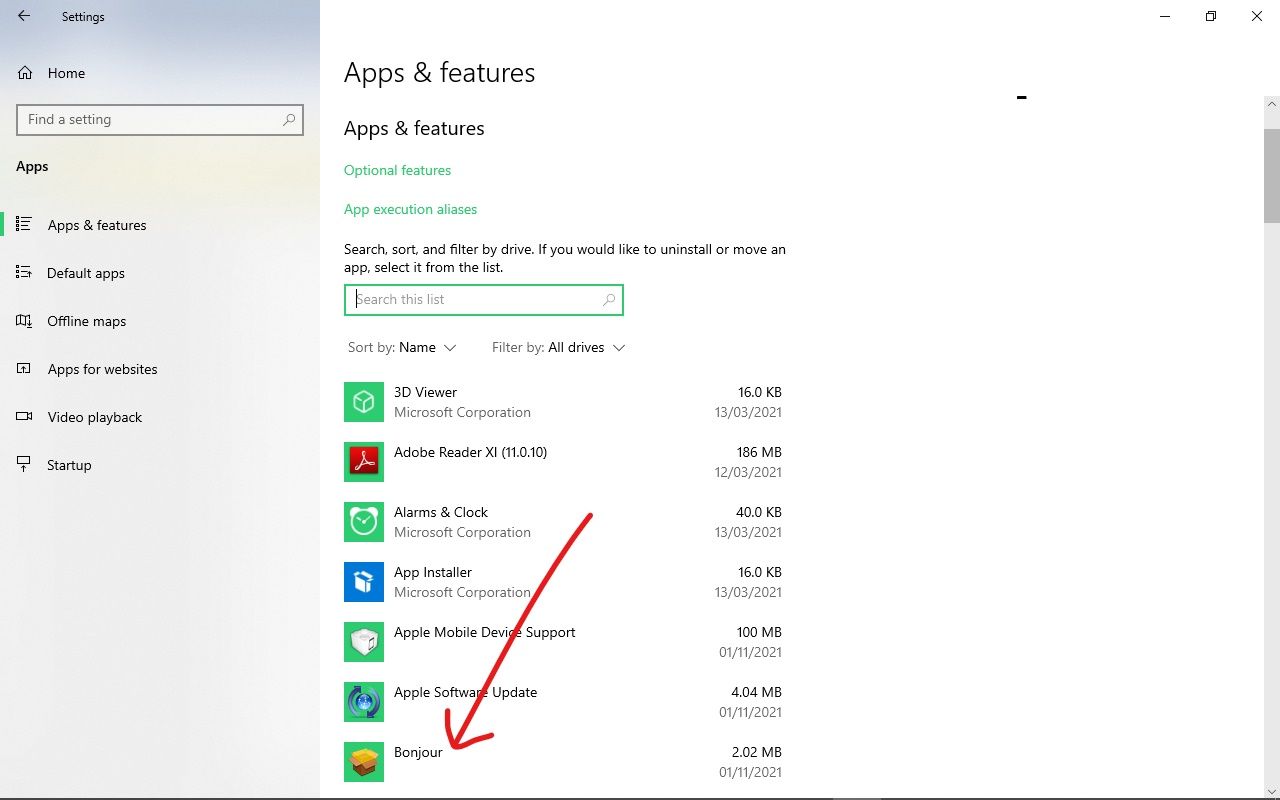
Step 3: On the Apps & Features tab, scroll till you find Bonjour, or search for it.
Step 4: Select uninstall, and again, uninstall.
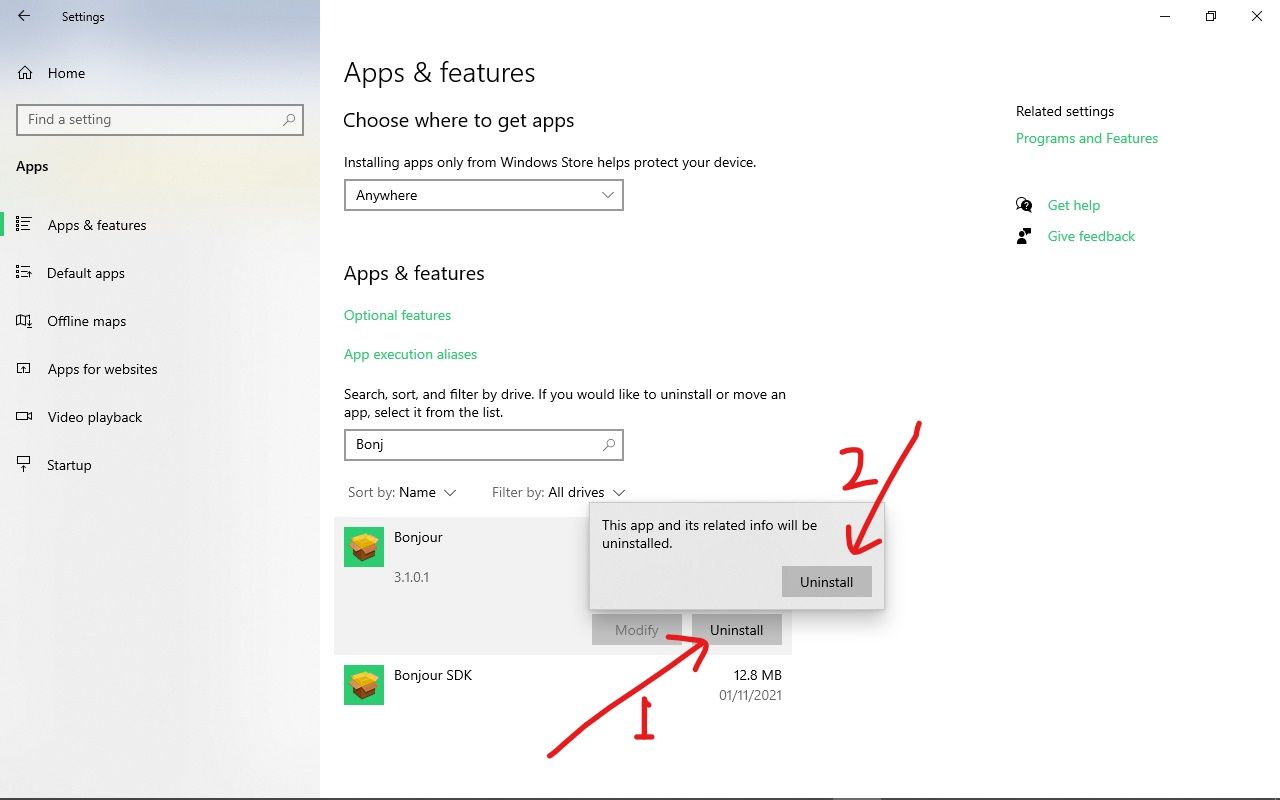
Please note that to get rid of the Bonjour service totally, you might have to uninstall the app using it as well. If you installed Bonjour through the Bonjour SDK, make sure you uninstall the Bonjour SDK as well.
Conclusion
Bonjour is a useful service that gives you more flexibility if you work with devices that use multiple operating systems.
This guide showed youß what the Bonjour service is, what it does, and how you can have more control over it on your Windows 10 computer.
Thank you for reading. If you find this article helpful, please share it with your friends and family.
Learn to code for free. freeCodeCamp’s open source curriculum has helped more than 40,000 people get jobs as developers. Get started
The Bonjour service comes by default on Apple computers and is also available for Windows 10 & 11 devices.
But what is it?
The Bonjour service may seem complicated at first glance. After all, the French name and complex nature of the service make it hard to understand. But when you strip it down, it’s actually very simple.
On top of that, depending on your nature of work, you may actually find that you need the Bonjour service on your Mac or even your Windows devices.
And if you’re confused about the nature of the Bonjour app and service, don’t worry. You aren’t alone. We’re here to help you out.
In this article and guide, we’ll get into the details of the Bonjour service, what it’s used for, and why you might need it for your computer.

Bonjour is both a service and a product. The Bonjour service offers zero-configuration networking, and the Bonjour app is what allows you to access the service. This is already built-in to Apple devices, but it is also compatible with Windows 10.
However, you have to install it before you can use the service. Don’t worry – it’s tiny, and you won’t have to increase the VRAM on your computer.
With Bonjour, your computer can easily discover devices and the services of these devices on a local network. The service uses mDNS service records, and it allows you to set up a network between devices such as printers without configuration.
This makes it much easier for people to establish networks and allows you to utilize the full connectivity capabilities of your devices. For many modern setups, the Bonjour service isn’t just convenient but can actually be necessary.
With that said, you may be confused about how the service works when you install the app. This is because, unlike other apps, Bonjour works in the background. Instead of you using it, the apps on your computer use Bonjour to communicate over a local data network.
An example of this is sharing an iTunes library. The iTunes app uses Bonjour to communicate between devices and create a shared music library between the devices.
And it isn’t just Apple apps that use Bonjour either. The Adobe Creative Suite 3 utilizes Bonjour along with Pidgin and Skype. These apps use Bonjour by connecting to a Wi-Fi network.
Is Bonjour Available On Windows 11?
One of the reasons Bonjour is so widely used is because it’s compatible with many different devices. While it’s primarily used for Apple, you can easily install Bonjour on Windows 10 & 11 and reap the same benefits and features. Later on in this article, we’ll be looking at the easiest way for you to install Bonjour on your computer.
Is Bonjour Available For Mac?
Bonjour isn’t just available for Mac computers but also built-in to most modern Apple computers. In fact, Apple has been using Bonjour for so long that it’s basically an integral part of the computer’s workflow. Common Apple apps such as Safari, iTunes, iPhoto, and even iChat all use Bonjour for communication.
With that in mind, it’s not the best idea for you to uninstall Bonjour on your Mac. This can lead to a lot of functionality errors that are hard to repair. On top of that, uninstalling Bonjour means that you won’t be able to use the computer to its fullest capabilities either.
What Does Bonjour Do?

The reason many people are left feeling confused about Bonjour is that it’s hard to determine what exactly the app does. This is mainly because the app runs in the background, as a silent but essential part of your computer’s system.
With that said, the app actually does a whole lot of tasks on your computer. This makes it much easier for your device to communicate with other devices and access a variety of services.
So, here’s a breakdown of a couple of the things Bonjour does when running in the background;
Name Resolution
Name resolution is an essential aspect of device communication. Bonjour accomplishes this task by using local hostname configuration and mDNS. The public internet relies on the Domain Name System or DNS for naming websites.
When running on a local network, things are a bit different. But instead of troubling you with all these complicated tasks, Bonjour handles all name resolution concerns for you. If your device is Bonjour optimized, the name resolution feature allows for much smoother and more efficient communication between the different devices.
Address Assignment
When enabling communication among devices, Dynamic Host Configuration Protocol (DHCP) is typically necessary. Nonetheless, Bonjour eliminates the need for it by utilizing a “link local addressing scheme” to automatically allocate addresses without DHCP.
Additionally, this works with both IPv4 and IPv6 IP addressing.
With that said, Bonjour works a bit differently on Windows. For IPv4 on Windows, Bonjour uses the 169.254.0.0 private network and native link-local addressing support for IPv6.
Low Bandwidth Consumption
The thing about facilitating communication between devices is that it can take up a lot of your bandwidth consumption. This is especially true when using services that speed up communication and make the process much easier. With that said, Apple’s expert developer took measures to ensure that you won’t have trouble with your bandwidth when using Bonjour.
One of the biggest advantages of Bonjour is that despite how efficiently it works, it doesn’t eat up all your bandwidth. That way, you can still effectively set up communication between different devices without taking a major toll on your bandwidth consumption.
Location Services
A lot of the time, you may not be able to use an app’s location services on your computer. However, if you wish to do this, Bonjour can enable these location services by creating an abstraction layer on top of the mDNS.
That way, you can use all the apps on your computer or laptop to their fullest potential. This is one of the major perks of using Bonjour and is a major reason you may want to consider installing it on your Windows device as well.
Why Do I Need The Bonjour App On Windows 10?

This depends on your own needs and the types of devices you have. If you operate a Windows device and don’t really use Apple devices or apps alongside it, then you won’t exactly need Bonjour. This is because Bonjour is designed to make it easier to integrate Apple apps and services.
However, if you regularly use iTunes, iPhoto, Adobe Creative Suite 3, or other similar services on your computer, you may need Bonjour. Additionally, if you want to connect your computer to your iPhone or Apple TV, you may need to install Bonjour before they become compatible.
While you can manually set up a network connection between Windows and Apple devices, this is pretty hard to do. On top of that, setting up manual networks requires some technical skills and knowledge that can be a huge hassle to learn.
However, if you have Bonjour, setting up a network between these devices is very easy. Remember, Bonjour offers zero-configuration networks, so you don’t have to do much to set up a network aside from installing the app.
It might be best to read up on the documentation of all the different software and programs on your computer. That way, you can see if it requires the Bonjour app to be used to its full potential.
If it does, then it might be time for you to consider installing Bonjour on your Windows device. After all, you don’t want to go through the hassle of manually setting up a network connection which can take a lot of time and cause some frustration.
With that in mind, it’s important to remember that Bonjour isn’t necessary for Windows devices. With Apple devices, removing Bonjour can result in some serious functionality issues. This will make it much harder for you to connect to different devices and utilize your apps.
But with Windows computers, uninstalling and installing Bonjour won’t really affect functionality that much, only when it comes to communicating with Apple apps and devices.
So, even if you install Bonjour on your Windows device and realize you don’t need it, you can uninstall it without any hassle or risk. Some apps may even be able to run just fine without Bonjour, but don’t be surprised if some bugs and errors arise here and there.
How To Install Bonjour
Another advantage of Bonjour is how easy it is to install. This isn’t a complex app that has a multi-faceted installation process. With that said, the downside to Bonjour is that it can be hard to find an installer for Bonjour only. For most people, the easiest way to download Bonjour on their Windows device is to download iTunes.
So, to start installing Bonjour, you need to head to the Apple website. From there, you can download iTunes and install it on your computer. To find the Windows installer, you have to scroll down on the page until you find the looking for options link.
From there, you can click on the Windows option, and the installer will download automatically.
Make sure to download the right version for your OS. The iTunes file is around 262MB, so it may take a couple of minutes to download, depending on how fast your internet is. After downloading, open the file to start the installation process.
In most cases, Apple provides a .rar file that you will have to extract manually. The zip file isn’t password protected, so the process will be very quick and easy. After extracting the file, you can find the Bonjour64.exe (Bonjour34.exe) file. Open this specific file, and the installation should start.
The Bonjour file is separate from the iTunes file, which is important to keep in mind. However, since you’ll probably be using iTunes on your computer anyway, it might be beneficial to install both files while you’re at it.
When installing Bonjour, all the installation instructions will appear on the screen. This makes it really easy for people to install the service even if they have never done it before.
And don’t worry – the whole process can be done on a normal Windows 10. You don’t need to upgrade Windows 10 from home to pro to get this to work.
How To Uninstall Bonjour
If you no longer need Bonjour on your computer, it’s fairly easy to uninstall it as well. To do this, you will need to go to the control panel. From there, you can go to programs & features. In this menu, you have to scroll through the options until you find the Bonjour application.
When you find the application, click it once. After that, the uninstall option will appear, which you have to click as well. Another window will pop up after that to confirm that you wish to uninstall Bonjour.
Once you confirm that you want to uninstall Bonjour, a window will pop up with on-screen instructions. Simply follow the instructions to uninstall the program.
For most Windows computers, everything should work fine after uninstalling Bonjour. However, you may run into some bugs and functionality issues with certain apps that rely on Bonjour.
Conclusion – What Is Bonjour App Windows 10?
The Bonjour service makes it easy for your computer to communicate with specific devices. This was originally designed for Apple devices. But if you own a Windows computer and want to use Apple apps and devices, then you will need Bonjour to make the most out of them.
Luckily, Bonjour is very easy to install and uninstall. On top of that, since Windows computers don’t need Bonjour, you can remove the app once you don’t need it and use your computer normally again.
First up, the Bonjour Service is not a virus. It is an Apple-developed software and has been a part of their operating systems, iOS and macOS, since 2002. The application is deeply integrated within the Apple ecosystem and helps in making the overall experience more seamless. On the other hand, the software finds its way onto a Windows computer when the user installs an Apple associated software such as iTunes or Safari web browser.
In this article, we will be discussing in-depth about the Bonjour Service and whether you need it or if it can be purged from your Windows computer. If you decide on the latter, we have a step-by-step guide on how to disable the Bonjour service or get rid of it completely.
Originally called Apple Rendezvous, Bonjour service helps discover and connect shared devices & services across a local network. Unlike regular applications, Bonjour works in the background while other Apple applications and programs use it to communicate over a local data network automatically. Therefore, allowing the user to set up a network without any configuration, also known as, zero-configuration networking (zeroconf).
What is Bonjour Service on Windows 10? How to disable Bonjour service? How to uninstall Bonjour?
This is made possible by the use of modern technologies such as hostname resolution, address assignment, and service discovery. While the use of multicast Domain Name System (mDNS) ensures the Bonjour Service doesn’t inversely affect your internet speed by caching support information.
Nowadays, the service is most commonly used for file-sharing and to discover printers. Some of Bonjour’s applications include:
Find shared music and photos in iTunes and iPhoto respectively. To find local servers and configuration pages for devices in Safari. For managing licenses in software like SolidWorks and PhotoView 360. In SubEthaEdit to find collaborators for a certain document. To communicate with multiple clients in applications such as iChat, Adobe Systems Creative Suite 3, etc.
On Windows computers, the Bonjour service doesn’t have any direct function and can be removed.
Although, if you use an Apple software (iTunes or Safari) on your Windows PC, Bonjour is an essential service, and removing it may cause these applications to stop working. Not just Apple software, certain third-party applications like Adobe Creative Suite and Dassault Systemes’ Solidworks also need the Bonjour service to function properly. So before you move ahead and decide to remove Bonjour, ensure that it isn’t required by any application on your computer.
How to disable Bonjour service?
Now, there are two ways you can go about removing the Bonjour service. One, you can temporarily disable the service, or second, uninstall it altogether. Uninstalling the service will be a permanent move and if you later realize that you actually needed it, you will have to reinstall Bonjour, whereas in the other case, you can simply enable it back again.
To disable any service on your computer, you will need to open the Windows Services application. There, simply change the startup type to Disabled for the undesired service.
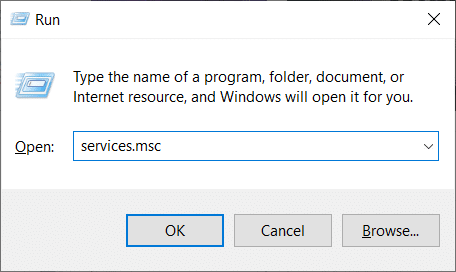
- To open Services, launch the Run command box by pressing the Windows key + R, type services.msc in the text box, and click on OK.
You can also access Services by directly searching for it in the Windows start search bar (Windows key + S).
2. In the Services window, locate the Bonjour service and right-click on it to open the options/context menu. From the context menu, click on Properties. Alternatively, double-click on a service to access its properties.
3. To make finding the Bonjour service easier, click on Name at the top of the window to sort all the services alphabetically.
-
First, we terminate the Bonjour service by clicking on the Stop button under the Service status label. The service status after the action should state Stopped.
-
Under the general properties tab, expand the drop-down menu next to the Startup type by clicking on it. From the list of startup types, choose Disabled.
-
Click on the Apply button at the bottom-right of the window to save the changes and disable the service. Next, click on OK to exit.
How to uninstall Bonjour?
Uninstalling Bonjour is as easy as removing any other application from your personal computer. All you need to do is head over to the Program & Features window of Control Panel and uninstall Bonjour from there. Nevertheless, below is the step by step guide to removing Bonjour.
-
Open the Run command box, type control or control panel, and press the enter key to launch the Control Panel application.
-
In the Control Panel window, click on Programs & Features. To make looking for Programs & Features easier, change the icon size to small or large.
-
Locate Bonjour and click on it to select.
-
Finally, click on the Uninstall button at the top to uninstall the Bonjour application.
-
Alternatively, you can also right-click on Bonjour and then select Uninstall.
-
In the following confirmation pop-up box, click on Yes, and follow the on-screen instruction to complete the uninstallation process.
Since Bonjour is integrated into multiple Apple applications some parts of it may persist on your computer even after uninstalling the application itself. To completely get rid of Bonjour, you will need to delete the .exe and .dll files related to the service.
-
Start by launching the Windows File Explorer using the keyboard shortcut Windows key + E.
-
Navigate yourself to the following location.
C:\Program Files\Bonjour
(In certain systems, like the ones running Windows Vista or Windows 7 x64, the Bonjour service folder may be found inside the Program Files(x86) folder.) -
Locate the “mDNSResponder.exe” file in the Bonjour application folder and right-click on it. From the ensuing options menu, select Delete.
-
Look for the “mdnsNSP.dll” file and delete it too.
If a pop-up message stating, ‘This action can’t be completed because the file is open in Bonjour service’ appears, simply restart your computer and try to delete the files again.
One can also remove the Bonjour Service files using an elevated command prompt window if the pop-up message continues to prevail even after a computer restart. -
A regular elevated command prompt window won’t be able to completely remove Bonjour from your personal computer. Instead, you will need to launch the command prompt as an administrator.
2. Irrespective of the mode of access, a User Account Control pop-up requesting permission to allow the Command Prompt to make changes to your device will appear. Simply click on Yes to grant the necessary permission. -
Next, we will need to navigate to the Bonjour folder destination in the command prompt. Open your File Explorer (Windows key + E), find the Bonjour application folder, and note down the address.
4. In the command prompt, type the address (\Program Files\Bonjour) and press enter. -
Type mDNSResponder.exe –remove and press enter to run the command.
-
Once removed, you should see the confirmation message Removed Service.
-
Alternatively, you can skip the individual steps 2 & 3 and directly type the below command
“%PROGRAMFILES%\Bonjour\mDNSResponder.exe” -remove -
Finally, unregister the mdnsNSP.dll file using the following command:
regsvr32 /u “%PROGRAMFILES%\Bonjour\mdnsNSP.dll”
Now, restart your computer and then delete the Bonjour folder.
Recommended:
How to Transfer Microsoft Office to a New Computer? Fix Dragon Age Inquisition won’t launch in Windows 10
We hope this article gave you a clear insight into what the Bonjour service really is and helped you uninstall or disable the service from running on your computer.




Apple products work well with other Apple products, but less so with Windows or Linux. It isn’t easy for a Windows PC to share files with a Mac, or for products like printers (typically designed with Windows in mind) to connect with a Mac. That’s where the Bonjour service for Windows 10 comes in.
Bonjour, meaning hello in French, allows for zero configuration networking between different types of devices. It can be used to find other Apple services on a network, connect to devices like printers (that provide Bonjour support), access shared drives, and more. Here’s everything you need to know about the Apple Bonjour service.
Apple devices can easily find each other, communicate with each other, and generally operate with a huge amount of interconnectivity. This is in contrast to Windows and Mac, two systems that can’t easily share data or services.
To help overcome this problem, and to make network configuration between devices easier, Apple created Bonjour, the combination of a number of networking services that allows other devices to find and communicate with Apple products.
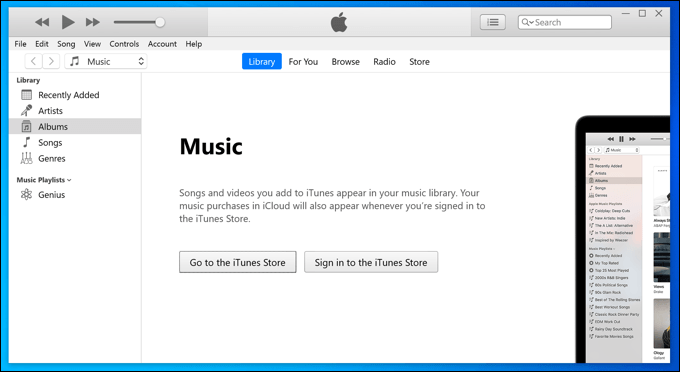
Bonjour is integrated with Apple devices like Macbooks and iPads, so you don’t need to install anything extra on these to use Bonjour services. For Windows devices, however, you’ll need to install certain Apple software (like an older version of iTunes) to gain Bonjour support.
Bonjour isn’t an app, however. Installing the Bonjour service in Windows 10 allows Apple software (and some third-party apps) to find and communicate with other Apple products and services on your network.
Bonjour supports the discovery of Apple network services (such as file sharing), device sharing (such as network printers attached to a Mac), and network configuration (to set up a network with other Apple devices properly).
This support is dependent on apps that support these features, as Bonjour is merely the technology that allows it to happen.
Do You Need the Bonjour Service on Windows 10?
The Bonjour service (mdnsresponder.exe on Windows) is integrated with some Apple software for Windows. If you want to make it easy to connect to services and attached devices that are linked to Apple products, then you may need Bonjour installed and enabled on Windows 10 for this to work.
The Bonjour service isn’t essential, however. If you don’t have Apple products on your network, then you probably don’t need it. Disabling it may prevent some Apple software or features from working, but it won’t have any other impact on your PC. It isn’t a system service of importance, like ntoskrnl.exe, so you’re free to switch it off.
You can also remove it entirely. Removing the Bonjour service may cause some Apple software to stop working, but only for older software. Bonjour is no longer included with the latest available version of iTunes, while other Apple software that required it, like Safari, is no longer supported on Windows.
Using the Bonjour Service on Windows 10
The Bonjour service (appearing as mDNSresponder.exe on Windows) isn’t something that can be interacted with directly. Instead, Bonjour is a service that works in the background, allowing other apps and software to communicate with other devices and services (including Apple products) on a network.
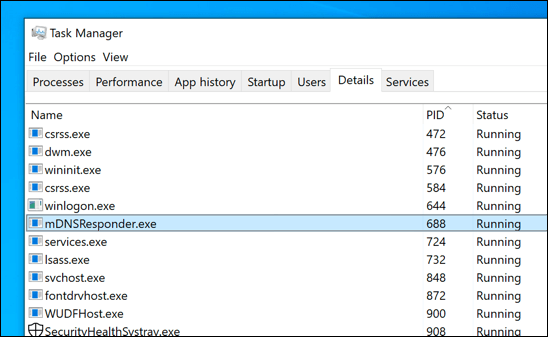
To use it, you’ll need software installed on your PC that supports Bonjour. This is harder to find, since while iTunes for Windows used to include Bonjour support, this is no longer available with the Microsoft Store version (the latest available version). You’ll need to install an older version of iTunes to do this instead.
You could also install other outdated Apple software, like Safari, but this is not recommended. Older software is usually coupled with bugs and security issues that could expose your PC to malware.
Apple has made part of Bonjour (mDNSresponder.exe) open-source, so you may be able to find support for it integrated into other third-party apps, hardware, and services. This is why support for Bonjour has been integrated into products like printers on a wider basis in recent years.
Disabling or Removing Bonjour on Windows 10
Like all running services, the Bonjour service may appear to use your system resources in Windows Task Manager. This will usually only happen when the service is being used to connect to other devices or services by Bonjour-supported software.
However, if you don’t want Bonjour to do this, you can disable it, or remove it entirely. If you want to stop or remove Bonjour (mDNSresponder.exe) from your Windows PC, then you’ll need to follow these steps.
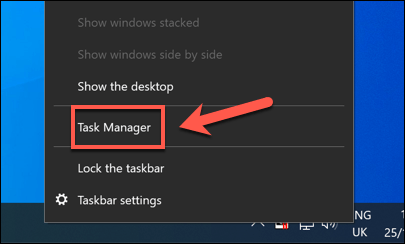
- To temporarily stop the Bonjour service, right-click the taskbar at the bottom, then select the Task Manager option.
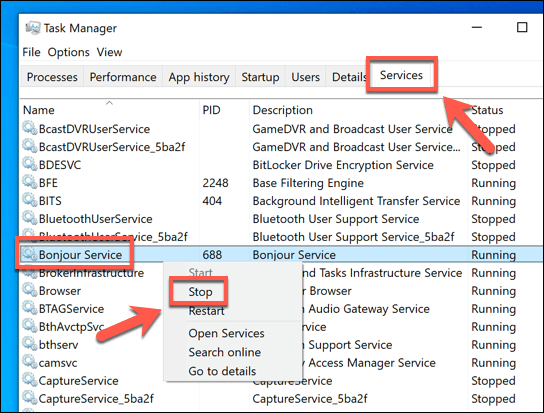
- In the Services tab in the Task Manager window, find the Bonjour service. Right-click it, then select the Stop option. Bonjour will automatically restart the next time you restart your PC (or if you restart the service manually).
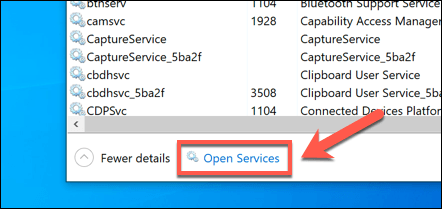
- To disable Bonjour entirely, select the Open Services button at the bottom of the Services tab in the Task Manager window.
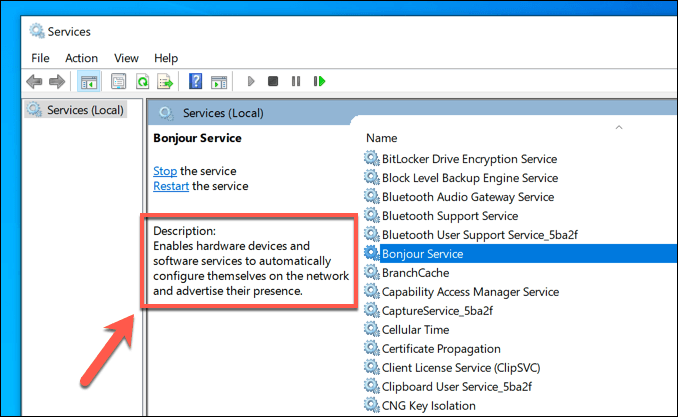
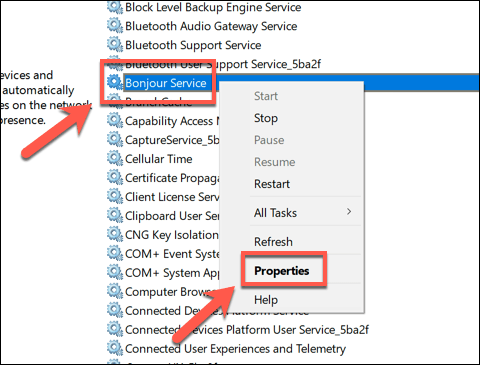
- In the Services window, find the Bonjour service in the list on the right. Right-click the entry, then select the Properties option.
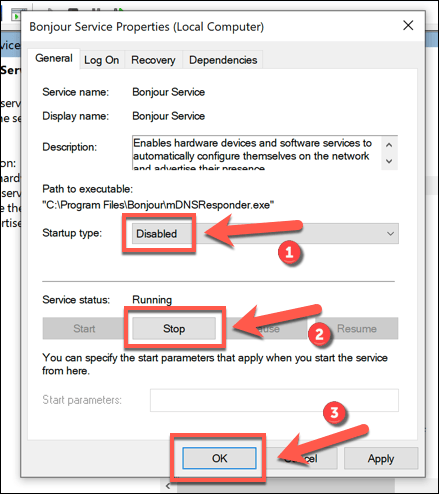
- In the Bonjour Properties window, change the Startup type option in the drop-down menu from Automatic to Disabled. If Bonjour is still active, select the Stop button, underneath the Service status information, to stop it immediately. Select the OK button to save your settings.
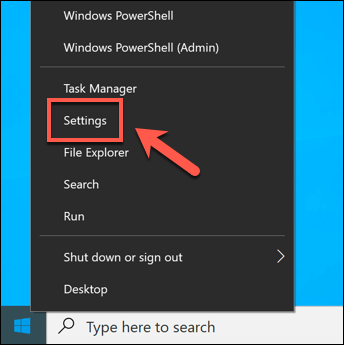
- To remove Bonjour entirely, you’ll need to use the Windows Settings menu. To do this, right-click the Start menu and select the Settings option.
- In the Settings window, select Apps > Apps & features. Search for Bonjour using the search bar, or scroll through the list until you find Bonjour listed. Select the Uninstall > Uninstall buttons to begin the process of removing it.
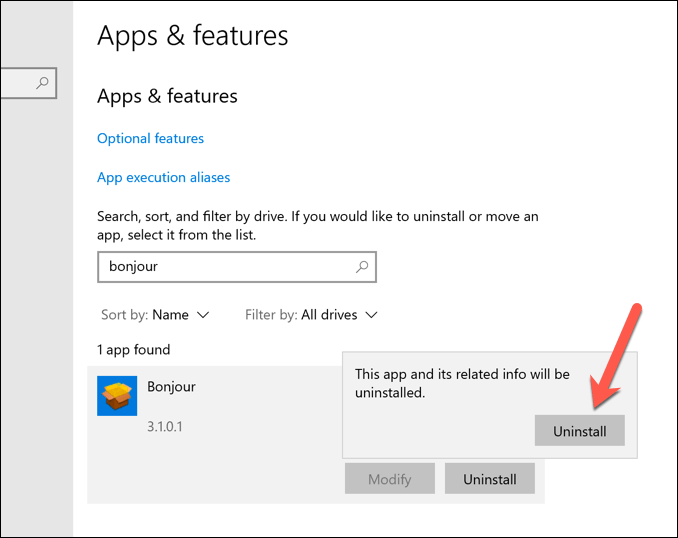
Once Bonjour is removed, you may need to uninstall other Apple software, like iTunes, to ensure that all traces of the Bonjour technology have been removed from your PC. The Bonjour service itself, however, should be removed at this stage.
Interacting with Apple Devices on Windows 10
With the Bonjour service on Windows 10, you shouldn’t need to worry about trying to access music, photos, and other files that are stored on Apple devices. Bonjour should help to give you easier access to Apple services on your local network, but with better networking features in Windows 10, you may find it isn’t needed.
Bonjour isn’t the only thing you’ll need in place to communicate between Windows and Mac devices. If you can’t see other computers on a network that contains more than one type of operating system, you may need to troubleshoot the problem further by checking that your firewall on both devices isn’t blocking the connection.