
Using copy command, we can copy files from one directory to another directory. This command is similar to the Linux cp command, but it does not match with the full functionality of cp. Windows copy command can be used to copy files only, we can’t copy directories.
The syntax and usecases of copy command are explained below with examples.
Copy the contents of a file to another file
copy sourceFile destinationFile
Example: To copy a file from c:\data\file1.doc to D:\backup\file2.doc
copy c:\data\file1.doc D:\backup\file2.doc
If the destination file already exists you will be prompted for confirmation. To suppress this confirmation you can use /Y switch with copy command. This would be useful if you are executing copy command from a batch file.
c\> copy /Y c:\dir1\subdir1\file1.txt c:\dir2\subdir2\file2.txt
If the destination file exists, the above command will overwrite the same without asking the user for confirmation.
Copy file to another directory
When we specify a directory path as the destination, the files will be copied with the same name. We can assign a different name by specifying the new name in the destination path. Example is shown below.
To copy the file 1.doc loated at c:\data\documents to the directory c:\data\newdocs
c\> copy c:\data\documents\1.doc c:\data\newdocs\
Copy files with white space in name
If the file name has white space within it, we can wrap up the name in double quotes.
Example: To copy file, my resume.doc to another folder
copy "my resume.doc" D:\data\
Copy multiple files
We can’t specify multiple file names in copy command. However, we can use wildcards to identify a group of files and then copy all of them in a single command.
For example, to copy all excel files from current folder to another folder F:\backup
copy *.xls F:\backup\
To copy all files in current folder to another folder
copy * D:\dir1\dir2
Use of environment variables
We can use environment variables in the copy command to specify the path of the folders. Like USERPROFILE, SystemRoot, ProgramFiles, TEMP, WINDIR, APPDATA, HOMEPATH.
For example, to copy a file to a user’s documents folder
Copy D:\file.pdf %HOMEPATH%\Documents\
The above command copies the file to the My Documents folder of the current logged in user.
You may also want to read
- Xcopy command syntax and examples
- Robocopy command
- 04.02.2020
- 37 922
- 5
- 01.11.2020
- 9
- 8
- 1
- Содержание статьи
- Описание
- Синтаксис
- Параметры
- Примечания
- Примеры использования
- Справочная информация
- Комментарии к статье ( 5 шт )
- Добавить комментарий
Описание
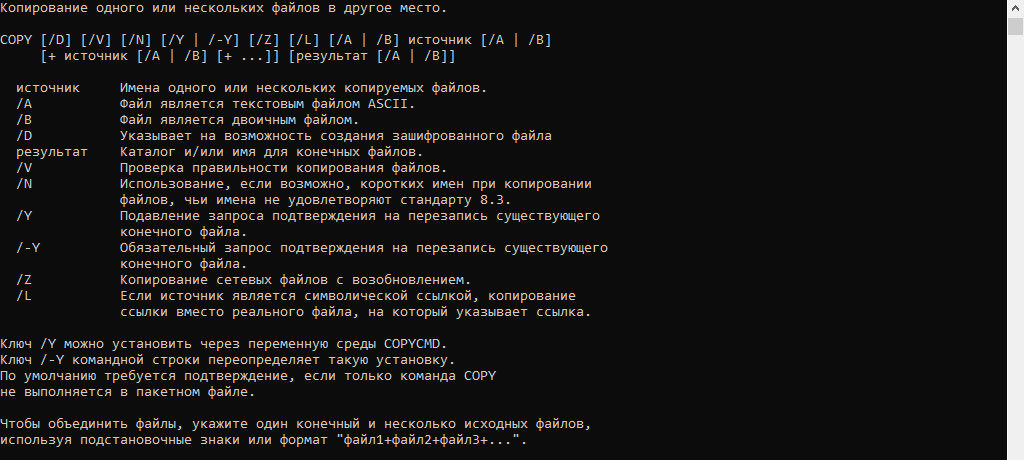
COPY — Копирование одного или нескольких файлов из одного расположения в другое.
Синтаксис
copy [/d] [/v] [/n] [{/y|/-y}] [/z] [{/a|/b}] источник [{/a|/b}] [+ источник [{/a|/b}] [+ ...]] [назначение [{/a|/b}]]Параметры
| Параметр | Описание |
|---|---|
| /d | Сохранение копируемых шифрованных файлов как расшифрованных в месте назначения |
| /v | Проверка правильности копирования путем сравнения копий файлов |
| /n | Использование короткого имени (при наличии) копируемого файла, если его имя превышает 8 символов или его расширение превышает 3 символа |
| /y | Отмена вывода запроса на подтверждение перезаписи существующего конечного файла |
| /-y | Вывод запроса на подтверждение перезаписи существующего конечного файла |
| /z | Копирование файлов по сети в режиме перезапуска |
| /a | Указание текстового файла в формате ASCII |
| /b | Указание двоичного файла. источник Обязательный параметр. Задание расположение файла или набора файлов, которые требуется скопировать. Параметр источник может состоять из имени диска с двоеточием, имени папки, имени файла или их комбинации. назначение Обязательный параметр. Задание расположения, в которое требуется скопировать файл или набор файлов. Параметр назначение может состоять из имени диска с двоеточием, имени папки, имени файла или их комбинации |
| /? | Отображение справки в командной строке |
Примечания
- Имеется возможность скопировать текстовый файл, в котором используется символ конца файла (CTRL+Z) для обозначения конца файла.
- Если параметр /a стоит перед списком файлов в командной строке, он применяется ко всем файлам, перечисленным до параметра /b команды copy. В этом случае /b применяется к файлу, предшествующему /b.
- Если параметр /a стоит после списка файлов в командной строке, он применяется ко всем файлам, перечисленным до параметра /b команды copy. В этом случае /b применяется к файлу, предшествующему /b.
- Результат применения параметра /a зависит от его положения в командной строке. Если параметр /a стоит после параметра источник, команда copy обрабатывает файл как текстовый в формате ASCII и копирует данные, которые находятся перед первым символом конца файла.
- Если параметр /a расположен после параметра назначение, команда copy добавляет символ конца файла как последний символ файла.
- Параметр /b задает считывание командным процессором количества байт, равного размеру файла в каталоге. Параметр /b задается по умолчанию для команды copy, за исключением случаев использования copy для слияния файлов.
- Если параметр /b стоит перед списком файлов в командной строке, он применяется ко всем файлам, перечисленным до параметра /a команды copy. В этом случае /a применяется к файлу, предшествующему /a.
- Если параметр /b стоит после списка файлов в командной строке, он применяется ко всем файлам, перечисленным до параметра /a команды copy. В этом случае /a применяется к файлу, предшествующему /a.
- Результат применения параметра /b зависит от его положения в командной строке. Если параметр /b стоит после параметра источник, команда copy копирует файл целиком, включая все символы конца строки.
- Если параметр /b стоит после параметра назначение, команда copy не добавляет символ конца строки.
- Если операция записи не может быть проверена, выводится сообщение об ошибке. Хотя ошибки записи редко возникают при работе с командой copy, параметром /v можно воспользоваться для проверки правильности записи важных данных. Параметр /v также завершает работу команды copy, поскольку необходимо проверить каждый сектор, записанный на диск.
- Если параметр /y установлен заранее в переменной среды COPYCMD, можно переопределить эту настройку, указав параметр /-y в командной строке. При переопределении данной настройки по умолчанию выводится запрос, за исключением исключением случаев выполнения команды copy в пакетном файле.
- Чтобы объединить файлы, укажите один файл в параметре назначение и несколько в параметре источник (используя подстановочные знаки или формат файл1+файл2+файл3).
- Если во время фазы копирования теряется сетевое подключение (например, если сервер переходит в автономный режим, разрывая подключение), команда copy /z позволяет продолжить копирование после восстановления подключения. Кроме того, параметр /z позволяет отобразить сведения о завершении операции копирования в процентах для каждого файла.
- Использование внешних устройств в операциях копирования. В качестве параметров источник и назначение можно указать имена устройств.
- Если в параметре назначение указано устройство (например Com1 или Lpt1), параметр /b позволяет скопировать данные на это устройство в двоичном режиме. В двоичном режиме команда copy /b копирует все символы (включая управляющие символы, такие как CTRL+C, CTRL+S, CTRL+Z и перевод строки) на устройство как данные. Однако если параметр /b не указан, данные копируются на устройство в формате ASCII. В этом режиме управляющие символы могут вызвать слияние файлов в системе Windows XP в процессе копирования. Дополнительные сведения см. в разделе «Слияние файлов».
- Если конечный файл не задан, по умолчанию файлы будут скопированы с тем же именем, датой и временем создания в текущий каталог на текущем диске. Если исходный файл находится в текущем каталоге на текущем диске, выполнение команды copy завершается и выводится следующее сообщение об ошибке:
Невозможно скопировать файл в себя
Скопировано файлов: 0
Если введено несколько параметров источник, разделенных знаком плюс (+), команда copy объединяет файлы в один. Если в параметре источник использованы подстановочные знаки (* или ?), а в параметре назначение задан один файл, команда copy объединит все файлы, удовлетворяющие шаблону в параметре источник, в один с именем, указанным в параметре назначение. В обоих случаях, если не задан параметр /b, команда copy объединяет файлы как текстовые.
- Команда Copy не копирует файлы, которые имеют длину, равную 0 байт. Для выполнения этой операции служит команда xcopy.
- Если требуется установить текущую дату и время в качестве даты модификации файла без изменения его содержимого, воспользуйтесь следующим синтаксисом:
copy /b источник+,,Запятые заменяют параметр назначение. - Для копирования всех файлов каталога и его подкаталогов служит команда xcopy. Дополнительные сведения о команде xcopy см. по ссылке «».
- Команда copy с другими параметрами доступна в консоли восстановления.
Примеры использования
Чтобы скопировать файл Memo.doc в файл Letter.doc на текущем диске и убедиться, что символ конца файла находится в конце скопированного файла, введите следующую команду:
copy memo.doc letter.doc /aЧтобы скопировать файл Robin.typ с текущего каталога на текущем диске в существующий каталог Birds на диске C, введите следующую команду:
copy robin.typ c:\birdsЕсли каталог Birds не существует, файл Robin.typ будет скопирован в файл с именем Birds в корневой каталог диска C.
Чтобы скопировать несколько файлов в один, перечислите несколько файлов в параметре источник, разделяя их имена значком плюс (+), и укажите в параметре назначение файл, который должен содержать результат объединения этих файлов. Например, чтобы объединить файлы Mar89.rpt, Apr89.rpt и May89.rpt из текущего каталога на текущем диске и поместить их в файл Report в текущем каталоге на текущем диске, введите следующую команду:
copy mar89.rpt + apr89.rpt + may89.rpt reportПри объединении команда copy создает конечный файл с текущими датой и временем. Если параметр назначение не указан, файлы объединяются и сохраняются в файле с именем первого файла в списке. Например, чтобы объединить четыре файла в файле Report, если такой файл уже существует, введите следующую команду:
copy report + mar89.rpt + apr89.rpt + may89.rptКроме того, несколько файлов можно объединить в один с помощью символов подстановки (* или ?). Например, чтобы объединить все файлы с расширением .txt в текущем каталоге на текущем диске в файл Combin.doc, введите следующую команду:
copy *.txt combin.docЕсли требуется объединить несколько двоичных файлов в один с использованием подстановочных знаков, воспользуйтесь параметром /b. В результате CTRL+Z не будет рассматриваться как символ конца файла в Windows XP. Например, введите следующую команду:
copy /b *.exe combin.exeВнимание!
Если объединяются двоичные файлы, результат может оказаться непригодным из-за нарушения внутреннего форматирования.
В следующем примере команда copy объединяет каждый файл с расширением .txt с соответствующим ему файлом с расширением .ref. Результатом является файл с тем же именем, но с расширением .doc. Таким образом, команда copy объединит файлы File1.txt и File1.ref в файл File1.doc, затем файлы File2.txt и File2.ref в файл File2.doc и т. д. Например, введите следующую команду:
copy *.txt + *.ref *.docЧтобы объединить сначала все файлы с расширением .txt, а затем все файлы с расширением .ref в файл Combin.doc, введите следующую команду:
copy *.txt + *.ref combin.docСправочная информация
Updated: 12/30/2021 by
The copy command allows users to copy one or more files to an alternate location.
Availability
Copy is an internal command and is available for the following Microsoft operating systems.
- All Versions of MS-DOS
- Windows 95
- Windows 98
- Windows ME
- Windows NT
- Windows 2000
- Windows XP
- Windows Vista
- Windows 7
- Windows 8
- Windows 10
- Windows 11
Copy syntax
- Windows Vista and later syntax
- Windows XP and earlier syntax
Windows Vista and later syntax
COPY [/D] [/V] [/N] [/Y | /-Y] [/Z] [/L] [/A | /B ] source [/A | /B] [+ source [/A | /B] [+ ...]] [destination [/A | /B]]
| source | Specifies the file or files to be copied. |
| /A | Indicates an ASCII (American Standard Code for Information Interchange) text file. |
| /B | Indicates a binary file. |
| /D | Allow the destination file to be created decrypted. |
| destination | Specifies the directory or file name for the new file(s). |
| /V | Verifies that new files are written correctly. |
| /N | Uses short file name, if available, when copying a file with a non-8dot3 name. |
| /Y | Suppresses prompting to confirm you want to overwrite an existing destination file. |
| /-Y | Causes prompting to confirm you want to overwrite an existing destination file. |
| /Z | Copies networked files in restartable mode. |
| /L | If the source is a symbolic link, copy the link to the target instead of the actual file the source link points to. |
The switch /Y may be preset in the COPYCMD environment variable. This setting may be overridden with /-Y on the command line. The default is to prompt on overwrites unless COPY command is being executed from within a batch script.
To append files, specify a single file for destination, but multiple files for source (using wildcards or file1+file2+file3 format).
Windows XP and earlier syntax
COPY [/A | /B] source [/A | /B] [+ source [/A | /B] [+ ...]] [destination] [/A | /B]] [/V] [/Y | /-Y]
| source | Specifies the file or files to be copied. |
| /A | Indicates an ASCII text file. |
| /B | Indicates a binary file. |
| destination | Specifies the directory or file name for the new file(s). |
| /V | Verifies that new files are written correctly. |
| /Y | Suppresses prompting to confirm you want to overwrite an existing destination file. |
| /-Y | Causes prompting to confirm you want to overwrite an existing destination file. |
The switch /Y may be preset in the COPYCMD environment variable. This setting may be overridden with /-Y on the command line.
To append files, specify a single file for destination, but multiple files for source (using wildcards or file1+file2+file3 format).
Copy examples
copy *.txt c:\
In the example above, we are using a wildcard to copy all .txt files (multiple files) from the current directory to the c:\ root directory.
copy *.* a:
Copy all files in the current directory to the floppy disk drive.
copy autoexec.bat c:\windows
Copy the autoexec.bat, usually found at root, and copy it into the Windows directory; the autoexec.bat can be substituted for any file(s).
copy win.ini c:\windows /y
Copy the win.ini file in the current directory to the Windows directory. Because this file already exists in the Windows directory it normally would prompt if you want to overwrite the file. However, with the /y switch you will not receive any prompt.
copy "computer hope.txt" hope
Copy the file «computer hope.txt» into the hope directory. Whenever you are dealing with a file or directory with a space, it must be surrounded with quotes. Otherwise, you’ll get the «Getting ‘The syntax of the command is incorrect’ error.» error.
copy myfile1.txt+myfile2.txt
Copy the contents in myfile2.txt and combines it with the contents in myfile1.txt.
copy con test.txt
Finally, a user can create a file using the copy con command as shown above, which creates the test.txt file. Once the above command is typed in, a user could type in whatever he or she wishes. When you have completed creating the file, you can save and exit the file by pressing Ctrl+Z, which would create ^Z, and press Enter. An easier way to view and edit files in MS-DOS would be to use the edit command.
- How to copy files.
The Copy command is a Windows CMD command used to copy one or more files from one location to another. It is a useful tool for quickly and easily transferring files between folders, drives, or even computers. The Copy command can also be used to make multiple copies of a single file. This article will explain the syntax, options, and examples of the Copy command.
Purpose of the Copy Command
The Copy command is used to copy files from one location to another. It can be used to copy files between folders, drives, or even computers. The Copy command can also be used to make multiple copies of a single file. The Copy command is a useful tool for quickly and easily transferring files between locations.
Syntax of the Copy Command
The syntax of the Copy command is as follows:
- copy [source] [destination]
The source is the location of the file or files you want to copy. The destination is the location where you want to copy the files. You can use wildcards (* and ?) to specify multiple files. For example, you can use the following syntax to copy all .txt files from one folder to another:
- copy c:\source\*.txt c:\destination\
Options of the Copy Command
The Copy command has several options that can be used to modify its behavior. These options are as follows:
| Option | Description |
|---|---|
| /A | Copies only files with the archive attribute set. |
| /D | Copies only files with the specified date or time. |
| /V | Verifies that the new files are written correctly. |
| /Y | Suppresses prompting to confirm that you want to overwrite an existing destination file. |
Examples of the Copy Command
The following are some examples of how the Copy command can be used:
-
copy c:\source\file1.txt c:\destination\
- This example copies the file file1.txt from the source folder to the destination folder.
-
copy c:\source\*.txt c:\destination\
- This example copies all .txt files from the source folder to the destination folder.
-
copy c:\source\file1.txt c:\destination\file2.txt
- This example copies the file file1.txt from the source folder to the destination folder and renames it to file2.txt.
-
copy c:\source\*.txt c:\destination\ /v
- This example copies all .txt files from the source folder to the destination folder and verifies that the new files are written correctly.
Conclusion
The Copy command is a useful Windows CMD command for quickly and easily transferring files between folders, drives, or even computers. It can also be used to make multiple copies of a single file. This article has explained the syntax, options, and examples of the Copy command.
What is the windows command prompt command to copy files?
I need to move a file from location A to location B. Also if the folder for location B doesn’t’ exists I want to have it created.
I need this to be a command line so I can automate it.
The version of Windows is XP.
asked May 5, 2009 at 12:50

David BasarabDavid Basarab
1,1575 gold badges16 silver badges20 bronze badges
1
The command xcopy is what you are looking for. Example:
xcopy source destination /E /C /H /R /K /O /Y
The command above will copy source to destination, files and directories (including empty ones), will not stop on error, will copy hidden and system files, will overwrite read only files, will preserve attributes and ownership/ACL information, and will suppress the prompting for overwrite existing destination files.
/E    Copies directories and subdirectories, including empty ones.
      Same as /S /E. May be used to modify /T.
/C    Continues copying even if errors occur.
/H    Copies hidden and system files also.
/R    Overwrites read-only files.
/K    Copies attributes. Normal Xcopy will reset read-only attributes.
/O    Copies file ownership and ACL information.
/Y    Suppresses prompting to confirm you want to overwrite an
      existing destination file.
For more info type xcopy /? and your command line.

KCD
9583 gold badges12 silver badges24 bronze badges
answered May 5, 2009 at 13:21
5
Use md to create the folder (it’s ok if it already exists)
Use copy or move for files, and xcopy for folders
answered May 5, 2009 at 12:52

DaniDani
1,2261 gold badge13 silver badges20 bronze badges
3
Use ROBOCOPY if you’re creating backup scripts. xcopy has been deprecated and will likely be phased out of use in the near future. robocopy can do everything xcopy can. It is also more flexible and reliable. Creating scripts with robocopy will future-proof them.
-
Use robocopy to easily copy folders. The robocopy command replaces the xcopy command. It can quickly copy entire folders without having to worry about defining the contents. For example, to copy all of the contents of the C:\tools directory to the new folder D:\backup\tools, enter the following:
robocopy C:\tools D:\backup\tools /eThe /e modifier tells robocopy to include all subdirectories. This includes empty folders.
robocopy will automatically copy hidden and system files. It will create new directories if they don’t exist at the target location. -
Mirror a directory. Mirroring a directory is great for making backups. The mirror option of robocopy will copy all of the contents from the source to the destination. It will then delete anything at the destination that doesn’t exist at the source. This ensures that your backup only has the latest versions of your files. For example, to mirror C:\Users\My Documents to D:\backup\My Documents, enter the following:[4]
robocopy "C:\Users\My Documents" "D:\backup\My Documents" /mirThis function will preserve all permissions of the original files.
-
Enable restarting. You may want to include the ability to restart the process in case the connection is severed mid-copy.
robocopy "C:\Users\My Documents" "D:\backup\My Documents" /z -
Log the copying process. robocopy allows you to create a log file. This can help you pinpoint problems or generate an archive of what’s been copied.
robocopy "C:\Users\My Documents" "D:\backup\My Documents" /log+:<filename>.txtThe /log+ modifier will append the existing log file instead of overwriting it. If you’d prefer to just overwrite the old log file, use /log:.txt.
answered Nov 22, 2015 at 21:39

In a batch file:
if not exists locationB\nul mkdir locationB
copy locationA\file locationB
if not exists checks the parameter to see if it exists, but it only works on files. To check for existence of a directory, you need to look for a ‘pseudo-file’ called «nul» — checking for existence of this file will always return true if the directory exists.
The copy line copies the file called file in directory locationA to locationB and names the file the same thing. If you want to rename the file at the same time, you can do that too:
copy locationA\file locationB\newfilename
answered May 5, 2009 at 13:21

Graeme PerrowGraeme Perrow
5551 gold badge5 silver badges16 bronze badges
If you want the ability to synchronise the copy and other advanced features (ignore certain folders, only include certain wildcards) then look at robocopy. Included in Vista and beyond, optional (from resource kit tools) in earlier versions.
answered May 5, 2009 at 13:51

RichardRichard
5,3241 gold badge23 silver badges20 bronze badges
1
xcopy will create the directory structure for you. Trick is to use the /I option and throw an asterisk at the end of the file name so xcopy thinks you’re copying multiple files, otherwise it asks you if the target name is the file name you want, or the directory name you want. For example.
xcopy /I c:\<SourceDir>\<SourceFile> c:\<TargetDirThatDoesNOTExist>
I’d also look at RoboCopy, but you need to get it from the resource kit as it’s not in Windows until Vista.
answered May 5, 2009 at 13:21

WaldenLWaldenL
1,2581 gold badge14 silver badges26 bronze badges
The above command creates an additional directory level with the name of the source file. So…
xcopy /I srcdir\dir1\dir2\file1.txt* destdir\dir1\dir2\file1.txt results in destdir\dir1\dir2\file1.txt\file1.txt
answered Jun 10, 2015 at 15:25

1
You must log in to answer this question.
Not the answer you’re looking for? Browse other questions tagged
.
Not the answer you’re looking for? Browse other questions tagged
.