
Для начала нужно зайти в настройки роутера
1. Перейдите в браузер Google Chrome или любой другой браузер, установленный на вашем рабочем столе, и откройте его.
2: Напишите в адресной строке эти числа 192.186.1.1, и эти числа являются IP-адресом вашего маршрутизатора, и он считается основным по умолчанию для всех существующих маршрутизаторов.
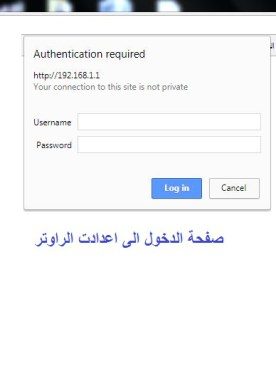
3: После ввода этих чисел нажмите кнопку Enter. Откроется страница входа в маршрутизатор с двумя полями, в первом из которых написано имя пользователя.
Второй — это пароль …… имя пользователя — admin, а пароль — admin. Если он не открывается с вами, перейдите к маршрутизатору и посмотрите за ним. Вы найдете имя пользователя и пароль сзади. Введите их в двух коробках перед вами.
Посмотри на следующую картинку
Одна из причин, которые, по мнению пользователей, вызывают медленный Интернет, — это присутствие злоумышленников, подключенных к вашему маршрутизатору без вашего ведома, и это делается с помощью некоторых вредоносных программ, которые могут проникнуть в ваш маршрутизатор и вызвать замедление вашего Интернета или даже отключить ваше соединение.
Причиной медленного интернета также может быть качество вашей наземной линии связи, поэтому вам необходимо связаться с поставщиком услуг и узнать эффективность вашей наземной линии связи и уровень помех.
Что такое DNS и для чего он нужен?
Возможно, термин DNS известен не всем, поэтому мы должны объяснить, что такое DNS, который является просто аббревиатурой для сервера доменных имен, и это общий и важный термин в интернет-системах, и без DNS вы не можете выходить в Интернет, так как его задача — перевести частный домен любого сайта на IP-адрес, браузер может использовать его для более быстрого доступа к сайтам, а Интернет запрашивает у вас DNS-адрес, чтобы преобразовать домен сайта и преобразовать его в IP-адрес .
Как можно увеличить скорость интернета, изменив DNS в роутере Huawei?
Вы можете легко решить проблему медленного Интернета, если у вас есть маршрутизатор Huawei, изменив DNS или, другими словами, найдя быстрый DNS-сервер.К счастью, есть много быстрых DNS-серверов, которые могут обеспечить более высокую скорость Интернета.
Шаги по смене DNS на роутере Huawei:
- Войдите в Интернет-браузер со своего компьютера.
- Введите IP-адрес маршрутизатора в поле URL-адреса, который будет 192.168.1.1.
- Появится страница входа в настройки маршрутизатора, введите имя пользователя и пароль, который по умолчанию будет admin, и вы можете связаться с поставщиком услуг, чтобы проверить это.
- После входа на страницу маршрутизатора перейдите на вкладку Основные, затем LAN, а затем DHCP.
- Через опцию DHCP вы найдете поле под названием Primary DNS Server Address и другое поле под названием Secondary DNS Server Address, вы пишете DNS внутри каждого из них, а затем нажимаете на опцию сохранения настроек или Submit. .
- Узнайте о многих DNS: отсюда
Статьи по теме
**Как установить IP на компьютер**
Узнать характеристики компьютера несложно
Простая команда, чтобы узнать, какие документы и файлы были открыты на вашем устройстве
Всего 4 шага для увеличения скорости загрузки при загрузке из Интернета
Лучший способ проверить оперативную память профессионально и без программ
Скрытие и отображение файлов и папок во всех системах Windows
Статьи по теме








Конфигурация DNS-сервера на роутере Huawei позволяет улучшить скорость и надежность вашего интернет-соединения. DNS (Domain Name System) преобразует доменные имена, такие как google.com, в IP-адреса, по которым компьютеры могут общаться между собой. Ваш роутер, по умолчанию, использует DNS-сервер, предоставленный интернет-провайдером, но вы можете сменить его на другой DNS-сервер, чтобы улучшить скорость работы с интернетом, обойти блокировки сайтов или улучшить защиту от вредоносных сайтов.
Предлагаем пошаговую инструкцию о том, как сменить DNS на роутере Huawei для начинающих пользователей. Следуйте этим шагам, чтобы настроить дополнительные DNS-серверы на вашем роутере Huawei и улучшить ваше интернет-подключение.
Шаг 1: Подключите свой компьютер к роутеру Huawei с помощью Wi-Fi или сетевого кабеля.
Шаг 2: Откройте веб-браузер и введите адрес роутера Huawei в строку поиска. Обычно он имеет вид 192.168.1.1 или 192.168.0.1. Нажмите клавишу Enter, чтобы перейти на страницу управления роутером.
Шаг 3: Введите логин и пароль для доступа к настройкам роутера Huawei. Обычно логин и пароль по умолчанию — admin, но, возможно, они были изменены вашим провайдером. Если вы не знаете логин и пароль, свяжитесь с провайдером или проверьте документацию, предоставленную с роутером.
Шаг 4: Найдите вкладку «Настройки DNS» или «Сетевые настройки» в меню роутера Huawei. Нажмите на нее, чтобы открыть настройки DNS.
Содержание
- Как сменить DNS на роутере Huawei
- Почему важно сменить DNS на роутере Huawei
- Шаг 1: Вход в настройки роутера
- Шаг 2: Редактирование настроек DNS
- Шаг 3: Ввод новых DNS-серверов
Как сменить DNS на роутере Huawei
Вот пошаговая инструкция:
Шаг 1: Зайдите в веб-интерфейс вашего роутера Huawei. Для этого откройте любой веб-браузер на компьютере, подключенном к роутеру, и введите IP-адрес роутера в адресную строку. Обычно адрес роутера указан на его корпусе или в документации. Введите пароль, если система его попросит.
Шаг 2: Найдите раздел настройки сети или интернета. Обычно он называется «Network» или «Internet Settings». В этом разделе вы найдете параметры вашего подключения к интернету.
Шаг 3: В разделе настройки сети найдите опцию «DNS Server» или «DNS Configuration». Нажмите на нее, чтобы открыть настройки DNS.
Шаг 4: Вам может быть предложено выбрать способ получения DNS-серверов: автоматический или ручной. Если у вас уже есть конкретные DNS-серверы, которые вы хотели бы использовать, выберите ручной способ. Если нет, выберите автоматическую настройку, чтобы роутер самостоятельно получал DNS-серверы от вашего интернет-провайдера.
Шаг 5: Введите IP-адреса новых DNS-серверов в соответствующие поля. Обычно DNS-сервер состоит из двух IP-адресов: первичного и вторичного. Проверьте документацию вашего интернет-провайдера или воспользуйтесь публичными DNS-серверами, такими как Google Public DNS (8.8.8.8 и 8.8.4.4).
Шаг 6: Нажмите «Сохранить» или «Применить», чтобы сохранить изменения и перезагрузить роутер.
Поздравляем! Теперь вы знаете, как сменить DNS-серверы на роутере Huawei. Помните, что изменение DNS может занять некоторое время, прежде чем изменения вступят в силу. Убедитесь, что ваш компьютер перезагружен или переподключен к сети после изменений DNS.
Почему важно сменить DNS на роутере Huawei
Все устройства, подключенные к интернету, используют DNS (система доменных имён) для преобразования доменных имен в IP-адреса. По умолчанию, ваш роутер Huawei использует DNS-серверы, предоставленные вашим интернет-провайдером. Однако, использование этих DNS-серверов может иметь негативное влияние на ваши возможности и соединение в сети.
Смена DNS на роутере Huawei может принести несколько преимуществ:
- Ускорение загрузки веб-страниц: Выбор DNS-серверов, которые находятся в вашей географической близости, может ускорить процесс загрузки веб-страниц и снизить задержку при доступе к различным онлайн-сервисам.
- Улучшение безопасности: Некоторые DNS-серверы имеют встроенные функции блокировки опасных веб-сайтов и защиты от фишинга. Смена DNS на такие серверы может повысить безопасность вашей сети и защитить вас и ваших пользователей от вредоносного контента.
- Обход цензуры: В некоторых случаях, ваш провайдер интернета может блокировать доступ к определенным веб-сайтам или сервисам в соответствии с региональными или политическими ограничениями. Смена DNS может помочь обойти такую цензуру, позволяя вам получить доступ к заблокированным ресурсам.
- Лучший контроль над вашей сетью: Используя свои собственные DNS-серверы, вы можете иметь больший контроль над своей сетью. Например, вы можете блокировать доступ к определенным веб-сайтам на уровне роутера, что полезно для родителей, которые хотят защитить своих детей от небезопасного контента.
Смена DNS на роутере Huawei может быть полезной не только для вашего домашнего интернета, но и для бизнес-сетей. Она может значительно улучшить производительность и безопасность вашей сети, и поэтому, рекомендуется рассмотреть эту возможность.
Шаг 1: Вход в настройки роутера
Перед тем, как приступить к смене DNS на роутере Huawei, необходимо войти в настройки роутера. Для этого выполните следующие действия:
- Откройте любой веб-браузер на компьютере или мобильном устройстве, подключенном к роутеру.
- В адресной строке браузера введите IP-адрес роутера. Обычно это 192.168.1.1, но для вашего роутера может быть указан другой IP-адрес. Если вы не знаете IP-адрес роутера, проверьте его на задней панели роутера или в инструкции.
- Нажмите клавишу Enter или выполните поиск, чтобы открыть страницу входа в настройки роутера.
- В появившемся окне введите логин и пароль для входа в настройки роутера. Обычно логин и пароль по умолчанию указаны на задней панели роутера или в инструкции. Если вы сами установили логин и пароль, введите их.
- Нажмите кнопку «Войти» или аналогичную кнопку, чтобы войти в настройки роутера.
После успешного входа вы перейдете на страницу настроек роутера, где сможете продолжить процесс смены DNS.
Шаг 2: Редактирование настроек DNS
После того, как вы вошли в панель управления роутером Huawei, вам нужно найти раздел, где можно изменить настройки DNS.
1. Откройте вкладку сетевых настроек.
2. Найдите раздел «DNS» или «Настройки DNS».
3. В этом разделе у вас может быть несколько опций для настройки DNS:
- Автоматическая настройка DNS — роутер автоматически получает DNS-серверы от провайдера.
- Статическая настройка DNS — вы можете вручную ввести адреса DNS-серверов, которые хотите использовать.
- Настройка DNS-прокси — роутер использует специальные DNS-серверы, которые обеспечивают дополнительные функции, такие как блокировка рекламы или фильтрация контента. Если у вас нет конкретных требований, рекомендуется оставить эту опцию по умолчанию.
4. Выберите опцию «Статическая настройка DNS» и введите адреса DNS-серверов, которые вы хотите использовать. В большинстве случаев, вы можете использовать публичные DNS-серверы, такие как:
- Google DNS: 8.8.8.8 и 8.8.4.4
- OpenDNS: 208.67.222.222 и 208.67.220.220
5. После того, как вы ввели адреса DNS-серверов, сохраните изменения и перезагрузите роутер.
Теперь вы успешно изменили настройки DNS на роутере Huawei. Пожалуйста, обратите внимание, что изменение DNS-серверов может повлиять на скорость и безопасность вашего интернет-соединения, поэтому будьте осторожны при выборе и использовании новых DNS-серверов.
Шаг 3: Ввод новых DNS-серверов
После того, как вы успешно вошли в настройки роутера Huawei, перейдите в раздел «Сеть» или «Network».
Далее найдите опцию «Настройка DNS» или «DNS Settings». Это может быть подраздел внутри меню «Сеть» или находиться сразу на главной странице настроек.
В этом разделе вы увидите поля для ввода адресов DNS-серверов. Убедитесь, что выбрано ручное введение DNS-серверов, а не автоматическое получение от провайдера.
Теперь введите новые DNS-серверы. Обычно вам нужно будет ввести два адреса — первичный и вторичный DNS-сервер. Для получения точных значений DNS-серверов свяжитесь со своим провайдером интернета или узнайте их на официальном сайте провайдера. Обычно первичный DNS-сервер имеет адрес 8.8.8.8, а вторичный — 8.8.4.4 (это DNS-серверы Google).
Пример:
Первичный DNS-сервер: 8.8.8.8
Вторичный DNS-сервер: 8.8.4.4
После ввода новых DNS-серверов, сохраните изменения, нажав на кнопку «Применить» или «Save». Возможно, потребуется перезагрузить роутер для применения новых настроек.
Теперь вы успешно изменили DNS-серверы на своем роутере Huawei, что может улучшить стабильность и скорость вашего интернет-соединения.
These instructions will provide guidance on how to configure CleanBrowsing on your Huawei HG8240/HG8245/HG8247. You can find guides for this router here:
- EchoLife HG8240/HG8245/HG8247 GPON Terminal V100R002C00&C01
Step 1: Access the router
Log in to the Huawei Router Configuration page by entering the following IP into your URL bar: 192.168.100.1
You will need to log in using your administrator credentials.
Step 2: Navigate to DNS Section in the Router Dashboard
Navigate to LAN > DHCP Server Configuration
Step 3: Update DNS Settings
Check Enable primary DHCP server.
Check Enable DHCP L2Relay (May be labeled as just DHCP Relay)
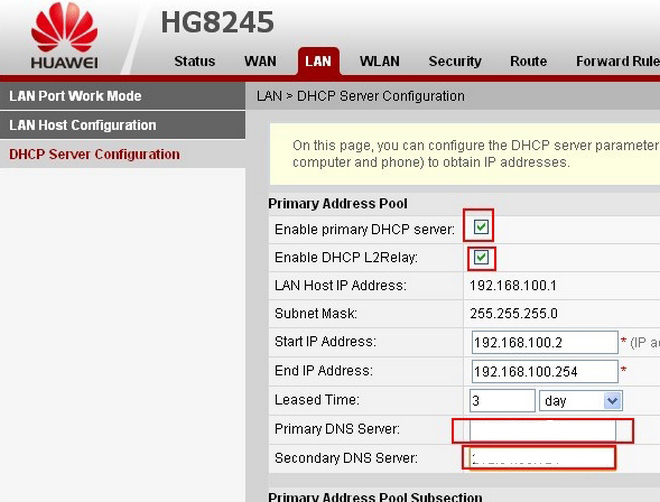
Enter the IP addresses in the DNS server fields.
The CleanBrowsing Family IP’s are:
- 185.228.169.168
- 185.228.168.168
Note: If you have a paid plan use the DNS IPs provided in your account.
Select SaveNote: If you have a paid plan use the DNS IPs provided in your account.
Чтобы помочь вам лучше понять содержимое этого документа, компания Huawei перевела его на разные языки, используя машинный перевод, отредактированный людьми.
Примечание: даже самые передовые программы машинного перевода не могут обеспечить качество на уровне перевода, выполненного профессиональным переводчиком.
Компания Huawei не несет ответственность за точность перевода и рекомендует ознакомиться с документом на английском языке (по ссылке, которая была предоставлена ранее).
DNS Configuration Commands
Command Support
Commands provided in this section and all
the parameters in the commands are supported by all switch models
by default, unless otherwise specified. For details, see specific
commands.
display dns dynamic-host
Function
The display dns dynamic-host command
displays dynamic DNS entries.
Format
display dns dynamic-host [ vpn-instance vpn-instance-name | all ]
Only the S1720GW,
S1720GWR, S1720X, S1720GW-E, S1720GWR-E, S1720X-E, S2720EI, S5720LI, S5720S-LI, S5720SI, S5720S-SI, S5720EI, S5720HI, S5730SI, S5730S-EI, S6720LI, S6720S-LI, S6720SI, S6720S-SI, S6720EI, and S6720S-EI support vpn-instance vpn-instance-name and all.
Parameters
| Parameter | Description | Value |
|---|---|---|
| vpn-instance vpn-instance-name |
Displays dynamic DNS entries of a specified VPN instance. |
The value must be an existing |
| all |
Displays all dynamic DNS entries, including both NOTE: If neither vpn-instance vpn-instance-name nor all is specified, only public dynamic DNS entries are |
— |
Default Level
1: Monitoring level
Usage Guidelines
You can run the display dns dynamic-host command to view dynamic DNS entries and check whether domain names
match the mapping entries.
Example
# Display dynamic DNS entries.
<HUAWEI> display dns dynamic-host
No  Domain-name         IpAddress      TTL    Alias
1   www.hw.com          10.1.1.1       3521
2   www.hw.com.cn       10.1.2.1       3000
# Display dynamic DNS
entries of the VPN instance vpn1.
<HUAWEI> display dns dynamic-host vpn-instance vpn1
No  Domain-name           Alias                   IpAddress            TTL      VPN-Instance
1   www.huawei.com                                10.1.3.1             3521     vpn1
2   www.huawei.com.cn                             10.1.4.1             3000     vpn1
Table 6-31 Description of the display dns dynamic-host command output
|
Item |
Description |
|---|---|
|
No |
Number of a dynamic DNS entry. |
|
Domain-name |
Domain name. |
|
IpAddress |
IP addresses of the host. |
|
TTL |
Remaining lifetime of DNS entries (in seconds). |
|
Alias |
Alias of a host. |
|
VPN-Instance |
VPN instance name. |
display dns domain
Function
The display dns domain command displays
information about the domain name suffixes.
Format
display dns domain [ vpn-instance vpn-instance-name | all ]
Only the S1720GW,
S1720GWR, S1720X, S1720GW-E, S1720GWR-E, S1720X-E, S2720EI, S5720LI, S5720S-LI, S5720SI, S5720S-SI, S5720EI, S5720HI, S5730SI, S5730S-EI, S6720LI, S6720S-LI, S6720SI, S6720S-SI, S6720EI, and S6720S-EI support vpn-instance vpn-instance-name and all.
Parameters
| Parameter | Description | Value |
|---|---|---|
| vpn-instance vpn-instance-name |
Displays information about domain name suffixes of |
The value must be an existing |
| all |
Displays information about all domain name suffixes, NOTE: If neither vpn-instance vpn-instance-name nor all is specified, only information about public domain name suffixes |
— |
Default Level
1: Monitoring level
Usage Guidelines
The display dns domain command displays
the configuration of domain name suffixes and the order in which they
are configured.
Example
# Display the list of domain name suffixes.
<HUAWEI> display dns domain
No                    Domain-name
1                     com
2                     net
# Display the list of
domain name suffixes of the VPN instance vpn1.
<HUAWEI> display dns domain vpn-instance vpn1
No          Domain-name         VPN-Instance
1           com.cn              vpn1
Table 6-32 Description of the display dns domain command
output
|
Item |
Description |
|---|---|
|
No |
Indicates the domain name suffix numbers, that is, the configuration |
|
Domain-name |
Indicates the configured domain name suffix. If there are The value is set using the dns domain command. |
|
VPN-Instance |
VPN instance name. The value is set using the dns domain command. |
display dns server
Function
The display dns server command displays information about DNS servers.
Format
display dns server [ vpn-instance vpn-instance-name | all ]
Only the S1720GW,
S1720GWR, S1720X, S1720GW-E, S1720GWR-E, S1720X-E, S2720EI, S5720LI, S5720S-LI, S5720SI, S5720S-SI, S5720EI, S5720HI, S5730SI, S5730S-EI, S6720LI, S6720S-LI, S6720SI, S6720S-SI, S6720EI, and S6720S-EI support vpn-instance vpn-instance-name and all.
Parameters
| Parameter | Description | Value |
|---|---|---|
| vpn-instance vpn-instance-name |
Displays information about DNS servers of a specified VPN instance. |
The value must be an existing |
| all |
Displays information about all DNS servers, including both public and private DNS servers. NOTE: If neither vpn-instance vpn-instance-name nor all is specified, only information about public DNS servers is displayed. |
— |
Default Level
1: Monitoring level
Usage Guidelines
After configuring DNS server addresses, you can run the display dns server command to view the configuration and sequence of DNS servers.
Example
# Display information about DNS servers.
<HUAWEI> display dns server
IPv4 Dns Servers :
Domain-server        IpAddress
     1               10.16.1.1
     2               10.17.1.1

IPv6 Dns Servers :
Domain-server        Ipv6Address                              (Interface Name)
     1               FC00:1::1
# Display information about the DNS servers of the VPN instance vpn1.
<HUAWEI> display dns server vpn-instance vpn1
IPv4 Dns Servers :
Domain-server        IpAddress           VPN-Instance
     1               172.16.1.1          vpn1
     2               172.16.1.2          vpn1

IPv6 Dns Servers :
No configured servers.
Table 6-33 Description of the display dns server command output
|
Item |
Description |
|---|---|
|
IPv4 Dns Servers |
IPv4 DNS server configuration. |
|
Domain-server |
DNS server number, indicating the order in which they were configured. |
|
IpAddress |
IP address of the DNS server. During DNS resolution, the first DNS server is used. If this server fails to resolve packets, the second DNS server is used. The value is set using the dns server command. |
|
IPv6 Dns Servers |
IPv6 DNS server configuration. |
|
Ipv6Address |
IPv6 address of the IPv6 DNS server. The value is set using the dns server ipv6 command. |
|
Interface Name |
Interface name, which only corresponds to the local IPv6 link address. The value is set using the dns server ipv6 command. |
|
VPN-Instance |
VPN instance name. The value is set using the dns server command. |
display ip host
Function
The display ip host command displays
the static DNS entries.
Format
display ip host [ vpn-instance vpn-instance-name | all ]
Only the S1720GW,
S1720GWR, S1720X, S1720GW-E, S1720GWR-E, S1720X-E, S2720EI, S5720LI, S5720S-LI, S5720SI, S5720S-SI, S5720EI, S5720HI, S5730SI, S5730S-EI, S6720LI, S6720S-LI, S6720SI, S6720S-SI, S6720EI, and S6720S-EI support vpn-instance vpn-instance-name and all.
Parameters
| Parameter | Description | Value |
|---|---|---|
| vpn-instance vpn-instance-name |
Displays static DNS entries of a specified VPN instance. |
The value must be an existing |
| all |
Displays all static DNS entries, including both public NOTE: If neither vpn-instance vpn-instance-name nor all is specified, only public static DNS entries are |
— |
Default Level
1: Monitoring level
Usage Guidelines
After running the ip host command to configure static DNS
entries, you can run this command to check whether mappings between
host names and IP addresses are correct. You can run the display ip host command to view static DNS entries.
Example
# Display static DNS entries.
<HUAWEI> display ip host
Host                 Age        Flags  Address
www.3322.org         0          static 10.1.1.1
members.3322.org     0          static 10.1.2.1
checkip.dyndns.com   0          static 10.1.3.1
members.dyndns.org   0          static 10.1.4.1
# Display static DNS
entries of VPN instance vpn1.
<HUAWEI> display ip host vpn-instance vpn1
Host           Age         Flags      Address        VPN-Instance
RTB            0           static     10.1.5.1       vpn1
Table 6-34 Description of the display ip host command
output
|
Item |
Description |
|---|---|
|
Host |
Host name. The value is set using the ip host command. |
|
Age |
Aging time. The value 0 indicates a static DNS entry. Static |
|
Flags |
Status of the domain name. The value static indicates a |
|
Address |
IP address mapping the domain name. The value is set |
|
VPN-Instance |
VPN instance name. The value is set using the ip host command. |
dns domain
Function
The dns domain command configures a
domain name suffix.
The undo dns domain command
deletes a domain name suffix.
By default, no domain name suffix
is configured.
Format
dns domain domain-name [ vpn-instance vpn-instance-name ]
undo dns domain [ domain-name [ vpn-instance vpn-instance-name ] ]
Only the S1720GW,
S1720GWR, S1720X, S1720GW-E, S1720GWR-E, S1720X-E, S2720EI, S5720LI, S5720S-LI, S5720SI, S5720S-SI, S5720EI, S5720HI, S5730SI, S5730S-EI, S6720LI, S6720S-LI, S6720SI, S6720S-SI, S6720EI, and S6720S-EI support vpn-instance vpn-instance-name.
Parameters
|
Parameter |
Description |
Value |
|---|---|---|
|
domain-name |
Specifies the suffix of a domain name. |
The value is a string of 1 to 64 characters without spaces. |
|
vpn-instance vpn-instance-name |
Specifies the name of a VPN instance. |
The value must be an existing |
Default Level
2: Configuration level
Usage Guidelines
Usage Scenario
Many servers or hosts have
the same suffix. In this case, you can configure domain name suffixes.
For example, you can configure a suffix com.cn for the host whose
domain name is huawei. When a DNS client accesses the host, it enters
only «huawei» to send a query message to the DNS server. The DNS client
automatically adds the suffix com.cn. Then the DNS server searches
for the IP address mapped to «huawei.com.cn» first. If receiving no
response, the DNS client sends a query message containing «huawei»
to the DNS server to search for the mapped IP address.
Precautions
The switch supports a maximum of 10 domain name
suffixes. To configure multiple domain name suffixes, you can run
the dns domain command repeatedly.
If the
name of the suffix to be deleted is specified, the specified suffix
is deleted. Otherwise, all the suffixes are deleted.
If vpn-instance vpn-instance-name is specified, the specified
domain name suffix can be used to search for the IP address corresponding
to a domain name only when users accesses the domain name from the
specified VPN instance.
Example
# Configure a domain name suffix as com.cn.
<HUAWEI> system-view
[HUAWEI] dns domain com.cn
dns resolve
Function
The dns resolve command enables dynamic
domain name resolution.
The undo dns resolve command disables dynamic domain name resolution.
By default,
dynamic domain name resolution is disabled.
Format
dns resolve
undo dns
resolve
Default Level
2: Configuration level
Usage Guidelines
To obtain IP addresses mapping domain names using the
DNS server, run the dns resolve command to enable
dynamic domain name resolution on the device.
Example
# Enable dynamic domain name resolution.
<HUAWEI> system-view
[HUAWEI] dns resolve
dns server
Function
The dns server command configures the
IP address of a DNS server.
The undo dns server command deletes the IP address of a DNS server.
By default,
no IP addresses of DNS servers are configured.
Format
dns server ip-address [ vpn-instance vpn-instance-name ]
undo dns server ip-address [ vpn-instance vpn-instance-name ]
Only the S1720GW,
S1720GWR, S1720X, S1720GW-E, S1720GWR-E, S1720X-E, S2720EI, S5720LI, S5720S-LI, S5720SI, S5720S-SI, S5720EI, S5720HI, S5730SI, S5730S-EI, S6720LI, S6720S-LI, S6720SI, S6720S-SI, S6720EI, and S6720S-EI support vpn-instance vpn-instance-name.
Parameters
|
Parameter |
Description |
Value |
|---|---|---|
|
ip-address |
Specifies the IP address of a DNS server. |
The value is in dotted decimal notation. |
|
vpn-instance vpn-instance-name |
Specifies the name of a VPN instance. |
The value must be an existing |
Default Level
2: Configuration level
Usage Guidelines
Usage Scenario
During dynamic domain name
resolution, the DNS client can send a query packet to the DNS server,
requesting for the IP address of the specified domain name. The DNS
client sends a domain name resolution request to the DNS servers according
to the order in which they were configured. If the domain name resolution
request on the first DNS server times out, the device sends the request
to the second DNS server.
If vpn-instance vpn-instance-name is specified, the system sends
domain name resolution requests only to the DNS server bound to the
specified VPN instance.
Precautions
A
maximum of six DNS server IP (IPv4 and IPv6) addresses can be configured
on the switch.
Example
# Configure two DNS servers with the IP addresses 172.16.1.1
and 10.10.10.10.
<HUAWEI> system-view
[HUAWEI] dns server 172.16.1.1
[HUAWEI] dns server 10.10.10.10
dns server source-ip
Function
The dns server source-ip command configures
the source IP address for the DNS client to communicate with a server.
The undo dns server source-ip command deletes
the source IP address for the DNS client to communicate with a server.
By default, no source IP address is configured for the DNS client
to communicate with a server.
Format
dns server source-ip ip-address [ vpn-instance vpn-instance-name ]
undo dns server source-ip [ vpn-instance vpn-instance-name ]
Only the S1720GW,
S1720GWR, S1720X, S1720GW-E, S1720GWR-E, S1720X-E, S2720EI, S5720LI, S5720S-LI, S5720SI, S5720S-SI, S5720EI, S5720HI, S5730SI, S5730S-EI, S6720LI, S6720S-LI, S6720SI, S6720S-SI, S6720EI, and S6720S-EI support vpn-instance vpn-instance-name.
Parameters
|
Parameter |
Description |
Value |
|---|---|---|
|
ip-address |
Specifies the source IP address for the DNS client to communicate |
The value is in dotted decimal notation. |
|
vpn-instance vpn-instance-name |
Specifies the name of a VPN instance. |
The value must be an existing |
Default Level
2: Configuration level
Usage Guidelines
When the DNS client communicates with a server, the administrator
can specify a source IP address for the client to ensure the communication
security. The route from the DNS server to the specified source IP
address must be reachable. The DNS server uses the specified source
IP address as the destination address and sends a DNS response packet
to the client.
If vpn-instance vpn-instance-name is specified, the specified source IP address is used only when
the device communicates with the DNS server bound to the specified
VPN instance.
Example
# Specify the source IP address 172.16.1.1 for the
DNS client to communicate with a server.
<HUAWEI> system-view
[HUAWEI] dns server source-ip 172.16.1.1
ip host
Function
The ip host command configures a static
DNS entry.
The undo ip host command deletes
a static DNS entry.
By default, no static DNS entry is configured.
Format
ip host host-name ip-address [ vpn-instance vpn-instance-name ]
undo
ip host host-name [ ip-address [ vpn-instance vpn-instance-name ] ]
Only the S1720GW,
S1720GWR, S1720X, S1720GW-E, S1720GWR-E, S1720X-E, S2720EI, S5720LI, S5720S-LI, S5720SI, S5720S-SI, S5720EI, S5720HI, S5730SI, S5730S-EI, S6720LI, S6720S-LI, S6720SI, S6720S-SI, S6720EI, and S6720S-EI support vpn-instance vpn-instance-name.
Parameters
|
Parameter |
Description |
Value |
|---|---|---|
|
host-name |
Specifies the host name. |
The value is a string of 1 to 255 case-sensitive characters |
|
ip-address |
Specifies the IP address mapping the host name. |
The value is in dotted decimal notation. |
|
vpn-instance vpn-instance-name |
Specifies the name of a VPN instance. |
The value must be an existing |
Default Level
2: Configuration level
Usage Guidelines
Usage Scenario
A static domain name resolution
table is manually set up using the ip host command,
describing the mappings between host names and IP addresses. In addition,
some common host names are added to the table. Then, static host name
resolution can be performed according to the static domain name resolution
table. When requiring the IP address corresponding to a host name,
the client firstly searches the static host name resolution table
for the specified host name and obtains the corresponding IP address.
In this manner, the efficiency of host name resolution is improved.
Precautions
The ip host command
configures a maximum of 50 static DNS entries. Each host name can
be mapped to only one IP address. When one host name is mapped to
multiple IP addresses, only the latest configuration takes effect.
Example
# Configure a static DNS entry.
<HUAWEI> system-view
[HUAWEI] ip host www.huawei.com 10.10.10.4
reset dns dynamic-host
Function
The reset dns dynamic-host command
clears dynamic DNS entries.
Format
reset dns dynamic-host [ vpn-instance vpn-instance-name | all ]
Only the S1720GW,
S1720GWR, S1720X, S1720GW-E, S1720GWR-E, S1720X-E, S2720EI, S5720LI, S5720S-LI, S5720SI, S5720S-SI, S5720EI, S5720HI, S5730SI, S5730S-EI, S6720LI, S6720S-LI, S6720SI, S6720S-SI, S6720EI, and S6720S-EI support vpn-instance vpn-instance-name and all.
Parameters
| Parameter | Description | Value |
|---|---|---|
| vpn-instance vpn-instance-name |
Clears dynamic DNS entries of a specified VPN instance. |
The value must be an existing |
| all |
Clears all dynamic DNS entries, including both public NOTE: If neither vpn-instance vpn-instance-name nor all is specified, only public dynamic DNS entries are |
— |
Default Level
2: Configuration level
Usage Guidelines
Usage Scenario
After confirming the action
of deleting dynamic DNS entries, you can run the reset dns dynamic-host command to delete them.
Precautions
Dynamic DNS
entries cannot be restored after being deleted. Confirm the action
before you run the command.
Example
# Delete all dynamic DNS entries.
<HUAWEI> reset dns dynamic-host all
- Command Support
- display dns dynamic-host
- display dns domain
- display dns server
- display ip host
- dns domain
- dns resolve
- dns server
- dns server source-ip
- ip host
- reset dns dynamic-host
Even with the recent rollout of Fibre across Ireland, there are still many of us just off the grid when it comes to fixed line broadband, the easy alternative is to use a Mobile Broadband service such as 3 – one downside to this is generally the modems/routers supplied by 3 can be locked down in some areas that us nerds like to customise, custom DNS servers being an example. In this guide I will show you how to set a custom primary and secondary DNS server on your Huawei router, in this example I am using the B525-23a as that’s the modem I have on hand, but this should work on most other Huawei modems supplied by 3, Vodafone etc.
Let’s get in to it! To begin, we need to log in to the web browser of your 4G modem:
- Open your favourite web browser (e.g. Brave, Chrome, Firefox)
- Type 192.168.8.1 (the default IP to access the admin web UI) in the address bar
- The default username will be admin
- The default password is the default WiFi password, which can be found on the sticker on the bottom of the modem.
After you log in, you now need to navigate to the DHCP page, this can be found by first opening the Advanced menu item in the top menu, and then following the Router > DHCP menu items on the left, alternatively you use this link to bring you directly to the DHCP page (once are you already logged in).
Now we need to get a console window open, to do this in Chrome, press Command+Option+J (Mac) or Control+Shift+J (Windows, Linux, Chrome OS).
In the console type the below:
allow pastingNow, we can paste in the code to reveal the DNS fields, depending on which version firmware you are running on your modem, the steps will differ slightly.
If you are on an older firmware version – your admin panel looks like this:

If this is the case , paste the following in your console:
$('#dhcp_dns_statistic').show();
$('#dhcp_primary_dns').show();
$('#dhcp_secondary_dns').show();
If you are on the newer Firmware – your admin panel looks like this:
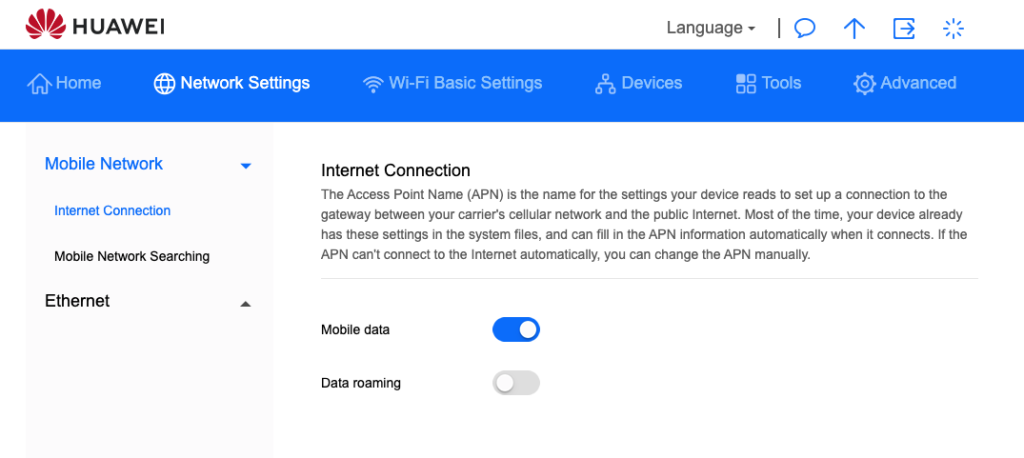
Then you just need to paste this:
$('#dhcp_dns').show();Tick the box beside “Set DNS server manually”
Now, whichever option you need to choose, you will now be able to set a customer primary and secondary DNS server. Also, once you save the settings and refresh the page, the fields will be hidden again, but yourDNS settings will be saved – I promise.
In my next post, I’ll recommended DNS servers to use, be sure to check back – or even better, sign up to the newsletter below!