
Информация обновлена 28 сентября 2023 г.
В большинстве роутеров QTECH по умолчанию используется имя пользователя admin, пароль admin и IP-адрес 192.168.1.1.
Эти учетные данные для QTECH необходимы, чтобы осуществить вход в веб-интерфейс роутера QTECH с целью изменения каких-либо настроек.
Поскольку некоторые модели не соответствуют стандартам, вы можете ознакомиться с ними в нижеприведенной таблице.
Под таблицей также приведены инструкции на те случаи, когда вы забыли свой пароль к роутеру QTECH, необходимо сбросить роутер QTECH к заводским настройкам по умолчанию или сброс пароля не работает.
Совет: Нажмите ctrl+f (или cmd+f на Mac) для быстрого поиска номера вашей модели.
Список паролей по умолчанию для QTECH (актуально на Сентябрь 2023)
Инструкции и общие вопросы
Забыли пароль к роутеру QTECH?
Изменили имя пользователя и/или пароль своего роутера QTECH и забыли их?
Не волнуйтесь: все роутеры QTECH поставляются с заводским паролем по умолчанию, который можно восстановить, выполнив нижеприведенные инструкции.
Сброс пароля по умолчанию для роутера QTECH
Если вы решите вернуть роутер QTECH к заводским настройкам по умолчанию, вам следует выполнить сброс 30-30-30 следующим образом:
- Когда роутер QTECH включен, нажмите и удерживайте кнопку сброса в течение 30 секунд.
- Удерживая кнопку сброса нажатой, отключите питание роутера и удерживайте ее еще в течение 30 секунд.
- Удерживая кнопку сброса нажатой, снова включите питание устройства и удерживайте ее еще в течение 30 секунд.
Теперь ваш роутер QTECH должен быть сброшен к заводским настройкам. Воспользуйтесь таблицей, чтобы узнать их (скорее всего это будет admin / admin ).
Если сброс к заводским настройкам не помог, ознакомьтесь с Руководством по сбросу настроек для QTECH 30 30 30 .
Важно: для повышения безопасности вашего роутера после сброса к заводским настройкам не забудьте изменить имя пользователя и пароль по умолчанию, поскольку стандартные пароли можно легко найти в интернете (например, здесь).
Я по-прежнему не могу получить доступ к роутеру QTECH, используя пароль по умолчанию
Поскольку роутеры QTECH всегда должны возвращаться к заводским настройкам по умолчанию после сброса, убедитесь, что вы правильно выполнили инструкции по сбросу.
С другой стороны, всегда существует вероятность того, что ваш роутер поврежден и, возможно, требуется его ремонт или замена.
Follow these instructions to login to your QTECH Router.
-
Connect router cable to your Laptop or Computer. Alternatively use your wireless network.
Recommendation — It’s best to use a wired connection while setting up the QTECH router. This avoids the risk of suddenly being logged off when saving your changes.
-
Open your web browser of choice and type IP address of your QTECH router in the address bar. You can find the ip address on the back of your router.
-
Now enter the default username and password of your router by accessing the admin panel. If you don’t have your username and password, you can try one of the default passwords for QTECH routers.
If you can’t log in to your router, then you are probably entering the wrong username or password. Remember to make a note of both after you’ve changed them.
- Forgot Login Password? Try hard resetting your router login. To do this, press and hold the small black button found at the back your router for around 10 seconds. This will reset your router to the factory settings.
- Router login page not loading? If the login page is not loading, make sure the device you are using is connected to the wi-fi. You will also need to check if the wrong router IP address is set as the default one.
- Sometimes pages, may have issues loading, or problems with speed. In this case, your network is probably using a different IP address. If this occurs, consult our IP address router list, and locate the right address. If you need any help, check out our tutorial on how to find your router’s IP address.
1. What is the username and password of QTECH routers?
The majority of the QTECH routers have a default username of admin and a default password of admin
2. What is the default password of a QTECH router?
The majority of the QTECH routers have the default password admin
3. What is the default IP of a QTECH router?
The majority of the QTECH routers use 192.168.1.1 as the default IP address
4. How to log in to a QTECH router?
First, type the router’s IP address in your browser address bar, Then, enter your router username and password, and then click OK or LOGIN.
Above, you can find the most probable default credentials.
5. How to troubleshoot a QTECH router?
First check if the WAN cable is connected to the correct port of the router which is labelled as “WAN”. Then check if you are connected either by using the Wi-Fi network or a LAN cable connected to a LAN-labelled port of the router.
6. How to reset QTECH router login password?
Resetting the admin password of most QTECH routers is simple and requires pushing a reset button, located on the router itself, for 5 to 10 seconds.
QTECH Router Login: To setup & configure the QTECH router, it is very important to access the QTECH router default login page. Kindly check the router bottom area to find the QTECH Router IP Address & QTECH default password or refer to the below table.
QTECH IP Address
The Above IPs are supported on QTECH. Pick any one of the QTECH IP address to access the router admin interface to setup, configure and change router settings.
QTECH Router Default Login is required to set, enable/disable, change necessary router settings such as., change the username/password, enable/disable network connectivity, upgrade firmware software, reset the router to factory setting, and more. There are several models in QTECH for consumers. But the login procedure remains the same throughout any QTECH model.
QTECH Default Password
In order to get access to the router admin interface, refer to the above table to find the QTECH router ip. Now here is the default QTECH login password.
QTECH Router Login Instruction Guide
Got a new router? The very first thing required to do is, setting up the router. To do that, log in to the QTECH router is required. We want to help the user with a detailed guide.
The below instructions will help the user on how to login to my QTECH router:
- The first step is to connect the router with the computer PC /laptop using the LAN cable or use QTECH wifi and connect to the router through the wireless network.
- After connecting, use the preferred browser (Google Chrome, Mozilla Firefox, Opera, Safari, or Internet explorer of user choice and type the QTECH router address in the browser address bar. Can’t find it? Kindly check the back-side of the router.
- After accessing the router admin panel, fill the username and password from the above table. Users can find in the default username and password for QTECH on the back-side of the router.
NOTE: The best way to connect with the router is through a wired connection using a LAN Cable which avoids uninterrupted connection whenever any settings are saved.
The above instructions are very simple and easy to follow. We hope this tutorial was really helpful with QTECH login. After getting access to router admin, the user can do any of the above options:
- Setting up the Router
- Router Configuration
- Change QTECH password
- Reset to Factory settings
- Upgrade Firmware
QTECH Router Setup:
We will show users how exactly they can setup QTECH for internet connection.
Follow the steps given below to setup QTECH:
- Connect to the router and access the router admin interface.
- Enter the default open source credentials in the field given and log into the router.
- Click on the Quick Setup option and choose the necessary settings to configure the network connection.
- Complete the setup and save the necessary option.
- Click on Save to complete the setup.
QTECH Router Configuration:
The procedure is relatively simple, like the instructions that have already been provided.
Follow the steps given below to configure QTECH settings:
- Connect to the router and access the router admin page.
- Log in to the router by filling in the login details in the given field.
- Now, the user will be able to access several router settings.
- Enable DNS setting, configure tri-band settings,
- Click on the required section, and enable or change the settings as per user convenience and requirement.
Change the QTECH Router Password:
After validating the QTECH admin interface with the default password and login, follow the below steps to change the QTECH password.
To change the router default password:
- Navigate to System Tools/Settings.
- Select the Password option from the sub-menu.
- Verify old username & password.
- Enter the new username and password.
- Save the settings & restart the router.
To change the Wireless security password:
- Click on the Wireless tab and then click on the Wireless Security sub-menu.
- Several security options are available to pick from. Select the WPA/WPA2 – Personal option.
- Now type the wireless password in the respective field box. This will be the user’s wi-fi password.
- Click on Save to save the new wifi password.
Reset QTECH to Factory Settings:
Follow the steps given below to factory reset your QTECH:
- Locate the Reset button present on the router. It is usually present at the back of the router. Use a pen or a paper clip to press and hold it for about 30 seconds.
- Observe the LED light on the router. If it blinks or flashes, that means your router is resetting.
- Unplug the router from the power supply for 30 seconds and plug it back in to complete the reset network process.
Update QTECH Router Firmware Software:
Firmware upgrades are basically for bug fixes and general improvements.
Here the steps are given below to perform a firmware upgrade for QTECH:
- Check the model number and version of QTECH so that the user can download the right firmware.
- Go to the QTECH Support Site, accept the license agreement, and download the firmware file.
- Connect the router to the PC computer.
It is recommended to upgrade firmware through wired connections only. - Access the routers web-based setup page from any web browser.
- Enter the login credentials in the space provided.
- Click on Administration Tab and then click on Firmware Upgrade.
- Click the browse button present there.
- Locate the file that the user downloaded from the support site and then click Open.
- Click the Start Upgrade option and Continue when it prompts that the Upgrade has been successful.
- Now TURN OFF and then TURN ON the router to complete the upgrade.
QTECH Router Support:
If the user can’t log in to the QTECH router or any problem while connecting the router, we would recommend checking the below solution for any common router problems.
Here are some of the common problems users might experience while setting up QTECH.
- IP Address issue: Check the QTECH IP address carefully, whether you had entered it correctly. It should not contain any alphabet.
Wanna help? Refer to our article on how to find default router login ip.
- Forgot Router password: The only way to restore the password is router reset or reset to factory settings. To do the hard resetting, find a small hole on the sides of the router. Using a blunt pin, press and hold on the hole. This process will reset the QTECH back to its factory settings.
- Router Admin not loading: This can be due to the connection problem. Check the cable or router wifi connection or wireless network, whether the router is connected to a laptop or computer, or PC. Try disconnecting the cable and restart the router and connect again.
Available QTECH Models
NO other models are available for this brand.
Still if you experience any problem while connecting, we request you to contact the QTECH support team or customer care. They will be available 24/7 through live chat.
Do comment below, we will take a look and could solve it.
Enter http://192.168.1.1 into your browser and press enter. Or click this button.
Username: admin
Password: admin
Admin Login
Login Help
Reset Router
Wrong Logins?
Wrong IP?
Find Your Router
Top QTECH IP Addresses
Top QTECH Logins
| Username | Password | |
|---|---|---|
| admin | admin |
How To Login
-
http://192.168.1.1
Enter the IP 192.168.1.1 into your browser and pressing enter.
-
If no login screen shows up, try finding the correct IP address for your router by
Searching for your router
-
If no login screen shows up, try finding the correct IP address for your router by
-
admin
admin
Enter your router username.
-
This could be admin,
or one of
these
If you changed the username on the router and can’t remember it, try
resetting your router
-
This could be admin,
-
Enter your router password.
-
This could be admin,
or one of
these
-
This could be admin,
-
Press Enter, or click the login button.
-
If you get a login error, try
finding the correct default login
info for your router and try again.
-
If you get a login error, try
Portions © Wikidevi under CC BY-SA 3.0.

Универсальные роутеры QTech QDSL-1040WU и QTech QDSL-1040WU-FON выдавались абонентам Ростелеком до появления Sagemcom f@st 2804 v7. В наш МРФ эта модель практически не поставлялся, поэтому по качеству работы выводы я делать не берусь. По функционалу универсальные роутеры QDSL-1040WU и Sagemcom f@st 2804 v7 весьма схожи. Сходство проявляется даже в дизайне веб-интерфейса. Алгоритм настройки схож и так же немного запутанный, но если Вы до этого имели дело с Sagemcom f@st 2804, то и с этими маршрутизаторами у Вас проблем возникнуть не должно.
IP-адрес устрройства в локальной сети — стандартный 192.168.1.1, URL веб-интерфейса — http://192.168.1.1.

Логин на доступ в веб-интерфейс admin, пароль — admin. Так же, в зависимости от прошивки и конфигурации возможен доступ по логинам user (пароль user) и support (пароль support). Попав в веб-интерфейс, нужно в первую очередь удалить существующие подключения. Для этого идем на вкладку «WAN Service», ставим на существующих там подключениях галку «Remove» и нажимаем кнопку «Remove». После этого, переходим в раздел «Layer2 Interface» => «ETH Interface». Если здесь есть уже сконфигурированный интерфейс — удалите его, поставив «Remove» и нажав кнопку «Remove». Для того, чтобы создать интерфейс второго уровня — нажимаем кнопку «Add»:
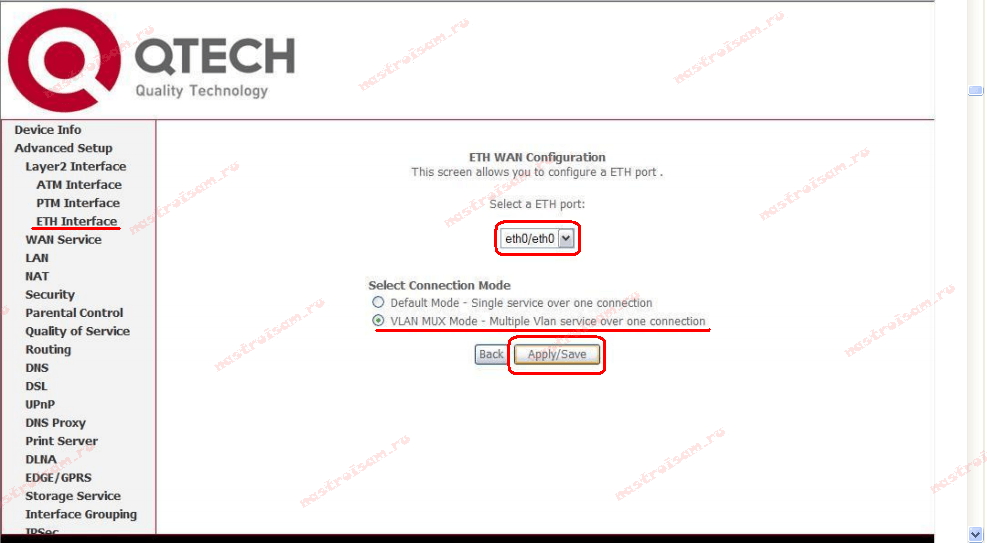
В выпадающем списке «Select a ETH port» Вам нужно выбрать LAN-порт, который мы займем под WAN порт для подключения кабеля провайдера. Я, как правило, занимаю для этих целей 1-й порт — eth0. Ставим галку на «VLAN MUX Mode» и нажимаем кнопку «Apply/Save».
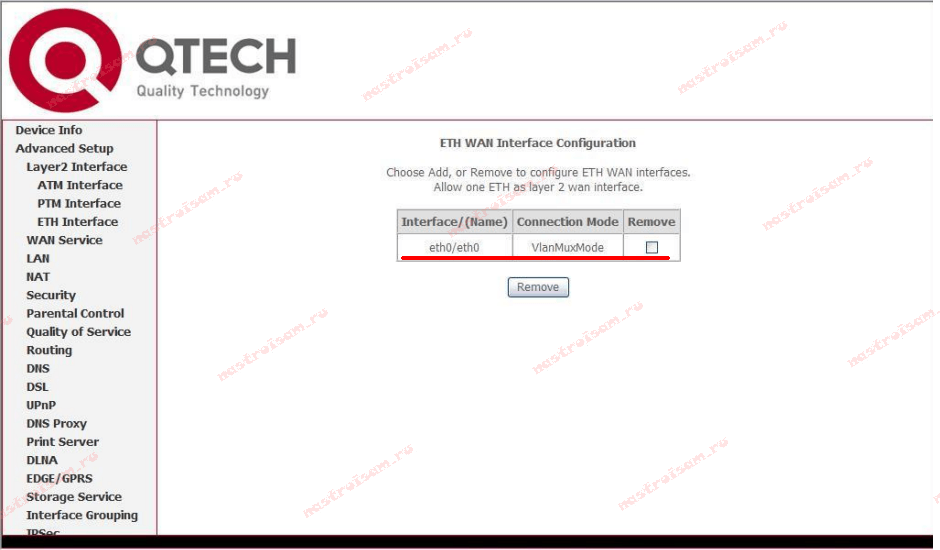
Интерфейс второго уровня создан — теперь нужно создать подключение к Интернет: переходим в раздел «WAN Service»:

Нажимаем кнопку Add для создания подключения к Интернет.
Настройка соединения PPPoE.
Для создания подключения к Интернет по протоколу PPPoE, Вам нужно в списке «Select WAN service type» выбрать тип «PPP over Ethernet (PPPoE)»:
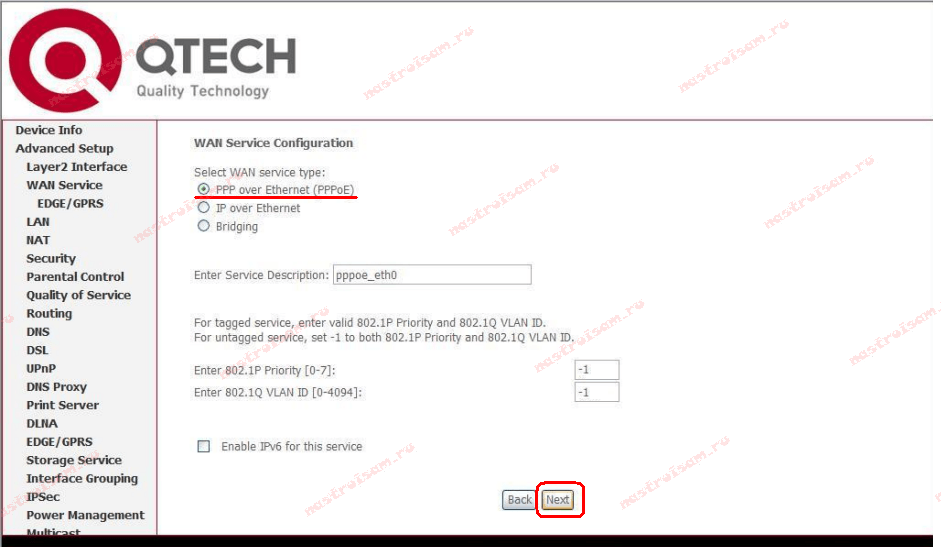
Нажимаем кнопку Next.
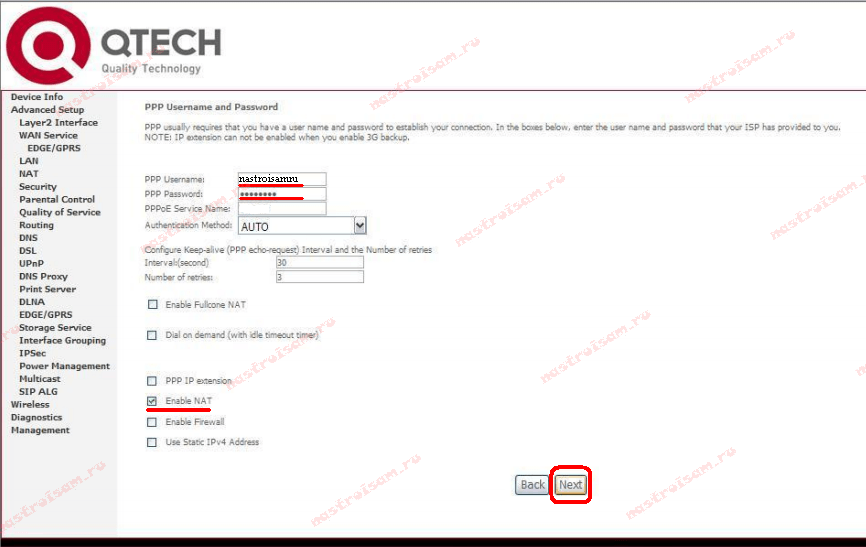
В поля «PPP Username» и «PPP Password» нужно ввести логин и пароль на доступ с карточки, которую Вам выдали при подключении. Далее, ничего не меняем — только проверяем чтобы стояла галочка «Enable NAT».
Нажимаем кнопку Next.
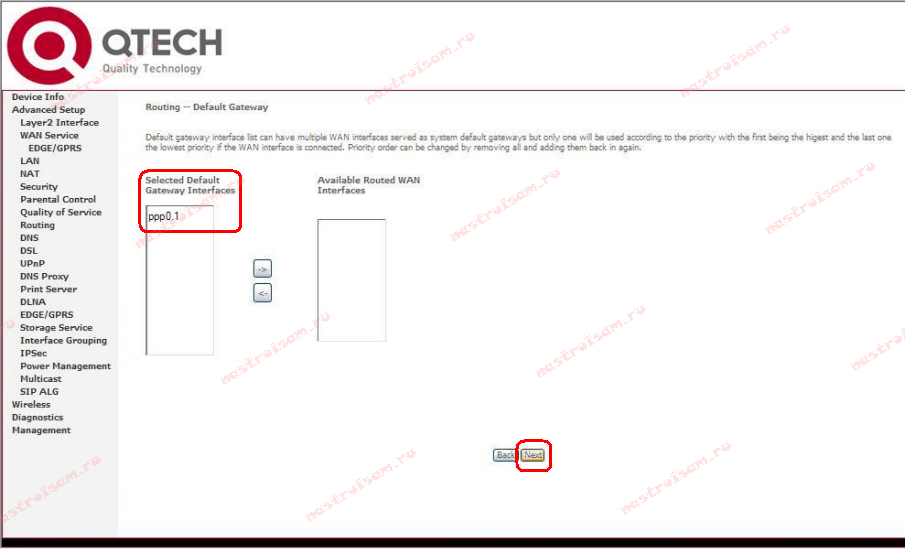
Здесь следим, чтобы создаваемый интерфейс PPP был в поле слева и нажимаем кнопку Next.
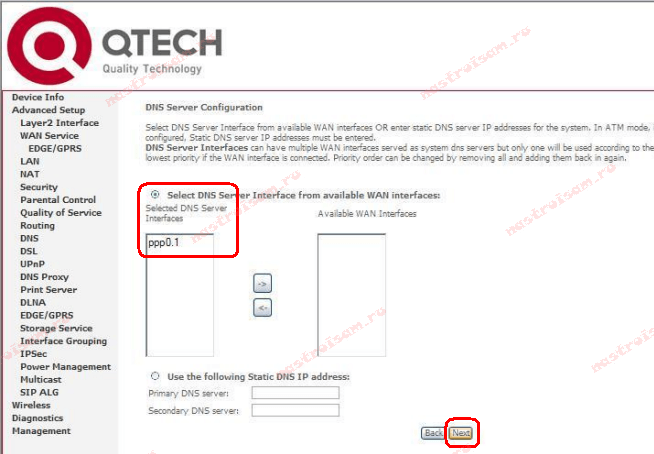
Здесь все то же самое — следим чтобы интерфейс PPP был в поле слева. Нажимаем кнопку Next.
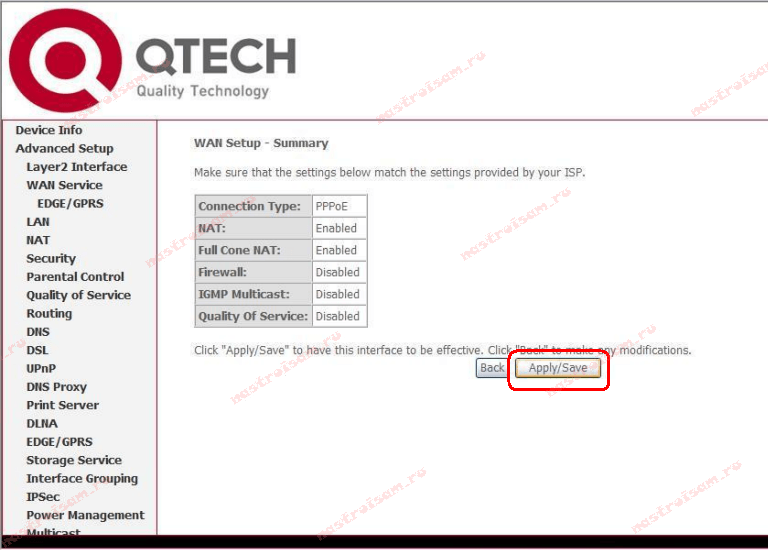
Нажимаем кнопку «Apply/Save» для подтверждения сохранения настроек роутера. Соединение с Интернет по протоколу PPPoE настроено.
Настройка соединения IPoE (Динамический IP-адрес).
Такой тип подключения используется в некоторый филиалах Ростелеком — Урал, Удмуртия и т.д.
Для того, чтобы настроить динамический IP-адрес на QTech QDSL-1040WU и QDSL-1040WU-FON, нужно при создании WAN-сервиса в списке «Select WAN service type» выбрать тип «IP over Ethernet»:
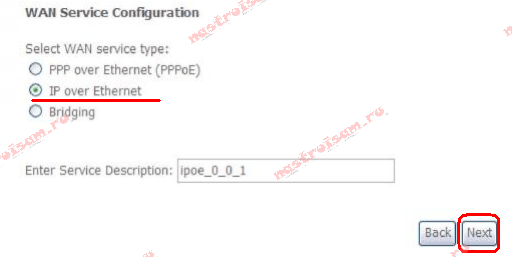
Нажимаем кнопку Next.
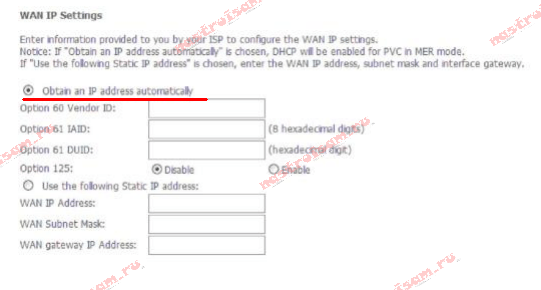
Для получения IP-адреса автоматически — в этом окне должна стоять галка «Obtain an IP address automatically».
Нажимаем кнопку Next.
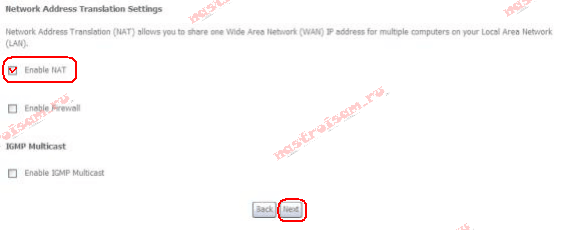
На этом этапе настройки надо поставить галку «Enable NAT».
Нажимаем кнопку Next.

Здесь следим, чтобы создаваемый интерфейс PPP был в поле слева. Нажимаем кнопку Next.
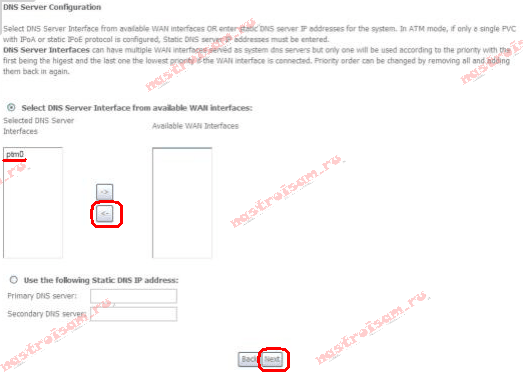
Тут тоже следим чтобы интерфейс PPP был в поле слева. Нажимаем кнопку Next.
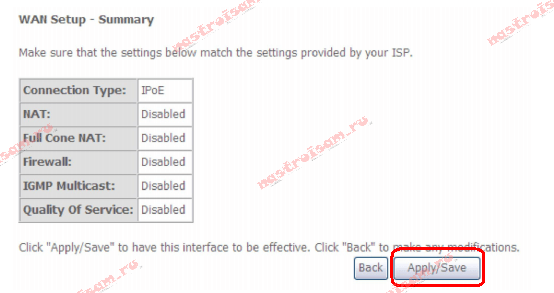
Нажимаем кнопку Apply/Save для подтверждения сохранения настроек роутера.
Настройка IPTV.
Для настройки цифрового телевидения IPTV на маршрутизаторах QDSL-1040WU и QDSL-1040WU-FON, Вам нужно создать дополнительный WAN-сервис в режиме «Бридж».
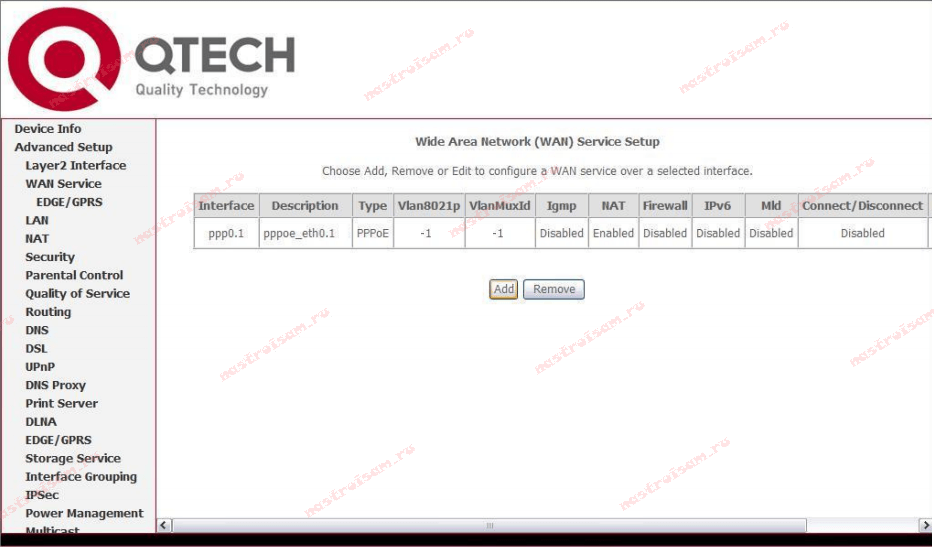
Для этого, в разделе «WAN Service» нажимаем кнопку Add.
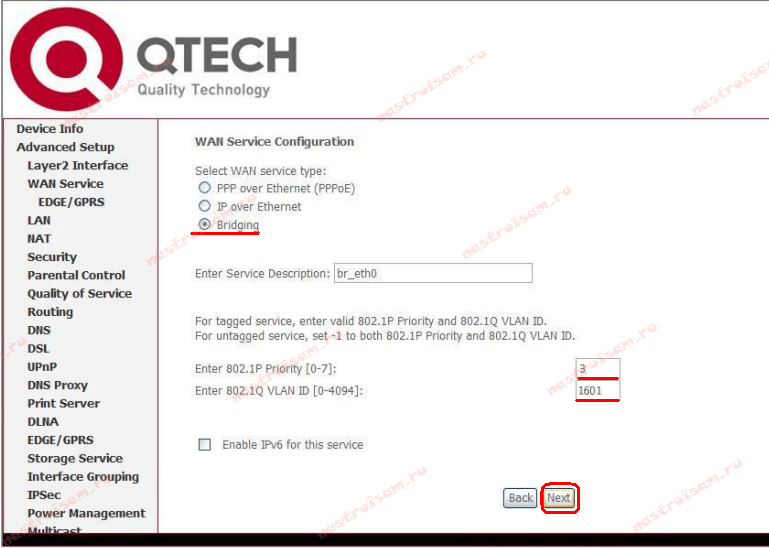
Для создания подключения в режиме прозрачного моста (Бридж) — Вам нужно в списке «Select WAN service type» выбрать тип «Bridging».
Если у Вас мультикаст-трафик приходит в нетегированном виде, то просто нажимаем кнопку Next. Если же нужно прописывать Vlan ID, то в поле «Enter 802.1p Priority» вводим цифру 3, а в поле «Enter 802.1q VLAN ID» нужно ввести идентификатор VLAN для IPTV. Этот идентификатор уникален на каждом коммутаторе или кольце в зависимости от топологии сети. Нажимаем кнопку Next.
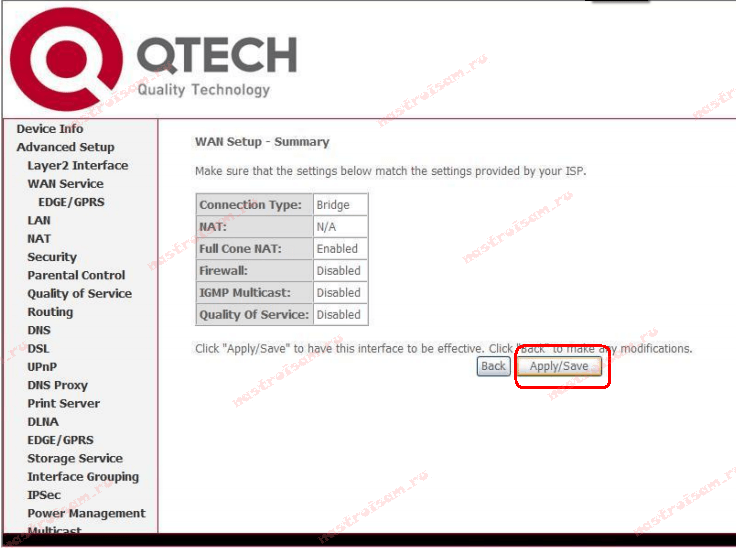
Нажимаем кнопку «Apply/Save» для подтверждения сохранения настроек роутера.
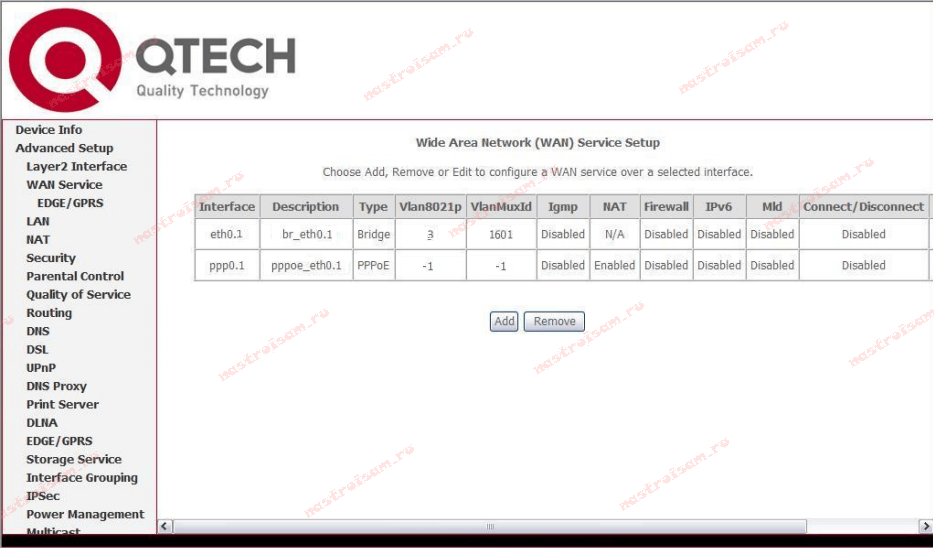
В результате в разделе «WAN Service» у Вас должна получиться вот такая картина:
Теперь для работы ТВ-приставки нужно правильно сгруппировать порты. Для этого переходим в раздел «Advanced Setup» => «Interface Grouping». По умолчанию все интерфейсы в одной группе:
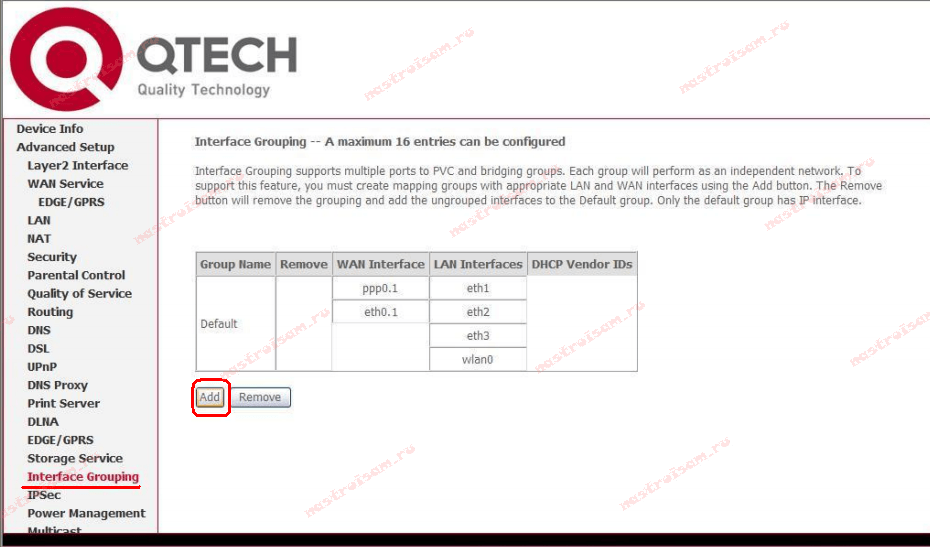
Для того, чтобы приставка смотрела напрямую в сеть провайдера и могла получить IP-адрес — нужно отделить в одну группу созданный бридж-интерфейс и порт, в который подключена ТВ-приставка.
Нажимаем кнопку Add:
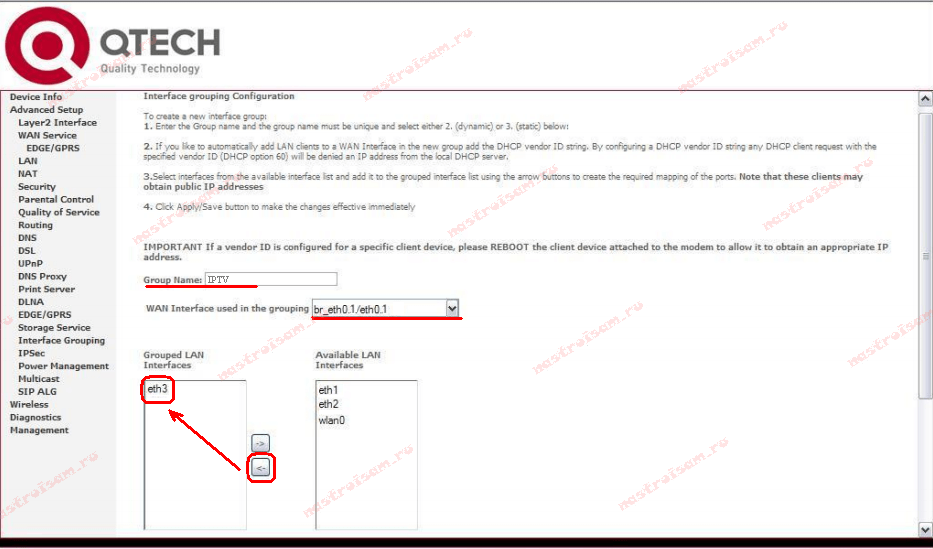
В поле «Groupe Name» вводим имя группы — IPTV.
В списке «WAN Interface» нужно выбрать созданный bridge-интерфейс. Далее нужно порт, в который включена ТВ-приставка перенести из правого списка в левый с помощью кнопки «<-«. В моем примере это 4-й LAN-порт (eth3). Нажимаем кнопку Apply\Save.
Настройка Wi-Fi.
Для настройки беспроводной сети Wi-Fi, Вам нужно перейти в раздел Wireless => Basic:
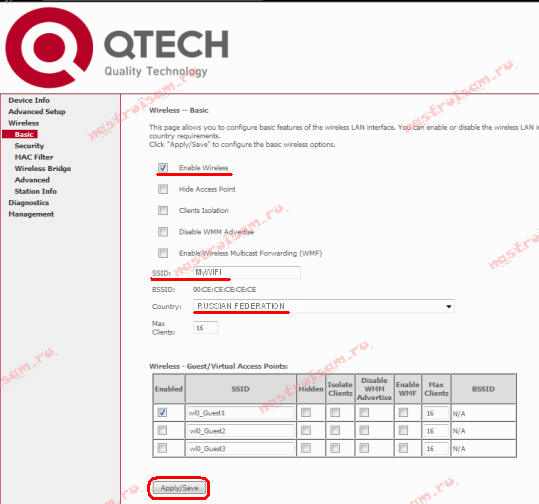
Ставим галочку «Enable Wireless».
В поле «SSID» прописываем имя создаваемой сети Wi-Fi. В списке Country нужно выбрать «Russian Federation». Нажимаем кнопку «Apply/Save». Переходим в раздел «Wireless» => «Security»:
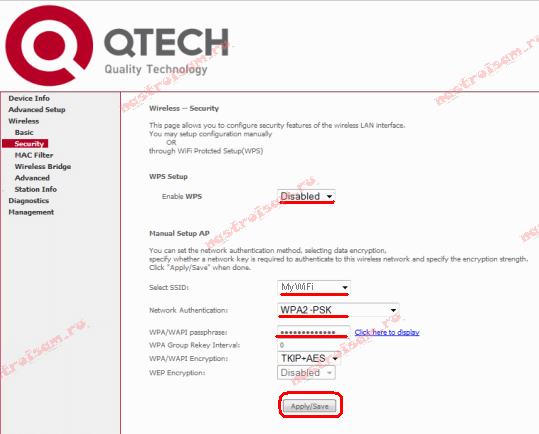
Если Вы не пользуетесь технологией WPS — отключайте её. Для этого параметру «Enable WPS» надо поставить значение Disabled.
В списке «Select SSID» нужно выбрать созданную беспроводную сеть. В поле «Network Authentication» выбираем самый безопасный тип — «WPA2-PSK», а в поле «WPA/WAPI passthrase» нужно ввести пароль на доступ к Вашей сети Wi-Fi. В качестве него может выступать любая буквенная, цифирная или смешанная последовательность не короче 8 символов. Нажимаем кнопку «Apply\Save». Ваш универсальный роутер Ростелеком готов к работе.