
В этой заметке я покажу, как исправить ошибку c Event ID 10016 от источника DistributedCOM на компьютере с Windows 10 / Windows Server 2012 R2. Ошибка DCOM 10016 довольно часто встречается как в клиентских, так и в серверных версиях Windows, начиная еще со времен Windows XP и исправляется она одинаково, независимо от редакции Windows.
Проблема проявляется следующим образом: в журнале событий системы при загрузке компьютера или попытке запуска/установки приложения появляется следующая ошибка:
Log Name: Система
Source: DistributedCOM
Event ID: 10016
Level: Ошибка
User: SYSTEM
Описание: Параметры разрешений для конкретного приложения не дают разрешения Локальный Запуск для приложения COM-сервера с CLSID {1CCB96F4-B8AD-4B43-9688-B273F58E0910} и APPID {AD65A69D-3831-40D7-9629-9B0B50A93843}пользователю NT AUTHORITY\система с SID (S-1-5-18) и адресом LocalHost (с использованием LRPC). Это разрешение безопасности можно изменить с помощью служебной программы управления службами компонентов.
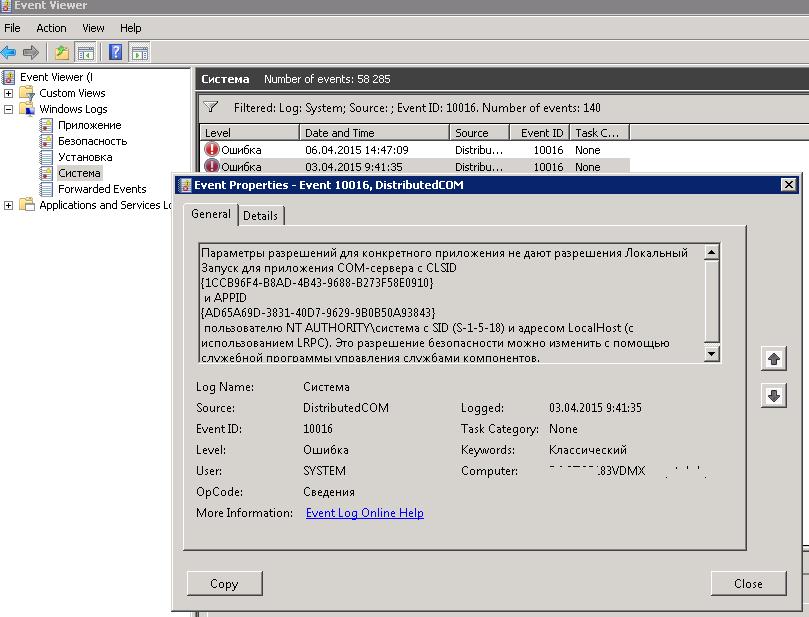
В англоязычных версиях Windows описание ошибки такое:
The machine-default permission settings do not grant Local Activation permission for the COM Server application with CLSID
{000209FF-0000-0000-C000-000000000046} and APPID Unavailable to the user IIS APPPOOL\appIISPool SID (S-1-5-82-3351576649-1006875745-771203599-42452693-1279824824) from address LocalHost (Using LRPC) running in the application container Unavailable SID (Unavailable). This security permission can be modified using the Component Services administrative tool.
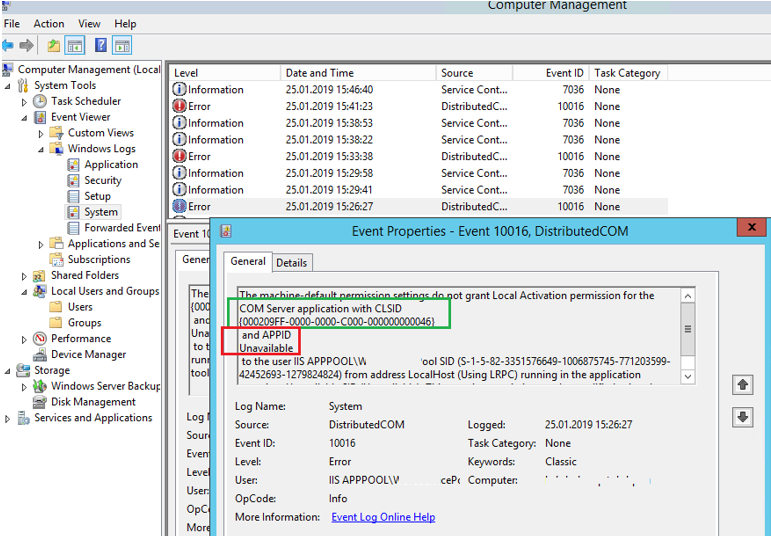
Судя по описанию ошибки: некий пользователь (например, IIS Apppool) или система (NT AUTHORITY\система) пытается запустить некий компонент COM с помощью инфраструктуры DCOM и не может этого сделать из-за отсутствия права «Локальный Запуск» или «Локальная активация» (Local Activation Permission). В коде ошибки содержатся только коды классов COM компонента и приложения. Попробуем определить, какому именно приложению принадлежит идентификатор и предоставить права, необходимые для его запуска.
Из описания события необходимо скопировать идентификаторы CLSID и APPID. В моем случае это
CLSID : {000209FF-0000-0000-C000-000000000046}
APPID: {AD65A69D-3831-40D7-9629-9B0B50A93843}
(в некоторых случаях идентификатор приложения может быть не указан — APPID Unavailable).
Также обратите внимание каких разрешений не хватает (Local Activation permission) и для какой учетной записи (NT AUTHORITY\SYSTEM или IIS APPPOOL\appIISPool SID — S-1-5-82-3351576649-1006875745-771203599-42452693-1279824824).
В каждом конкретном случае идентификаторы класса, приложения, учетной записи и типа доступа может отличаться.
- Запустите редактор реестра (regedit.exe);
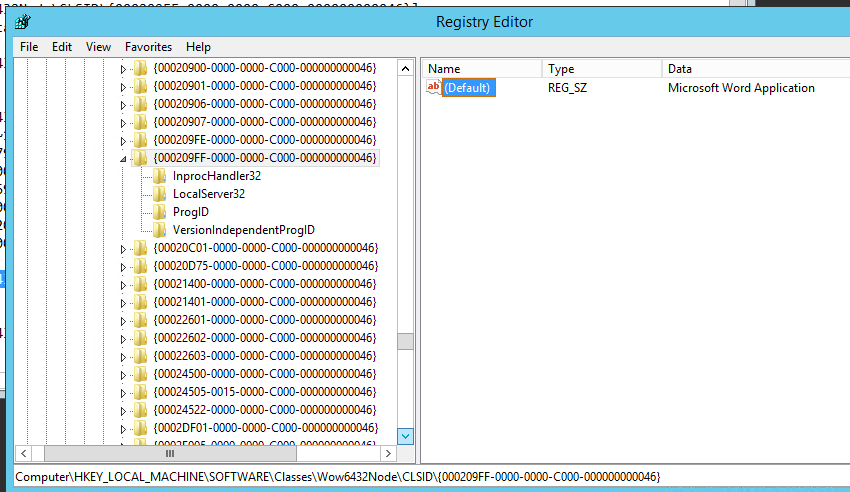
- Перейдите в ветку реестра, соответствующую вашему CLSID. У меня это HKEY_CLASSES_ROOT\CLSID\{000209FF-0000-0000-C000-000000000046};
В некоторых случаях нужно смотреть также в разделе реестра [HKEY_CLASSES_ROOT\Wow6432Node\CLSID\. При удаленном подключении к реестру он будет находиться в разделе HKEY_LOCAL_MACHINE\SOFTWARE\Classes\AppID.
- В параметре класса должно быть указано имя. У меня это Microsoft Word Application;
Чаще всего эта проблема возникает с компонентами:
Immersive Shell
CLSID: {C2F03A33-21F5-47FA-B4BB-156362A2F239}
APPID: {316CDED5-E4AE-4B15-9113-7055D84DCC97}
RuntimeBroker
CLSID: {D63B10C5-BB46-4990-A94F-E40B9D520160}
APPID : {9CA88EE3-ACB7-47C8-AFC4-AB702511C276}
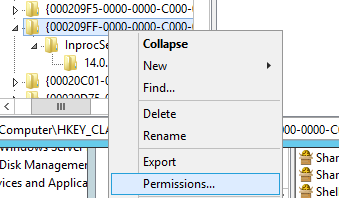
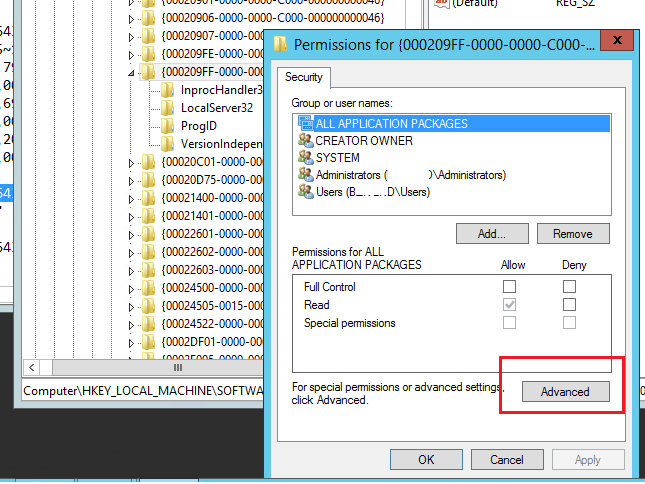
- Щелкните правой кнопкой мыши по разделу реестра и выберите пункт Permissions (Разрешения);
- Нажмите на кнопку Advanced;
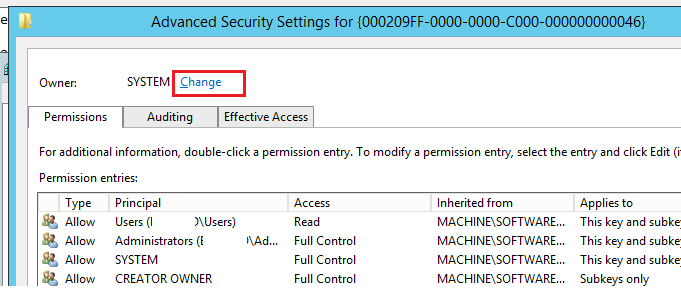
- В разделе Owner (Владелец) будет указано NT Service\TrustedInstaller или System;
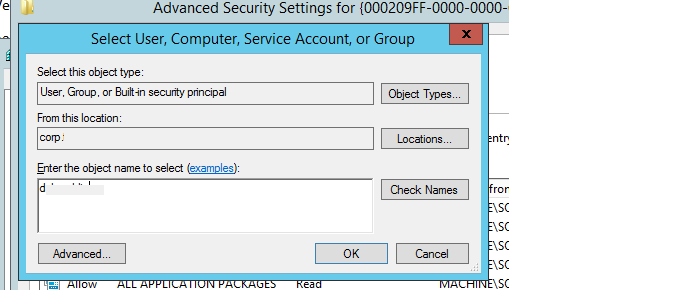
- Нажмите кнопку Change и укажите имя своей учетной записи администратора. Сохраните изменения;
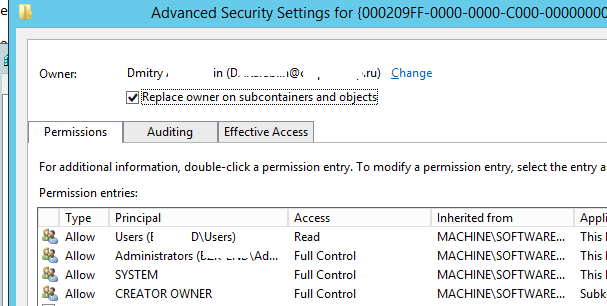
- Обратите внимание, что имя владельца ветки сменилось на вашу учетную запись. Поставьте галку Replace owner on subcontainers and objects (Заменить владельца подконтейнеров и объектов) и нажмите “ОК”;
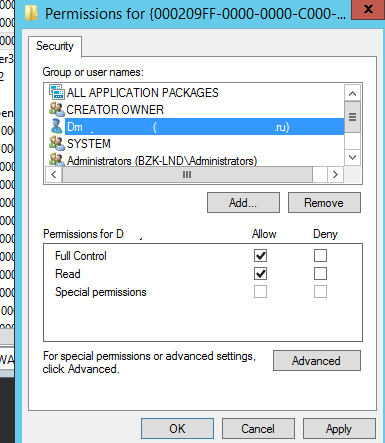
- В списке разрешений добавьте вашу учетную запись администратора и предоставьте ей полный доступ (Full Permissions);
- Вы предоставили права на ветку с CLSID. Теперь нужно повторить предыдущие шаги, предоставив учетной записи администратора права на ветку с вашим идентификатором APPID из текста ошибки (например, HKEY_CLASSES_ROOT\AppID\{AD65A69D-3831-40D7-9629-9B0B50A93843};
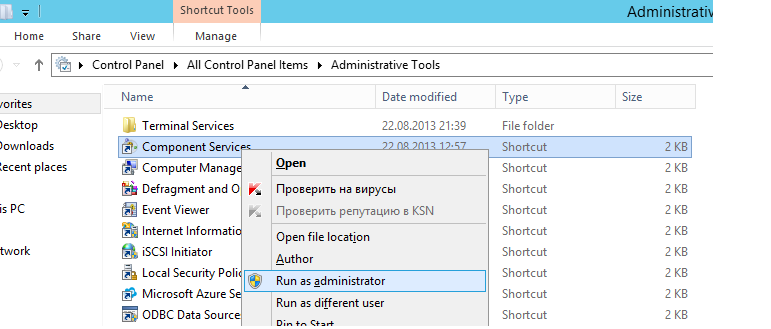
- Теперь запустите консоль управления компонентами dcomcnfg с правами администратора (Control Panel\All Control Panel Items\Administrative Tools\Component Services);
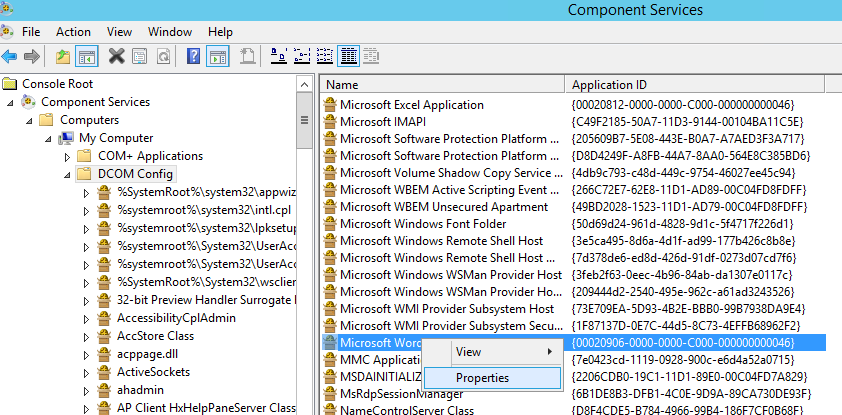
- В консоли компонентов перейдите в ветку Component Services -> Computers -> My computer -> DCOM Config. В списке компонентов найдите имя компонента, которое вы определили на втором шаге (значение в столбце Application ID должно соответствовать вашему CLSID из ошибки). Откройте свойства компонента;
Если вы не можете найти свой компонент в списке, вероятно у вас 64 битная версия Windows, а запускаемый компонент является 32 битным. В этом случае нужно запустить консоль DCOM командой:
mmc comexp.msc /32 - Перейдите на вкладку Security. Все элементы управления должны быть доступными для изменения;
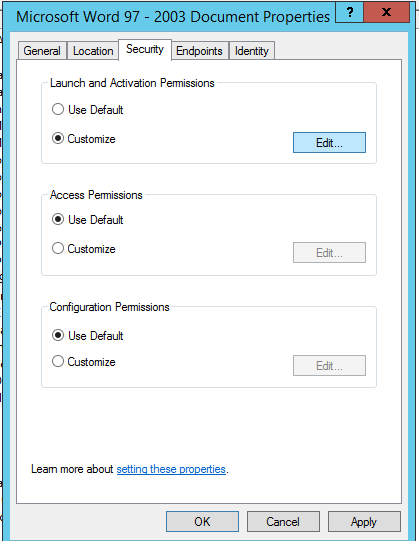
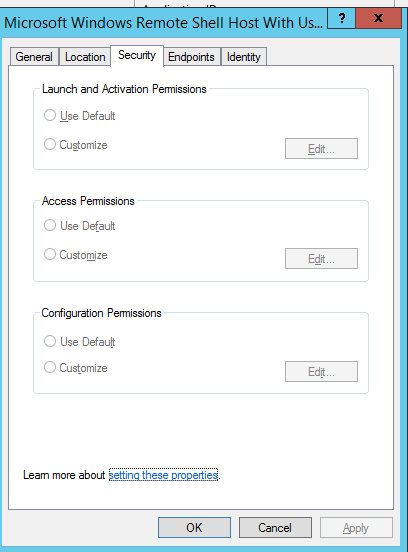
Если открыть консоль dcomcnfg до изменения разрешений на ветку реестра, все настройки на вкладке Security окажутся заблокированы (недоступны для изменения), несмотря на то, что вы запустили консоль от имени администратора.
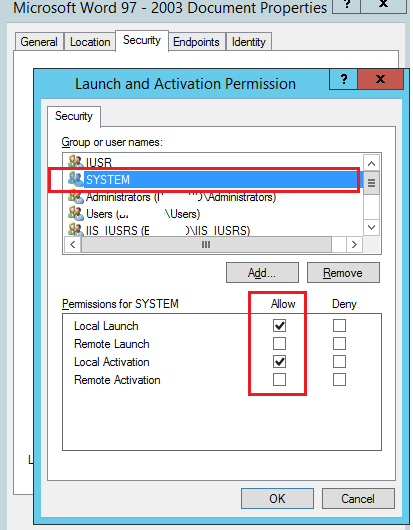
- В моем случае приложению не хватало прав на «Локальный Запуск» (Local Activation Permission). В секции Launch and Activation Permissions выберите Customize и нажмите кнопку Edit;
- В список доступа нужно добавить учетную запись, которой не хватало разрешений на запуск. Имя учетной записи было указано в тексте ошибки: в зависимости от текста в ошибке DCOM 10016 это может быть System, конкретный пользователь или учетка под которой запускается пул IIS (в этом случае нужно добавить доступ для локальной группы IIS_IUSR).
Совет. Если в начальном логе ошибки вместо NT AUTHORITY\система была указана NT AUTHORITY\NETWORK SERVICE, необходимо дать права на локальный запуск и активацию для учетной записи NetworkService.
- Предоставьте нужные разрешения для учетной записи. Например, Local Activation -> Allow и Local Launch (Локальная активация) -> Allow;
- Перезагрузите компьютер и проверьте журналы событий. Ошибка DCOM 10016 должна исчезнуть.
The warning event 10016 with description «The application-specific permission settings do not grant Local Launch permission for the COM Server application with CLSID
Windows.SecurityCenter.SecurityAppBroker», usually occurs on Windows 10 PCs and is related to the «Security Center» service.
According to Microsoft you can safely ignore events 10016, because they don’t adversely affect functionality, but if you want to fix the problem, continue reading below.
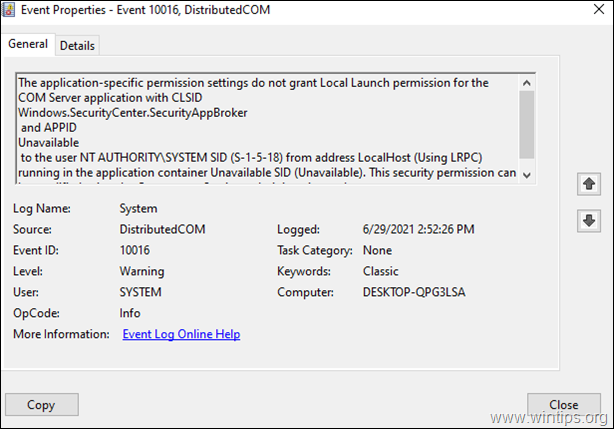
This tutorial contains step-by-step instructions to fix the 10016 warnings in event viewer on Windows 10 and Windows Server 2016/2019, with description:
Source: Distributed COM
Event ID: 10016
The application-specific permission settings do not grant Local Launch permission for the COM Server application with CLSID
Windows.SecurityCenter.SecurityAppBroker
and APPID
Unavailable
to the user NT AUTHORITY\SYSTEM SID (S-1-5-18) from address LocalHost (Using LRPC) running in the application container Unavailable SID (Unavailable). This security permission can be modified using the Component Services administrative tool.
The application-specific permission settings do not grant Local Launch permission for the COM Server application with CLSID
Windows.SecurityCenter.WscBrokerManager
and APPID
Unavailable
to the user NT AUTHORITY\SYSTEM SID (S-1-5-18) from address LocalHost (Using LRPC) running in the application container Unavailable SID (Unavailable). This security permission can be modified using the Component Services administrative tool.
The application-specific permission settings do not grant Local Launch permission for the COM Server application with CLSID
Windows.SecurityCenter.WscDataProtection
and APPID
Unavailable
to the user NT AUTHORITY\SYSTEM SID (S-1-5-18) from address LocalHost (Using LRPC) running in the application container Unavailable SID (Unavailable). This security permission can be modified using the Component Services administrative tool.
How to FIX: Application-specific permission settings do not grant Local Launch permission for the COM Server application: Windows.SecurityCenter.SecurityAppBroker (Event ID: 10016).
The error 10016 in Windows Security Center components Windows.SecurityCenter.SecurityAppBroker, Windows.SecurityCenter.WscBrokerManager and Windows.SecurityCenter.WscDataProtection, is reported because these components try to load too early when Windows starts, but fail.
To fix the problem, proceed and disable the DelayedAutoStart as follows:
1. Open Registry Editor. To do that:
1. Simultaneously press the Win
+ R keys to open the run command box.
2. Type regedit and press Enter to open Registry Editor.
 + R keys to open the run command box.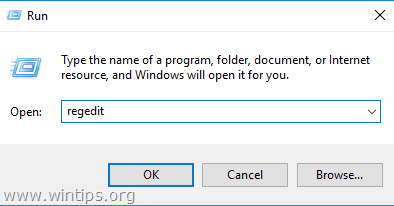
2. In Registry, navigate to the following location:
-
HKEY_LOCAL_MACHINE\SYSTEM\CurrentControlSet\Services\wscsvc
3. At the right pane open the DelayedAutoStart REG_DWORD value.
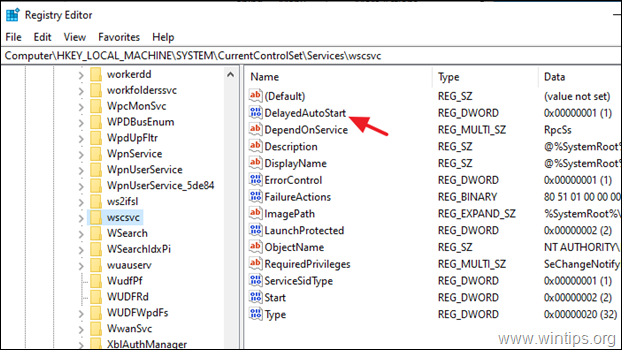
4. Change the value data from 1 to 0 and click OK.
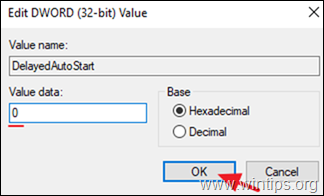
5. Close the Registry Editor and restart the computer.
That’s it! Let me know if this guide has helped you by leaving your comment about your experience. Please like and share this guide to help others.
Если у вас после загрузки компьютера возникают ошибки с кодом 10016 с CLSID Windows.SecurityCenter.SecurityAppBroker и Windows.SecurityCenter.WscBrokerManager или Windows.SecurityCenter.WscDataProtection, решение есть.
Данные ошибки относятся к центру службы безопасности Windows, служба Windows SecurityCenter (wscsvc) по умолчанию запускается с задержкой автоматического запуска, а службы SecurityAppBroker и WscBrokerManager пытаются запустится в самом начале запуска системы, возникает ошибка 10016 запуска с оповещением в системном журнале. Что бы избавиться от данных ошибок, в реестре можно отключить отложенный авто запуск этой службы и активировать обычный автозапуск при старте системы:
1. Открываем редактор реестра Win+R
2. открываем ветку реестра HKEY_LOCAL_MACHINE\SYSTEM\CurrentControlSet\Services\wscsvc
3. В правой части находим DelayedAutoStart и меняем там значение с 1 на 0
4. Перезагружаем компьютер.
После этого данные ошибки в системном журнале должны пропасть.
Так же данные ошибки могут пропасть, если установить сторонний антивирус.
If we install Windows 11 and we look in the Event System Log, we can see three types of “Event 10016 Windows.SecurityCenter DistributedCOM” Warnings:
- The application-specific permission settings do not grant Local Launch permission for the COM Server application with CLSID
Windows.SecurityCenter.WscCloudBackupProvider
and APPID
Unavailable
to the user Username SID (…) from address LocalHost (Using LRPC) running in the application container Unavailable SID (Unavailable). This security permission can be modified using the Component Services administrative tool. - The application-specific permission settings do not grant Local Launch permission for the COM Server application with CLSID
Windows.SecurityCenter.SecurityAppBroker
and APPID
Unavailable
to the user NT AUTHORITY\SYSTEM SID (S-1-5-18) from address LocalHost (Using LRPC) running in the application container Unavailable SID (Unavailable). This security permission can be modified using the Component Services administrative tool. - The application-specific permission settings do not grant Local Launch permission for the COM Server application with CLSID
Windows.SecurityCenter.WscDataProtection
and APPID
Unavailable
to the user NT AUTHORITY\SYSTEM SID (S-1-5-18) from address LocalHost (Using LRPC) running in the application container Unavailable SID (Unavailable). This security permission can be modified using the Component Services administrative tool.
Microsoft recommendation is (DCOM event ID 10016 is logged in Windows):
“These events can be safely ignored because they don’t adversely affect functionality and are by design. It’s the recommend action for these events.”
However, these warnings are very annoying and can confuse anyone, that something is wrongly configured.
Analysis:
The problem is related to the Windows Security Center. The Windows Security Center service (wscsvc) has a delayed automatic start. WscCloudBackupProvider, SecurityAppBroker and WscDataProtection objects start earlier with the OS. As soon as the objects are active, they try to communicate with the Windows Security Center service (wscsvc), which is not started. That is why, we get Event 10016 warnings.
Solution:
Solution of this problem is unusual. It has nothing to do with Local Launch permissions. We should start Windows Security Center service earlier, during OS starting procedure.
If we look at the registry with Registry Editor (regedit.exe), we can find Windows Security Center service settings at:
Computer\HKEY_LOCAL_MACHINE\SYSTEM\CurrentControlSet\Services\wscsvc
We have to change the DelayedAutoStart DWORD Value From 1 to 0.
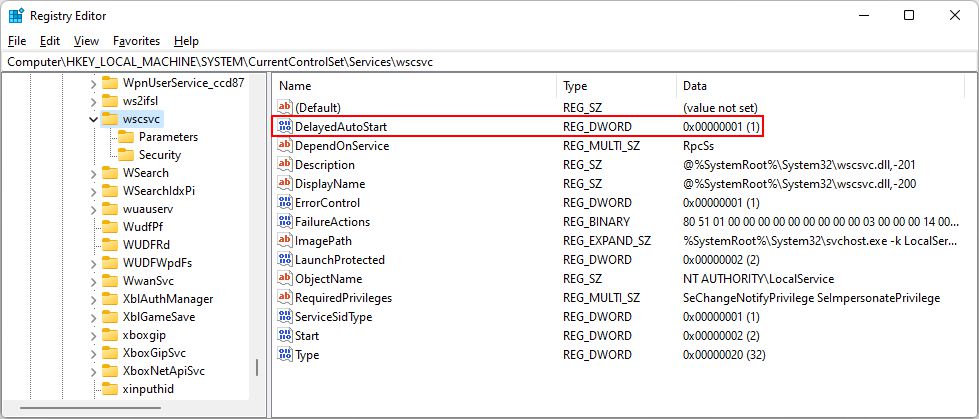
We can’t do it right away, because we don’t have a permission to do it. We right click on the wscsvc Registry Key and select Permissions…First, we need to change the owner of Registry Key. Go to Advanced, Change Owner from System to the Administrators group (local Administrators group, if computer is member of domain), select OK twice. Then open the Permissions window once again and change permissions of Administrators group to Full Control.
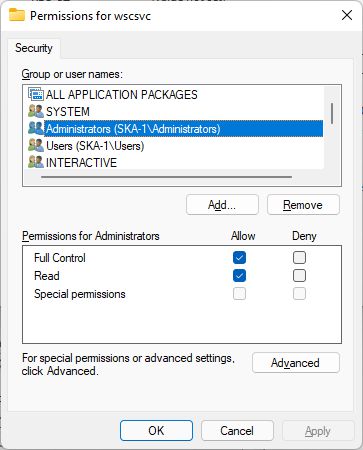
Now, we can change the DelayedAutoStart DWORD Value From 1 to 0. In this way, the Windows Security Center will start earlier.
That’s it. After OS restart, we will not see Event 10016 Windows.SecurityCenter Warnings anymore.
I invite you to solve also Event 10016 PerAppRuntimeBroker Warning in Windows 11!

Written by Simon Abolnar
I am a lecturer of Informatics subjects at Higher Vocational College at the School Center Nova Gorica, located in Slovenia-EU. I have been a System Administrator of Microsoft Servers at SCNG for over 20 years.
-
Home
-
Partition Magic
- [Resolved] The Application-Specific Permission Settings Error
By Ariel | Follow |
Last Updated
A lot of Windows 10 users encounter the application-specific permission settings do not grant local activation permission error. If you are also trying to fix the problem, this post of MiniTool is what you need.
What Causes The Application-Specific Permission Settings Error
According to user reports, the application-specific permission settings do not grant local activation permission for the COM Server Application with CLSID error can be found in system event logs. The detailed error message is often accompanied by this security permission can be modified using the component services administrative tool.
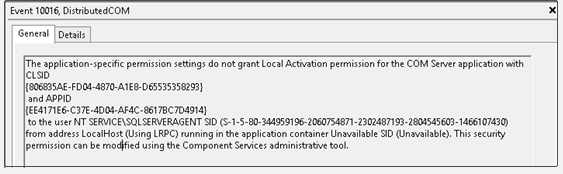
As indicated in the event log, the main reason for the “COM Server application with CLSID” error is invalid permissions. The error also occurs when a specific process doesn’t have enough permissions to the COM components.
Some users reported that their system can still function correctly when the error occurs. Under this situation, you can let it be. If the error prevents certain applications or services from functioning correctly, you can follow the troubleshooting method below to fix it.
How to Fix The Application-Specific Permission Settings Do Not Grant Local Activation Permission Error
To fix the application-specific permission settings do not grant local activation permission error, you can follow the steps below to grant access to these DCOM components.
Step 1. Press Win + R keys to open the Run dialog box, and then type Regedit in the box and hit Enter.
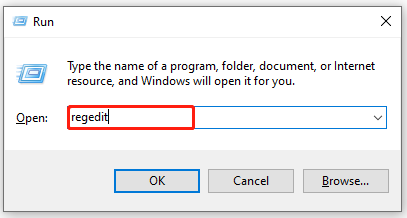
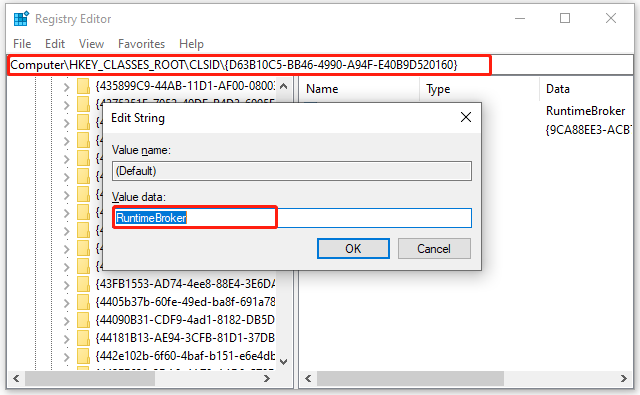
Step 2. Navigate to the following path from the left sidebar, and then double click the Default entry key from the right pane and note down its Value data.
HKEY_CLASSES_ROOTCLSID{D63B10C5-BB46-4990-A94F-E40B9D520160}
Tip: To find the entry key quickly, you can press Ctrl + F keys to open the Find what box, and then type HKEY_CLASSES_ROOTCLSID{D63B10C5-BB46-4990-A94F-E40B9D520160} in the box and click on Find Next.
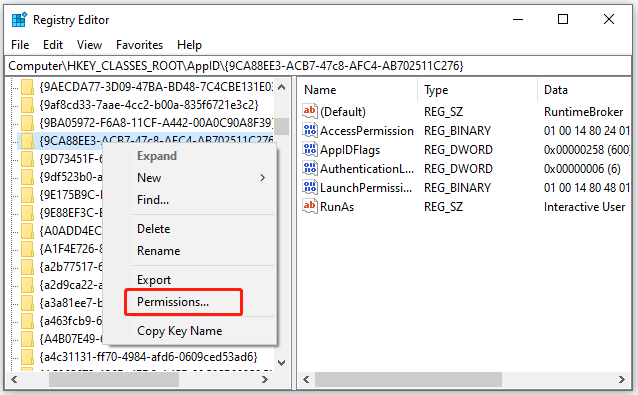
Step 3. Navigate to the following path, and then right-click the {9CA88EE3-ACB7-47c8-AFC4-AB702511C276} key from the left pane and select Permissions from the list.
HKEY_CLASSES_ROOTAppID{9CA88EE3-ACB7-47C8-AFC4-AB702511C276}
Step 4. In the Permissions window, click on Advanced.
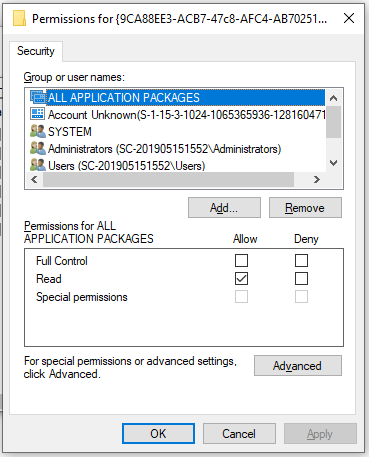
Step 5. Click on the Change link next to the TrustedInstaller option. In the pop-up window, click on Object Type and select Users, and click on OK.
Note: The Owner should be TrustedInstaller, or it may show the “Cannot Display Owner” error.
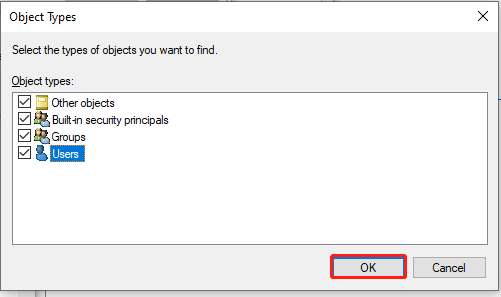
Step 6. Click on Locations and select your Desktop name, and click on OK.
Step 7. Enter your username in the field and click on Check Names. Here we take the Administrator for example. After that, click on OK and Apply in the Advanced Security Settings window.
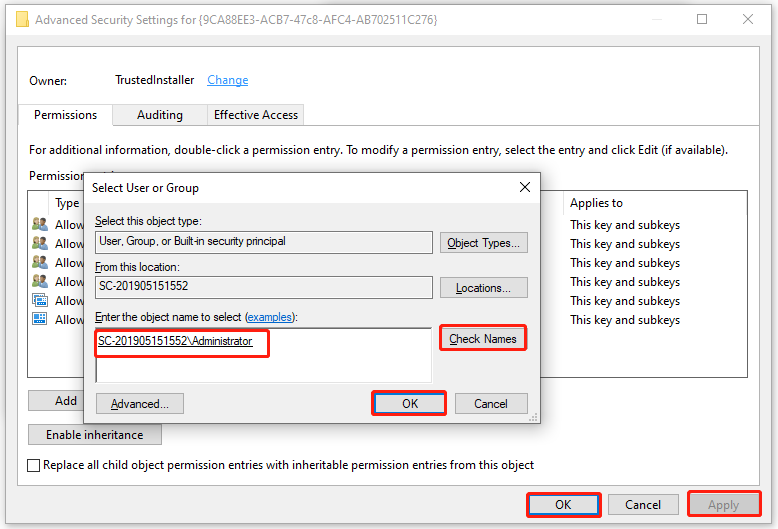
Note: You need to repeat the operation in Steps 3-7 for the HKEY_CLASSES_ROOTCLSID{D63B10C5-BB46-4990-A94F-E40B9D520160} as well.
Step 8. Come back to the Permissions window that we opened in Step 4.
Step 9. Select Administrators from the Group or user names heading and tick the checkbox for Full Control. Then select Users and check the Full Control option again. Once done, click on OK and Apply to save changes.
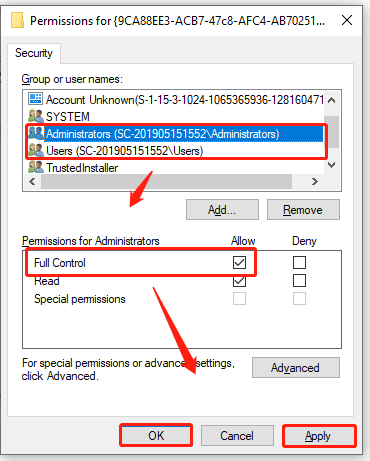
Step 10. Open the Run box again, and then type dcomcnfg.exe in it and hit Enter.
Step 11. In the Component Services window, navigate to the following path. Right-click RuntimeBroker from the listed services and select Properties.
Component Services>Computers>My Computer>DCOM Config
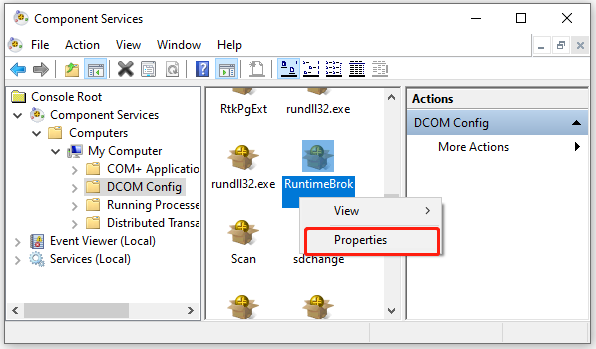
Step 12. If the Application ID is 9CA88EE3-ACB7-47C8–AFC4–AB702511C276, it indicates that you selected the right application. Then you can go to the Security tab, and then select Customize and click on Edit under the Launch and Activation Permissions section. When there is a Windows Security prompt, click on Remove.
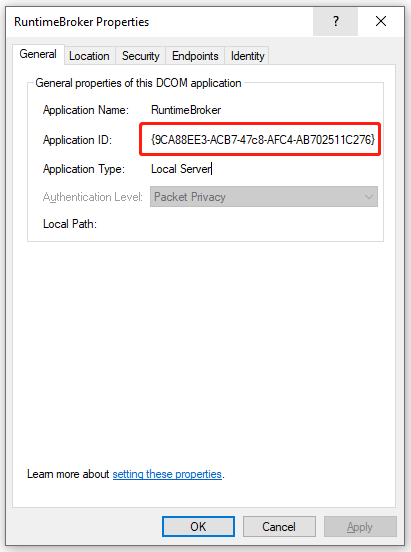
Step 13. Click on Add, and then type NT AUTHORITYLOCAL SERVICE in the Enter The objects Name to select field and click on OK. If there is no NT AuthorityLocal Service, type Local Service instead.
Step 14. Grant Full Control to the Local Activation permission of the entry.
Now, you can check if the application-specific permission settings do not grant local activation permission for the COM error is gone.
About The Author

Position: Columnist
Ariel has been working as a highly professional computer-relevant technology editor at MiniTool for many years. She has a strong passion for researching all knowledge related to the computer’s disk, partition, and Windows OS. Up till now, she has finished thousands of articles covering a broad range of topics and helped lots of users fix various problems. She focuses on the fields of disk management, OS backup, and PDF editing and provides her readers with insightful and informative content.