
You wanted to test something in the windows server operating system; maybe you want to create a domain controller, a DHCP server, or even a DNS server.
The best way to test the windows server configuration is to perform them on a LAB environment. And Some of you may not have lab access, so your available option would be to virtualize the windows server on a hypervisor.
That way, whatever you do on the machine will stay in a virtualized environment. There are multiple hypervisors you can use to spin up the Windows server. And in my last article, we had covered how you can install the windows server on a KVM host. And In this blog, we are going to install the windows server on a VirtualBox.
Can you run Windows Server in VirtualBox?
You can run most operating systems with VirtualBox, provided it should be bootable or a virtual hard disk. Most of the users out there will have Windows server ISO file, and it works perfectly fine. However, you have a choice from Microsoft to download the virtual hard disk in VHD format. You can use that as well to install the windows server on the VirtualBox. And the windows server works great with the VirtualBox.
To get better performance after the installation of the windows, you will also have to install the VirtualBox guest additions. We will cover that as well in this article.
How do I download windows server images for VirtualBox?
You can go to Microsoft windows server evaluation center and download the Version of your choice. When you choose the Version, you will have multiple options; you can either select ISO or VHD. After choosing the Version, you will have to submit the form and post which you will get a link to download the software.
When it comes to the installation, compared to the ISO installation, the VHD file is the easiest way; however, the VHD file size is about 8GB, so you need to be mindful of that.
We will see how we can install the windows server 2019 with both the ISO file and the Virtual hard disk file.
Though we are installing the windows server 2019 in a VirtualBox, the steps mentioned here are identical for other Version of windows as well, such as windows server 2016,2012 and so on.
Prerequisite.
- Download and install the VirtualBox.
- Download the windows server image (Either ISO or VHD)
- Installation using the ISO file.
- How to install windows server using virtual hard disk (VHD) in VirtualBox?
Installation using the ISO file.
1. Creation of Windows server VM in VirtualBox.
Open VirtualBox and click on New or CTRL+N to start the windows server VM installation.
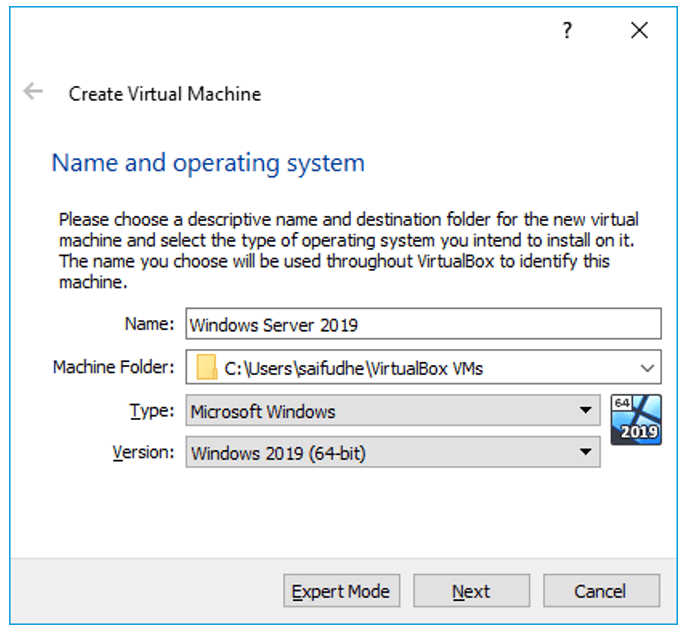
A new Create Virtual machine window will pop up; you can choose either Guided Mode or Expert Mode. We are using the Guided Mode for our lab.
- Enter the name of the VM.
- Select the folder where you want to keep the VM Hard disk files, I left as a default folder.
- Choose the Type as Microsoft Windows.
- Version as Windows 2019 (64bit), for other Version of windows server you may choose them here. For Example, Windows 2016 (64bit)
After specifying the above, you may Click on Next.
2. Specify the Memory.
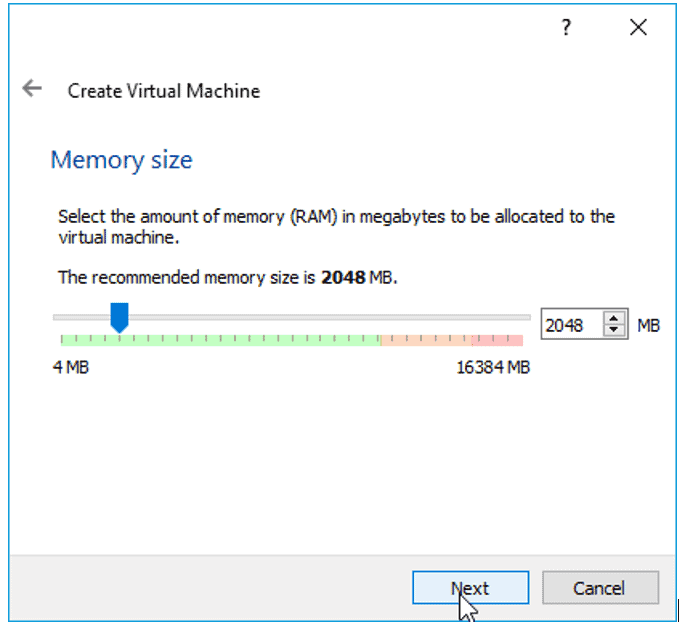
You now have to define the Memory for the VM; since I most likely use it for a small Lab, I am fine with 2gigs of RAM. However, if you plan to do more stuff with it, you may need to increase the RAM accordingly.
3. Create virtual Hard disk.
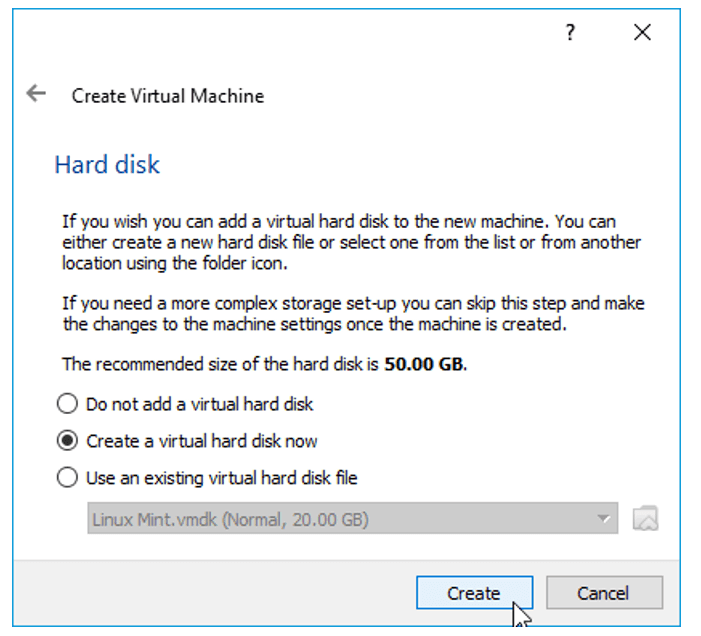
We will create a virtual hard disk for our VM; in the hard disk wizard. Select the option à Create a virtual hard disk now and Click on create.
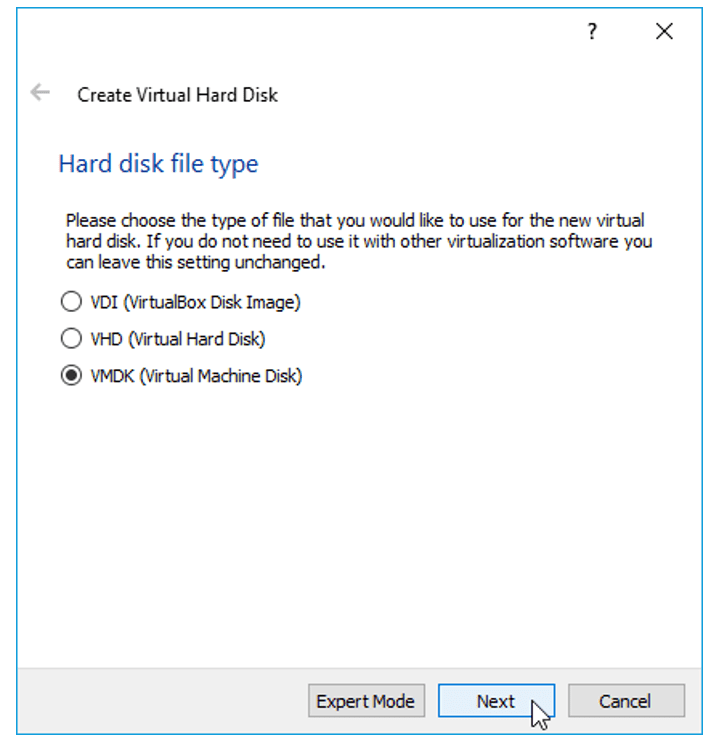
By default, the hard disk type would be VDI, and you may choose the default Value itself if you are planning to use the VirtualBox as your permanent hypervisor.
But I would recommend choosing VMDK so that you have an option to move from the VirtualBox to other hypervisors of your choice. Now Select VMDK and Click on the option Next.
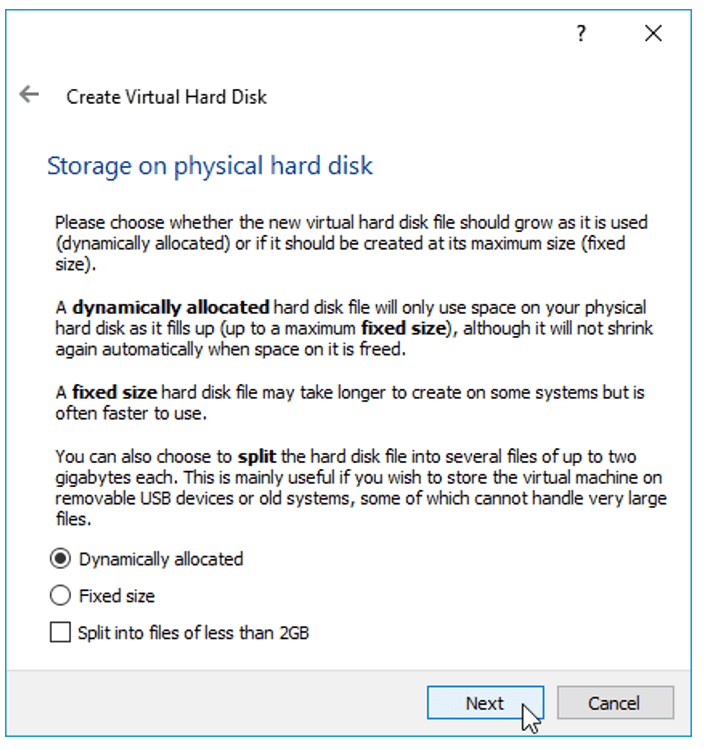
On Storage on Physical hard disk, Choose the default value Dynamically allocated and Click on Next.
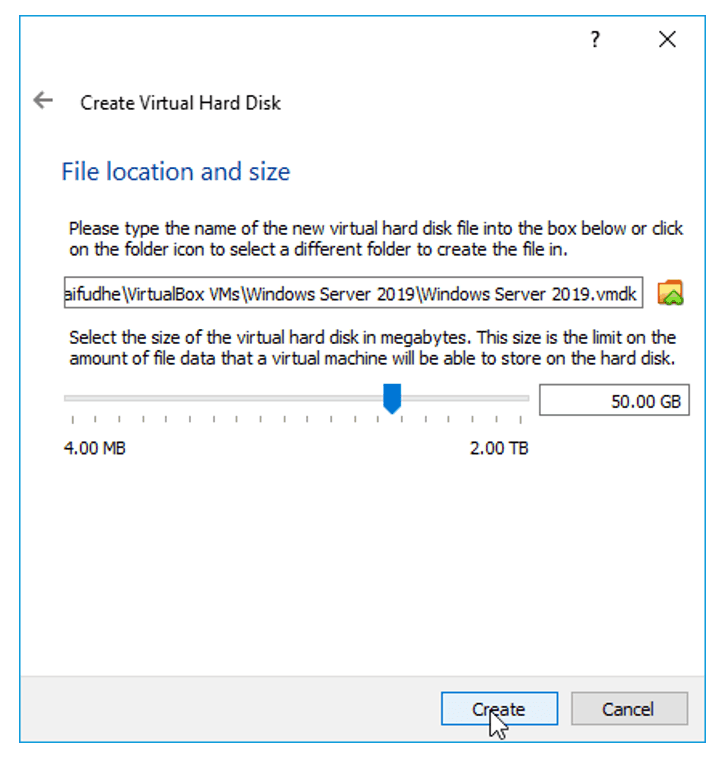
We will now define how much storage you want to provision for the windows server; I choose 50GB which is more than enough for me.
If you feel that you might need some extra space, you choose more based on your requirements and Click on Create.
You will be able to see the windows server VM instance is created.
4. Increase the CPU.
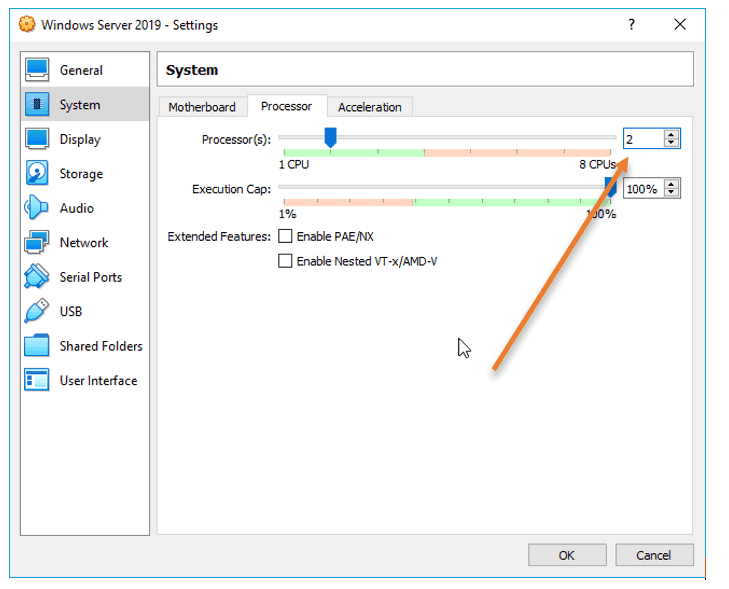
By default, the VirtualBox would assign only one processor to the VM, and I need to add one more processor. That way, then the performance would be good. If you do not need more CPU, you may skip this step.
Right-Click on the VM and Click on settings.
Click on System and choose the Processor tab, and in the processor count, increase it to two.
5. Attach the windows server image to the virtualbox.
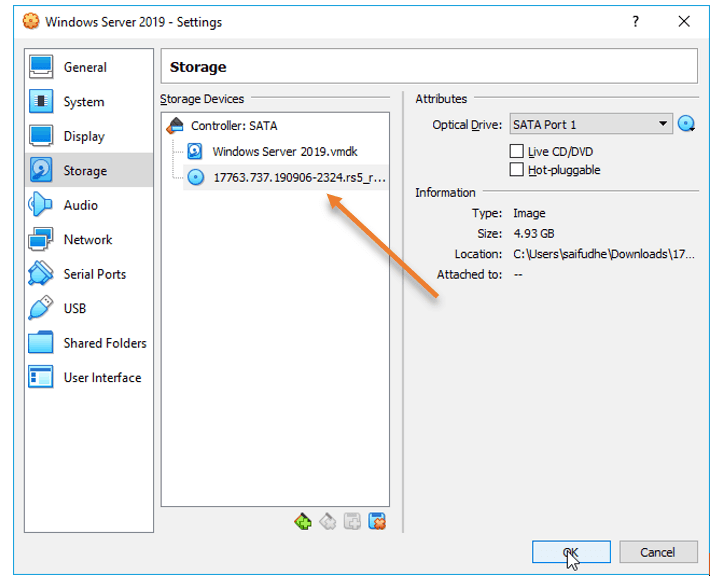
On the same VirtualBox settings, Click on storage.
Under storage devices, Choose the Empty Disk.
In the attributes, Click on the Disk icon to choose a disk file.
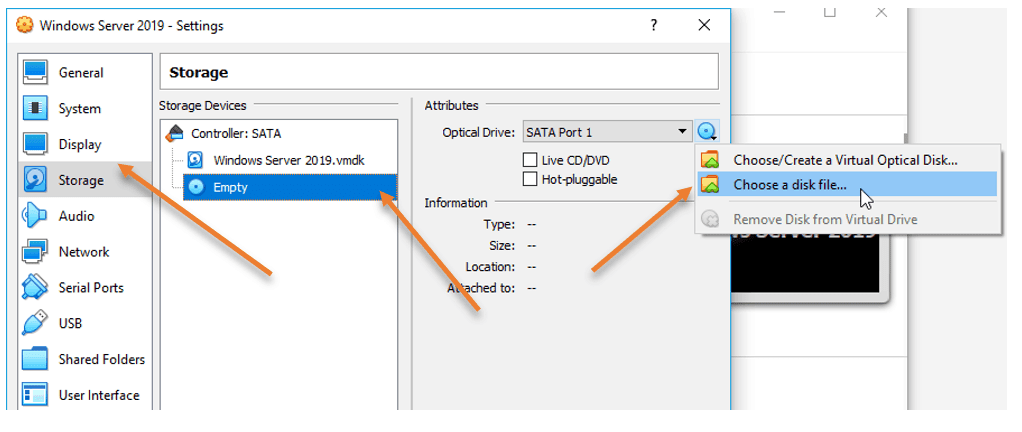
And attach the ISO that we have downloaded earlier and Click on Ok.
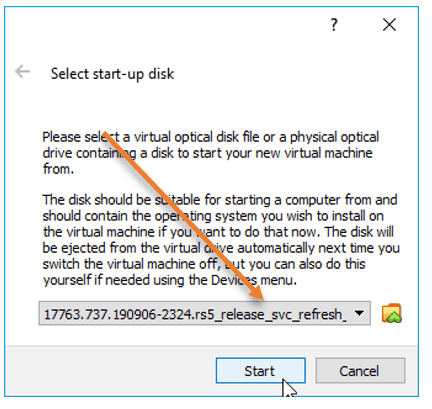
Right-Click on the VM and Click on start.
From the start-up disk, choose the ISO image that we have attached and click on start. The VirtualBox instance will boot the windows server image.
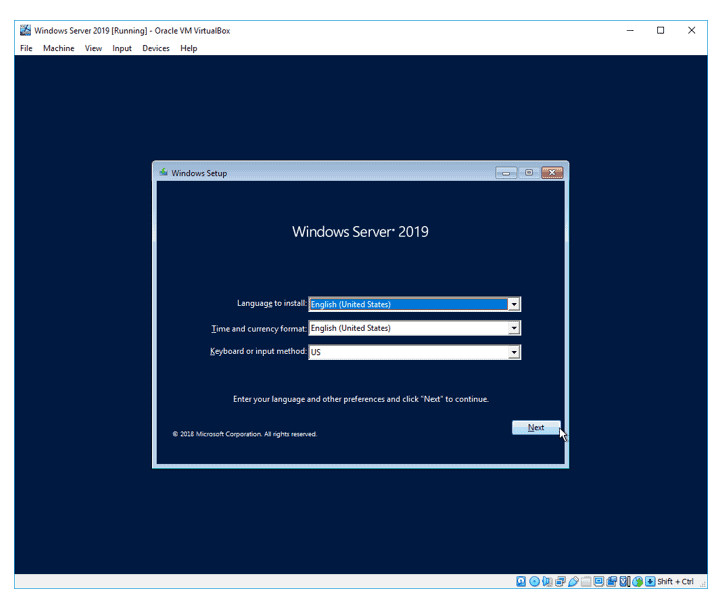
6. Begin the windows installation.
After a few seconds, you should see the windows installation screen, Choose the language, and Click on Next.
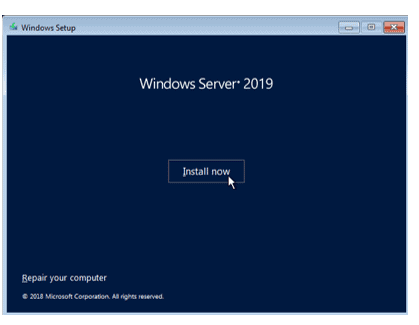
You can click on Install now.
7. Choose the Version – GUI or CLI.
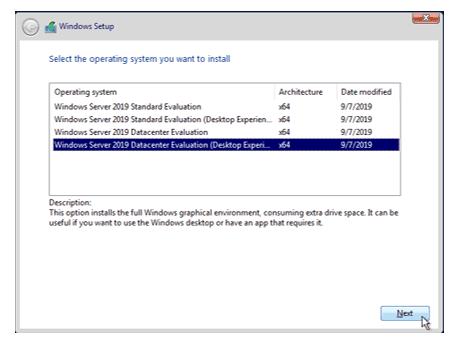
You will be presented with the different Versions of windows server 2019 on the screen. You must be a little careful here.
If you want to install the windows server with GUI, you may choose Desktop experience, or if you are ok with CLI, you may select the other options.
I need GUI access; hence I selected Windows server 2019 Datacenter evaluation (Desktop Experience)
After you decided on the versions, you may Click on Next.
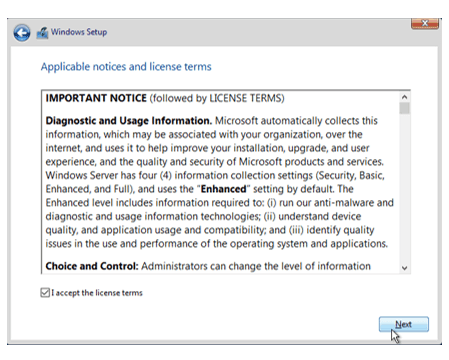
Accept the license agreement and Click on Next.
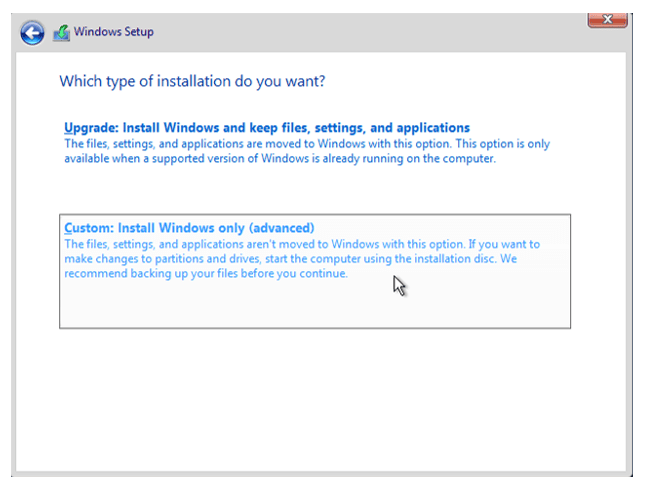
Choose the installation as Custom.
Choose hard disk that we have defined earlier, Click on Next.
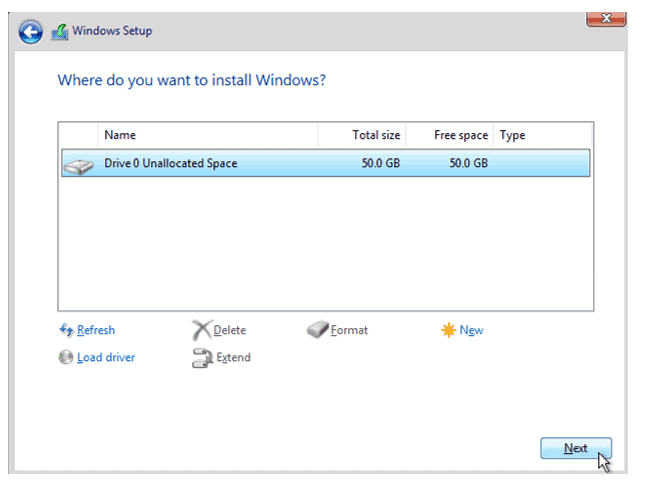
The windows server installation will now begin; this will take some time to finish.
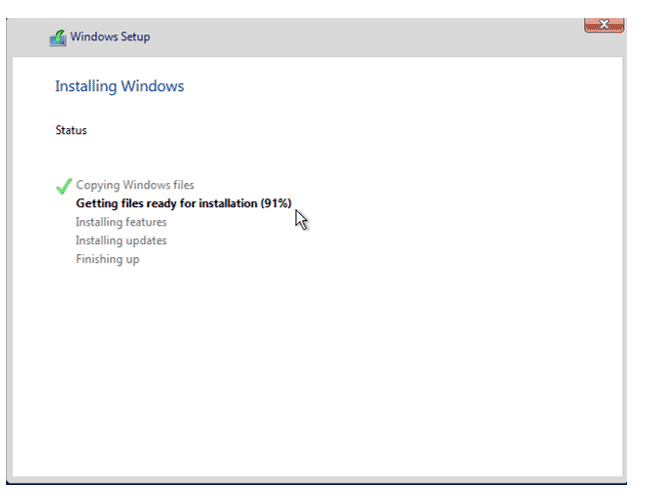
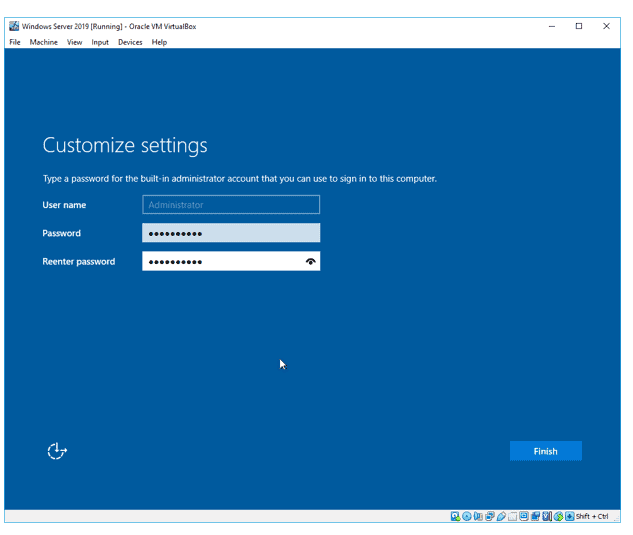
8. Setup the admin password.
After the installation, you will be prompted to enter the Administrator password. Set the administrator password and Click on Finish.
9. Remove the ISO file.
Installation of Windows server 2019 in Oracle VirtualBox is completed; you may now log in to the windows server.
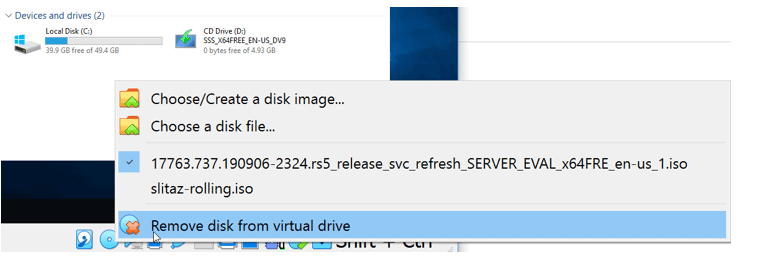
Let’s remove the windows server ISO file that we had attached during the installation.
On the bottom corner of the VirtualBox window, right-click and click on the disk icon and click on Remove disk from virtual drive.
10. Installation of VirtualBox Guest additions.
Finally, we will have to install the VirtualBox guest addition, which will improve the performance of the windows server VM.
To install the VirtualBox guest additions, you may log in to the windows host.
Click on Input–> Keyboard–> Insert Ctrl+Alt+Del
You will be prompted to enter the admin password that we had set up earlier.
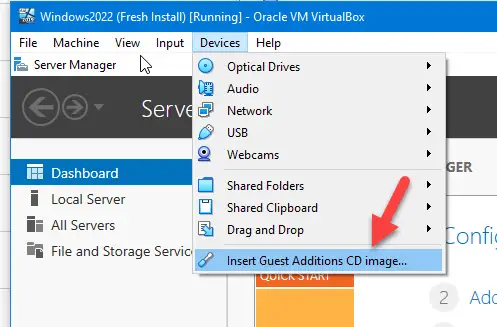
After logging in, Click on Devices > Insert Guest Additions CD image…
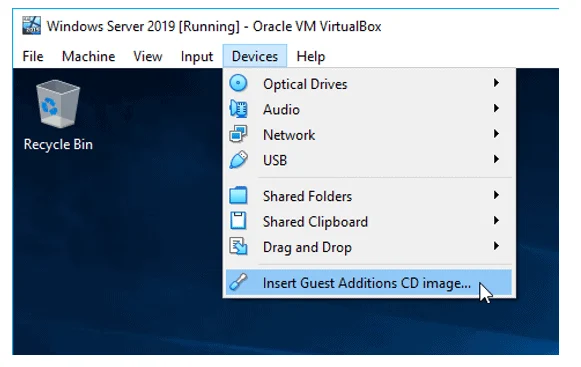
It will attach the Guest addition installation disk to the Windows server VM.
Open This PC, and you should see the VirtualBox Guest additions CD drive and double click on it.
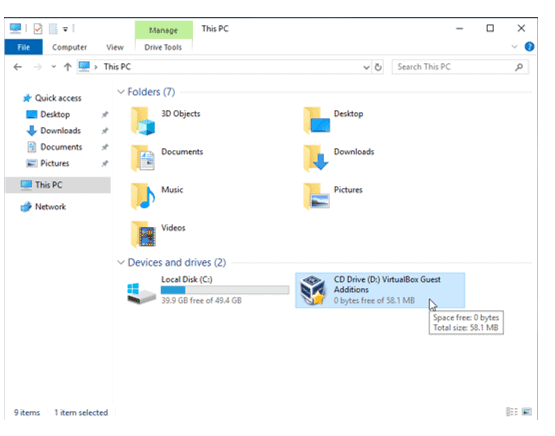
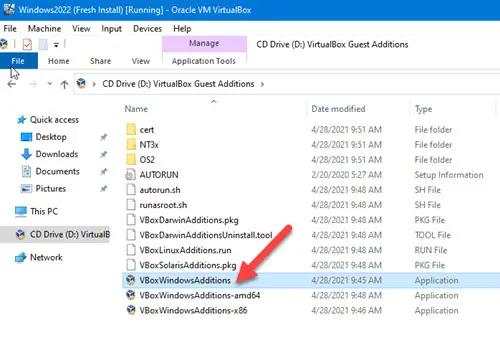
Double click on the Virtualbox Guest addition installation setup file to install the VirtualBox guest additions on your windows server machine.
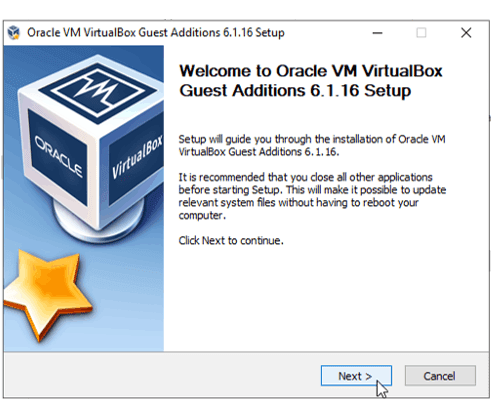
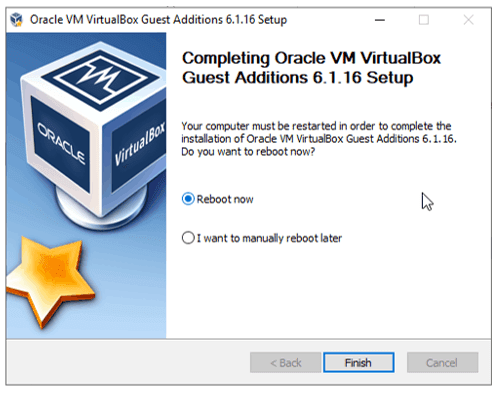
It is a typical software installation and nothing too complex here; you may click on next on all the drive installation prompt that you get.
After the installation, you may now go ahead and reboot the VM, and you should be good to go.
How to install Windows Server using Virtual Hard Disk (VHD) in VirtualBox?
We have successfully installed the windows server 2019 on the VirtualBox hypervisor using ISO image. We now will go ahead and install the virtual machine using the virtual hard disk. We already have a VHD file downloaded from the Microsoft site.
1. Creation of the VM.
On the VirtualBox, Click on New.
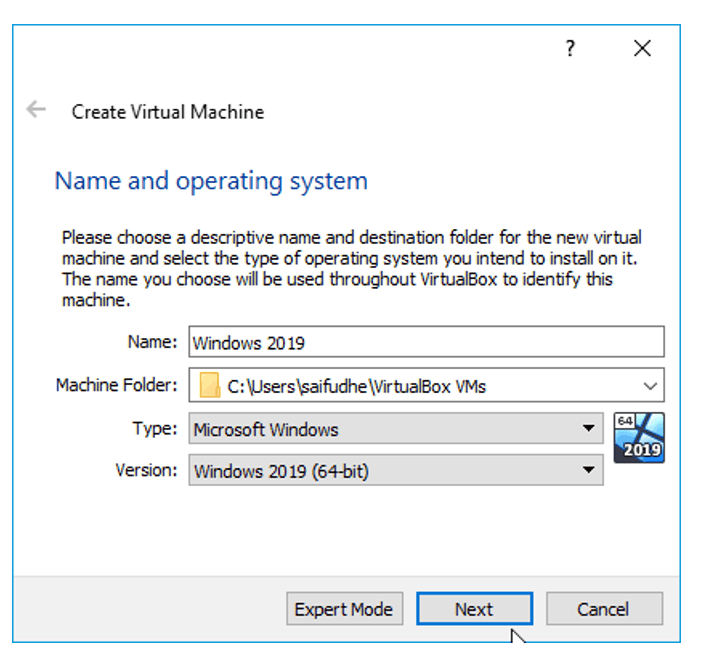
- Name the VM and the location where you want to save the virtual machine.
- Type as Windows.
- Version: Windows 2019 (64bit)
2. Define the memory size.
We can provide a Memory of 2GB or more, and I am choosing 2GB for now.
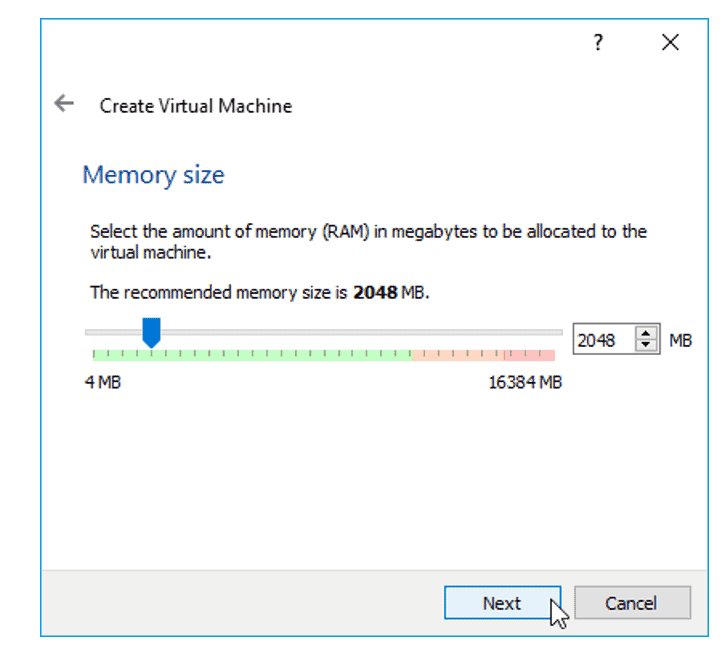
3. Attach the Virtual Hard disk.
When we chose the ISO method of installation, we created a new hard disk in the VirtualBox.
But right now, we already have the virtual hard disk file, We need to attach that here.
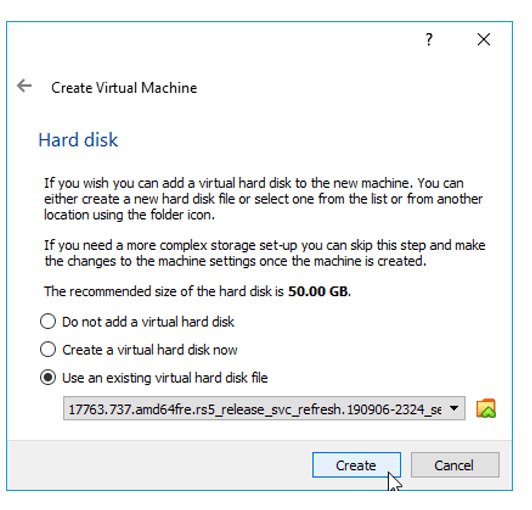
Select use existing virtual hard disk file and click on the browse button next to the drop-down.
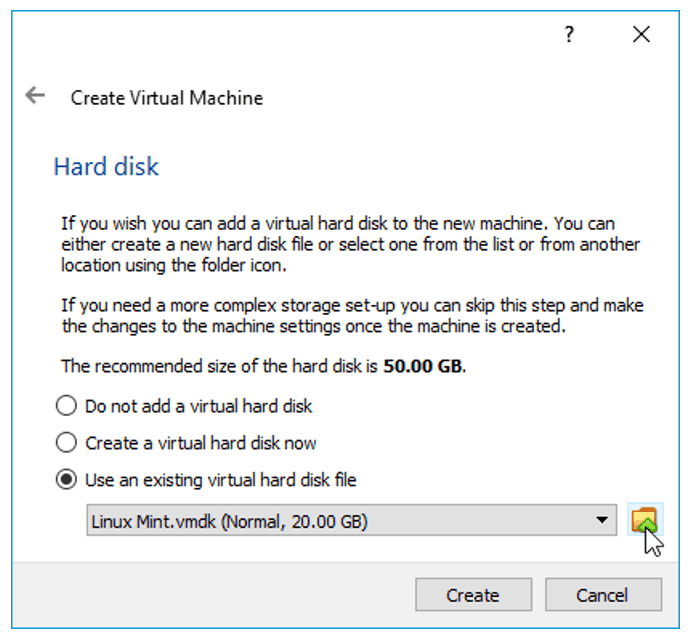
You will not see the virtual hard disk in the new pop up; Click on Add.
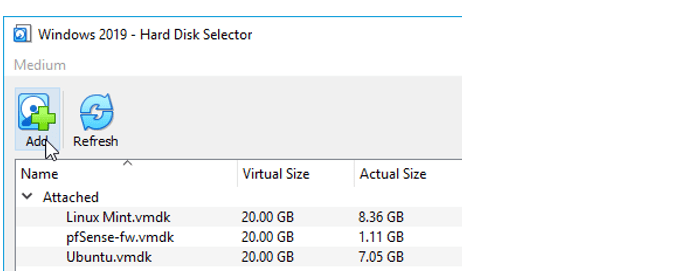
And Select the VHD file which we downloaded from Microsoft.
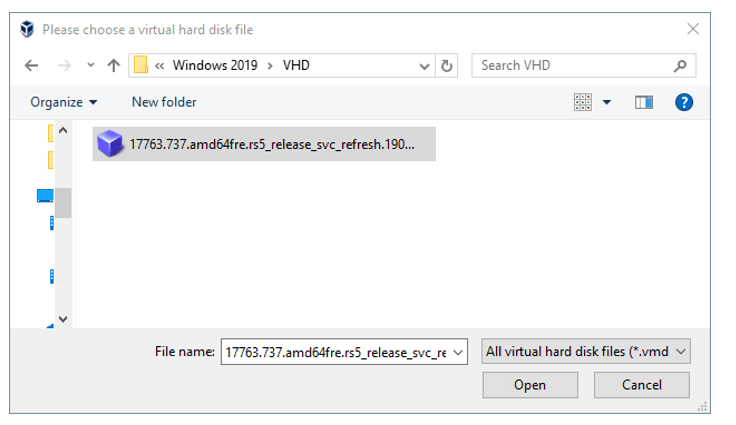
The new image is added under the not attached section.
Select the image and Click on Choose.
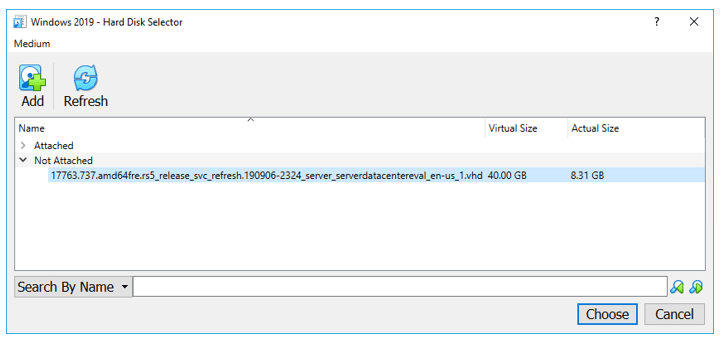
You need to make sure the new virtual hard disk is selected under ‘use existing hard disk file’
Click on Create.
4. Choose the region and Accept the license.
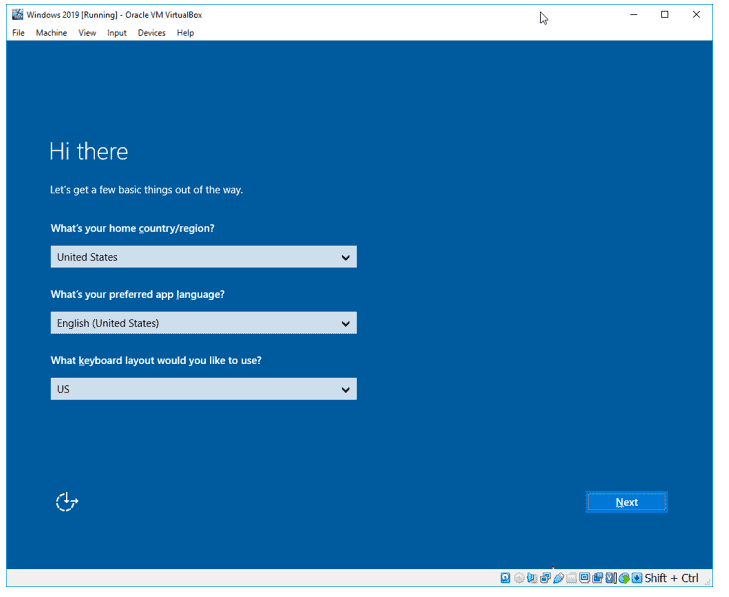
Once you power on the machine, you will get an option to Choose the region, Language, Layout and Click on Next.
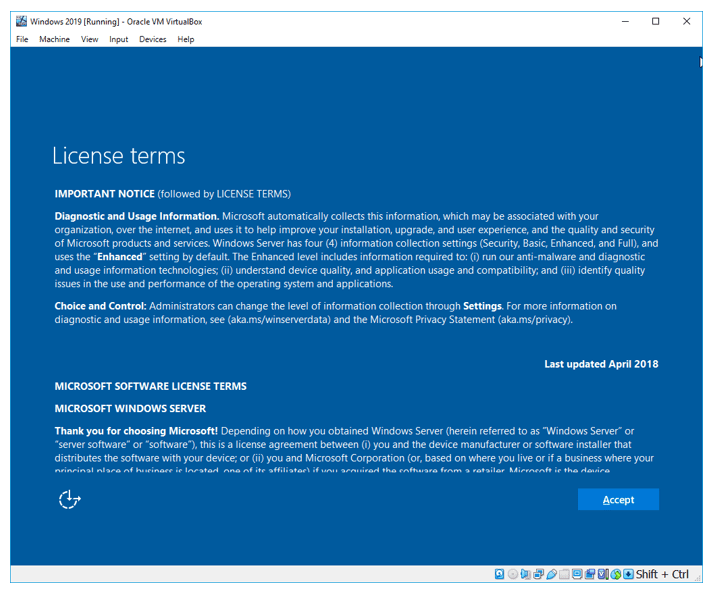
You have to accept the license before you continue.
Follow the Step 8 above to set the admin password. Enter the password and Click on Finish.
Your VirtualBox is ready to use, and you still need to install the VirtualBox guest additions following Step 10 above which is important.
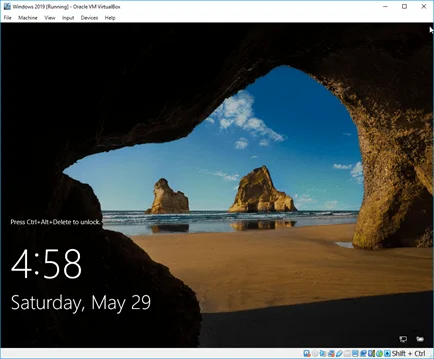
In a previous post I’ve covered the process of setting up a Windows Server 2019 VM in VirtualBox. So I’ve figured that I should add one to cover Windows Server 2022 as well.
Prerequisites
- Oracle VirtualBox – I’m currently using version 6.1.40
- Windows Server 2022 evaluation ISO
- Sufficient drive space – In my example I’ll be creating two dynamically allocated virtual disks (C drive – 50GB, D drive – 40GB)
The host, aka my PC, is running Windows 11 build 22621.963, but the process is the same on Windows 10.
Creating the VM
This time, I’ll cover both the GUI way of creating the VM as well as the PowerShell steps in a single post.
If you want to go straight to the PowerShell steps click here.
Via the GUI
I create a new, blank VM.

Once the “Create Virtual Machine” window opens, I switch to “Expert Mode” so that I can configure the RAM and system drive in one go.

Afterwards, I specify the name of the VM, the directory in which its base folder should reside, the OS type and version. Since VirtualBox 6.1.40 doesn’t have “Windows Server 2022” as a version, I’ll pick “Windows Server 2019” instead.
I’ll also set the machine’s RAM to 8GB and opt to create a virtual hard disk now, and press “Create”.

In the “Create Virtual Hard Disk” window I just go with the defaults:
- File size – 50GB
- Hard disk file type – VDI
- Storage on physical disk – Dynamically allocated
And I click on “Create”.

At this point the VM is created, but there are a few more things I like to set up before I start installing the OS.
So right click on the VM and go to “Settings”

In the “Processor” tab of the “System” section, I set the number of CPUs to 4.
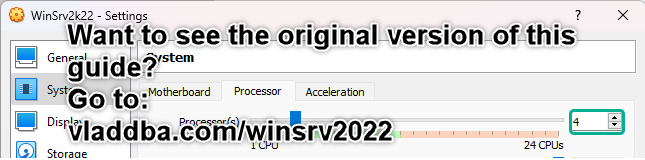
Now to add a second virtual disk drive – this will be the 40GB D drive.
I go into the “Storage” section, increase the SATA controller’s port count from 2 to 3 (as per VirtualBox recommendations) and press the “add hard disk” button.

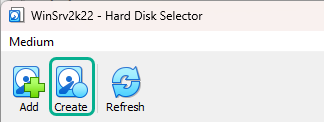
In the “Hard Disk Creator” window I press the “Create” button.

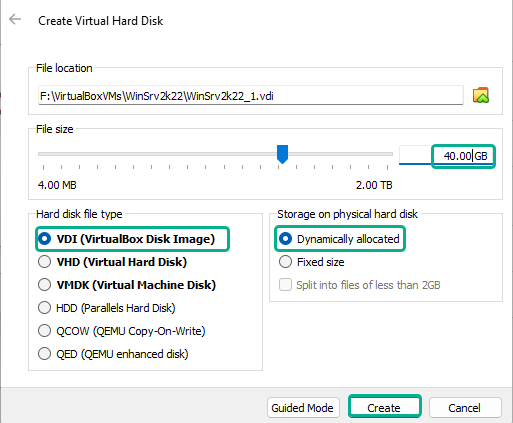
Once the windows switches to expert mode, I set the size to 40GB, validate the file location matches with the VM’s base directory and leave the defaults selected for hard disk file type and storage on physical hard disk, and then click on “Create”.
Now, in the “Hard Disk Selector” window I select the newly created virtual hard disk and then click on “Choose”.

While I’m in the “Storage” section, I’ll also attach the Windows Server 2022 Evaluation ISO by selecting the optical drive, expanding the disk drop-down menu and clicking on “Choose a disk file…”.
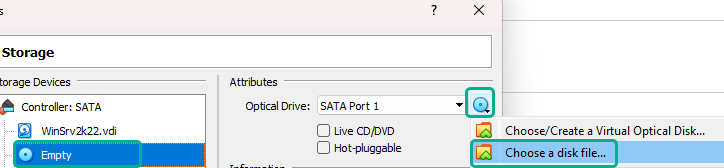
This opens up a file explorer window in which I navigate to where the “Windows_SERVER_2022_EVAL_x64FRE_en-us.iso” file resides so that I can attach it to the VM’s optical drive.

Afterwards, I navigate to the Network section set the network as bridged so the VM is accessible from the rest of the LAN.

At this point I can click “Ok” in the settings window so that the changes are saved.
I then start the VM.

And proceed with the OS installation process.
Via PowerShell
I open PowerShell and, to make things easier, append VirtualBox’s installation directory to the PATH environment variable.
|
$Env:Path += «;C:\Program Files\Oracle\VirtualBox\» |
Since VirtualBox 6.1.40 doesn’t have “Windows Server 2022” as a version, I’ll search for the OS ID for Windows Server 2019 instead.
|
VBoxManage list ostypes | Select-String -Pattern «Windows» | Select-String -Pattern «2019» -Raw |

I then use that OS ID to create and register an empty VM.
|
VBoxManage createvm —name WinSrv2k22 —ostype Windows2019_64 —register |
Take note of the location of the VM’s settings file location since that directory will also be the VM’s base directory.

Afterwards add CPU cores, RAM, and VRAM. Set the graphics controller, and set the network type as bridged as well as specifying the name of the host’s NIC that will be used.
|
VBoxManage modifyvm WinSrv2k22 —cpus 4 —memory 8192 —vram 128 ` —graphicscontroller vboxsvga —nic1 bridged ` —bridgeadapter1 «Intel(R) Ethernet Controller I225-V» |
Add a SATA storage controller, specify the controller’s chipset, port count, and set it as boot-able.
|
VBoxManage storagectl WinSrv2k22 —name «SATA» —add sata ` —controller IntelAHCI —portcount 3 —bootable on |
Create the virtual disk file that will eventually become the C drive.
|
VBoxManage createhd —filename F:\VirtualBoxVMs\WinSrv2k22\WinSrv2k22.vdi ` —size 51200 —variant Standard |
Add a second virtual disk file (optional).
|
VBoxManage createhd —filename F:\VirtualBoxVMs\WinSrv2k22\WinSrv2k22_1.vdi ` —size 40960 —variant Standard |
Attach the two disks to the storage controller.
|
VBoxManage storageattach WinSrv2k22 —storagectl «SATA» —port 0 ` —device 0 —type hdd —medium F:\VirtualBoxVMs\WinSrv2k22\WinSrv2k22.vdi |
|
VBoxManage storageattach WinSrv2k22 —storagectl «SATA» —port 1 ` —device 0 —type hdd —medium F:\VirtualBoxVMs\WinSrv2k22\WinSrv2k22_1.vdi |
Now, I can attache the Windows Server 2019 Evaluation ISO.
|
VBoxManage storageattach WinSrv2k22 —storagectl «SATA» —port 2 —device 0 ` —type dvddrive ` —medium C:\Users\Vlad\Downloads\Windows_SERVER_2022_EVAL_x64FRE_en-us.iso |
And start the VM in order to proceed with the OS install process.
|
VBoxManage startvm WinSrv2k22 |
Installing Windows Server 2022
Once the VM boots, I can select the language and regional settings and click on “Next”

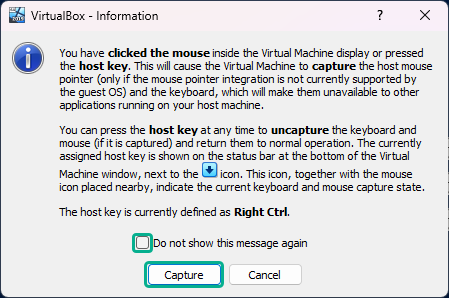
If this pops up, just check the “do not show this message again” box and click on “Capture”. Just remember to press right Ctrl whenever you want to move the mouse outside the VM window.
In the next prompt click “Install Now”

For this VM, I opt to install the Windows Server 2022 Standard Evaluation (Desktop Experience) version.

In the next window I read and accept the software license terms, and proceed with the installation process.
For installation type I click on “Custom”, because there’s really no previous version of the OS to upgrade from.

I then proceed with the partition configuration part.
First, I select the drive (Drive 0) that’s going to end up being the system drive, click on “New” and then “Apply” in order to create a new partition.

Click “Ok” on the prompt informing me about the creation of additional system partitions.
I then repeat the same steps for the second drive (Drive 1).
And now I select the partition (Drive 0 Partition 2) on which the OS should be installed and click on “Next” to begin the installation.

After the install process finishes, the VM reboots and a prompt to “press any key to boot from CD/DVD” appears, I just wait for the prompt to time-out since I want to boot directly in Windows.
Once the OS boots up, it asks to set up a password for the Administrator account.

I type a password, confirm it and press “Finish”.
At the logon screen I send the Ctrl+Alt+Del input to the VM. This can also be done with the right Ctrl+Del keys.
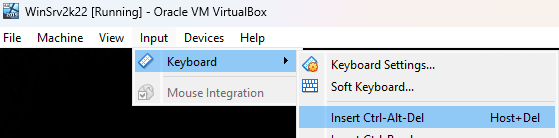
And log into Windows with the previously configured password.
At this point I can eject the installation media and mount the VBoxGuestAdditions disk. If it doesn’t show up in the drop down list, it is located in “C:\Program Files\Oracle\VirtualBox\”.

Once the disk is mounted, I navigate to it in File Explorer and proceed with the installation of the guest additions. Right click on “VBoxWindowsAdditions.exe” and run as admin, then just proceed through the install without making any changes. I reboot the VM when the install process prompts me.
After the VM reboots I enable the shared bidirectional clipboard.

One last and optional part – I run the following commands in admin PowerShell to rename the VM, but also make sure that the current network profile is set to private so that the firewall won’t block me if I try to connect to SQL Server or anything else that I might install later.
|
Rename-Computer WinSrv2k22 get-netconnectionprofile | Select -ExpandProperty name | %{ set-netconnectionprofile -name $_ -networkcategory «private» } |

Oracle VM VirtualBox is a free and open-source hosted hypervisor for x86 virtualization, developed by Oracle Corporation. You may want to run multiple VMs on your operating system, with the type 2 virtualization type, this is possible. To achieve this, the following steps below need to be performed. To proceed, ensure you have VirtualBox installed on your device. On how to perform Post OS Installation configuration of Windows Server 2019 Properties, how to install Windows Server 2016 Operating System. Also, you may be interested in my YouTube video on how to setup Windows Server 2019 on a VMware Workstation. On how to install and configure Ubuntu Linux, see the visit link.
Part A: Prepare the Virtualbox environment to hold the windows folders for the new VM. Click on “New” from the Oracle VM VirtualBox Manager. See this guide for how to install Windows Server 2022 on VMware Workstation.

Enter the name, version, desired path to host the VMs and click on continue

Select the memory size as shown below. You can type in the memory size or use the bar to increase it as well.

Click on “create a virtual hard disk now”

This will open the hard disk type window as shown below.
– I will select VDI (Virtual Disk image)

Choose if you wish the hard disk to dynamically increase or use a fixed hard disk file size. I will be using a fixed size which will be entered in the next page

Enter the Hard Disk size of your choice as shown below
– You can also change the file location if you wish from here.

Next, this will create the VM as shown below

Now the VM creation process is complate and VM successfull created.
Part B: To access and attached the Windows Server 2019 ISO file, the following steps should be followed.
Click on the Server and Click or settings or
– Right click on the server and select settings

Click on storage
– Click on Empty under the control IDE
– Select the Disk icon and choose the Operating system you wish to install as shown below

As you can see below, the ISO image has been selected. We can now proceed with our installation.

– Click on “ok”. Next, select the VM and click on start to continue the installation of Windows Server 2019.

This will load windows and prompt for the steps in Part C below.
Part C: This step is similar to installing Windows 10, Windows Server 2008, 2012, 2016 on Virtualbox. On the Windows Setup page,
– Select the language to install
– Time and currency format
– Keyboard or input method

Click on Next and Click on “Install now“

Note: Here you could click on repair your computer if this is the approach you need to take or use “Reset this PC”. See how to repair Windows 10 locally for similar steps. Select the operating system you wish to install and click on Next.

Accept the license agreement as shown below and click on next

Select custom install as shown below to install Windows
– Pick Custom: Install Windows only (advanced)

Select the Drive to install Windows and click on Next
Note: You can create an additional drive and install Windows on it. You can also format, delete and extend drives in this window.

After this step, Windows will be installed unto the system.

When this step complete, the the device will reboot after few seconds
– Note: You can restart immediately

This will prepare and get windows ready as shown below

the customise settings window will be displayed. Enter the Password and click on finish to complete Windows Server 2019 Installation.

The Windows Server 2019 setup is now complete as shown below.

To access the login windows, use the Contl+Alt+Del and enter your password to access Windows. Refer to this guide for the Post OS Installation and configuration of Windows Server 2019 Properties (Configure TCP/IP Parameters).

I hope you found this blog post helpful. If you have any questions, please let me know in the comment session.
Add Windows Server on VirtualBox + DHCP, Active Directory and DNS Server
Installing Windows Server on VirtualBox, configuring it to work with DHCP Server, Active Directory and DNS Server
This project aims to demonstrate an installation of Windows Server on a virtual machine via VirtualBox (Oracle VM VirtualBox). Adding DHCP (+ share internet to local PCs), add Active Directory and DNS Server.
These are guidelines of the main setup key points and steps in the installation and configuration process.
If you need more detailed explanations, I will be glad for your feedback so I can prepare them.
This includes:
Step 1: Download and install VirtualBox;
Step 2: Creating a virtual machine for Server and Client’s PCs;
Step 3: Network setting of the virtual machines (to be on the same network);
Step 4: Windows Servers setup — Network Adapters Configuration
Step 5: Windows Server setup — Add DHCP, Active Directory (AD) + DNS
Step 6: Configure Windows Server DHCP
Step 7: Configure Windows Server AD DS
After these steps you have Windows Server installed, configured Active Directory and a DHCP server to which you can connect client machines.

Step 9: Configure Windows Client PC to join the Domain
I hope it was useful for you.

Windows 2022 is an upcoming server OS from Microsoft with new features and plenty of security enhancements. As Microsoft is pushing harder on security by utilizing hardware chips in Windows 11, the same technique continues in Windows 2022 servers also.
The next question that comes to our mind is installing and testing this new OS on our normal PCs. Thanks to virtualization technology. We can do that with the Windows built-in Hyper-V feature or VMware and VirtualBox. In this guide, let me show you where to download the Windows 2022 server ISO/VHDX file and install it on VirtualBox using your normal Windows 10 or 11 computer.
Some key security improvements include secure-Core servers, TPM 2.0, Virtualization-based security, and firmware protection. Also, Microsoft implements HTTPS, and TLS 1.3 enabled connectivity by default. Improvements in DNS resolution also can be seen in this new OS which can prevent DNS hacks and poisoning.
Other considerable enhancements in monitoring Azure, on-premise and hybrid environments, networking, and Hyper-V improvements are available in the new server OS. To find out more new features, do check the official feature list.
Also, note that when we install Windows 2022 on VirtualBox (or any virtualization environment), we can’t check the all-new features. Some of these features will only work when we install the server OS on the physical hardware.
1) Download the Windows 2022 server from the official site here. You may need to provide your details to download the file.
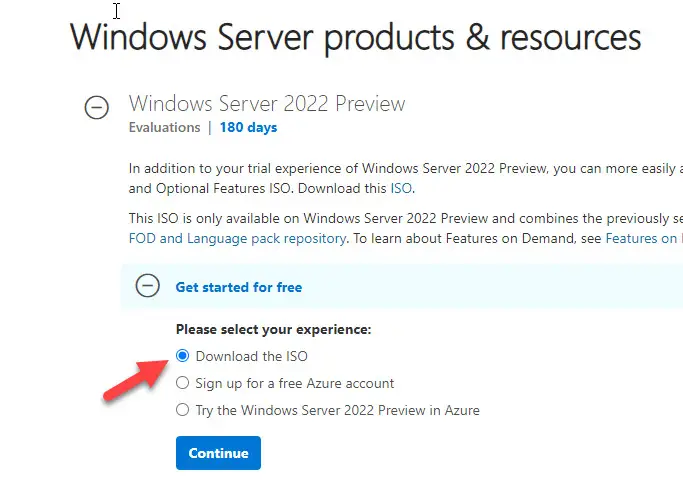
2) Download and install the latest Oracle VirtualBox software (if you don’t have it already on your host computer).
3) Make sure you have enough hardware resources to allocate. Minimum 2GB RAM, recommended is more than 4GB.
4) Create a new VM from the VirtualBox console. It is okay to select the Windows 2019 (64bit) server as the OS version since Server 2022 is not officially supported by VirtualBox (as of now)
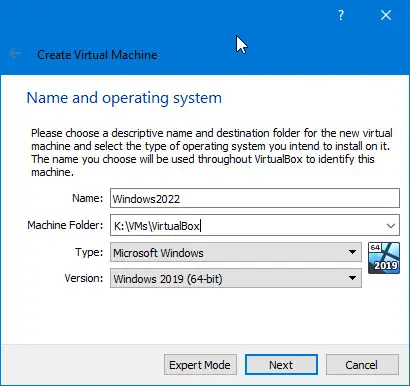
5) Set the RAM size based on your physical computer RAM availability. I configured 8GB in this example.
6) Create a new virtual hard disk, VDI type, 50GB size (or more) and select a dynamically allocated type to save disk space.
7) Click next to create the virtual machine.
 Go to the settings of the newly created virtual machine and edit the processor settings. Increase the processor cores to 2 or more. By default, it will create the VM with a single-core, which may not be enough to install the desktop experience version of the Windows 2022 server.
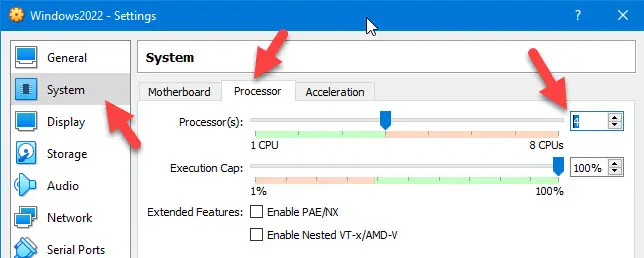
You can check the hardware requirements for the Windows 2022 server here at the official site.
9) Open the Storage option and mount the downloaded 2022 ISO file to CD/DVD drive as shown below.
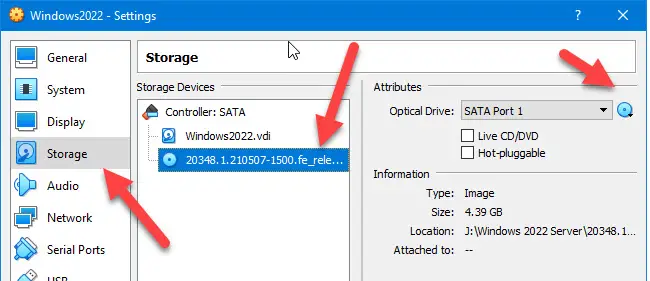
10) Power the virtual machine and select the mounted ISO file to boot the VM.
11) It is a normal Windows OS server installation process; nothing changed in this version. Select the Desktop Experience if you want to get the normal desktop and GUI interface. If you don’t select this option, you will get the Windows 2022 Server Core on the VirtualBox.
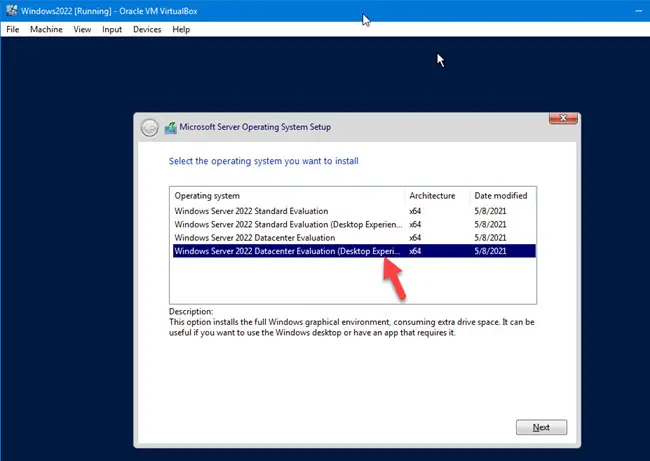
If you want to get experience on server core, you can install without Desktop Experience. You can always upgrade the server core to a Desktop experience or vice versa later.
In this example, I selected the desktop version.
12) Select the new Install option to do the fresh installation.
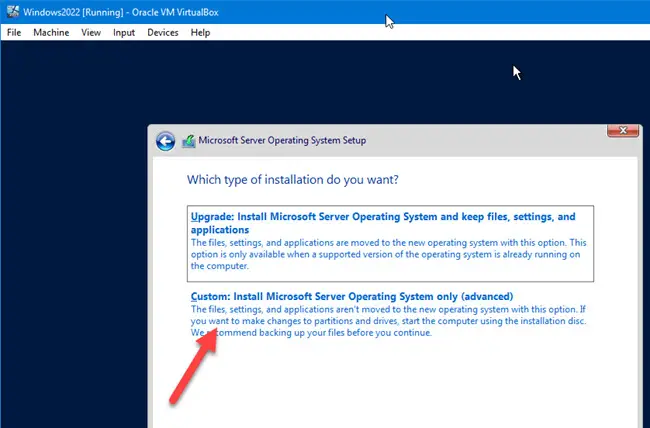
13) Select the hard disk you want to install and click Next. The installation process will create the required partitions and process to the next step.
14) After the installation is completed and VM is rebooted, you need to set up the Administrator password.
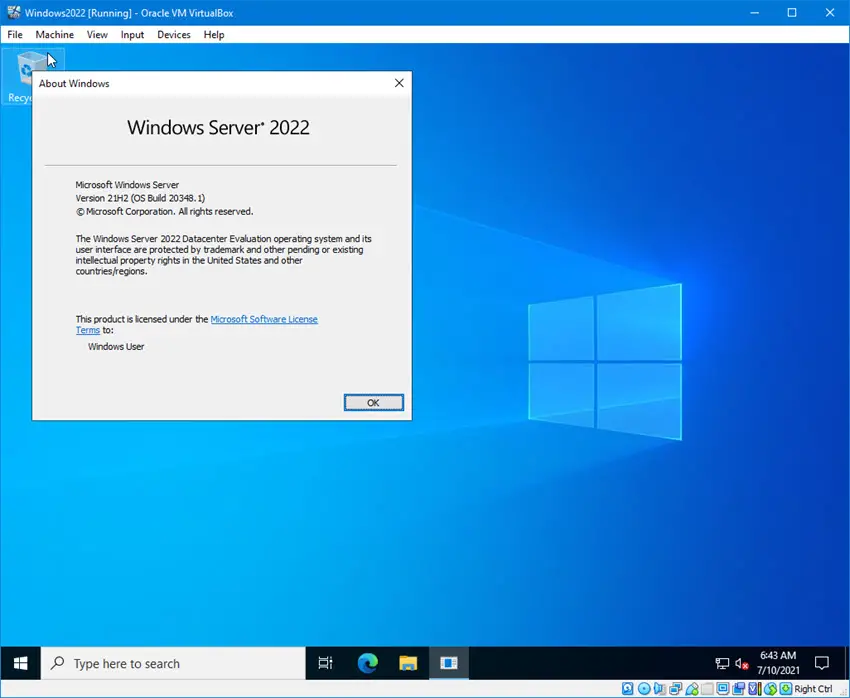
15) Here you go; you will land on the latest Windows 2022 server OS on VirtualBox as a virtual machine. It doesn’t matter which OS you have on your computer; it can be Windows 10, 11 or even the seven, Linux or macOS. As long as you have enough hardware resources on your physical computer with the latest VirtualBox, you can have Windows 2022 server as VM showed in these steps.
Read Also: Best Home Server OS you must know
What about VirtualBox Guest Additions for Windows 2022 Server?
As we mentioned earlier, Oracle VirtualBox doesn’t support Windows 2022 since this server version is still in preview mode (as of mid-July 2021). So, we do not have proper tested VirtualBox guest additions for server 2022.
But, we can try the available guest additions for Windows OS (Server 2019). Before proceeding to the next steps, I highly recommend taking a snapshot of the virtual machine.
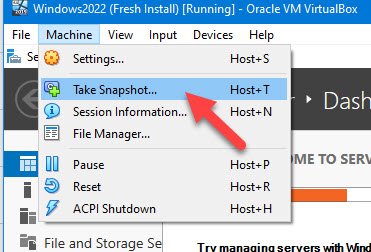
16) Click on Devices, and Insert Guest additions CD image of the virtual machine.
17) Once it is mounted successfully inside the VM, open the CD drive and execute the Windows version of guest additions.
18) Select Install for required drivers and continue the installation. You need to reboot the VM at the end.
19) This Windows 2022 server VM should perform well with proper working display, mouse movements, full-screen mode, and other additional VirtualBox guess addition features.
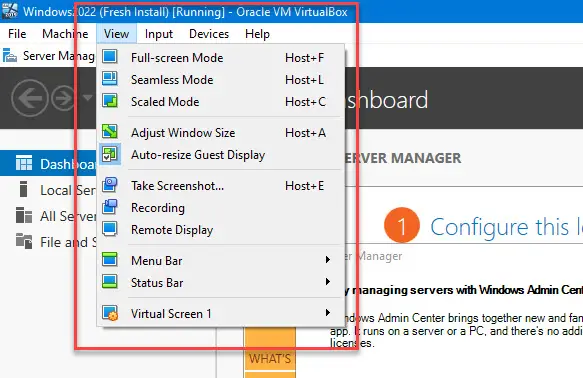
20) Take another snapshot before playing around with the new OS. Also, a full Windows update is highly recommended to get the latest updates and improvements.
Download Windows 2022 Server VHDX for VirtualBox or Hyper-V
Usually, Microsoft provides the preview and final versions of server Operating Systems in VHDX format, which natively supports Hyper-V. These pre-installed VHDX files can be easily imported to Hyper-V or VirtualBox to use the OS instantly.
You can download the Windows 2022 Server VHDX file from the Microsoft site here.
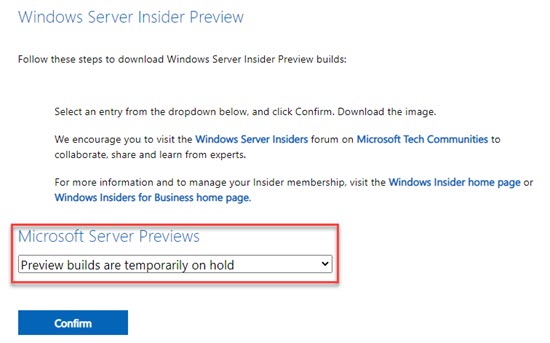
Unfortunately, at the moment, the preview builds are temporary on hold, and you can’t download them from the Microsoft site. When these images are available, you can download the VHDX file and simply import it to Oracle VirtualBox as described in our earlier guide on Windows 2012 R2 Server.