
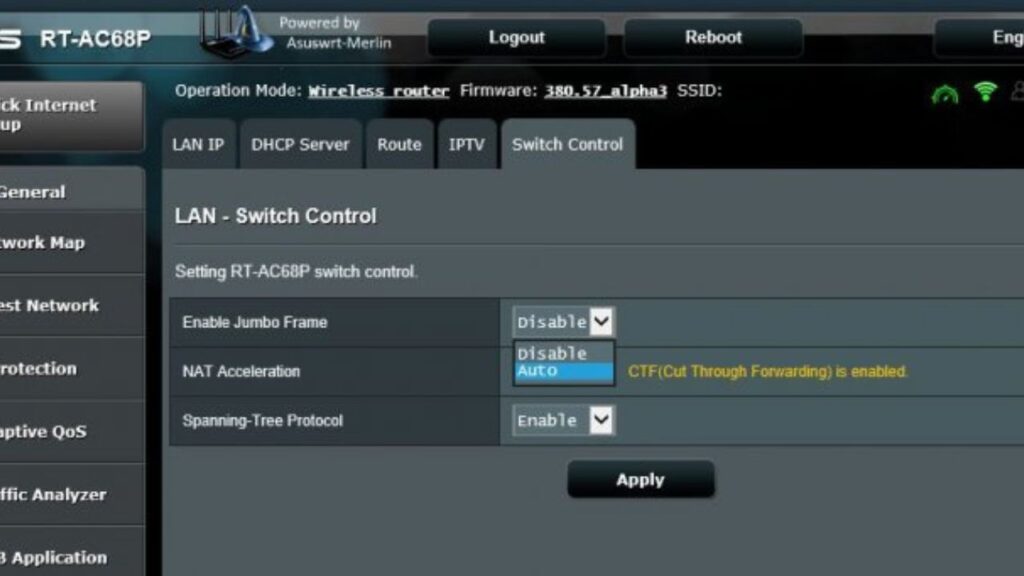
A perfect wireless network configuration demands high performance, minimal lagging, and reliable security standards. As a regular internet user, it might be confusing to understand what you should keep enabled and whatnot. Among other terms of router configuration, NAT Acceleration or Hardware Acceleration is the talk of the town.
NAT acceleration for routers is quite different from a computer’s hardware acceleration. Only Asus routers have the hardware acceleration known as NAT acceleration, while you have to address it as hardware acceleration for other brands. Other terms for the same hardware forwarding are Cut-Through Forwarding (CTF), Flow Accelerator (FA), etc.
Let’s explore NAT acceleration, how it impacts your wireless network, and whether you should enable this feature.
NAT Acceleration: Definition
NAT (Network Address Translation) acceleration is a combination of hardware features and software setups designed to improve network speed. If you want to speed up your network experience, then you can turn on NAT acceleration or hardware acceleration on your router. However, you need not enable this feature if you can achieve an internet speed of at least 100 Mbps or higher.
You can easily locate NAT acceleration settings under your router’s LAN configurations. Generally, you can find two levels of NAT acceleration on Asus routers. The first level or Cut-Through Forwarding refers to a software optimisation technique that accelerates the NAT traffic. If you want to achieve a peak internet speed above 200 Mbps and your ISP offers a speed of over 100mbps, then you can activate the CTF technology.
While having the level-1 NAT acceleration or CTF enabled, the access point saves the complete frame before it sends it to its final destination. However, the holding interval might use more CPU resources of the router than required.
Whereas the level-2 NAT acceleration is a set of CTF and FA settings. This hardware acceleration mechanism supports accelerating Static IP and wired DHCP connections. You can enable this option of NAT acceleration when you want to use what your ISP offers best.
How does NAT Acceleration or Hardware Acceleration Work for Routers?
Any router closely examines incoming traffic to every port and takes care of the destination ports. Additionally, the router routes the traffic in its path so that data can reach the correct destination.
Now, while forwarding traffic, the router might have to decide whether it will accept or discard the traffic. This is decided by the Network Address Translation and modifies the traffic address to a public address from a local private one.
The router has to send a specific packet or information to its CPU when it’s about to allow or discard the traffic. Any CPU consists of limited resources, and you can’t stretch them. The router’s CPU has to verify the initial bytes of each packet, and the decision is made.
However, a router receives a lot of traffic requests every second. Verifying every packet’s first few bytes might take a considerable time. Additionally, the processes might own all the CPU resources, so the performance might lag behind as expected. Here, NAT acceleration or hardware acceleration can improve your networking speed.
NAT acceleration or hardware acceleration allows the router to inspect only the first few traffic packets. Thus, the router doesn’t have to waste time inspecting each packet of the remaining traffic. Once the router’s CPU allows those first packets to forward to their destination, the traffic will directly reach its destination. Needless to say, enabled NAT acceleration will improve your network’s performance and speed.
Should You Enable NAT Acceleration on your Router?
Enabled NAT acceleration is a proven technique to get higher throughput regarding your wireless network’s performance and efficiency. In addition, it assists your router in eliminating unnecessary traffic and latency. You can achieve a highly optimised router CPU with NAT acceleration enabled.
NAT acceleration is not only about benefits. Cons are present there, and you might lose the port forwarding ability with active NAT acceleration. Port forwarding might be your usual option to filter your uninterrupted networking experience if you are a gaming enthusiast. NAT acceleration can ruin it for you.
In addition, your router might stop parental controls, PPPoE or Point-to-Point Protocol over Ethernet, STP for bridged Ethernet LANs, and more. You might also face issues related to streaming on devices, such as Chromecast, Apple TV, etc., with NAT acceleration. Users have reported that hardware acceleration can disrupt streaming services, and they can become unstable.
Hence, you should prefer NAT acceleration as enabled only when you want to reduce CPU overloading. Additionally, check out whether your router comes with hardware acceleration facilities or not.
Why Should You Disable NAT or Hardware Acceleration on Your Router?
You can manually turn off NAT acceleration on your router if you don’t require it. Home routers don’t necessarily have to access NAT acceleration as they don’t have to deal with heavy workloads. However, you can enable it for your intense gaming routers if you don’t want a drop in the network’s speed.
Otherwise, you can disable NAT acceleration if you’re experiencing compatibility issues with the feature enabled. You can encounter different problems, disconnected devices, etc. when you have enabled NAT acceleration for short-range Wi-Fi connectivity.
Here’s how you can disable NAT or hardware acceleration on a router that comes with NAT acceleration support:
- Make sure that your router is turned on and it connects to the modem through an Ethernet cable. In addition, check that your router has a stable internet connection.
- Now, connect any of your computers or mobile devices to the router through a wired or wireless medium. You need to access an internet browser on the device, so choose a device accordingly. Open any internet browser on that device.
- Next, enter your router’s gateway URL or IP address to access its control panel. Or, you can explore your router’s dedicated application to make NAT acceleration changes.
- Check out specific settings for NAT acceleration after you log into that admin panel, firmware, or application. Disable NAT acceleration for your router, and you are good to go.
Issues Caused by Enabled NAT Acceleration
Conflicts are inevitable between NAT acceleration and other useful features of the router. Here are a few common issues that can arise from active NAT acceleration:
Port Forwarding not Working
Reportedly, port forwarding gets disabled or erroneous with enabled NAT acceleration. You might face challenges hosting gaming sessions from your home network if you turn on NAT acceleration. Hosting gaming servers for MMO, Minecraft, or other popular titles will be uncertain with active NAT acceleration.
QoS Obstacles
Quality of Service features is designed to have some priority in deciding the traffic that should reach its destination first. With NAT acceleration enabled, you are triggering serious conflicts with QoS standards. QoS allows the router to hold on to the traffic or data for a while before deciding what to do with the traffic.
NAT acceleration doesn’t permit the router to hold on to that traffic, and it initiates the transmission as soon as possible. With CTF or Level-1 NAT acceleration, your router can access Adaptive QoS. On the other hand, no QoS is active with the Level-2 or CTF+FA NAT acceleration.
Streaming & Mirroring Restrictions
Are you encountering issues with streaming devices and mirroring? Chances are there that you might have enabled hardware or NAT acceleration on your router. Chromecast and Apple TV users have complained about such instances, and you might also come across corrupted data. Routers have to resend them, and you might eventually notice considerable latency in streaming on those devices.
Parental Control & IP Traffic Monitoring
These features allow the router to examine data packets closely before passing them on. If you keep NAT acceleration enabled, the router will not get the privilege of inspecting every data packet.
Thus, such security features will remain compromised. Therefore, you must reconsider the NAT acceleration feature to keep parental control and IP traffic monitoring active.
Wrapping up….
NAT acceleration is a great approach to escalate your network speed. However, you are aware of the disadvantages of NAT acceleration enabled. Hence, you should disable NAT acceleration if you don’t require high-speed networking right now.
Moreover, NAT acceleration might interfere with your router’s security. So, keep NAT acceleration disabled for both public and private networks unless it’s extremely necessary.
Дорогие пользователи! У нас появился новый форум на платформе tp-link.community (Сообщество)
Форум доступен по ссылке https://community.tp-link.com/ru
Если при регистрации в Сообществе Вы укажете адрес электронный почты, который используете на данном форуме, то Ваши данные будут перенесены на форум Сообщества автоматически.
Также, если на форуме Сообщества Ваш никнейм будет занят, то Вам предложат сменить его или оставить, но с приставкой «_RU».
Подробнее Вы можете прочитать тут: https://community.tp-link.com/ru/home/f … pic/501542
Убедительная просьба не дублировать темы на старом/новом форуме.
-
eleabkru
- Сообщения: 18
- Зарегистрирован: 06 апр 2021, 11:29
- Страна: Россия
Что такое «Включить ускорение NAT»?
Название темы: Что такое «Включить ускорение NAT»?
Аппаратная версия устройства: v2.0
Тип подключения: PPPoE, Dynamic IP
Описание проблемы: Есть где-то понятное пояснение данной функции? Я по разному пробовал — не понимаю, что дает эта функция.
П.С. и доп.вопросик.
Есть ли функция маскарадинка IP источника? Чтобы при пробросе порта, к примеру того же http, чтобы сервер все внешние запросы видел не как их белые адреса (пример: 62.33.84.115), а как ip адрес маршрутизатора (Пример: 192.168.0.1).
-
Aleksey.PL
- Модератор

- Сообщения: 558
- Зарегистрирован: 02 сен 2020, 09:45
- Страна: Россия

Re: Что такое «Включить ускорение NAT»?
Сообщение
Aleksey.PL » 09 июн 2021, 10:25
Здравствуйте. Функция дает именно то, что можно предположить из ее названия: ускоряет прохождение пакетов через NAT. То есть, повышает скорость работы.
Функции маскарада нет.
-
eleabkru
- Сообщения: 18
- Зарегистрирован: 06 апр 2021, 11:29
- Страна: Россия
Re: Что такое «Включить ускорение NAT»?
Сообщение
eleabkru » 09 июн 2021, 12:41
По первому понятно.
А по «Включить ускорение NAT» — это значит, что галочка просто «оптимизация работы», а не изменение в логике работы? Как для пользователя — все остается так же, но просто быстрее за счет внутренней, какой-то оптимизации. Так?
-
Aleksey.PL
- Модератор
- Сообщения: 558
- Зарегистрирован: 02 сен 2020, 09:45
- Страна: Россия
Re: Что такое «Включить ускорение NAT»?
Сообщение
Aleksey.PL » 09 июн 2021, 14:03
Нет, для пользователя возрастает скорость работы, особенно при больших нагрузках, так как без этой функции роутер может не справляться с передачей пакетов через NAT.
-
karmelita
- Сообщения: 1
- Зарегистрирован: 17 авг 2021, 17:51
- Страна: RUS
Re: Что такое «Включить ускорение NAT»?
Сообщение
karmelita » 17 авг 2021, 18:31
Aleksey.PL писал(а): ↑
09 июн 2021, 14:03
Нет, для пользователя возрастает скорость работы, особенно при больших нагрузках, так как без этой функции роутер может не справляться с передачей пакетов через NAT.
Если эта кнопка делает только лучше, то кому может понадобиться ее отключать?
NAT Boost or NAT Acceleration or Hardware Acceleration in Wi-Fi routers is a feature which helps you to get peak speed of your high-speed broadband connection, called by different names by different Wi-Fi brands. It’s actually CTF (cut-through forwarding) and FA (flow accelerator). It’s available in most mid-range to flagship grade Wi-Fi routers and mainly helps those with high-speed Internet connection.
It will be helpful for those who got faster than 200 Mbps connection. However, if your connection speed is 200 Mbps or lower than it’s basically useless for you because your router should be able to stay on its peak speed without issues and besides that, NAT Boost / Acceleration also conflicts with several other features and use cases. So, in some cases you might not want to use it.
It’s a feature which helps you achieve peak speed of your connection when your broadband connection is having over 200 Mbps speed. For those who don’t have faster connection, I’ll say it’s better to turn it off because it conflicts with many other services.
It works by sending the packets as soon as it receives the destination without checking for errors instead it waits for the receiver’s response to know whether there was any error or corruption in data and if there is then it resends it. It’s the reason why it doesn’t work alongside many other features.
There are two options for the same–
Level 1 – Cut-through forwarding.
Level 2 – Cut-through forwarding alongside Flow Accelerator.
Conflicting use cases and features of NAT Boost / Acceleration-
1. Port Forwarding and Gaming:

Port Forwarding doesn’t work alongside NAT Boost / Acceleration in Wi-Fi routers which means if you play certain game which requires port forwarding, you’ll have to disable NAT Boost before you can play. Besides that, as the router sends packets without checking for errors, your gaming experience in other online games will be impacted as well, even if they are mobile game like PUBG Mobile or Call of Duty Mobile.
2. Quality of Service:

As QoS features usually have to hold the data to take decision based on the command provided to it. Meanwhile, when you’ve NAT Boost / Acceleration feature turned on, your data is transmitted as soon as it knows the receiver, hence, QoS cannot work alongside this.
However, in some routers, you might be able to use “adaptive QoS” with level 2 NAT Boost.
3. Parental Control:

If you’re someone who got kids at home and want to have parental control then again, it won’t work alongside this NAT Boost / Acceleration due to the way it works.
4. Screen mirroring & VoIP:

Screen mirroring features like Chromecast or AirPlay also suffers issues like stuttering during video playback with NAT Boost / Acceleration. Similar problem can be noticed during VoIP sessions as well. Hence, if you’re user of either of these, it’s better to turn this feature off.
Conclusion:
If you need any of the features mentioned above or if your Internet speed is not more than 200 Mbps then it’s better to disable this feature. However, if you got faster connection than that and you also need one or more features mentioned above then it’s on you whether you want those feature or higher peak speed. I recommend setting it on Auto if you don’t need those features and also having faster than 200 Mbps connection.
Как администратор сети, одним из наиболее важных моментов, которые вам необходимо учитывать, является повышение качества обслуживания (QoS) и трансляции сетевых адресов (NAT) в вашей сети. Эти две функции имеют решающее значение для обеспечения бесперебойной работы вашей сети и доступа ваших пользователей к необходимым им ресурсам.
Но в чем разница между QoS и NAT boost, и как решить, какую из них использовать?
Что такое QoS?
Например, приложения реального времени, такие как видеоконференции и онлайн-игры, требуют низкой задержки и высокой пропускной способности. В отличие от них, приложения, работающие не в реальном времени, такие как электронная почта и передача файлов, могут допускать более высокие уровни задержки.
Основная цель QoS – обеспечить, чтобы критически важный трафик получал необходимые ему ресурсы, не позволяя при этом некритичному трафику потреблять слишком много ресурсов. Это достигается путем классификации трафика по различным категориям и применения политик к каждой категории. Например, вы можете предоставить приоритет трафику реального времени и более низкий приоритет трафику нереального времени.
Для управления трафиком в сети можно использовать несколько различных технологий QoS. Некоторые из наиболее распространенных включают:
- Формирование трафика: Это ограничивает полосу пропускания, которую может использовать определенный тип трафика. Это может помочь предотвратить потребление слишком большого количества ресурсов некритичным трафиком.
- Полирование трафика: Используется для отбрасывания или повторной маркировки пакетов, превышающих определенную скорость. Это может помочь предотвратить потребление слишком большого количества ресурсов некритичным трафиком.
- Очередь на основе классов: Используется для назначения различных приоритетов различным типам трафика. Это может помочь гарантировать, что критически важный трафик получит необходимые ему ресурсы.
При выборе технологии QoS следует учитывать специфические требования вашей сети и типы трафика, которыми необходимо управлять.
Что такое NAT Boost?
NAT boost (также известный как NAT acceleration) – это функция, используемая для повышения производительности NAT в вашей сети. NAT используется для трансляции между частными IP-адресами, используемыми в вашей внутренней сети, и публичными IP-адресами, используемыми в Интернете. NAT – это важная функция, поскольку она позволяет использовать один публичный IP-адрес для нескольких устройств в сети.
Однако NAT также может вызывать проблемы, когда речь идет о производительности. Это связано с тем, что NAT может вносить дополнительные задержки и снижать доступную пропускную способность для определенных типов трафика. NAT boost предназначен для решения этих проблем путем повышения производительности NAT в вашей сети.
Существует несколько различных способов, с помощью которых NAT boost может повысить производительность. Некоторые из наиболее распространенных включают:
- Отслеживание соединений: NAT boost использует отслеживание соединений для отслеживания всех соединений, проходящих через маршрутизатор. Это позволяет маршрутизатору быстро находить и пересылать пакеты в нужное место назначения.
- Быстрая переадресация пути: NAT boost использует быструю переадресацию пути для пересылки пакетов непосредственно к месту назначения без прохождения через таблицу NAT. Это может помочь уменьшить задержку, которую вносит NAT.
- Ускорение потока: NAT boost использует ускорение потока для группировки похожих пакетов и их пересылки как единого потока. Это может помочь увеличить доступную пропускную способность для определенных типов трафика.
При принятии решения об использовании NAT boost в вашей сети следует учитывать специфические требования вашей сети и типы трафика, которыми вам необходимо управлять.
Как выбрать между QoS и NAT boost?
При выборе между QoS и NAT boost следует учитывать специфические требования вашей сети и типы трафика, которыми вам необходимо управлять. Если ваша сеть в основном работает с приложениями реального времени, такими как видеоконференции и онлайн-игры, то QoS будет лучшим вариантом.
Это позволит вам установить приоритеты и управлять этими типами трафика, чтобы обеспечить им необходимые ресурсы и минимальную задержку.
С другой стороны, если ваша сеть в основном работает с NAT и вы испытываете проблемы с производительностью, такие как задержки и снижение пропускной способности, то лучшим вариантом будет усиление NAT. Он повышает производительность NAT, уменьшая задержки и увеличивая доступную пропускную способность.
Также важно отметить, что QoS и NAT boost можно использовать вместе. Применяя и QoS, и NAT boost, вы можете гарантировать, что ваша сеть сможет эффективно и качественно обрабатывать все типы трафика.
Заключение
QoS и NAT boost – это две важные функции, которые сетевые администраторы должны учитывать при управлении своими сетями. QoS используется для управления и определения приоритетов различных типов сетевого трафика, а NAT boost используется для повышения производительности NAT.
Понимая разницу между этими двумя функциями и учитывая специфические требования вашей сети, вы сможете принять обоснованное решение о том, какую из них использовать или даже обе.
Часто задаваемые вопросыМожно лииспользовать QoS и NAT boost вместе?
Да, QoS и NAT boost можно использовать вместе. Применяя QoS и NAT boost, вы можете гарантировать, что ваша сеть сможет эффективно и качественно обрабатывать весь трафик.
Является ли QoS только для приложений реального времени?
QoS в первую очередь используется для приложений реального времени, таких как видеоконференции и онлайн-игры, но его также можно использовать для управления и определения приоритетов других типов трафика.
NAT Boost предназначен только для повышения производительности NAT?
Да, NAT Boost в первую очередь используется для повышения производительности NAT путем снижения задержки и увеличения доступной пропускной способности.
Как мне решить, какой из них использовать?
Решение о том, использовать QoS или NAT Boost, или и то, и другое, зависит от конкретных требований вашей сети и типов трафика, которыми вам необходимо управлять. Если ваша сеть в основном работает с приложениями реального времени, то QoS будет лучшим вариантом.
Если ваша сеть в основном работает с NAT и вы испытываете проблемы с производительностью, то лучшим вариантом будет NAT Boost.
Есть ли какие-либо недостатки использования QoS и NAT Boost?
Как и у любой технологии, у использования QoS и NAT Boost могут быть недостатки. QoS может быть сложным в настройке и управлении и может не быть необходимым для всех типов сетей. NAT Boost также может добавить некоторую сложность в вашу сеть, и не во всех случаях он может повысить производительность.
Важно тщательно оценить специфические требования вашей сети и взвесить потенциальные недостатки перед внедрением QoS и NAT Boost.
Как настроить QoS и NAT Boost в моей сети?
Настройка QoS и NAT Boost может зависеть от конкретного маршрутизатора или сетевого устройства, которое вы используете. Вам может понадобиться обратиться к документации или за помощью к производителю, чтобы правильно установить и настроить эти функции в вашей сети.
NAT acceleration is a feature that is available on Asus branded routers. It is also known as hardware acceleration in some cases by other branded routers. It can also be named as CTF (Cut-Through Forwarding) and FA (Flow Accelerator) This is a general guide that can potentially help you troubleshoot the issues that you may have with your wired or wireless network.
Please note that the language and information written here is intended for the average basic user. We will not go into detail on how and why NAT acceleration work, but rather some observations and guidelines on how you can make the best out of this feature.
What is NAT Acceleration
NAT Acceleration is a set of special designed software rules with hardware features created to speed up internet connections. They are usually required for peak speed when you have incoming internet speed above certain level. You typically do not need it for internet speed below 100 mb/sec.
The NAT acceleration or hardware acceleration option are usually found under the LAN settings for your router. At the time of writing, there are two levels of the NAT acceleration, some models of routers allow you to set the the level. Below is what NAT acceleration actually does and how it accelerates your speed.
Level 1: CTF (Cut Through Forwarding): Software optimization technique to accelerate NAT traffic.
You may need this option if your internet provider is offer you speed above 100 mb /sec. You generally need this option if you want to achieve peak speeds especially for speed above 200 mb/sec.
CTF or Cut-Through Forwarding is achieved by the router starting to send out transmission frames as soon as it receives its destination. However, the router relies on the end device to tell it whether the data is corrupted for resend. This restriction can cause problems with a few common home uses.
When you have CTF or level 1 NAT Acceleration disabled, the router will “store” the entire frame before sending it out to its destination. This holding period may require more router’s CPU use.
Level 2: Level 1 (CTF) + FA (Flow Accelerator): Hardware NAT acceleration mechanism design for accelerating wired DHCP and Static IP connections.
You will need Flow Accelerator option to fully take advantage of internet provider’s Gigabit service is offered.
Flow Accelerator is achieved through special hardware related designs.
When You Should Use or Enable NAT Acceleration
You should typically enable NAT acceleration or Cut-Through Forwarding when you have internet speed above 100 mb/sec. You will typically only see a difference for speed above 200 mb/s.
You should generally set the option as Auto or ON, unless you need to use features that directly conflict with NAT acceleration.
Potential NAT Acceleration Issues and Conflicts
NAT Acceleration, specifically the CTF Cut Through Forwarding portion can conflict with a few other common features. You should consider disable NAT acceleration or turn it to off if you experience any of the problems below.
QoS Restrictions
QoS or Quality of Service features come in direct conflict with the implementation of NAT Acceleration or Cut-Through Forwarding. Quality of Service options let your router “prioritize” the type of traffic that will be transmitted first. However, it requires to router to actually hold some data and make that choice.
NAT acceleration removes that possibility by starting the transmission as soon as it receives the destination. Below is a quick list of NAT acceleration and QoS level allowed.
No HW or NAT Acceleration = Traditional QoS
Level 1 (CTF) = Adaptive QoS Only
Level 2 (CTF + FA) = No QoS Allowed
Port Forwarding Not Compatible
NAT Acceleration is reported to not be compatible with port forwarding feature. This means that when you have the NAT Acceleration, you will typically unable to host gaming sessions from your home. So you will not be able to host any game servers such as Minecraft, MMO, or First person shooters since players will not be able to connect to it.
IP Traffic Monitoring and Parental Control
Traffic Monitoring and Parental Control require the router to examine the type of traffic. This means that it is not compatible with the CTF feature as CTF transmits the data almost as soon as it receives the proper destination.
Issues with Mirroring of Streaming Devices
In some cases, CTF can cause choppiness in the mirroring of stream devices such as Apple TV, Chromecast, and VoIP. This is because the data transmitted may be corrupted and routers “resend” those data. However, your end point devices show those corrupted data since they are designed to be latency sensitive.
NAT Acceleration ON or OFF Conclusion and Recommendation
You should generally leave the option as Auto for the NAT Acceleration in Asus Router. Since it does improve the peak connection speed of your home network’s internet service.
However, you should consider turning it off if you require any of the following features: Port Forwarding, QoS, IP Traffic Monitor, and Parental Control.
If your mirroring of video streaming devices have errors often and appear to be choppy, consider testing the effect of having an “disabled” NAT Acceleration or CTF.
To get the peak speed offered by your internet provider while having the features you need, consider combining two different routers with different settings to create your suitable network.