
|
|
Wine — (своеобразный акроним для «Wine Is Not an Emulator», т.е. «Wine не эмулятор») это слой совместимости, который может запускать приложения Windows на некоторых POSIX-совместимых операционных систем, например Linux, Mac OSX, или BSD. Вместо имитации внутренней логики Windows, как это делают виртуальные машины или эмуляторы, Wine переводит на лету вызовы Windows API в POSIX, избегая проблемы с производительностью и памятью при использовании других методах, и позволяет вам лучше интегрировать приложения Windows в ваш десктоп. |

Contents
- Доступные версии
-
Установка
-
Debian Jessie и новее
- Приготовления: включение мультиархитектуры (multiarch)
- Установка
- Установка из jessie-backports
- Зависимости Wine
- Debian Wheezy и старше
-
Debian Jessie и новее
- Конфигурация
- Установка и удаление программ
- Winetricks
- Дополнительные программы для Wine
- Альтернативы
- Ссылки
Доступные версии
С версии Debian Jessie вы можете выбрать между двумя пакетами Wine: wine и wine-development.
wine tracks the stable releases from winehq.org (e.g. version 1.6.2), and wine-development the development releases (e.g. version 1.7.29).
Несмотря на свое название wine-development этот пакет также подходит для использования обычными пользователями. Не надо путать с *-dev пакетами, которые содержат заголовочные файлы и библиотеки для разработки.
Вы можете установить оба пакета одновременно, или только один из них.
Чтобы использовать wine-development вы должны добавлять суффикс «-development» к каждой команде (например, «wine-development foo.exe» или «winecfg-development»).
Установка
Debian Jessie и новее
Приготовления: включение мультиархитектуры (multiarch)
Если ваша система имеет 64-битную архитектуру, то вы должны включить multiarch. Вы можете определить вашу архитектуру с помощью следующей команды:
$ dpkg --print-architecture
Пример для amd64 (у большинства пользователей), а нам надо добавить i386:
# dpkg --add-architecture i386 && sudo apt update
Установка
Устанавливаем wine:
# apt install wine
и/или wine-development:
# apt install wine-development
Установка из jessie-backports
Для Debian Jessie также доступны версии из Backports. Для включения jessie-backports на вашей системе добавьте строчку в ваш файл sources.list (или добавьте новый файл, с расширение «.list» в директорию /etc/apt/sources.list.d/):
deb http://httpredir.debian.org/debian jessie-backports main
и запустите
# apt update
Пакеты из Backports не устанавливаются/обновляются автоматически. Но после установки пакетов из jessie-backports, они будут (в будущем) автоматически обновляться. В примерах ниже, пакеты будут установлены из jessie-backports, а не из jessie.
Instead of the following examples you might simply use «apt install -t jessie-backports wine» (or «apt install -t jessie-backports wine-development»). But then you will end up with many packages installed unnecessarily from jessie-backports!
Установим пакет wine из jessie-backports на 64-битную архитектуру (с дополнительными компонентами из i386):
# apt install \
      wine/jessie-backports \
      wine32/jessie-backports \
      wine64/jessie-backports \
      libwine/jessie-backports \
      libwine:i386/jessie-backports \
      fonts-wine/jessie-backports
Установим пакет wine из jessie-backports на 32-битную архитектуру:
# apt install \
      wine/jessie-backports \
      wine32/jessie-backports \
      libwine/jessie-backports \
      fonts-wine/jessie-backports
Установим пакет wine-development из jessie-backports на 64-битную архитектуру (с дополнительными компонентами из i386):
# apt install \
      wine-development/jessie-backports \
      wine32-development/jessie-backports \
      wine64-development/jessie-backports \
      libwine-development/jessie-backports \
      libwine-development:i386/jessie-backports \
      fonts-wine/jessie-backports
Установим пакет wine-development из jessie-backports на 32-битную архитектуру:
# apt install \
      wine-development/jessie-backports \
      wine32-development/jessie-backports \
      libwine-development/jessie-backports \
      fonts-wine/jessie-backports
Зависимости Wine
Пакеты wine и wine-development имеют в зависимостях некоторые пакеты wine*. Некоторые пакеты необязательные и могут быть не установлены автоматически.
Прользователя 64-битной архитектуры следует убедиться, что установлены оба пакета — wine32 и wine64 (или wine32-development и wine64-development) (although not strictly required, this is what most people want).
Пакет wine поставляется с:
-
wine-binfmt provides support for launching windows executables directly.
-
wine32 provides the binary loader for 32-bit Windows applications.
-
wine64 provides the binary loader for 64-bit Windows applications.
-
wine32-tools provides wine’s 32-bit developer tools.
-
wine64-tools provides wine’s 64-bit developer tools.
-
libwine provides the wine library (one separate package for each the 32-bit and the 64-bit arch, e.g. libwine:i386 and libwine:amd64).
-
libwine-dev provides wine’s C header files and development libraries.
-
fonts-wine provides the fonts used by both wine and wine-development (since stretch/jessie-backports).
Пакет wine-development поставляется с:
-
wine32-development provides the binary loader for 32-bit Windows applications.
-
wine64-development provides the binary loader for 64-bit Windows applications.
-
wine32-development-preloader provides the prelinked loader for 32-bit Windows applications.
-
wine64-development-preloader provides the prelinked loader for 64-bit Windows applications.
-
wine32-development-tools provides wine’s 32-bit developer tools.
-
wine64-development-tools provides wine’s 64-bit developer tools.
-
libwine-development provides the wine library (one separate package for each the 32-bit and the 64-bit arch, e.g. libwine-development:i386 and libwine-development:amd64)
-
libwine-development-dev provides wine’s C header files and development libraries.
Debian Wheezy и старше
В Debian Wheezy, для удобства, Wine разбит на несколько пакетов, чтобы вы могли использовать только те возможности Wine, которые вам нужны.
Полный стандартный комплект можно получить, установив wine. Это фиктивный пакет, зависящий от стандартных компонент Wine.
# apt-get install wine
Минимальный комплект можно получить, установив wine-bin. Данный пакет предоставляет двоичный загрузчик для запуска исполняемых файлов Windows.
# apt-get install wine-bin
После установки пакета wine-bin, если необходимо, добавьте дополнительные модули:
-
libwine — Этот пакет содержит библиотеку wine.
-
libwine-alsa — Звуковой модуль ALSA; пакет содержит драйвер для звука, ALSA.
-
libwine-capi — Модуль ISDN; пакет содержит интерфейс CAPI, который позволяет приложениям Windows взаимодействовать с картами ISDN, поддерживаемыми capi4linux.
-
libwine-cms — Модуль управления цветом; пакет содержит реализацию Системы Управления Цветом (Color Management System), которая позволяет приложениям Windows калибровать цвета, используемые для дисплея и печати
-
libwine-dbg — Символы для отладки (debugging symbols); пакет предоставляет символы для отладки.
-
libwine-dev — Файлы для разработки; пакет предоставляет заголовочные файлы на ‘C header files’.
-
libwine-gl — Модуль OpenGL; пакет содержит модули OpenGL и Direct3D, которые позволяют приложениям Windows использовать 3D ускорение.
-
libwine-gphoto2 — Модуль камеры; пакет содержит интерфейс TWAIN, который позволяет приложениям Windows взаимодействовать с камерами, поддерживаемыми gphoto2.
-
libwine-ldap — Модуль LDAP; пакет содержит модуль, который позволяет приложениям Windows доступ к службам каталогов LDAP.
-
libwine-oss — Звуковой модуль OSS; пакет содержит драйвер для звука, OSS.
-
libwine-print — Модуль печати; пакет содержит спулер, поддерживающий CUPS, и драйвер PostScript, предоставляя возможность печати из приложений Windows.
-
libwine-sane — Модуль сканера; пакет содержит интерфейс TWAIN, который позволяет приложениям Windows взаимодействовать со сканерами, поддерживаемыми SANE .
Конфигурация
wine 1.6.2-20 packages in Debian Jessie
To use the wine-wrapper scripts such as winecfg, wineboot or regedit you have to set them as an option to the command «wine». See Debian bug #784280. wine-development and later wine versions are are not affected.
E.g. typing only «winecfg» will cause an error if no wineprefix exists yet, while «wine winecfg» works as expected.
Чтобы открыть окно настроек Wine, введите следующую команду (в зависимости от используемой версии Wine):
$ wine winecfg
$ winecfg-development
Чтобы открыть редактор реестра, введите следующую команду (в зависимости от используемой версии Wine):
$ wine regedit
$ regedit-development
Установка и удаление программ
Для установки программы, запустите установочный файл Windows (.exe/.msi), используя следующую команду (в зависимости от используемой версии Wine):
$ wine ~/file.exe
$ wine-development ~/file.exe
Для удаления программ, запустите в «wine uninstaller», используя следующую команду (в зависимости от используемой версии Wine):
$ wine ~/file.exe
$ wine-development ~/file.exe
«Wine uninstaller» не удаляет кнопки меню и иконки установленных программ, поэтому вам придётся сделать это вручную, для этого удалите всё лишнее из папок /home/имя_пользователя/.local/applications/wine и /home/имя_пользователя/.local/icons или удалите их (в этом случае все кнопки созданные Wine исчезнут)
Winetricks
winetricks — это вспомогательный скрипт для загрузки и установки различных необходимых компонентов (например, библиотеки), для запуска программ в Wine. Некоторые компоненты могут включать в себе библиотеки с закрытым кодом.
Для установки, введите следующие:
# apt install winetricks
Если у вас установлен одновременно wine и wine-development, то для того, чтобы использовать wine-development, вы должны выполнить следующие команды, перед запуском winetricks:
$ export WINE=/usr/bin/wine-development
$ export WINESERVER=/usr/bin/wineserver-development
Если вы используете wine-development из Jessie (не из jessie-backports) используете следующие команды (make sure to replace the * in the WINESERVER line with the appropriate directory based on your system’s architecture):
$ export WINE=/usr/bin/wine-development
$ export WINESERVER=/usr/lib/*/wine-development/wineserver
-
PlayOnLinux — Оболочка для Wine, облегчающая установку Windows-игр и приложений в Linux.
-
q4wine — Помогает управлять префиксами Wine и устанавливать приложения.
-
winegame — Это программа для легкой установки игр и приложений Windows в Linux.
Альтернативы
-
Crossover — CrossOver is developed by CodeWeavers and based on Wine, an open-source Windows compatibility layer. CrossOver lets you run thousands of Windows apps on your favorite Linux distros like Ubuntu, Mint, Fedora, Debian, RHEL and more.
-
Wine Staging Wine Staging (formerly wine-compholio) is a special wine version containing bug fixes and features, which are not yet available in regular wine versions. The idea of Wine Staging is to provide new features faster to end users and to give developers the possibility to discuss and improve their patches before they are sent upstream.
Ссылки
-
Официальный сайт Wine
-
README.debian
CategoryGame | CategoryNotNative | CategorySoftware
Stepping into the world of Wine 8.0, one enters a realm of enhanced compatibility and performance improvements, and it’s an upgrade that Debian Linux users should pay close attention to. Wine, an acronym for “Wine Is Not an Emulator,” has long been a pivotal software that allows Linux users to run Windows applications on their systems. It translates Windows API calls into POSIX calls on-the-fly, effectively eliminating the performance and memory penalties of other methods and allowing you to integrate Windows applications into your desktop cleanly.
For Debian Linux users, the leap from Wine 7.0 to 8.0 brings a slew of improvements and new features. Here’s what you can look forward to in this major update:
- PE Modules: Four years of work have culminated in the full conversion of all modules to be built in PE format, paving the way for features such as copy protection, 32-bit applications on 64-bit hosts, Windows debuggers, and x86 applications on ARM, among others. A special syscall dispatcher is now used for PE -> Unix transitions, minimizing the performance impact of the new architecture.
- WoW64: This update delivers implemented thunks for almost all Unix libraries, enabling a 32-bit PE module to call a 64-bit Unix library. It also introduces an experimental “Windows-like” WoW64 mode.
- Graphics: Wine 8.0 ushers in a more modern look with the “Light” theme, and implements the Print Processor architecture and supports effects in Direct2D, among other features.
- Direct3D: Several performance improvements and feature enhancements are introduced, including optimizations related to streaming map acceleration, adapter video memory budget change notifications, and a new WINE_D3D_CONFIG environment variable for convenience.
- Audio/Video: The update brings implementations for the MPEG-1 audio decoder filter and the ASF reader filter. The native OpenAL32.dll library shipped by Windows applications is now favored over the OpenAL32.dll wrapper library.
- Media Foundation: There are improvements in content type resolution, rate control, and support for the Enhanced Video Renderer default mixer and presenter, among other features.
- Input Devices: Controller hotplug support is significantly improved, with correct dispatching of controller removal and insertion to applications. There’s also improved support for driving wheel device detection and reporting, force feedback effect support, and support for Sony DualShock and DualSense controllers.
- Internationalization: A proper locale database is introduced, string comparison is based on the Windows Sortkey database and algorithms, and support is added for characters from high Unicode planes in most functions.
- Text and Fonts: Font linking is enabled for most system fonts, fixing missing glyphs in CJK locales.
- Kernel: The ApiSetSchema database is implemented, replacing all the api-ms-* forwarding modules, reducing both disk space and address space usage.
All of these enhancements make Wine 8.0 a much more powerful tool for running Windows applications on Debian. It’s an upgrade that promises to deliver a smoother, more seamless experience, and it’s an important step forward for Debian users who rely on Windows applications for their daily computing needs.
As we delve deeper into the guide, we will demonstrate how to install Wine 8.0 on Debian 12 Bookworm, Debian 11 Bullseye, or Debian 10 Buster using CLI commands and the official WineHQ repository for the latest stable, pre-release, or development version. The installation process is not as complicated as it may seem, and by the end of the guide, you will be ready to take full advantage of Wine 8.0’s capabilities on your Debian system.
Table of Contents
Section 1: Preinstallation Steps
Step 1: Refreshing and Updating Your Debian System
To ensure a smooth and successful installation, it’s important that our system is up to date. Just like a chef starts with a clean kitchen, so we start with an updated system. The following command will do this. It reaches out to the repository databases and updates the package lists for upgrades or new package installations.
sudo apt update && sudo apt upgradeThis command is a two-parter: sudo apt update refreshes your system’s local repository database, ensuring you have the latest metadata from the Debian repositories. sudo apt upgrade then takes action based on that refreshed data, upgrading currently installed packages to their most recent versions.
Step 2: Installing Essential Packages
Next, we need to ensure the presence of a few fundamental packages which facilitate the installation process.
sudo apt install software-properties-common apt-transport-https curl -yThis command installs software-properties-common (which provides convenient scripts for adding and removing PPAs), apt-transport-https (a package that allows the package management utility apt to retrieve data over the HTTPS protocol).
Step 3: Enabling 32-bit Support (Optional but Recommended)
Many Windows applications, particularly games, operate on a 32-bit architecture. To ensure the broadest compatibility with these applications, we should enable 32-bit support on our system.
sudo dpkg --add-architecture i386This command makes our system aware of i386 packages, thus enabling 32-bit software installation. Whether you’re on a lower-end system hoping to enjoy classic 32-bit games, or running a high-powered rig, this feature expands your range of software compatibility.
Step 4: Importing the WineHQ GPG Key & Repository
Now, we’re ready to start the specific preparation for installing Wine. This involves importing a GPG key—a form of digital ID that ensures the software we’re about to install is authentic, and has not been tampered with—and then adding the WineHQ repository, which hosts the packages we’re about to install.
Firstly, we’ll import the GPG key using this command:
curl -fSsL https://dl.winehq.org/wine-builds/winehq.key | gpg --dearmor | sudo tee /usr/share/keyrings/winehq.gpg > /dev/nullNext, let’s add the WineHQ repository:
echo deb [signed-by=/usr/share/keyrings/winehq.gpg] http://dl.winehq.org/wine-builds/debian/ $(lsb_release -cs) main | sudo tee /etc/apt/sources.list.d/winehq.listThis command creates a new file, winehq.list, in the /etc/apt/sources.list.d/ directory. This file will contain a line of text that informs our system where to find the Wine packages. The echo command outputs the line of text, while the tee command writes this output to the file.
After adding the repository, let’s ensure our system is aware of the new packages available from it by updating our local package database once more:
sudo apt updateSection 2: Installing Wine 8.0 on Debian
With our system primed and ready, we now come to the focal point of our endeavor: the installation of Wine. There are three options available to us, each catering to different user needs.
Option 1: Installing Wine 8.0 Stable Release
The stable release of Wine is a safe bet for most users, providing a balance between recent updates and reliable functionality. To install this version, use the following command:
sudo apt install winehq-stable --install-recommends -yThis command fetches and installs the winehq-stable package along with recommended packages for best performance.
To confirm the successful installation and to check the installed version, input:
wine --versionFor those who prefer an older, time-tested version of Wine, you can install the default repository 64-bit version only:
sudo apt install wine64 -yIf you’ve enabled 32-bit support in the previous steps, you can install both the 64-bit and 32-bit versions:
sudo apt install wine64 wine32 -yOption 2: Installing Wine Staging Release
For those who prefer to be on the cusp of software developments, the WineHQ Staging Release is a great choice. This version is one step ahead of the stable release, offering features that are nearly ready for general use.
To install the Wine Staging Release, use the following command:
sudo apt install --install-recommends winehq-staging -yAfter installation, confirm the version and successful install by typing:
wine --versionOption 3: Installing Wine Development Release
The WineHQ Development Release is the most forward-looking version available, offering a sneak peek at upcoming features and improvements. However, it’s essential to note that this version might contain bugs or be unstable. As such, it’s recommended mainly for experienced users or developers.
To install the Wine Development Release, input the following command:
sudo apt install --install-recommends winehq-devel -yTo ensure the installation process was successful and to check the installed version, enter:
wine --versionSection 3: How to Finalize Wine Installation
What an accomplishment! You’ve successfully installed WineHQ on your Debian system. With the hard part behind us, let’s take a moment to ensure everything is properly set up and ready for use. To do so, we’ll run the winecfg command in the terminal. This integral step installs crucial environments necessary for Wine’s operation, including Mono, a software platform designed to allow developers to easily create cross-platform applications. Mono is the backbone for running .NET applications on Linux.
To initiate the Wine configuration process, type the following command into your terminal:
winecfgExample output of Mono prompt installation for Wine on Debian:
A prompt will appear, requesting your permission to proceed with the necessary installations. Click “Install” to continue. Once this process is complete, the Wine configuration dialogue box will appear. This is the heart of Wine’s settings, where you can tailor your installation to your exact needs.
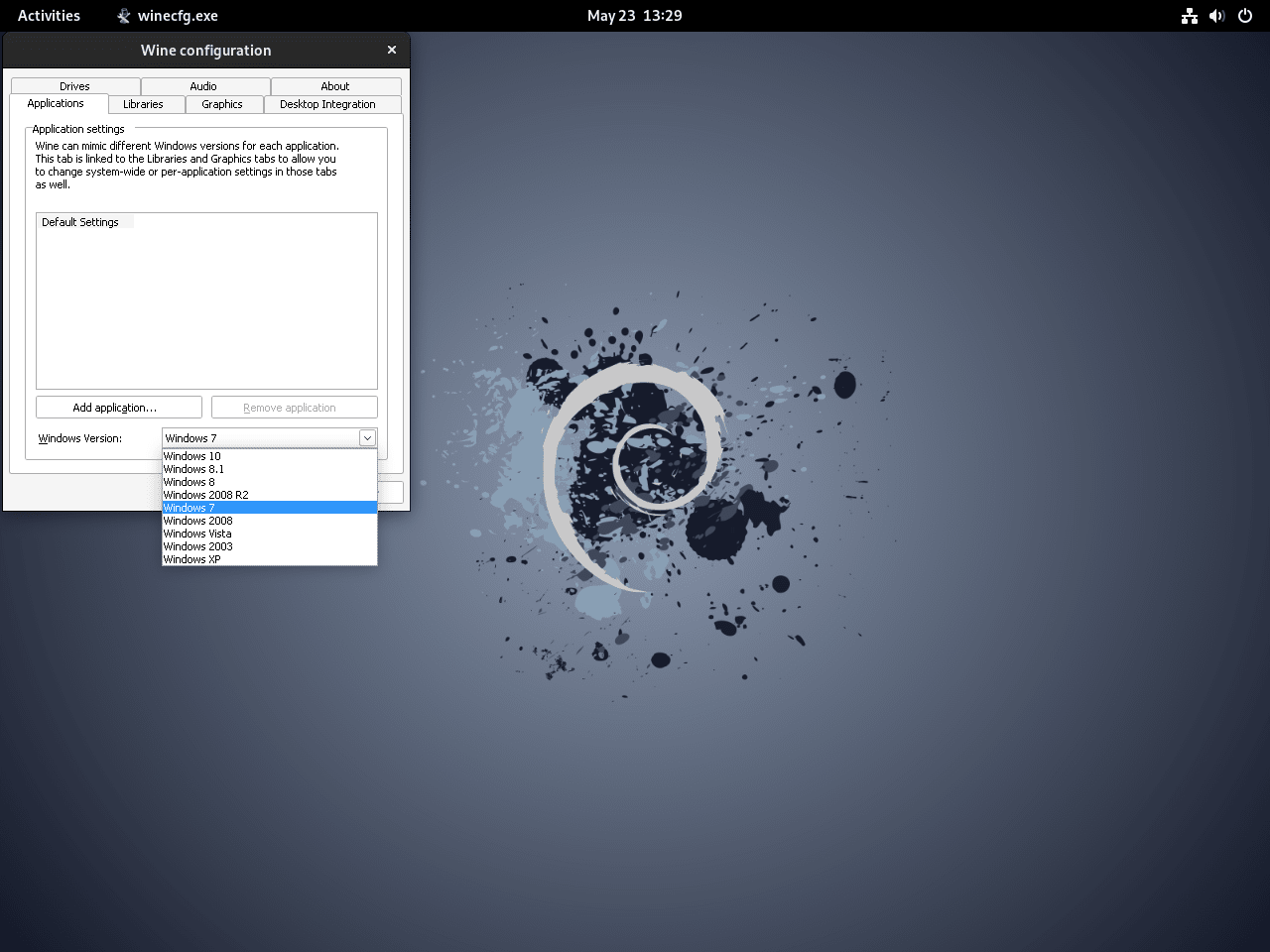
For the majority of users, the default settings will be sufficient. However, you have the flexibility to adjust these as needed. Take note that by default, Wine emulates the Windows 7 operating environment. Depending on the applications you intend to run, you might want to modify this to a more recent version, such as Windows 10. Please note that at the time of writing, Windows 11 is not yet supported, as it’s a recent addition to the Windows family.
After fine-tuning any settings, simply close the dialogue box to save your changes.
Example of WineCFG window on Debian:
 Pin
Pin
Optional: Installing Optional Enhancements
Now that we have a fully functional Wine installation, let’s discuss optional enhancements that can improve your Wine experience. An example is winetricks, a helper script that automates the installation of various libraries and applications to enhance compatibility with Windows software.
To install winetricks, issue the following command in your terminal:
sudo apt install winetricksThe winetricks utility allows you to install additional Windows components that are not bundled with Wine. For instance, to install a comprehensive set of 32-bit Microsoft fonts, you can use the allfonts option with winetricks, as shown below:
winetricks allfontsWith these additional components, your Wine environment will be even more capable of handling a broader range of Windows software.
Example WineTricks application icon on Debian:
Example WineTricks UI on Debian:
Section 4: Wine Installation Example with Installing NotePAD++ on Debian Linux
As we embark on our journey of utilizing Wine, we’ll begin by downloading and installing a very popular Windows text editor known as Notepad++. Notepad++ is a free source code editor and a great replacement for the native Notepad application that comes with Windows. By using Wine, we can easily run Notepad++ and many other Windows applications on your Debian system.
The beauty of Wine lies in its simplicity. After a Windows executable file (.exe) is downloaded to your machine, you can right-click the file, select “Open With Other Application”, and choose Wine from the list of applications. This instructs your Linux system to use Wine as the “translator” for this Windows-specific file.
Let’s dive right in and demonstrate how to download and install Notepad++ using Wine. First, you’ll need to download the Notepad++ installation executable file from the official website. Navigate to the site and initiate the download process.
Once the download is complete, locate the directory where the .exe file was saved. Next, right-click on the .exe file, choose “Open With Other Application” or “Open With”, and then select Wine from the list of applications. With these steps, you’ve instructed your system to use Wine to interpret the Windows executable file and run the installation process just as if it were on a Windows machine.
Example of opening an application, in this case, NotePAD++ with Wine on Debian:
To launch Notepad++, you need to click on the application icon. You’ll notice that Notepad++ launches as if you were using Windows, demonstrating the power and simplicity of Wine.
Examples of installing NotePAD++ with Debian and Wine:
The process we’ve outlined above for installing Notepad++ is applicable for a wide array of other Windows applications. With Wine as your bridge between Linux and Windows, you’re no longer limited by the constraints of your operating system as this example has shown.
Section 4: Additional Commands & Tips with Wine and Debian Linux
Configuring Wine for 32-bit Applications
Although Wine is primarily configured to run 64-bit Windows applications, its versatility allows it to accommodate 32-bit applications as well. This capability is quite useful, especially when you’re dealing with older software that’s designed specifically for a 32-bit architecture.
The key to setting Wine up for running 32-bit applications involves manipulating two environment variables, namely WINEARCH and WINEPREFIX. The WINEARCH variable must be set to “win32”, signifying that the Wine architecture will handle 32-bit applications. The WINEPREFIX environment variable, on the other hand, needs to point to a different directory other than the default ~/.wine directory.
Let’s begin with setting the WINEARCH environment variable. Execute the following command in your terminal:
export WINEARCH=win32Next, we’re going to create a separate directory for our 32-bit operations. Set the WINEPREFIX environment variable to ~/.wine32 by running the following command:
export WINEPREFIX=~/.wine32This will create a new Wine prefix directory named .wine32 in your home directory, independent from the default directory.
To apply these changes and initialize the new 32-bit Wine setup, run the winecfg command:
winecfgThis command opens the Wine configuration dialogue box. Here, you can fine-tune the settings specifically for your 32-bit applications.
Operating Wine From Terminal
Operating Wine from the terminal is advantageous, offering you greater control over the software you’re running. Here, I’ll walk you through some of the most commonly used Wine commands and how to use them.
The most elementary Wine command is, simply, wine. This command allows you to run Windows applications directly from the terminal. All you need to do is type wine followed by the path to the .exe file you wish to run.
For example:
wine /path/to/program.exeThe winecfg command opens the Wine configuration dialogue box where you can modify settings such as the Windows version, audio settings, and graphics settings.
Example:
winecfgThe regedit command lets you access the Wine registry editor, which stores configuration settings for Wine and the Windows applications you’re running.
Example:
wine regeditThe winetricks command is a valuable tool for installing additional components and libraries not originally included with Wine.
Example:
winetricks allfontsThe winepath command assists in converting Windows-style paths to Unix-style paths and vice versa.
Example:
winepath -w /unix/pathThe wineserver command, while rarely used, can come in handy for debugging or troubleshooting.
Example:
wineserver -kKeeping Wine Up-to-date
To keep Wine updated with the latest version, you’ll need to use the sudo apt upgrade and sudo apt update commands:
sudo apt upgrade && sudo apt updateUninstalling Wine
If the need arises to uninstall Wine from your system, you have to use specific commands based on the version you have installed. Here are the commands for removing each version:
For WineHQ Stable Release:
sudo apt remove winehq-stableStaging Release:
sudo apt remove winehq-stagingFor WineHQ Development Release:
sudo apt remove winehq-develOnce the specific version of Wine has been removed from your system, you can then proceed to delete the repository file:
sudo rm /etc/apt/sources.list.d/winehq.listFor those who have removed the WineHQ repository, it is also advisable to remove the associated GPG key:
sudo rm /usr/share/keyrings/winehq.gpgIf Wine was installed from the default Debian repository, a different command is required for its removal:
sudo apt remove wine32 wine64Closing Thoughts Installing Wine 8.0 on Debian Linux
The path to successfully installing and utilizing Wine 8.0 with the WineHQ repository on a Debian Linux system can seem intricate and overwhelming at first glance. Yet, through the process that we’ve walked through, we’ve seen that it’s not as daunting as it might initially appear. Each command, each step in the process, has a purpose and contributes to creating an environment where Windows applications can run smoothly on your Linux system. From configuring Wine to handle 32-bit applications to running applications using Wine from the terminal, to updating and managing Wine installations – each action you’ve learned to perform plays an integral part in creating an efficient, flexible workspace for your cross-platform needs.
Additional Resources and Links
In the spirit of constant learning, here are some additional resources that can help deepen your understanding and practical application of Wine on Debian Linux.
- WineHQ Official Documentation: This is the official documentation for Wine. It covers all aspects of using and configuring Wine and is a must-read resource for anyone looking to delve deeper into this platform.
- WineHQ Wiki: This comprehensive wiki provides a wide range of information about Wine, from general use to specific issues you may encounter. It’s an invaluable resource for troubleshooting and expanding your knowledge.
- Wine on GitHub: Wine’s GitHub page is an excellent resource for those interested in contributing to the project or understanding the codebase. The source code, the latest changes, and other technical details are here.
When it comes to installing Windows applications on Linux, there’s no application that does it better than Wine. Wine is a compatibility layer that enables users to run Windows applications on POSIX compliant operating systems such as Linux and UNIX derivatives such as BSD, FreeBSD, and macOS.
Not all Windows applications are supported, and to get a comprehensive list of all supported applications, head over to the Wine application database – AppDB.
[ You might also like: How to Install Wine in Ubuntu Desktop ]
At the time of publishing this guide, the latest version of Wine is Wine 7.2, which is a development release. The latest stable release is Wine 7.0 Without further ado, let’s switch gears and install Wine on Debian desktops.
Installing Wine in Debian Linux
Straight off the bat, log into your system and update the package index as a sudo user.
$ sudo apt update
A few dependencies are required for the installation of Wine to go through smoothly.
$ sudo apt install software-properties-common gnupg2
With your system up to date and prerequisites installed, proceed to the next step.
Next, you need to enable 32-bit architecture on the Debian system to seamlessly run 32-bit applications with Wine.
$ sudo dpkg --add-architecture i386
There are two approaches to installing Wine. You can install Wine from the Debian repository using the APT package manager, which is simple and straightforward and all you need is to run the command:
$ sudo apt install wine
However, this will give you an older version of Wine than the one in the WineHQ repository. Therefore, to install the latest Wine version, it’s recommended to install it from the WineHQ repository.
$ wget -nc https://dl.winehq.org/wine-builds/winehq.key
$ sudo apt-key add winehq.key
Once you have successfully added the GPG keys, proceed and add the WineHQ repository to your system.
$ sudo add-apt-repository 'deb https://dl.winehq.org/wine-builds/debian/ bullseye main'
Then update the package lists to notify Debian about the newly added Wine repository and start using it.
$ sudo apt update
To install the latest stable version of Wine, run the command
$ sudo apt install --install-recommends winehq-stable
This will give you Wine 7.0.
Alternatively, you can install the development branch which provides the most recent version – Wine 7.2.
$ sudo apt install --install-recommends winehq-devel
The installation is quite heavy as it involves the installation of hundreds of packages and dependencies. In my case, this came to about 1.7GB and took roughly 15min. At this point, you can take a much-needed break as the installation of Wine goes on.
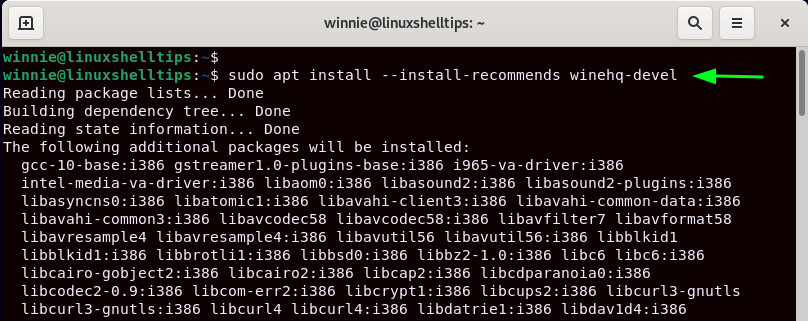
Once installed, verify the Wine version as follows.
$ wine --version

wine-7.2
Configuring Wine on Debian Linux
So far, we have successfully installed Wine on Debian. However, some post-installation steps are required before Wine is ready to install Windows Apps.
To configure Wine, run the command:
$ winecfg
This creates a hidden directory in the home directory called .wine that contains a “virtual” drive C that contains directories that you would find on a Windows system such as Program Files, Program Files, Program Files (x86), users, and Windows.
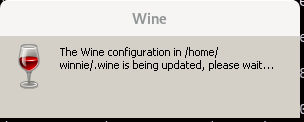
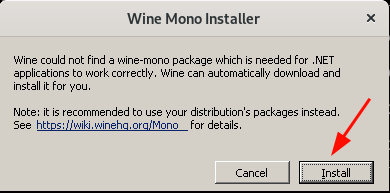
On the next pop-up, click ‘Install‘ to install the wine-mono package which is a prerequisite for .NET applications.
The installation will get underway. This takes a minute or two.
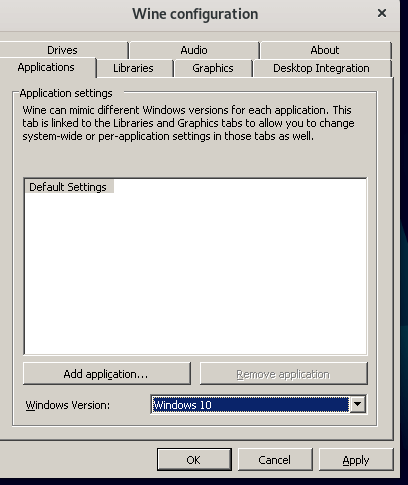
Finally, you will see the Wine configuration window as shown. You should be good to go with the default settings, but feel free to adjust the settings to your own preference.
Installing Windows Application with Wine in Debian
Now, let us see how you can install a Windows App using Wine. To demonstrate this, we will install a VLC media player which is a free and open-source cross-platform media player.
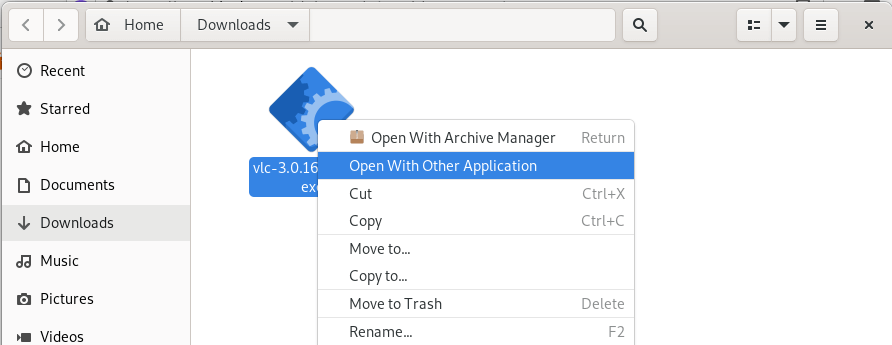
So, head over to the official VLC download page and download the executable file. Once downloaded, right-click on select ‘Open with other application’.
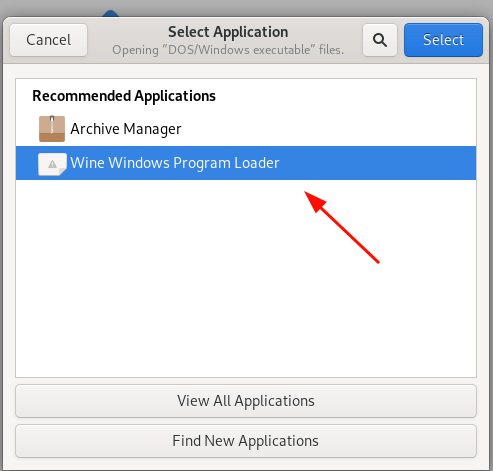
On the pop-up that appears, select ‘Wine Windows Program Loader‘.
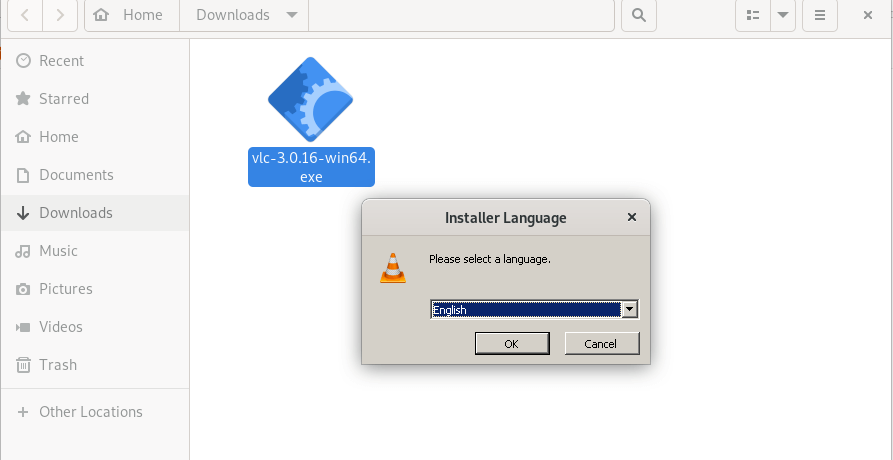
Once again, right-click on the installer and select ‘Open with Wine Windows Program Loader‘. The VLC media installation wizard will open. Click ‘Ok’ to start the installation and follow along right till the end.
Inside the .wine folder, navigate to the ‘Virtual’ drive_c folder and then the ‘Program Files’ folder. Here you will see a directory for the just installed VLC multimedia application.
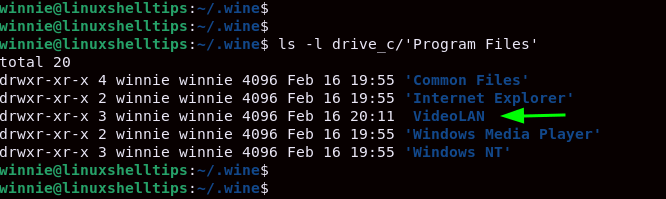
This wraps up this guide. In this tutorial, we have demonstrated how to install Wine on Debian Linux. We went a step further and showed you how you can run and install a Windows application with Wine in Debian.
 Время от времени у пользователей Linux возникает необходимость запуска Windows-программ. Чаще всего это какие-либо специализированные утилиты, аналогов которых в Linuх нет. Если же вам требуется запускать крупные коммерческие пакеты, то вы, скорее всего неверно выбрали операционную систему. Для всех остальных случаев подойдет Wine (Wine Is Not Emulator) — свободная реализация Windows API, позволяющая запускать Windows-программы в среде Linux. Сегодня мы расскажем об установке и базовой настройке данного продукта, что позволит сблизить две операционные системы и получить в Linux недостающие возможности Windows-приложений.
Научиться настраивать MikroTik с нуля или систематизировать уже имеющиеся знания можно на углубленном курсе по администрированию MikroTik. Автор курса, сертифицированный тренер MikroTik Дмитрий Скоромнов, лично проверяет лабораторные работы и контролирует прогресс каждого своего студента. В три раза больше информации, чем в вендорской программе MTCNA, более 20 часов практики и доступ навсегда.
Несмотря на то, что Wine присутствует во всех популярных дистрибутивах, мы советуем устанавливать версию от разработчиков — так вы получите наиболее свежие пакеты и самые последние возможности. Мы будем рассматривать далее Debian и LTS-выпуски Ubuntu, для остальных систем на их базе все сказанное будет справедливо, но с небольшими уточнениями.
Команды, приведенные ниже, потребуется запускать в разном контексте, что-то от суперпользователя, что-то с обычными правами, поэтому будьте внимательны.
Начнем с установки. Откроем терминал и повысим свои права до суперпользователя:
sudo -sНа 64-битных системах включим 32-битную архитектуру:
dpkg --add-architecture i386Затем скачаем ключ репозитория Wine:
wget -nc https://dl.winehq.org/wine-builds/winehq.keyИ установим его:
apt-key add winehq.keyТеперь добавим репозиторий, для Debain поддерживаются выпуски 10 и 11, в команде нужно указать имя дистрибутива, ниже приведен вариант для Debian 10 — Buster:
apt-add-repository 'deb https://dl.winehq.org/wine-builds/debian buster main'Для Ubuntu доступны выпуски начиная от 18.04 LTS и заканчивая 21.04, но мы не рекомендуем использовать промежуточные выпуски и ниже приведена команда для Ubuntu 20.04 Focal Fossa:
add-apt-repository 'deb https://dl.winehq.org/wine-builds/ubuntu/ focal main'Для Debian 10 и Ubuntu 18.04 LTS добавим еще один репозиторий. Сначала скачаем и установим ключ:
wget -nc https://download.opensuse.org/repositories/Emulators:/Wine:/Debian/xUbuntu_18.04/Release.key
apt-key add Release.key
Потом добавим репозиторий:
apt-add-repository 'deb https://download.opensuse.org/repositories/Emulators:/Wine:/Debian/xUbuntu_18.04/ ./'Обновим список пакетов:
apt updateИ установим WineHQ командой:
apt install --install-recommends winehq-stableТеперь можем попробовать запустить какое-нибудь Windows-приложение, в нашем случае это будет Winbox для Mikrotik. При первом запуске Wine попросит докачать недостающие компоненты, с этим следует согласится.
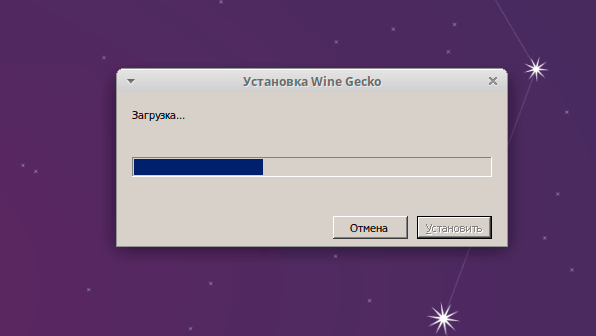 После всех скачиваний приложение откроется, вроде бы все хорошо, но сразу обращает на себя внимание неэстетичный внешний вид и плохое качество шрифтов.
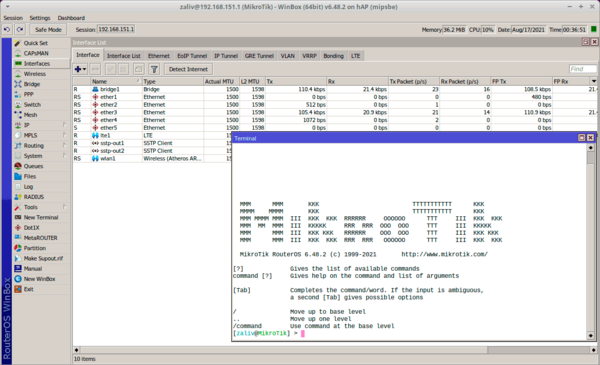 Для начала включим сглаживание. Для этого используем скрипт за авторством Igor Tarasov. Прежде всего выйдем из режима суперпользователя, для этого введем в терминале:
exit И убедимся, что приглашение изменилось с root на обычного пользователя. Также можно просто запустить новый терминал.
Перейдем в домашнюю директорию и создадим файл скрипта winefontssmoothing_en.sh:
cd
touch winefontssmoothing_en.sh
Затем внесем в него следующий текст:
#!/bin/sh

# Quick and dirty script for configuring wine font smoothing
#
# Author: Igor Tarasov <tarasov.igor@gmail.com>

WINE=${WINE:-wine}
WINEPREFIX=${WINEPREFIX:-$HOME/.wine}
DIALOG=whiptail

if [ ! -x "`which "$WINE"`" ]
then
    echo "Wine was not found. Is it really installed? ($WINE)"
    exit 1
fi

if [ ! -x "`which "$DIALOG"`" ]
then
    DIALOG=dialog
fi

TMPFILE=`mktemp` || exit 1
$DIALOG --menu \
    "Please select font smoothing mode for wine programs:" 13 51\
    4\
        1 "Smoothing disabled"\
        2 "Grayscale smoothing"\
        3 "Subpixel smoothing (ClearType) RGB"\
        4 "Subpixel smoothing (ClearType) BGR" 2> $TMPFILE

STATUS=$?
ANSWER=`cat $TMPFILE`

if [ $STATUS != 0 ]
then
    rm -f $TMPFILE
    exit 1
fi

MODE=0 # 0 = disabled; 2 = enabled
TYPE=0 # 1 = regular;  2 = subpixel
ORIENTATION=1 # 0 = BGR; 1 = RGB

case $ANSWER in
    1) # disable
        ;;
    2) # enable
        MODE=2
        TYPE=1
        ;;
    3) # enable cleartype rgb
        MODE=2
        TYPE=2
        ;;
    4) # enable cleartype bgr
        MODE=2
        TYPE=2
        ORIENTATION=0
        ;;
    *)
        rm -f $TMPFILE
        echo Unexpected option: $ANSWER
        exit 1
        ;;

esac

echo "REGEDIT4

[HKEY_CURRENT_USER\Control Panel\Desktop]
\"FontSmoothing\"=\"$MODE\"
\"FontSmoothingOrientation\"=dword:0000000$ORIENTATION
\"FontSmoothingType\"=dword:0000000$TYPE
\"FontSmoothingGamma\"=dword:00000578" > $TMPFILE

echo -n "Updating configuration... "

$WINE regedit $TMPFILE 2> /dev/null

rm -f $TMPFILE

echo ok
Сохраним скрипт и сделаем его исполняемым:
chmod +x winefontssmoothing_en.shЗатем выполним его:
./winefontssmoothing_en.shПосле чего перезагрузим компьютер.
Кроме шрифтов, также можно улучшить внешний вид приложений установив стили от Windows XP, для этого вам потребуется файл luna.msstyles который можно найти в C:\WINDOWS\Resources\Themes\Luna или скачать по ссылке.
Откроем в консоли с правами обычного пользователя:
winecfgИ на вкладке Вид и интеграция при помощи кнопки Установить тему загрузим указанный выше файл, после чего нам станет доступна тема Стиль Windows XP.
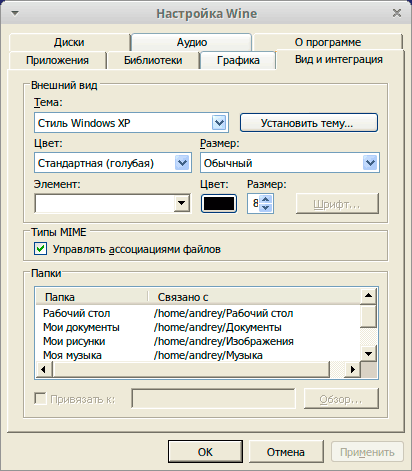 Самое время сравнить: было-стало, визуально приложения Wine стали выглядеть гораздо лучше:
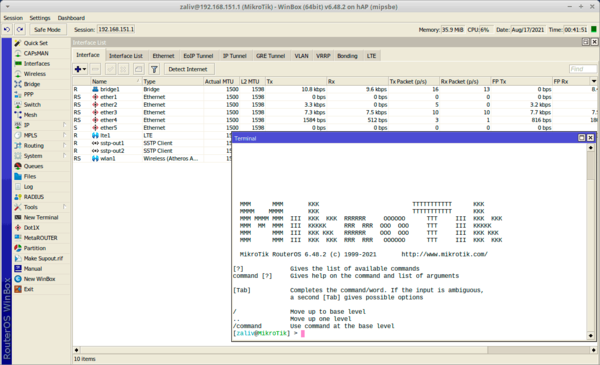 Наша статья на этом заканчивается, но запуск Windows-приложений в Wine — это отдельная обширная тема, поэтому дополнительную информацию следует искать на сайте проекта www.winehq.org и связанных ресурсах, где содержится большое количество полезной информации об особенностях запуска тех или иных программ.
Научиться настраивать MikroTik с нуля или систематизировать уже имеющиеся знания можно на углубленном курсе по администрированию MikroTik. Автор курса, сертифицированный тренер MikroTik Дмитрий Скоромнов, лично проверяет лабораторные работы и контролирует прогресс каждого своего студента. В три раза больше информации, чем в вендорской программе MTCNA, более 20 часов практики и доступ навсегда.
Всё больше людей переходят на операционные системы, семейства Linux. И каждый из них хочет проводить время за привычными Windows играми на новой платформе. На данный момент вопрос игр на Linux стоит довольно остро , но эта отрасль активно развивается. Не менее востребованы и некоторые приложения Windows.
Wine — свободное программное обеспечение, которое позволяет запускать Windows программы в системах семейства Linux и MacOS. В данной статье мы рассмотрим, как установить Wine на Debian 10.
Перед установкой вам необходимо определиться, какая версия Wine вам нужна. При установке программ на Linux почти всегда есть выбор между стабильной версией и самой свежей. Если вы не уверены, какая версия необходима, и программа не входит в список официально поддерживаемых, то следует сперва попробовать последнюю стабильную версию Wine и только если программа не работает, пытаться запустить её с самой свежей версией. Установить Wine можно несколькими способами.
1. Установка из официальных репозиториев
Для того, чтобы установить wine стабильной версии из официального репозитория, введите в терминале команду:
sudo apt install wine
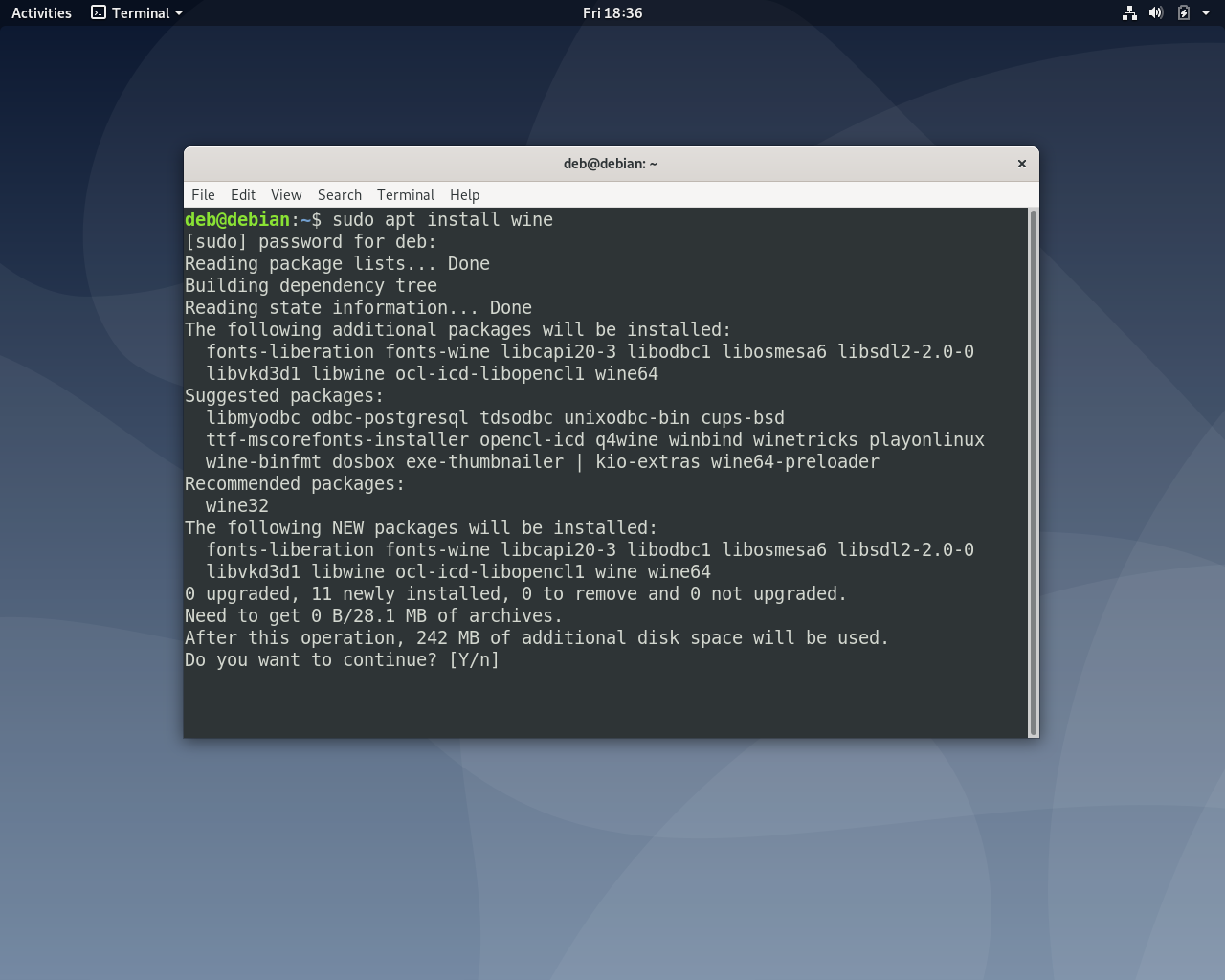
После установки, версию установленной программы можно проверить командой:
wine --version
Программное обеспечение в репозиториях Debian обновляется раз в несколько лет, поэтому ждать что там будет свежая стабильная версия не стоит. Скорее всего программа будет уже устаревшей. Если вы хотите более свежую версию с добавлением поддержки новых программ — надо использовать PPA репозитории.
2. Установка из PPA репозиториев
Сначала необходимо включить поддержку 32-битной архитектуры пакетов:
sudo dpkg --add-architecture i386
Затем необходимо добавить PPA репозиторий разработчиков. Для этого сначала импортируйте его ключ в систему:
wget -nc https://dl.winehq.org/wine-builds/winehq.key
sudo apt-key add winehq.key
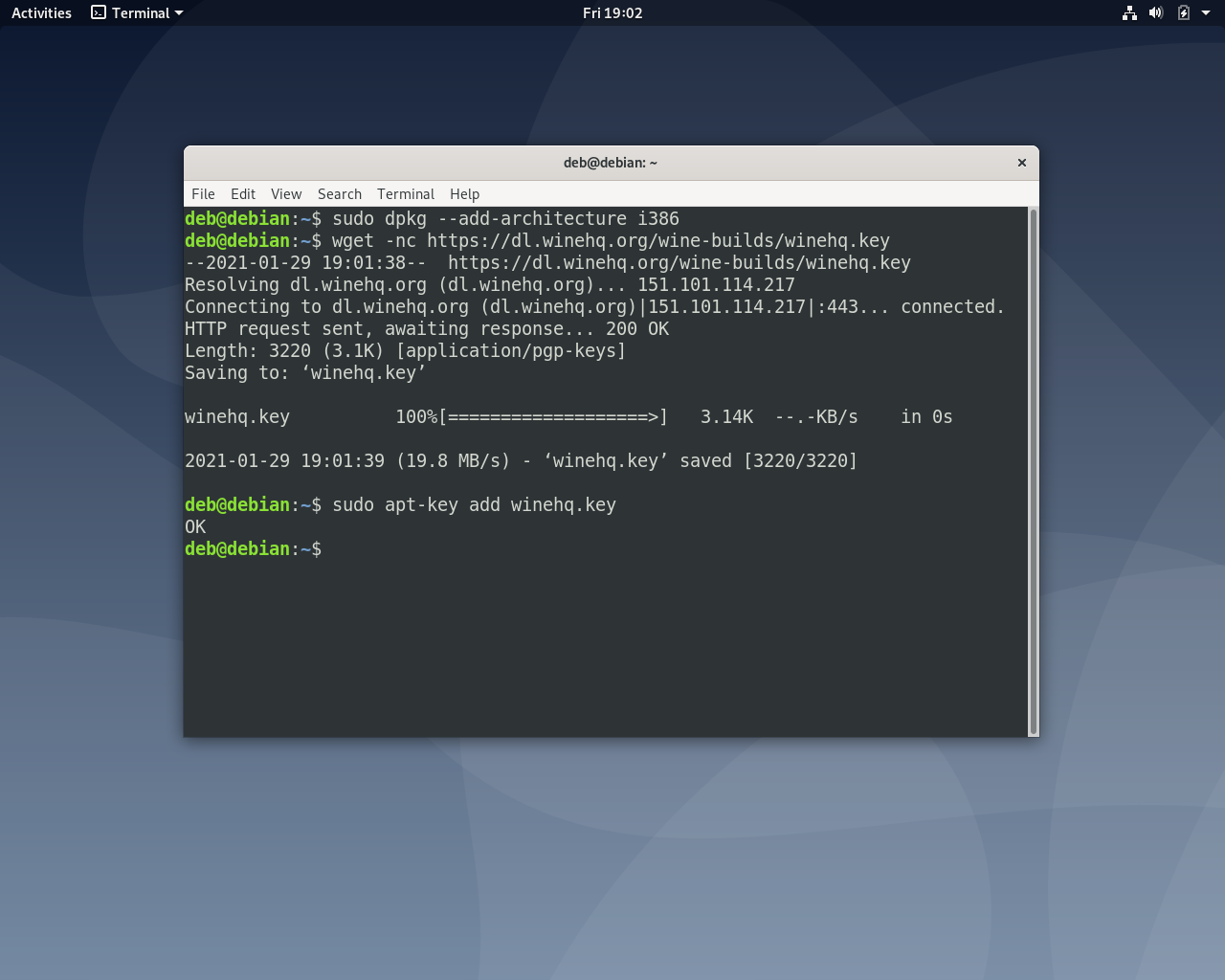
Затем добавьте сам репозиторий в файл /etc/apt/sources.list
sudo vi /etc/apt/sources.list
deb https://dl.winehq.org/wine-builds/debian/ buster main
Кроме репозитория разработчиков, вам понадобится ещё один репозиторий, потому что в отличие от Ubuntu, для которой создан этот PPA репозиторий, в Debian не поставляются библиотеки libaudio, которые нужны для полноценной работы Wine. Эти библиотеки можно установить из специального репозитория подготовленного в рамках проекта OBS. Загрузите и добавьте его ключ:
wget -nc https://download.opensuse.org/repositories/Emulators:/Wine:/Debian/Debian_10/Release.key
sudo apt-key add Release.key
Затем добавьте сам репозиторий в файл /etc/apt/sources.list:
sudo nano /etc/apt/sources.list
deb https://download.opensuse.org/repositories/Emulators:/Wine:/Debian/Debian_10 ./
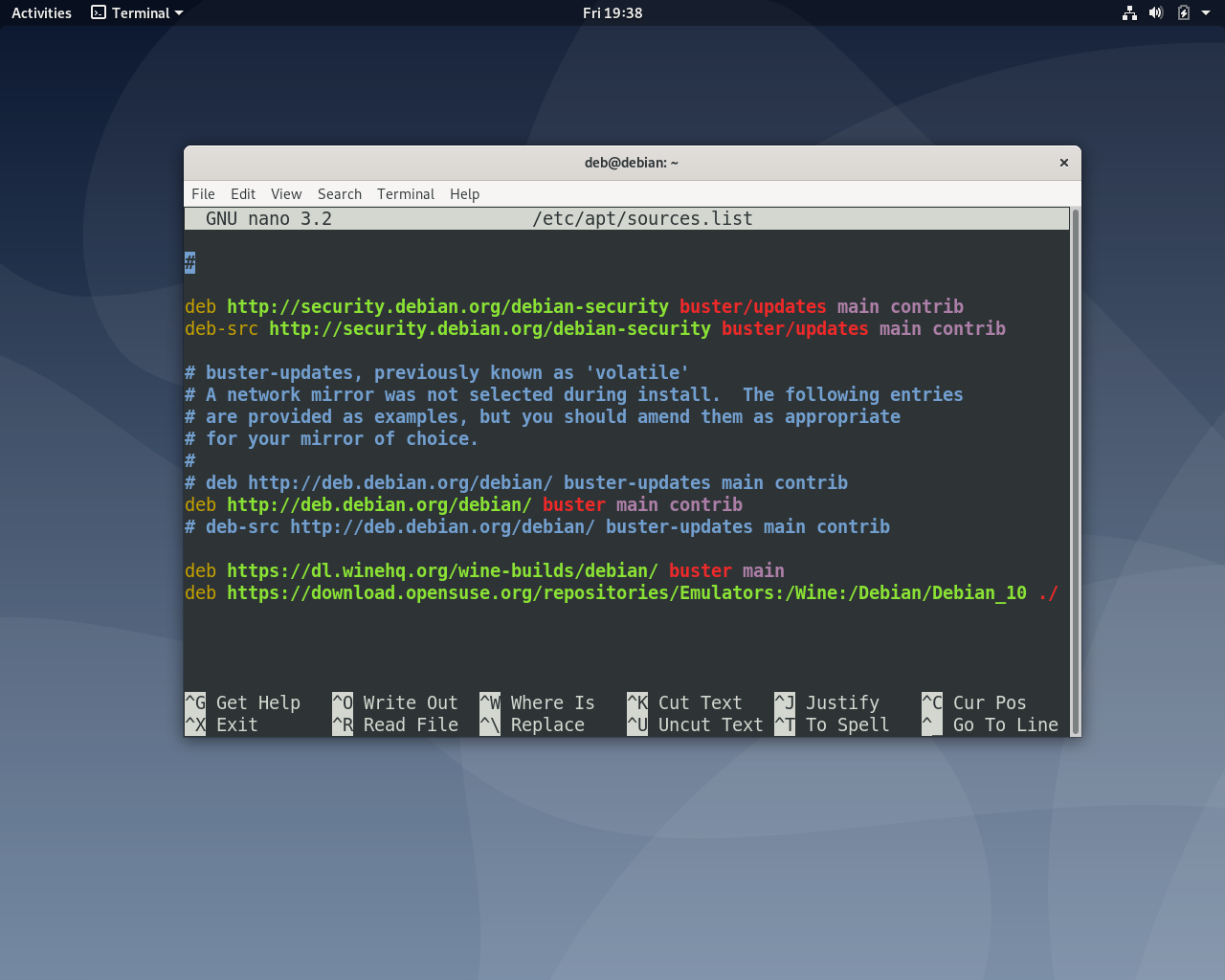
Обновите список доступных в системе пакетов с помощью команды:
sudo apt update
Из репозитория разработчиков можно установить стабильную (stable), экспериментальную (staging) или версию для разработчиков (devel). Для установки стабильной версии выполните:
sudo apt install --install-recommends winehq-stable
Экспериментальная версия:
sudo apt install --install-recommends winehq-staging
Версия для разработчиков:
sudo apt install --install-recommends winehq-devel
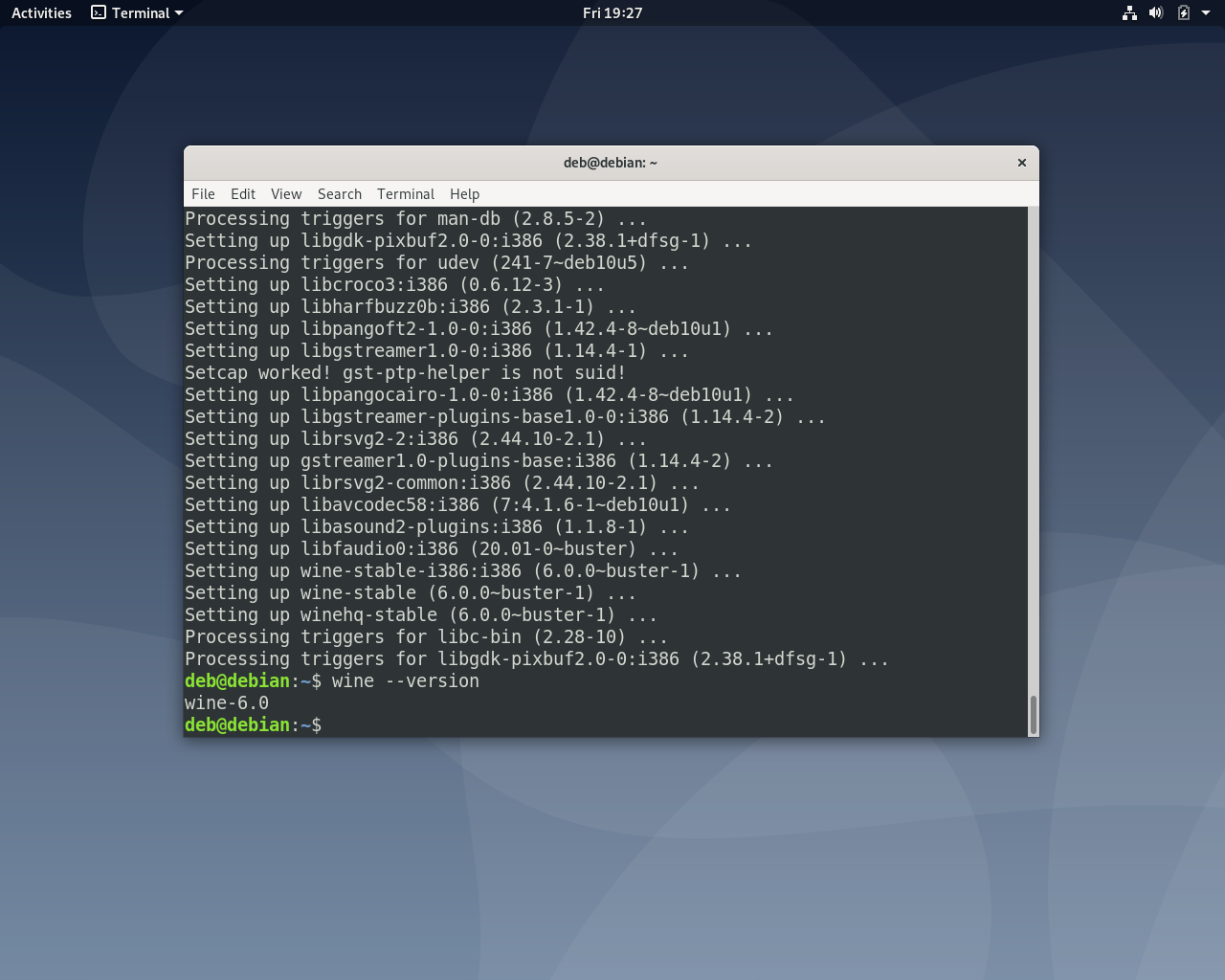
Удаление Wine из Debian
Для удаления программы необходимо выполнить в терминале команду с указанием установленного пакета. Для стабильной версии это команда:
sudo apt purge winehq-stable
Выводы
Итак, мы рассмотрели как установить wine на Debian 10. Программа активно развивается и в неё постоянно добавляется поддержка новых Windows приложений. Уже сейчас Wine справляется с запуском тысяч игр и приложений, которые могут не работать даже в режиме совместимости Windows. Это и делает программу уникальной в своем роде. Какие игры или приложения вы запускаете с помощью Wine? Делитесь в комментариях!
Обнаружили ошибку в тексте? Сообщите мне об этом. Выделите текст с ошибкой и нажмите Ctrl+Enter.

Статья распространяется под лицензией Creative Commons ShareAlike 4.0 при копировании материала ссылка на источник обязательна .