
Today, Microsoft announced the general availability of Windows Server 2016, and with it, Docker engine running containers natively on Windows. This blog post describes how to get setup to run Docker Windows Containers on Windows 10 or using a Windows Server 2016 VM. Check out the companion blog posts on the technical improvements that have made Docker containers on Windows possible and the post announcing the Docker Inc. and Microsoft partnership.
Before getting started, It’s important to understand that Windows Containers run Windows executables compiled for the Windows Server kernel and userland (either windowsservercore or nanoserver). To build and run Windows containers, a Windows system with container support is required.
Windows 10 with Anniversary Update
For developers, Windows 10 is a great place to run Docker Windows containers and containerization support was added to the the Windows 10 kernel with the Anniversary Update (note that container images can only be based on Windows Server Core and Nanoserver, not Windows 10). All that’s missing is the Windows-native Docker Engine and some image base layers.
The simplest way to get a Windows Docker Engine is by installing the Docker for Windows public beta (direct download link). Docker for Windows used to only setup a Linux-based Docker development environment (slightly confusing, we know), but the public beta version now sets up both Linux and Windows Docker development environments, and we’re working on improving Windows container support and Linux/Windows container interoperability.
With the public beta installed, the Docker for Windows tray icon has an option to switch between Linux and Windows container development. For details on this new feature, check out Stefan Scherers blog post.
Switch to Windows containers and skip the next section.

Windows Server 2016
Windows Server 2016 is the where Docker Windows containers should be deployed for production. For developers planning to do lots of Docker Windows container development, it may also be worth setting up a Windows Server 2016 dev system (in a VM, for example), at least until Windows 10 and Docker for Windows support for Windows containers matures.
For Microsoft Ignite 2016 conference attendees, USB flash drives with Windows Server 2016 preloaded are available at the expo. Not at ignite? Download a free evaluation version and install it on bare metal or in a VM running on Hyper-V, VirtualBox or similar. Running a VM with Windows Server 2016 is also a great way to do Docker Windows container development on macOS and older Windows versions.
Once Windows Server 2016 is running, log in, run Windows Update to ensure you have all the latest updates and install the Windows-native Docker Engine directly (that is, not using “Docker for Windows”). Run the following in an Administrative PowerShell prompt:
Install-PackageProvider -Name NuGet -MinimumVersion 2.8.5.201 -Force
Install-Module -Name DockerMsftProvider -Force
Install-Package -Name docker -ProviderName DockerMsftProvider -Force
Restart-Computer -Force
Docker Engine is now running as a Windows service, listening on the default Docker named pipe. For development VMs running (for example) in a Hyper-V VM on Windows 10, it might be advantageous to make the Docker Engine running in the Windows Server 2016 VM available to the Windows 10 host:
# Open firewall port 2375
netsh advfirewall firewall add rule name="docker engine" dir=in action=allow protocol=TCP localport=2375

# Configure Docker daemon to listen on both pipe and TCP (replaces docker --register-service invocation above)
Stop-Service docker
dockerd --unregister-service
dockerd -H npipe:// -H 0.0.0.0:2375 --register-service
Start-Service docker
The Windows Server 2016 Docker engine can now be used from the VM host by setting DOCKER_HOST:
$env:DOCKER_HOST = "<ip-address-of-vm>:2375"
See the Microsoft documentation for more comprehensive instructions.
Running Windows containers
First, make sure the Docker installation is working:
> docker version
Client:
Version:      1.12.1
API version:  1.24
Go version:   go1.6.3
Git commit:   23cf638
Built:        Thu Aug 18 17:32:24 2016
OS/Arch:      windows/amd64
Experimental: true

Server:
Version:      1.12.2-cs2-ws-beta
API version:  1.25
Go version:   go1.7.1
Git commit:   62d9ff9
Built:        Fri Sep 23 20:50:29 2016
OS/Arch:      windows/amd64
Next, pull a base image that’s compatible with the evaluation build, re-tag it and to a test-run:
docker pull microsoft/windowsservercore
docker run microsoft/windowsservercore hostname
69c7de26ea48
Building and pushing Windows container images
Pushing images to Docker Cloud requires a free Docker ID. Storing images on Docker Cloud is a great way to save build artifacts for later user, to share base images with co-workers or to create build-pipelines that move apps from development to production with Docker.
Docker images are typically built with docker build from a Dockerfile recipe, but for this example, we’re going to just create an image on the fly in PowerShell.
"FROM microsoft/windowsservercore `n CMD echo Hello World!" | docker build -t <docker-id>/windows-test-image -
Test the image:
docker run <docker-id>/windows-test-image
Hello World!
Login with docker login and then push the image:
docker push <docker-id>/windows-test-image
Images stored on Docker Cloud available in the web interface and public images can be pulled by other Docker users.
Using docker-compose on Windows
Docker Compose is a great way develop complex multi-container consisting of databases, queues and web frontends. Compose support for Windows is still a little patchy and only works on Windows Server 2016 at the time of writing (i.e. not on Windows 10).
To develop with Docker Compose on a Windows Server 2016 system, install compose too (this is not required on Windows 10 with Docker for Windows installed):
Invoke-WebRequest https://dl.bintray.com/docker-compose/master/docker-compose-Windows-x86_64.exe -UseBasicParsing -OutFile $env:ProgramFiles\docker\docker-compose.exe
To try out Compose on Windows, clone a variant of the ASP.NET Core MVC MusicStore app, backed by a SQL Server Express 2016 database. A correctly tagged microsoft/windowsservercore image is required before starting.
git clone https://github.com/friism/Musicstore
...
cd Musicstore
docker-compose -f .\docker-compose.windows.yml build
...
docker-compose -f .\docker-compose.windows.yml up
...
To access the running app from the host running the containers (for example when running on Windows 10 or if opening browser on Windows Server 2016 system running Docker engine) use the container IP and port 5000. localhost will not work:
docker inspect -f "{{ .NetworkSettings.Networks.nat.IPAddress }}" musicstore_web_1
172.21.124.54
If using Windows Server 2016 and accessing from outside the VM or host, simply use the VM or host IP and port 5000.
Summary
This post described how to get setup to build and run native Docker Windows containers on both Windows 10 and using the recently published Windows Server 2016 evaluation release. To see more example Windows Dockerfiles, check out the Golang, MongoDB and Python Docker Library images.
Please share any Windows Dockerfiles or Docker Compose examples your build with @docker on Twitter using the tag #windows. And don’t hesitate to reach on the Docker Forums if you have questions.
More Resources:
- Sign up to be notified of GA and the Docker Datacenter for Windows Beta
- Docker for Windows Server
- Learn more about the Docker and Microsoft partnership
win10 in docker
Run headless container. Connect via VNC.

Before you start
You must have enabled KVM on the host.
systemctl enable libvirtd.service
systemctl enable virtlogd.service
modprobe kvm_intel
Download Windows 10 ISO image
Get official Windows 10 ISO image from official source. This tutorial might come in handy.
Create HDD
Create HDD image, where system will be installed. Choose custom disk size.
docker build -t win10-hdd -f hdd.Dockerfile .
docker run --rm -v $PWD:/data win10-hdd 128G
Build and run container
In order to use KVM inside container, it needs to run as privileged. Do not forget to mount files we created earlier:
- Mount downloaded Windows ISO as
/home/arch/win10_x64.iso. - Mount created HDD as
/home/arch/win10_hdd.img.
docker build -t win10 .
docker run -d --name win10-in-docker \
	-p 5901:5901 \
	--privileged --cap-add=ALL \
	-v /lib/modules:/lib/modules \
	-v /dev:/dev \
	-v $PWD/Win10_2004_English_x64.iso:/home/arch/win10_x64.iso \
	-v $PWD/win10_hdd.img:/home/arch/win10_hdd.img \
	win10
Inspired by:
- https://github.com/sickcodes/Docker-OSX
- https://www.funtoo.org/Windows_10_Virtualization_with_KVM
Is This Legal?
You need to have valid licence and download Windows 10 ISO image from official sources. This contaier just helps with virtualization.
You can run any application in Docker as long as it can be installed and executed unattended, and the base operating system supports the app. Windows Server Core runs in Docker which means you can run pretty much any server or console application in Docker.
TL;DR
Update! For a full walkthrough on Dockerizing Windows apps, check out my book Docker on Windows and my Pluralsight course Modernizing .NET Apps with Docker.
Check out these examples:
- openjdk:windowsservercore — Docker image with the Java runtime on Windows Server Core, by Docker Captain Stefan Scherer
- elasticsearch:nanoserver — Docker image with a Java app on Nano Server
- kibana:windowsservercore — Docker image with a Node.js app on Windows Server Core
- nats:nanoserver — Docker image with a Go app on Nano Server
- nerd-dinner — Docker image with an ASP.NET app on Windows Server Core
- dotnetapp — Docker image with a .NET Core app on Nano Server
The 5 Steps
Lately I’ve been Dockerizing a variety of Windows apps — from legacy .NET 2.0 WebForms apps to Java, .NET Core, Go and Node.js. Packaging Windows apps as Docker images to run in containers is straightforward — here’s the 5-step guide.
1. Choose Your Base Image
Docker images for Windows apps need to be based on microsoft/nanoserver or microsoft/windowsservercore, or on another image based on one of those.
Which you use will depend on the application platform, runtime, and installation requirements. For any of the following you need Windows Server Core:
- .NET Framework apps
- MSI installers for apps or dependencies
- 32-bit runtime support
For anything else, you should be able to use Nano Server. I’ve successfully used Nano Server as the base image for Go, Java and Node.js apps.
Nano Server is preferred because it is so drastically slimmed down. It’s easier to distribute, has a smaller attack surface, starts more quickly, and runs more leanly.
Being slimmed down may have problems though — certain Windows APIs just aren’t present in Nano Server, so while your app may build into a Docker image it may not run correctly. You’ll only find that out by testing, but if you do find problems you can just switch to using Server Core.
Unless you know you need Server Core, you should start with Nano Server. Begin by running an interactive container with
docker run -it --rm microsoft/nanoserver powershelland set up your app manually. If it all works, put the commands you ran into a Dockerfile. If something fails, try again with Server Core.
Derived Images
You don’t have to use a base Windows image for your app. There are a growing number of images on Docker Hub which package app frameworks on top of Windows.
They are a good option if they get you started with the dependencies you need. These all come in Server Core and Nano Server variants:
- microsoft/iis — basic Windows with IIS installed
- microsoft/aspnet — ASP.NET installed on top of IIS
- microsoft/aspnet:3.5 — .NET 3.5 installed and ASP.NET set up
- openjdk — OpenJDK Java runtime installed
- golang — Go runtime and SDK installed
- microsoft/dotnet — .NET runtime and SDK installed.
A note of caution about derived images. When you have a Windows app running in a Docker container, you don’t connect to it and run Windows Update to apply security patches. Instead, you build a new image with the latest patches and replace your running container. To support that, Microsoft release regular updates to the base images on Docker Hub, tagging them with a full version number (10.0.14393.693 is the current version).
Base image updates usually happen monthly, so the latest Windows Server Core and Nano Server images have all the latest security patches applied. If you build your images from the Windows base image, you just need to rebuild to get the latest updates. If you use a derived image, you have a dependency on the image owner to update their image, before you can update yours.
If you use a derived image, make sure it has the same release cadence as the base images. Microsoft’s images are usually updated at the same time as the Windows image, but official images may not be.
Alternatively, use the Dockerfile from a derived image to make your own «golden» image. You’ll have to manage the updates for that image, but you will control the timescales. (And you can send in a PR for the official image if you get there first).
2. Install Dependencies
You’ll need to understand your application’s requirements, so you can set up all the dependencies in the image. Both Nano Server and Windows Server Core have PowerShell set up, so you can install any software you need using PowerShell cmdlets.
Remember that the Dockerfile will be the ultimate source of truth for how to deploy and run your application. It’s worth spending time on your Dockerfile so your Docker image is:
- Repeatable. You should be able to rebuild the image at any time in the future and get exactly the same output. You should specify exact version numbers when you install software in the image.
- Secure. Software installation is completely automated, so you should make sure you trust any packages you install. If you download files as part of your install, you can capture the checksum in the Dockerfile and make sure you verify the file after download.
- Minimal. The Docker image you build for your app should be as small as possible, so it’s fast to distribute and has a small surface area. Don’t install anything more than you need, and clean up any installations as you go.
Adding Windows Features
Windows features can be installed with Add-WindowsFeature. If you want to see what features are available for an image, start an interactive container with docker run -it --rm microsoft/windowsservercore powershell and run Get-WindowsFeature.
On Server Core you’ll see that .NET 4.6 is already installed, so you don’t need to add features to run .NET Framework applications.
.NET is backwards-compatible, so you can use the installed .NET 4.6 to run any .NET application, back to .NET 2.0. In theory .NET 1.x apps can run too. I haven’t tried that.
If you’re running an ASP.NET web app but you want to use the base Windows image and control all your dependencies, you can add the Web Server and ASP.NET features:
RUN Add-WindowsFeature Web-server, NET-Framework-45-ASPNET, Web-Asp-Net45
Downloading Files
There’s a standard pattern for installing dependencies from the Internet — here’s a simple example for downloading Node.js into your Docker image:
ENV NODE_VERSION="6.9.4" `
    NODE_SHA256="d546418b58ee6e9fefe3a2cf17cd735ef0c7ddb51605aaed8807d0833beccbf6"

WORKDIR C:/node

RUN Invoke-WebRequest -OutFile node.exe "https://nodejs.org/dist/v$($env:NODE_VERSION)/win-x64/node.exe" -UseBasicParsing; `
    if ((Get-FileHash node.exe -Algorithm sha256).Hash -ne $env:NODE_SHA256) {exit 1} ;
The version of Node to download and the expected SHA-256 checksum are captured as environment variables with the ENV instruction. That makes it easy to upgrade Node in the future — just change the values in the Dockerfile and rebuild. It also makes it easy to see what version is present in a running container, you can just check the environment variable.
The download and hash check is done in a single RUN instruction, using Invoke-WebRequest to download the file and then Get-FileHash to verify the checksum. If the hashes don’t match, the build fails.
After these instructions run, your image has the Node.js runtime in a known location — C:\node\node.exe. It’s a known version of Node, verified from a trusted download source.
Expanding Archives
For dependencies that come packaged, you’ll need to install them as part of the RUN instruction. Here’s an example for Elasticsearch which downloads and uncompresses a ZIP file:
ENV ES_VERSION="5.2.0" `
    ES_SHA1="243cce802055a06e810fc1939d9f8b22ee68d227" `
    ES_HOME="c:\elasticsearch"

RUN Invoke-WebRequest -outfile elasticsearch.zip "https://artifacts.elastic.co/downloads/elasticsearch/elasticsearch-$($env:ES_VERSION).zip" -UseBasicParsing; `
    if ((Get-FileHash elasticsearch.zip -Algorithm sha1).Hash -ne $env:ES_SHA1) {exit 1} ; `
    Expand-Archive elasticsearch.zip -DestinationPath C:\ ; `
    Move-Item c:/elasticsearch-$($env:ES_VERSION) 'c:\elasticsearch'; `
    Remove-Item elasticsearch.zip
It’s the same pattern as before, capturing the checksum, downloading the file and checking the hash. In this case, if the hash is good the file is uncompressed with Expand-Archive, moved to a known location and the Zip file is deleted.
Don’t be tempted to keep the Zip file in the image, «in case you need it». You won’t need it — if there’s a problem with the image you’ll build a new one. And it’s important to remove the package in the same RUN command, so the Zip file is downloaded, expanded and deleted in a single image layer.
It may take several iterations to build your image. While you’re working on it, it’s a good idea to store any downloads locally and add them to the image with
COPY. That saves you downloading large files every time. When you have your app working, replace theCOPYwith the proper download-verify-deleteRUNpattern.
Installing MSIs
You can download and run MSIs using the same approach. Be aware that not all MSIs will be built to support unattended installation. A well-built MSI will support command-line switches for any options available in the UI, but that isn’t always the case.
If you can install the app from an MSI you’ll also need to ensure that the install completed before you move on to the next Dockerfile instruction — some MSIs continue to run in the background. This example from Stefan Scherer’s iisnode Dockerfile uses Start-Process ... -Wait to run the MSI:
RUN Write-Host 'Downloading iisnode' ; \
    $MsiFile = $env:Temp + '\iisnode.msi' ; \
    (New-Object Net.WebClient).DownloadFile('https://github.com/tjanczuk/iisnode/releases/download/v0.2.21/iisnode-full-v0.2.21-x64.msi', $MsiFile) ; \
    Write-Host 'Installing iisnode' ; \
    Start-Process msiexec.exe -ArgumentList '/i', $MsiFile, '/quiet', '/norestart' -NoNewWindow -Wait
3. Deploy the Application
Packaging your own app will be a simplified version of step 2. If you already have a build process which generates an unattended-friendly MSI, you can can copy it from the local machine into the image and install it with msiexec:
COPY UpgradeSample-1.0.0.0.msi /

RUN msiexec /i c:\UpgradeSample-1.0.0.0.msi RELEASENAME=2017.02 /qn
This example is from the Modernize ASP.NET Apps — Ops Lab from Docker Labs on GitHub. The MSI supports app configuration with the RELEASENAME option, and it runs unattended with the qn flag.
With MSIs and other packaged deployment options (like Web Deploy) you need to choose between using what you currently have, or changing your build output to something more Docker friendly.
Web Deploy needs an agent installed into the image which adds an unnecessary piece of software. MSIs don’t need an agent, but they’re opaque, so it’s not clear what’s happening when the app gets installed. The Dockerfile isn’t an explicit deployment guide if some of the steps are hidden.
An xcopy deployment approach is better, where you package the application and its dependencies into a folder and copy that folder into the image. Your image will only run a single app, so there won’t be any dependency clashes.
This example copies an ASP.NET Web app folder into the image, and configures it with IIS using PowerShell:
RUN New-Item -Path 'C:\web-app' -Type Directory; `
    New-WebApplication -Name UpgradeSample -Site 'Default Web Site' -PhysicalPath 'C:\web-app'

COPY UpgradeSample.Web /web-app
If you’re looking at changing an existing build process to produce your app package, you should think about building your app in Docker too. Consolidating the build in a multi-stage Dockerfile means you can build your app anywhere without needing to install .NET or Visual Studio.
See Dockerizing .NET Apps with Microsoft’s Build Images on Docker Hub.
4. Configure the Entrypoint
When you run a container from an image, Docker starts the process specified in the CMD or ENTRYPOINT instruction in the Dockerfile.
Modern app frameworks like .NET Core, Node and Go run as console apps — even for Web applications. That’s easy to set up in the Dockerfile. This is how to run the open source Docker Registry — which is a Go application — inside a container:
CMD ["registry", "serve", "config.yml"]
Here registry is the name of the executable, and the other values are passed as options to the exe.
ENTRYPOINTandCMDwork differently and can be used in conjunction. See how CMD and ENTRYPOINT interact to learn how to use them effectively.
Starting a single process is the ideal way to run apps in Docker. The engine monitors the process running in the container, so if it stops Docker can raise an error. If it’s also a console app, then log entries written by the app are collected by Docker and can be viewed with docker logs.
For .NET web apps running in IIS, you need to take a different approach. The actual process serving your app is w3wp.exe, but that’s managed by the IIS Windows service, which is running in the background.
IIS will keep your web app running, but Docker needs a process to start and monitor. In Microsoft’s IIS image they use a tool called ServiceMonitor.exe as the entrypoint. That tool continually checks a Windows service is running, so if IIS does fail the monitor process raises the failure to Docker.
Alternatively, you could run a PowerShell startup script to monitor IIS and add extra functionality — like tailing the IIS log files so they get exposed to Docker.
5. Add a Healthcheck
HEALTHCHECK is one of the most useful instructions in the Dockerfile and you should include one in every app you Dockerize for production. Healthchecks are how you tell Docker if the app inside your container is healthy.
Docker monitors the process running in the container, but that’s just a basic liveness check. The process could be running, but your app could be in a failed state — for a .NET Core app, the dotnet executable may be up but returning 503 to every request. Without a healthcheck, Docker has no way to know the app is failing.
A healthcheck is a script you define in the Dockerfile, which the Docker engine executes inside the container at regular intervals (30 seconds by default, but configurable at the image and container level).
This is a simple healthcheck for a web application, which makes a web request to the local host (remember the healthcheck executes inside the container) and checks for a 200 response status:
HEALTHCHECK CMD powershell -command `
    try { `
     $response = iwr http://localhost:80 -UseBasicParsing; `
     if ($response.StatusCode -eq 200) { return 0} `
     else {return 1}; `
    } catch { return 1 }
Healthcheck commands need to return 0 if the app is healthy, and 1 if not. The check you make inside the healthcheck can be as complex as you like — having a diagnostics endpoint in your app and testing that is a thorough approach.
Make sure your
HEALTHCHECKcommand is stable, and always returns0or1. If the command itself fails, your container may not start.
Any type of app can have a healthcheck. Michael Friis added this simple but very useful check to the Microsoft SQL Server Express image:
HEALTHCHECK CMD [ "sqlcmd", "-Q", "select 1" ]
The command verifies that the SQL Server database engine is running, and is able to respond to a simple query.
There are additional advantages in having a comprehensive healthcheck. The command runs when the container starts, so if your check exercises the main path in your app, it acts as a warm-up. When the first user request hits, the app is already running warm so there’s no delay in sending the response.
Healthchecks are also very useful if you have expiry-based caching in your app. You can rely on the regular running of the healthcheck to keep your cache up-to date, so you could cache items for 25 seconds, knowing the healthcheck will run every 30 seconds and refresh them.
Summary
Dockerizing Windows apps is straightforward. The Dockerfile syntax is clean and simple, and you only need to learn a handful of instructions to build production-grade Docker images based on Windows Server Core or Nano Server.
Following these steps will get you a functioning Windows app in a Docker image — then you can look to optimizing your Dockerfile.
When it comes to Docker containers, according to the usual thinking, that is Linux containers (LXC), not much to do with Windows, at best, is to run Docker containers in the Windows Linux virtual machine.
However, since Windows Server 2016, there are Windows-native Docker containers, which are no longer just for Linux, and Docker containers can now run Windows systems, with each Windows container sharing the host Windows kernel (–isolation= process,) or use a Windows kernel in a highly optimized virtual machine (–isolation=hyperv).
We say that since Windows Server 2016, including now Windows Server 2019, Windows Server 2022, and Windows 10 and 11 for desktop systems, with the help of Docker Desktop, you can also run Windows containers.
The original installation of Docker Desktop on Windows desktop can be used to run Linux containers, so it can be seen that on Windows desktop (e.g. Windows 7, 10, 11) two types of containers can be run
- Linux containers: Each container runs a Linux instance, with resources isolated by the cgcroups namespace. By default, Docker Desktop’s LinuxEngine is used.
- Windows containers: The containers run Windows instances in process isolation mode, where the containers share the host’s Windows kernel, and Hyper-V isolation mode, where the containers use the kernel of a highly optimized virtual machine. You need to enable the Hyper-V feature of Windows and switch Docker Desktop to use WindowsEngine.
By adding Windows containers to the traditional LXC concept, Docker’s architecture looks like this
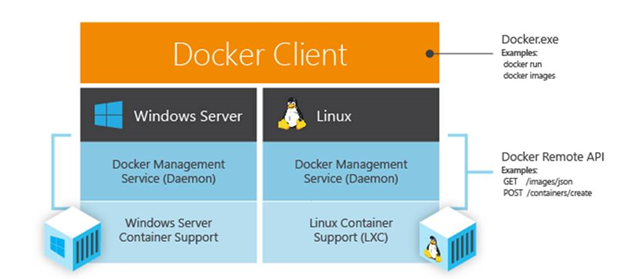
Knowledge about Windows Docker containers can be found in Microsoft’s official documentation Containers on Windows Documentation.
The most basic images for Windows are the following four, listed in order of weight from heaviest to lightest.
- Windows: contains the full set of Windows APIs and system services (but not Server-related), such as Windows 10 image 20H2.
- Windows Server: Contains the full set of Windows APIs and system services, allowing the use of most service features, such as GPU acceleration if you need it.
- Windows Server Core: Includes only a subset of Windows Server APIs that are primarily used to support the .NET framework. Most services are also included (e.g. Fax service is not).
- Nano Server: The lightest Windows Server image, containing only some services that support the .NET Core API.
We can build our own image by choosing one of the above base images, or a quicker way is to choose an image where someone else has added the packages we need. For example, to run Python on Windows you can choose 3.10.2-windowsservercore-ltsc2022; https://mcr.microsoft.com/dotnet/framework/sdk:4.8 for .net sdk4.8.
For a rough comparison of the image file sizes (which vary greatly by version), here are the image sizes listed with docker images
- mcr.microsoft.com/windows:20H2 size 16.2G
- mcr.microsoft.com/windows/server:ltsc2022 size 11.4 G
- mcr.microsoft.com/windows/servercore:ltsc2022 size 4.96 G, mcr.microsoft.com/windows/servercore:ltsc2016 but 12 G
- mcr.microsoft.com/windows/nanoserver:ltsc2022 is 295 M in size, like an embedded system
It is only possible to pull/run/build Windows images on Windows platforms and requires that the current Windows platform be compatible with the image version, unlike Linux containers which do not have any requirements for the current platform. We will learn more about this later.
To install Docker on Windows Server (including the current Windows 2016, 2019, 2022), execute the following command in PowerShell.
|
|
If prompted to install NuGet, select Y. If the above command requires TLS, execute the following command first.
|
|
Finally, install Docker.
|
|
To install Docker Desktop under Windows 10 or 11.
The next example is Windows 10 (also for Windows 11), to see the difference between the two container types (Linux/Windows), for which a clean system was installed, and the following is the hardware and software environment of the test machine.
- CPU: Intel i7-7700 @3.60GHz
- Memory: 48 GB
- Windows 10 Pro, 21H1, OS Version: 10.0.19043
- Docker Desktop 4.5.1 (74721), and its requirements for WSL 2
- Additional Windows features such as Containers, Hyper-V, Windows Hypervisor Platform are not yet enabled, but Virtual Machine Platform is found to be enabled by default
Linux containers on Windows
After just installing Windows 10 Pro + Docker Desktop, by default, LinuxEngine is used, so only Linux containers are supported, run docker version to see the server/client version.
|
|
We see Server Engine OS/Arch: linux/amd64 above. The linux/amd64 of Server means that Docker can only run Linux containers.
At this point we can run the following command.
|
|
It is also possible to build Linux images, such as Dockerfile content.
|
|
Then execute the build and test.
|
|
It is illegal to try to pull or run a Windows container at this point.
|
|
Of course, run/build Windows images don’t work either, because you have to pull the Windows image before run/build. The reason is that it doesn’t match the current linux/amd64.
Exploring Docker Desktop LinuxEngine for Windows
|
|
Go to the host of Docker.
|
|
With 48G of physical memory, the Docker host can use up to 39G of memory and all 8 cores of the CPU. This is different from the default allocation of 2G RAM and half the total number of CPU cores in Docker Desktop under Mac OS X.
Note that Hyper-V is not enabled on Windows 10 so far, and the command to view the physical memory is 48G, the Docker host can use up to 39G of memory and all 8 cores of the CPU. This is different from the default allocation of 2G of memory and half the total number of CPU cores for Docker Desktop on Mac OS X.
Note that Hyper-V is not enabled on Windows 10 so far, check with the command.
|
|
Switching to use Windows containers
To use Windows containers in Windows 10, first switch to Windows containers for Docker Desktop by tapping Docker Desktop on the system bar and going to its context menu.
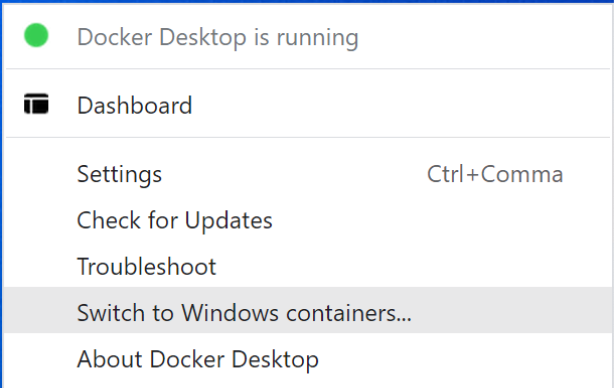
Or use the DockerCli command to switch
|
|
If you want to switch back to LinuxEngine from WindowsEngine, the parameter is -SwitchLinuxEngine.
Or use the -SwitchDaemon parameter to switch back and forth between LinuxEngine and WindowsEngine.
|
|
However, trying to switch to WindowsEngine, either through the UI or by command, now brings up an error container.
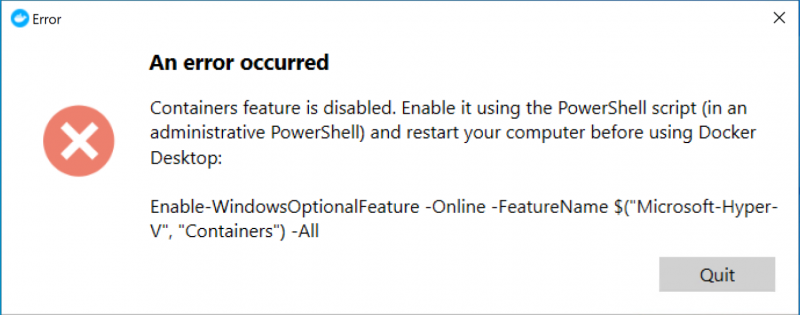
The reason for this is that Hyper-V is not turned on, which can be done in the Turn Windows features on or off interface.
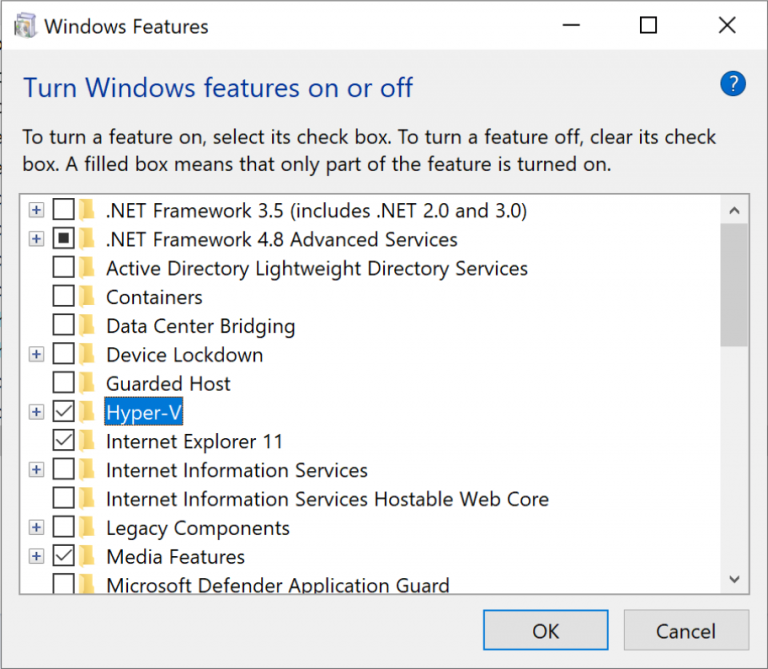
Or use the PowerShell command prompted earlier
|
|
Windows will restart automatically after Hyper-V is turned on. After that, you can successfully switch Docker Desktop to Window containers mode by performing the previous step, and then check the docker version.
|
|
The version information is displayed more simply, and we see that Server / OS/Arch has become windows/amd64.
If you try to run the Linux container at this point it won’t work either.
|
|
Build and run Windows images/containers
|
|
Build the Windows image with the following Dockerfile contents.
|
|
|
|
Docker Desktop under WindowsEngine
Switch to WindowsEngine and look at the docker context.
|
|
A desktop-windows appears instead of the previous desktop-linux.
As for the host of the Windows container, it is related to the isolation mode, there are two types, process isolation and Hyper-V isolation.
process isolation
It is similar to the cgroups naming isolation of Linux containers, all containers share the current system kernel, the container is actually a process under the current system. The current system is the host of the Windows container, which requires the running container to be of the same version as the current operating system, otherwise the kernel cannot be shared, and the following error will occur.
|
|
Similar to the Linux container, processes started with –isolation=process can be listed with the Get-Process command.
Hyper-V isolation
The default value of -isolation in the docker runtime is hyperv, where the container runs in a highly optimized virtual machine, and the container processes do not appear on the current system, but are wrapped in individual vmwp virtual machine processes. That is, that virtual machine is the host of the Windows container. But where can I see the supposedly highly optimized virtual machine? Not in Hyper-V Manager, not with the Get-VM command, too highly optimized.
Learned about the two isolation modes for Windows containers, which might explain why docker run -p 80:8080 ... The default hyperv isolation is 80 to the highly optimized virtual machine, not the current operating system, you should try with -isolation=process, just make sure the current system version and the container system version to be highly consistent. —– verified that even with –isolation=process -p 80:8080, the ports are still not mapped out.
And the speed of starting the container may be related to the choice of isolation mode, and then highly optimized virtual machine should also be slower than the process isolation way to start the container, because process isolation is essentially a local process. —– actual test seems to be not much different, anyway, are much slower than the Linux container, at least an order of magnitude difference.
On a particular Windows operating system, not all Windows images support process isolation, Hyper-V isolation is supported, refer to the Windows container version compatibility list Windows container version compatibility.
Windows system and container version compatibility
Knowing this can guide us in choosing what version of Windows to build images on and what version of Windows to run containers on. This is not a problem at all for Linux containers, because basically a Linux system that can run docker commands is free to build/run images of any Linux distribution. When you first encounter Windows containers, it is easy to get frustrated when you choose a Windows machine that can run docker commands as WindowsEngine, and you want to pull, run or build an image, but you still have the Linux container mindset in your head.
For example, pull the image of mcr.microsoft.com/windows/servercore:ltsc2022 on Windows 2016.
|
|
But pull mcr.microsoft.com/windows/servercore:ltsc2016 is fine. docker run/build based on incompatible image versions is also the same problem, because rub/build needs to be pulled first.
|
|
Therefore, a clear understanding of Windows system and container version compatibility is not likely to make us frustrated and even a bit frantic when we come into contact with Windows containers.
For Windows systems that correspond to Windows image versions, and whether Hyper-V or process isolation is supported, please refer to this list Windows container version compatibility. Basically, newer versions are compatible with older versions, e.g. Windows Server 2019 can run Windows Server 2019 and Windows Server 2016 under Windows Server 2019, and Windows Server 2022 can run all versions from Windows 2016 to Windows 2022. However, if process isolation is supported, the platform must be the same as the container version, e.g. Windows Server 2019 can only support Windows Server 2019 if the Windows container is run in process isolation.
Likewise, follow this compatibility table when pulling or building with docker. Build with a higher OS platform for broader compatibility, but use –isolation=process for the benefit of running containers with the exact same version.
This strict matching of Windows image versions to Windows hosts doesn’t defeat the purpose of running Linux containers, we can run other Linux containers in a Linux host without even caring what kernel version or distribution it is. It’s a bit like when Windows dabbled with Java and came up with Visual J++, which directly undermined Java’s claim to write once and run everywhere.
AWS support for Windows containers
I’ve been using Linux container services in ECS before, because I had to specify the image when defining the Task, and at that time I was not in the dark about Windows containers, so I always thought ECS didn’t support Windows containers at all. Only recently I noticed that AWS has provided a lot of optimized Windows Server ECS AMI to run docker Windows containers, for example.
|
|
etc.
The version of Windows can be obtained with the ver , systeminfo commands.
Attempting to use docker run --isolation=hyperv on the selected Windows_Server-2016-English-Core-Containers-2016 prompts that there is no hypervisor.
|
|
Although ECS supports Windows containers, Windows images are very large, starting at 10G, which is a beast compared to Linux images of about 100-200M, which can seriously affect the speed of building, pushing, and pulling images. And it’s also slower to start a Windows container after the image is downloaded. So for Windows applications you might want to run past the ECS and let the ELB connect directly to the EC2 Target Group.
Boot speed test
It is not yet possible to test the startup speed in different isolation modes for the same image, because the --isolation=hyperv isolation level cannot be used on Windows Server.
Windows containers in different isolation modes
Test the speed of booting Windows containers on Windows Server 2016 with process isolation and Hyper-V isolation respectively.
|
|
The average time taken is 6.15 seconds.
This is not comparable to starting a Linux container under Linux.
|
|
The time to boot a ubuntu:20.04 under Windows 10 is.
|
|
Summary
The Windows container is not only big, but the Windows container is also slow to start.
here is still a problem with -p port mapping that does not start the corresponding port on the machine where the docker command is executed.
So we still support Linux where we can use it.
Port mapping problem (solved)
Running Windows Server Docker container
|
|
As usual with Linux containers, first use docker ps to verify that the port mapping is set (only Name and Ports are shown below)
|
|
The port mapping is fine, from 8080 on the host to 80 on the container
First check if port 8080 is open on the host with a Linux-like netstat -na|grep 8080
|
|
Found nothing, then added telnet double authentication
|
|
At this point, check the IP and port number of the container
|
|
The port 80 started in the container is fine, so accessing http://172.25.8.94:80 through the container IP is fine, but some places introduce access to http://172.25.8.94:8080 to access (this path does not work). And one reason is to use container IP in earlier versions, which earlier is not clear.
|
|
see https://hub.docker.com/_/microsoft-dotnet-framework-samples/?tab=description
The other day I’ve been troubled by this illusion, seeing port 8080 from netstat -na and telnet localhost 8080, and instinctively thinking that the Windows Server container port mapping is not working, and that further port mapping with it for ECS will not work. In fact, this is just a display bug, see Open issue: [Windows] Port binding is not visible with ’netstat’ but works correctly. #30300
In this case, the port mapping is actually successful, but you can’t access it with localhost:8080, use ipconfig to find the host IP, and then access the host IP:8080 is able to pass.
|
|
Then
|
|
There is no problem, that is, accessing http://10.255.60.241:8080 from the remote is possible, so naturally it is not a problem as a port mapping for ECS.

netstat -na is an illusion, localhost:8080 does not work either, nor does 127.0.0.1:8080, which means that docker -p 8080:80 when starting a Windows container only listens on port 8080 of the NIC, and is only visible to netstat -na, and even PowerShell command Get-NetTCPConnection are not visible. But one more -p 8080:80 will expose the problem.
|
|
Port 8080 is occupied, proving that 8080 is bound somewhere we can’t see.
Since then, using Windows containers in ECS is worth practicing further, and the following task is about how to control the size of the Windows Docker image and put it in the Docker Registry with a fast network.
Docker containers become unavoidable for infrastructure development as it provides, Isolation, Simplicity, Rapid Continuous Deployment, and Faster Configuration with Security. Earlier, Docker has only used for Linux based applications as it is using the Linux kernel baseline for creating Containers. But Windows applications are widely used in Software development and Hence, windows developers need Docker Containers for Windows. In this article, we will discuss How to Create Docker Windows Containers from Docker Desktop.
Table of Contents
Docker Desktop Installation
Requirement
- Minimum Windows 10 (Home and All other Editions)
- Hyper-V (In-Built and can be Enabled)
- Only 64bit Processor Architecture
- Virtualization Enablement from Bios Level
Installation
- Step-1: Download the “Docker Desktop for Windows” exe file from here (https://hub.docker.com/editions/community/docker-ce-desktop-windows/) and run it to install.
- Step-2: Enable Docker Running Environment 1. For Windows Home – Enable Windows Subsystem for Linux (Instructions Here: https://docs.microsoft.com/en-us/windows/wsl/install-win10). 2. For Windows Other Editions – Enable Hyper-V (Instructions Here: https://docs.microsoft.com/en-us/virtualization/hyper-v-on-windows/quick-start/enable-hyper-v)
- Step-3: Follow the instructions on the Installation process
- Step-4: If you are the Only user with Admin access, you can proceed. Else add the current user into a docker-users group (Instructions Here: https://www.tenforums.com/tutorials/88049-add-remove-users-groups-windows-10-a.html)
NOTE:
Docker Desktop Installed in the Windows Machine can run Linux Based Docker Containers and Windows-based Docker Container. But You cannot run Windows Based Docker Containers on Docker Engine installed in Linux. Refer the below image.

About Docker on Windows Machine
As we all know, the Docker Engine will run as a daemon that uses the Linux specific kernel features. So, running the Docker Engine on Windows directly is not possible. Hence, we must create a Linux based environment in Windows to run docker. In order to enable Linux environment on the windows, we have two options,
- Windows Subsystem for Linux (WSL) – is the compatibility layer to run Linux applications
- Hyper-V – Microsoft solution for virtualization.

Both these features are available from Windows 10. Running docker on windows will be ultimately using the Linux environment. But it is using some of the Host’s features. So, Docker Engine will sit on top of the Linux Kernel created by the Hyper-V/WSL. On top of the Docker Engine, Docker Containers can be created. All this is managed by the Docker Desktop. So, Application Program which will be written by the developers will sit on top of the Containers.
Simple Windows Container with Example
Let’s learn how to create the Docker Windows container using Docker Desktop. For that, first, we are going to create Dockerfile which is the simple text file with the instructions of the application and configurations.
Creating Dockerfile
Let’s run a simple application which will return the “hello world” print output from the Windows Docker Container. For the same, create a file called “Dockerfile” and put the bellow content.
# Base Image
FROM microsoft/nanoserver

# Copy powershell init-script from the host machine (windows) to the docker container.
COPY init-setup.ps1 c:\\workspace\application\init-setup.ps1

# Run the Powershell script in the Docker Container
CMD ["powershell.exe", "c:\\workspace\application\init-setup.ps1"]
- In this, Line number #2 is setting the container from the base image. Here it is “
microsoft/nanoserver”. - Inline Number #5 is giving
init-script.ps1from the host to the docker container. - Line Number #8 is to run the script in PowerShell executable.
And Create a script file called “init-setup.ps1” and put the below content inside the file
Building Docker Image
Once you have this file in your folder you can start building the Dockerfile as Docker image using the command.
$ docker build -t digitalvarys/print-hello-world .
where digitalvarys/print-hello-world is the tag name of the docker image.
Once the Docker image is been built, you can check the Image by passing the following commad
This will display the created image.
Running the Docker Container
Now, it is time to run the Docker image which we have created. Hence, run the following command
$ docker run digitalvarys/print-hello-world
This will print the string “hello world” as we provided.
If you run it with -it parameter, you can explore the Created Docker Container with Windows CMD.
ASP.net example of the Windows Docker Container.
The above sample application will tell you about the basic container feature. This one will tell you the real-time advantage of the Windows Docker Container.
Sample application
For this tutorial, we are going to use, cloud foundry’s sample Dotnet core hello world application (https://github.com/cloudfoundry-samples/dotnet-core-hello-world). Just clone it and keep it in your working directory
Dockerfile creation.
Now, we are going to create Dockerfile to create the image of the above application.
# Base Image
FROM microsoft/dotnet:nanoserver-core

# Copy entire application code folder dotnet-application to the working directory in Container.
COPY c:\\workspace\dotnet-application .

# Relax the firewall rule to expose port 5000
EXPOSE 5000

# Run the dotnet application
CMD ["dotnet", "run", "--server.urls", "http://0.0.0.0:5000"]
Just like the PowerShell example, we are going to take the base image and copy the application from the host to the container. Then, we are going to expose the port 5000 to run the dotnet application in this port. Then, we are going to run the application using the dotnet executable.
Building the Docker Image.
Once the Dockerfile is ready, we have to build the Docker container.
$ docker build -t digitalvarys/simple-dotnet-application .
Here, I am giving the image name as “digitalvarys/simple-dotnet-application”.
Running the Docker Container
Now, we have to run the application in background (detached mode),
$ docker run -d -p 5000:5000 digitalvarys/simple-dotnet-application
This will run the container and expose the container port to the host port 5000.
Getting the IP address of the Created Docker Container.
Now, Just inspect the Docker container and see the assigned IP address of the running container,
$ docker inspect [container-id]
This will show you the JSON response. In that, check for “networks” -> “nat” -> “IPAddress”. This will be your container IP address.
Now, Just enter the URL in the browser as https://[container-ip-address]:5000, then you will see the Hello world message in the browser. This means your application is running in a container.
Conclusion
As we already discussed, Docker is unavoidable for the application development or at least in the process of application development. But the Containerization of the Windows application like dotnet application needs extra lookup. Hope this article covers enough concepts and procedures for the Windows Docker Containers running on windows application. In our upcoming article, we will discuss more running a cluster of Microsoft Windows-based applications in Docker Swarm and Kubernetes. Stay tuned and subscribe DigitalVarys for more articles and study materials on DevOps, Agile, DevSecOps and App Development.

Experienced DevSecOps Practitioner, Tech Blogger, Expertise in Designing Solutions in Public and Private Cloud. Opensource Community Contributor.